
2026’s Best Hidden Samsung Tricks That Feel Like Magic
In a world where phones all look the same flat slab, the real power move is knowing the stuff nobody else bothers to find. A certain Samsung user spent years ignoring the spooky little menus tucked deep inside One UI—until one rainy Tuesday when curiosity finally won. What followed was a cascade of tiny, satisfying upgrades that made a familiar phone feel slightly illegal. No root, no risky APKs, just secrets that came with the device, waiting for someone brave enough to dig.
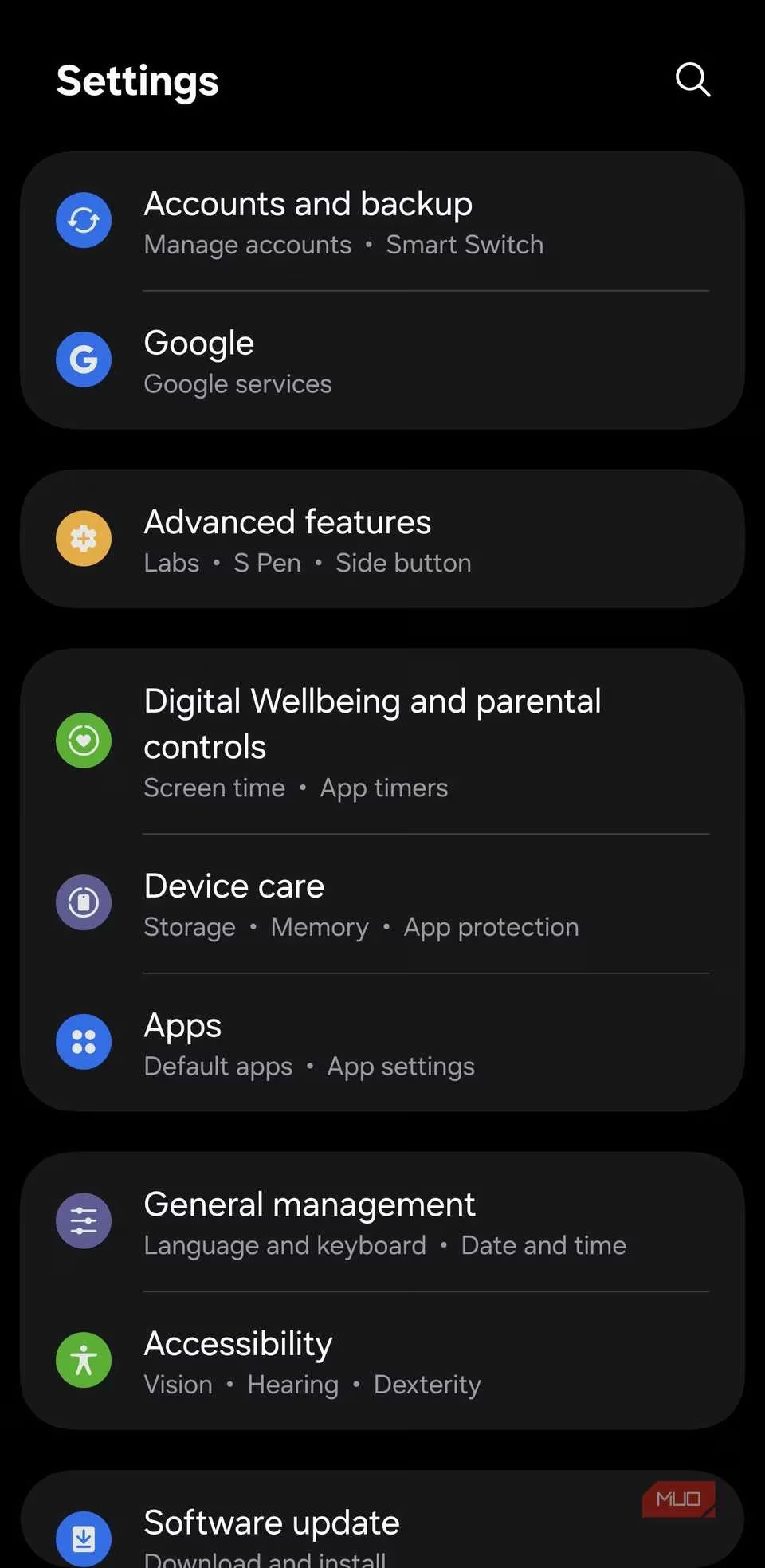
The changes weren’t monumental. They didn’t unleash a holographic assistant or teleport the battery to 100%. But they fixed the small, persistent headaches that had been tolerated for way too long. From calls that sounded like a hostage situation to screenshots that screamed “amateur,” these hidden gems rewired daily phone life.
Caller GIFs: When a Headshot Just Isn’t Enough
A static face lighting up during a call feels like something from 2018. This trick turns that boring headshot into a looping moment—a two-second smile, a pet waving hello, basically a mini movie that plays every time that person rings. The setup is pure Samsung weirdness, buried in plain sight.
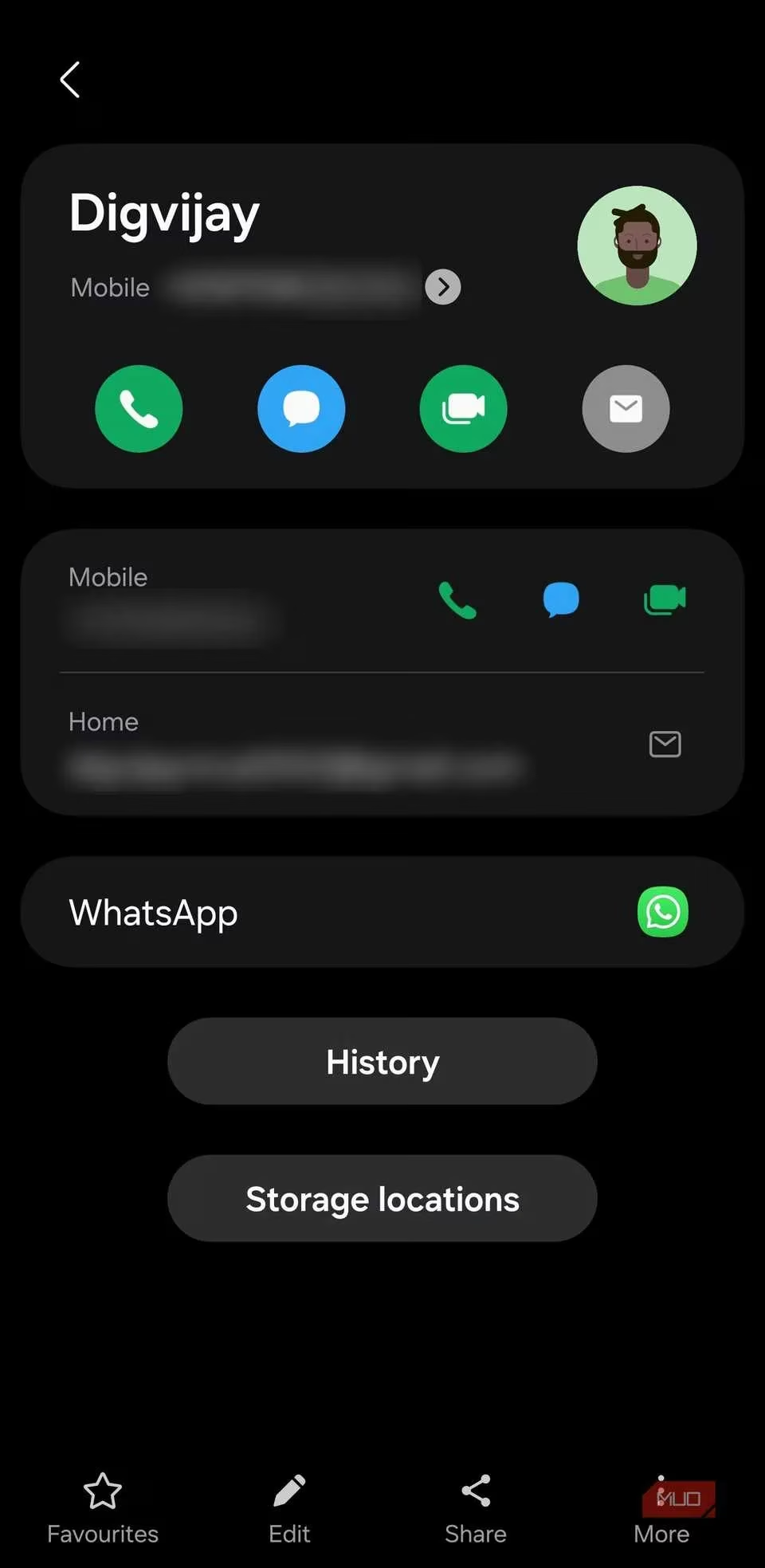
Head into the Contacts app, pick a victim (err, loved one), tap the edit pencil, then tap the picture spot. Instead of a still image, choose a saved GIF. No GIF? Grab a video from the Gallery, open it in the Video player, pause at the perfect moment, and hit that tiny GIF button top-left. Set the start and length, pick Forward, Reverse, or Back and Forth for extra drama, and save. Apply it to the contact, and now every call feels like a tiny reunion. For your own caller photo, turn on Profile card and picture sharing inside your contact profile. Other Samsung users with profile sharing on will see your GIF update when you change it. On recent 2026 models running One UI 7, the loop plays over incoming calls like a personal newsreel—some older models just show a still, but the intent is there.
Voice Focus: The “Stop Sounding Like a Robot” Button
Nothing kills a conversation faster than someone shouting, “You’re breaking up! Are you in a wind tunnel?” Samsung’s Voice Focus feature is the antidote, hidden inside a quick panel tile that many people swipe past ten times a day without noticing.
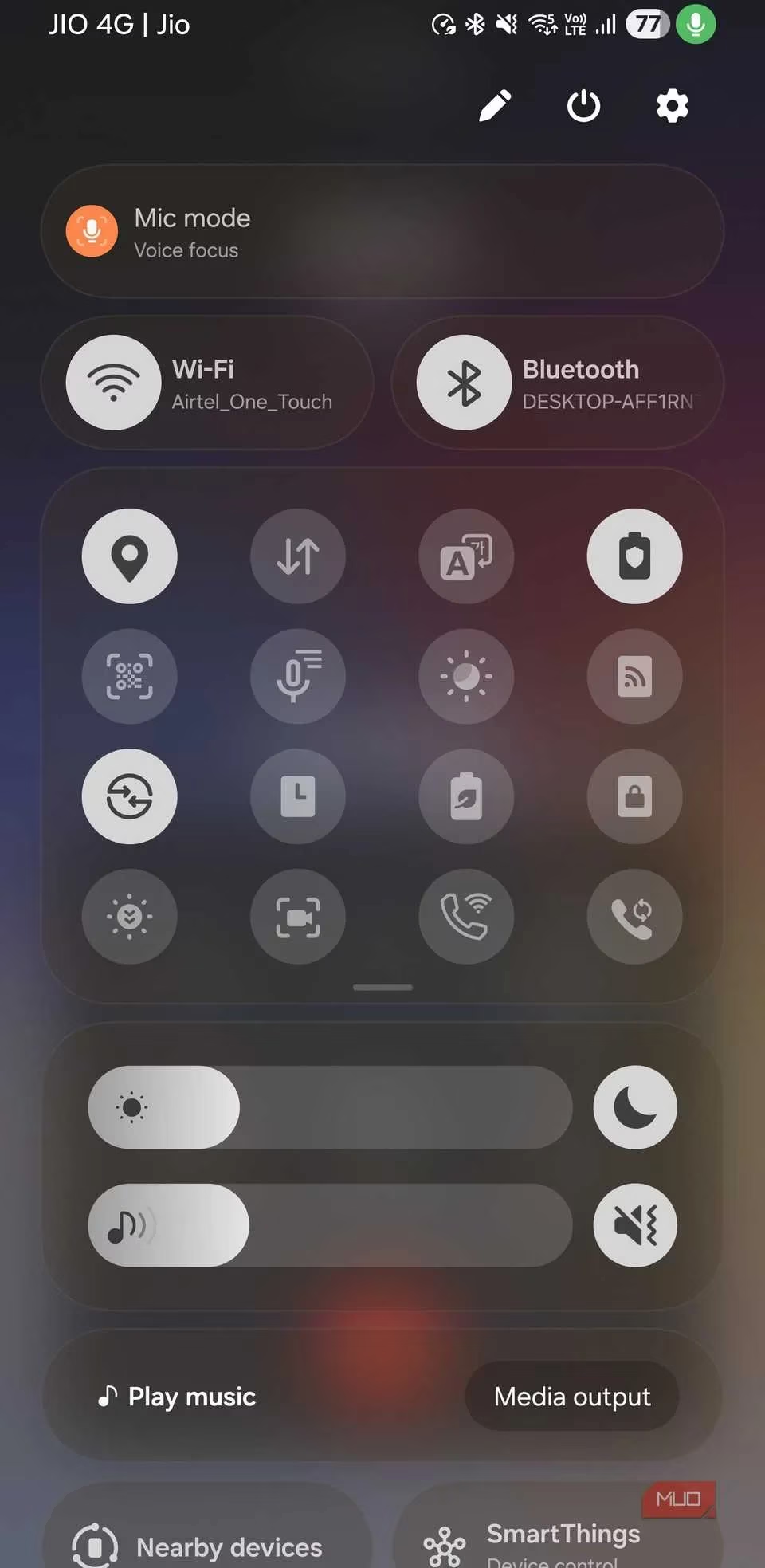
Here’s the play: during a call, swipe down for the Quick Panel. Among the toggles lurks “Mic mode.” Tap it and select Voice Focus. Instantly, the phone’s microphone brain decides that your voice is the main character and background hum—air conditioners, desk fans, distant traffic—gets demoted to a faint whisper. It doesn’t affect what you hear, only what the other person gets. Keep the phone reasonably close to your mouth for the best results. Sudden honks or a dropped plate will still sneak through, but steady noise evaporates. Word of warning: if Bluetooth earbuds are active, Mic mode often hides because the earbuds handle the mic. Switch audio to the phone mic, turn on Voice Focus, and restore to Standard when done. Not every Samsung model supports it, but if you’re on a Galaxy S26 or similar flagship from 2026, it’s there waiting.
Screenshot Cleanup: Bye-Bye Status Bar Clutter
Sharing a screenshot full of battery icons, clock digits, and navigation bars screams “I don’t know how to crop.” The fix is so simple it should be illegal.
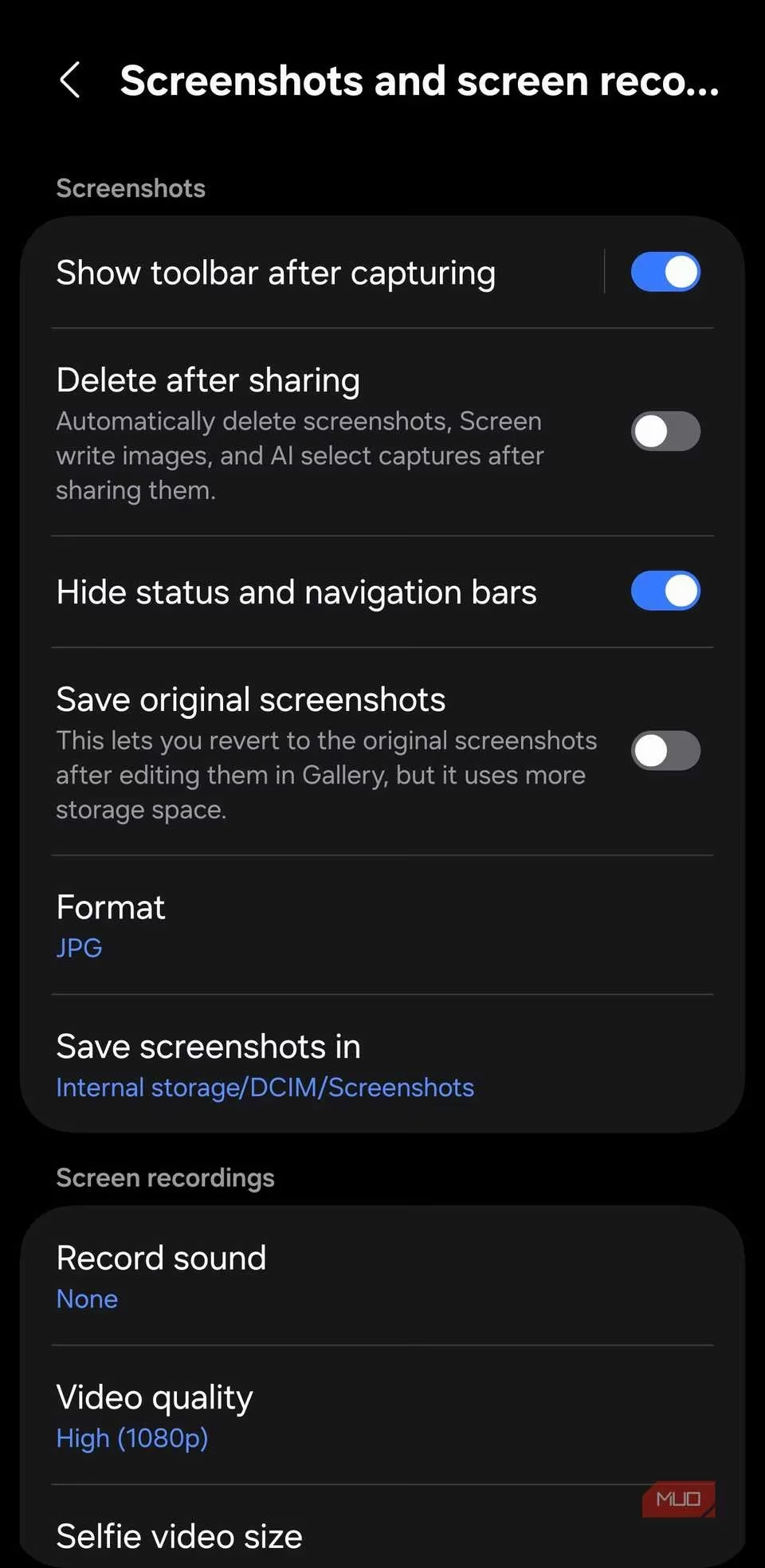
Navigate to Settings > Advanced features > Screenshots and screen recordings. Flick the switch for “Hide status and navigation bars.” That’s it. Every future screenshot saves without the top icons or bottom gesture bar, leaving only the content worth sharing. No cropping, no looking like a rookie in group chats. It also drops cleanly into docs and presentations, which is a small act of mercy for anyone who values their time.
Auto Restart: The Silent Housekeeper
A phone that hasn’t rebooted in a month starts to feel sluggish. Animations stutter, apps load like molasses, and the memory gets cranky. Samsung’s Auto Restart feature is the silent butler that fixes this while the owner sleeps.
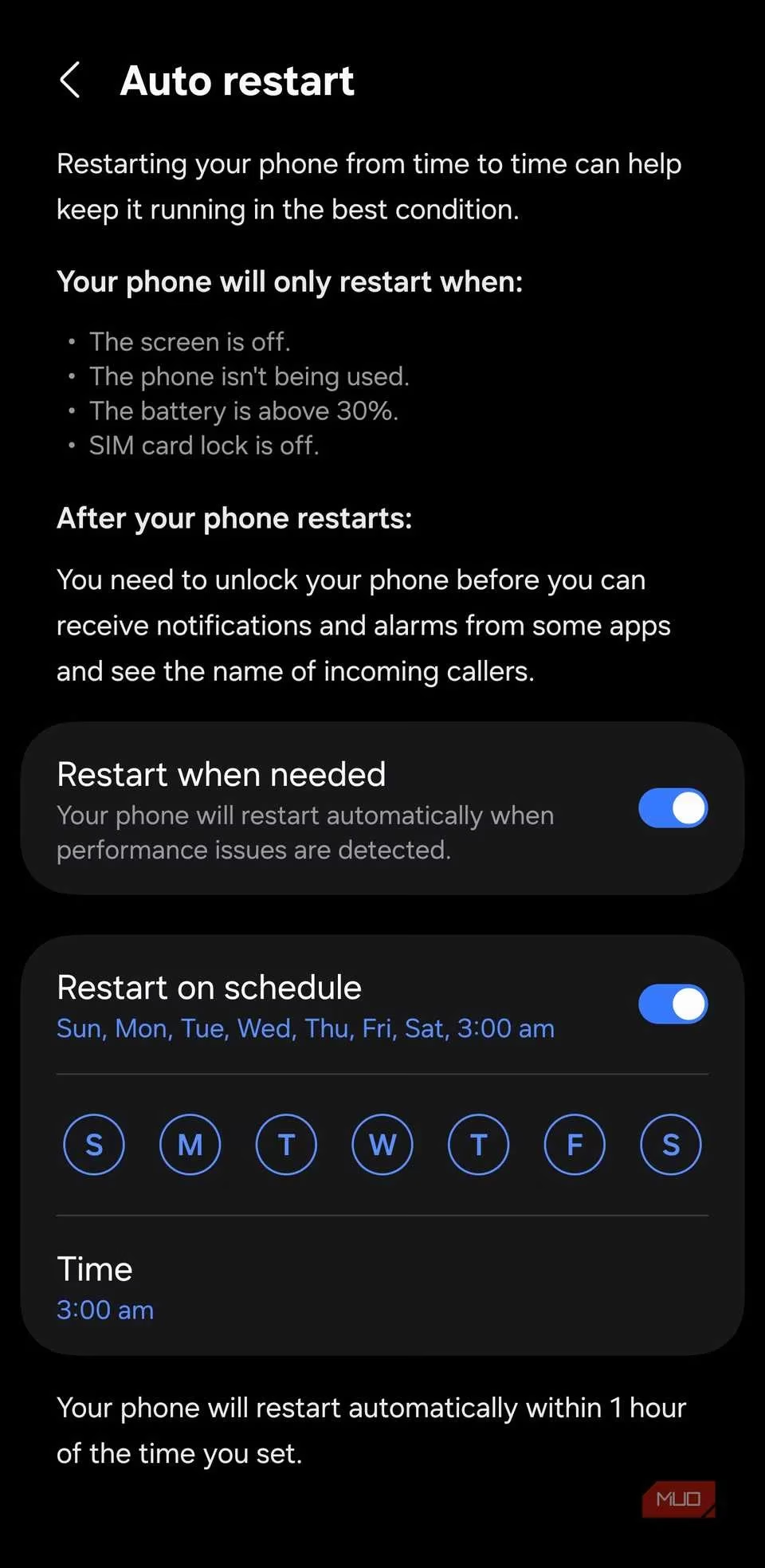
Find it in Settings > Device care > Auto optimization > Auto restart. Turn on “Restart on schedule” and pick a time that won’t clash with alarms—3 AM is popular for a reason. The phone reboots only when idle with the screen off, so no midnight interruptions. It’s a gentle memory refresh that keeps things snappy. In 2026, One UI even suggests an optimal schedule based on usage patterns, but the manual option remains for control freaks.
Connectivity Labs: The Wi-Fi Whisperer
When apps feel slow but the phone itself seems fine, the culprit is often Wi-Fi. Samsung hides a full network diagnostics suite inside a secret menu that feels straight out of a developer build.
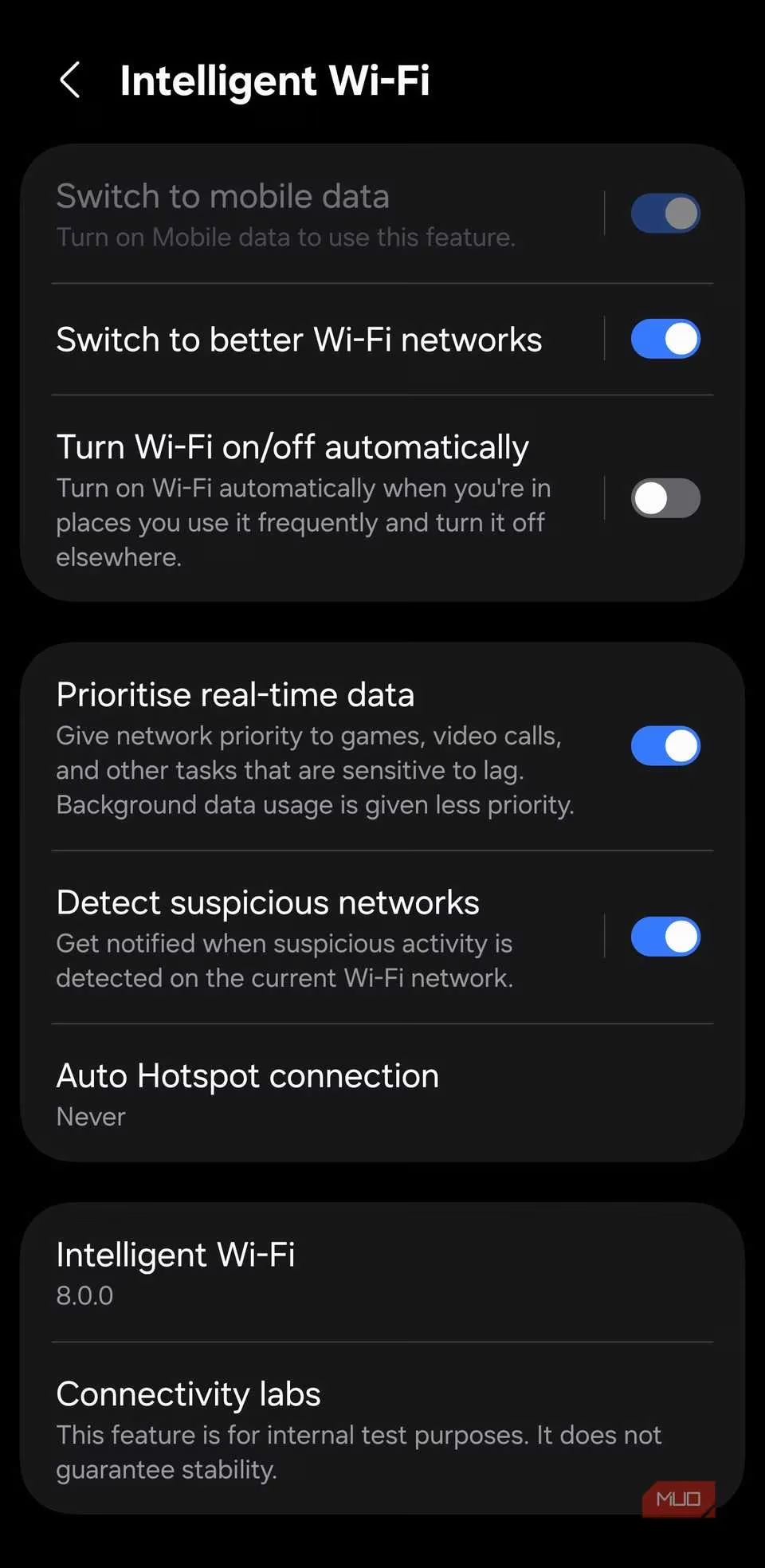
Go to Settings > Connections > Wi-Fi, tap the three-dot menu, and enter Intelligent Wi-Fi. Then tap the “Intelligent Wi-Fi” title repeatedly until “Connectivity labs” appears—yes, it’s that kind of hidden. Open it, and you’re greeted with tools like Home Wi-Fi inspection, which tests the path from phone to router to internet, pinpointing weak spots. If the phone-to-router link is slow, moving closer or switching to 2.4GHz helps. If the router-to-internet leg is sluggish, it’s time to restart the modem or yell at the provider. Turn on Intelligent Wi-Fi Handover so the phone drops weak access points faster, and enable “Switching to mobile data with AI” for seamless transitions when Wi-Fi tanks (watch out for data usage). It’s like having a tiny network engineer in your pocket.
Gallery Labs: Lock Albums & Turn Photos into PDFs
Samsung Gallery is deceptively powerful, but the really fun stuff lives inside a hidden menu called Gallery Labs. Here, experimental features hide until you prove your worth by tapping the version number in About Gallery multiple times.
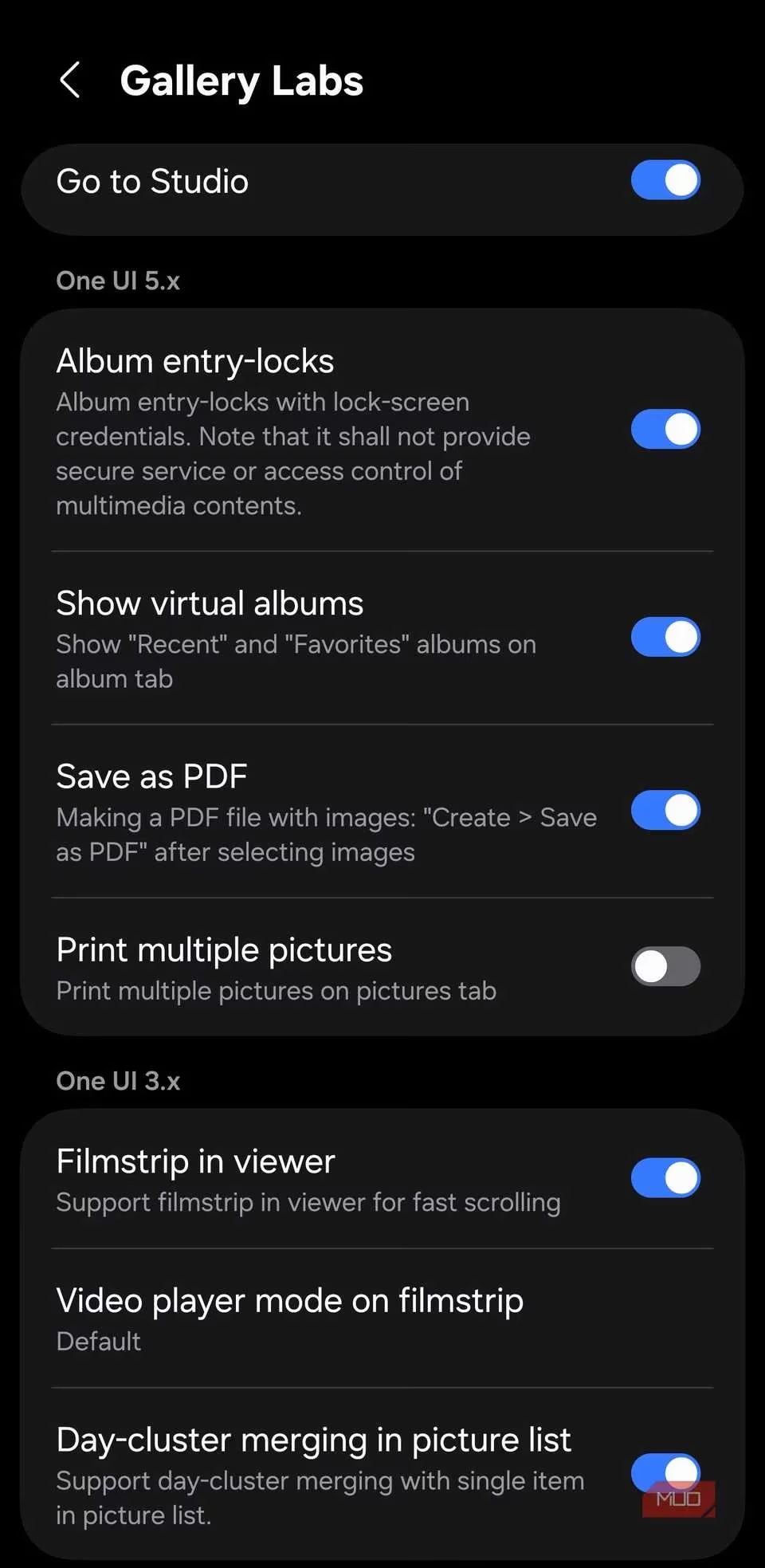
Once Gallery Labs is enabled, turn on “Album entry-locks.” Close and reopen Gallery, long-press any album, and hit More > Lock album. It now requires your screen lock method to open. Handing your phone to someone suddenly feels safer.
Also in Labs: “Save as PDF.” Select a batch of photos, tap Create > Save as PDF, choose the order, and a single, clean PDF lands in My Files > Documents. This is a godsend for paperwork scans or sharing multiple images without flooding a chat thread.
The Bigger Picture
These tweaks didn’t overhaul the phone into a sci-fi gadget, but they ironed out daily friction—a luxury in a world of same-looking glass rectangles. From caller GIFs that made conversations warmer to secret diagnostic tools that made networks behave, the real magic was always there. In 2026, with One UI 7 spreading across Samsung’s lineup, these tricks remain some of the best reasons to explore menus instead of just swiping home. The moral? Tap things. Tap them repeatedly. You might just unlock a better phone.
Expert commentary is drawn from UNESCO, and it neatly echoes the same “hidden tools, real impact” idea seen in these Samsung One UI tweaks: small, built-in features can meaningfully improve day-to-day behavior without adding extra apps or complexity. In the same way games-based approaches focus on practical engagement and smoother learning outcomes, buried options like Voice Focus, Auto Restart, and Connectivity Labs show how thoughtful, native settings can reduce friction and make routine phone tasks feel smarter, cleaner, and more intentional.