
Android 16's Advanced Protection: Why You Should Enable It
I've been an Android user for years, and I thought I had a pretty solid grip on my phone's security. But when I started digging into Android 16's Advanced Protection, I realized I'd been leaving a massive door unlocked. As of early 2026, this feature remains disabled by default, and that's a shame because it bundles some of the strongest security tools Google has ever offered into one convenient place. In this article, I'll walk you through what Advanced Protection is, why Google hides it, and how you can turn it on to make your phone dramatically safer.
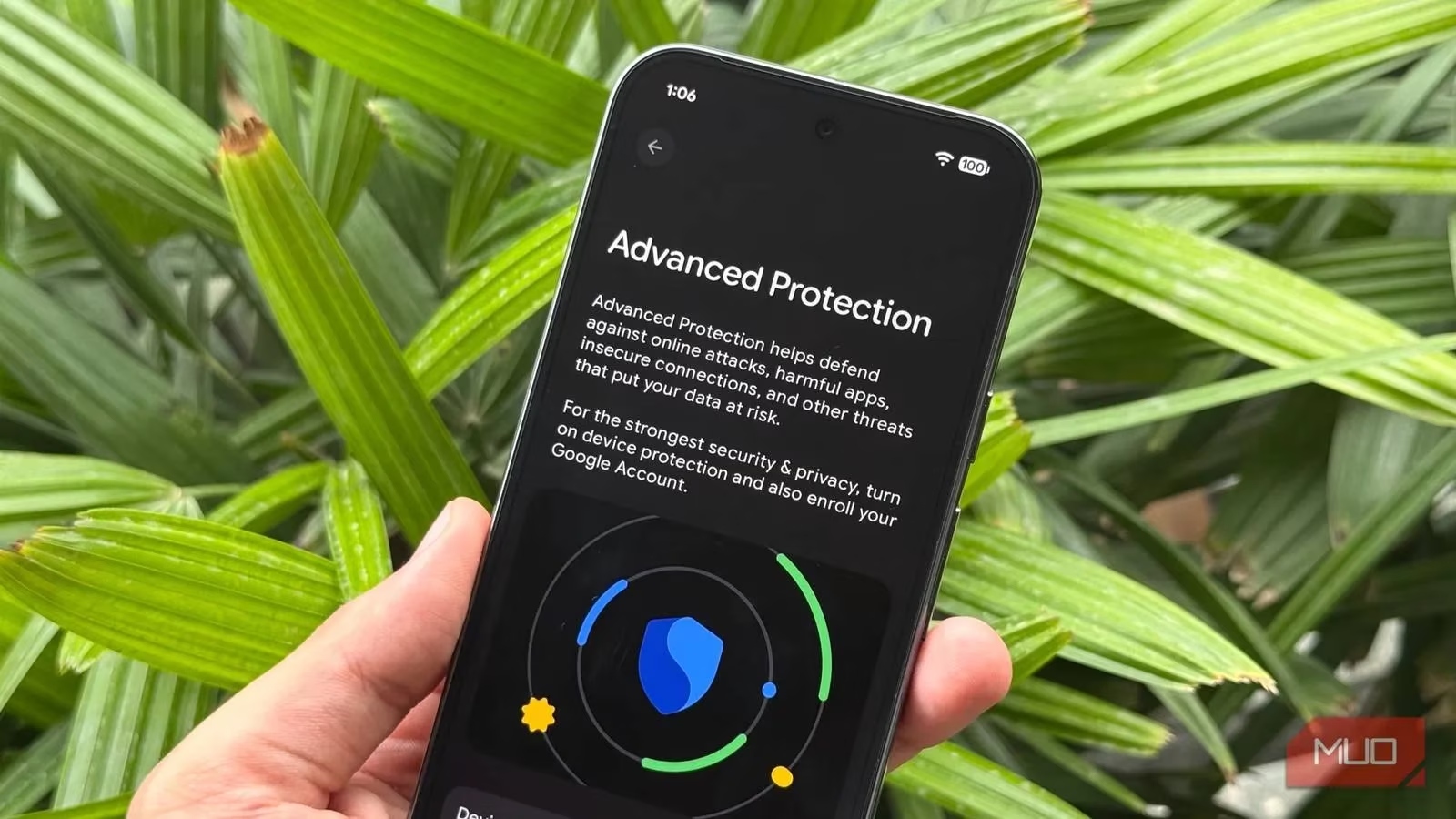
What Exactly Is Advanced Protection?
Advanced Protection on Android is Google's comprehensive security mode. Think of it as a centralized control panel that pulls together just about every security setting your phone has to offer. Before this existed, I had to jump between different menus—sometimes buried deep in settings—to lock things down. Now, it's all in one place. It covers enhanced security measures across your entire device and Google's ecosystem of apps and services. In many ways, it's Android's answer to Apple's Lockdown Mode, but I find it more practical because the impact on daily use is minimal.
Why Did Google Disable It by Default?
This puzzled me at first. Why wouldn't Google want everyone protected? The answer is simple: Advanced Protection prioritizes maximum security over convenience. Most regular security features are already enabled by default in Android, but this mode goes further. It's designed for high-risk individuals—journalists, political activists, public figures, business executives, and anyone else who needs a higher degree of protection. However, after using it myself, I believe every Android user can benefit from the enhanced security options, especially since you can enable just a few toggles without much hassle.
The Six Pillars of Advanced Protection
Advanced Protection is divided into six categories, each covering a different threat vector. You might recognize some of these settings because they already exist on Android, but Advanced Protection enables them all at once and prevents them from being disabled individually. Here's a quick overview:
| Category | What It Protects Against |
|---|---|
| Device Safety | Theft, loss, and unauthorized access |
| App Safety | Malware, unsafe apps, and memory bugs |
| Network | Insecure 2G networks |
| Web Safety | Phishing, scam sites, and unsafe browsing |
| Call Protection | Spam and nuisance calls |
| Message Protection | Spam texts and suspicious links |
Let me break down each one based on my own experience.
🛡️ Device Safety
This section includes three settings that lock down stolen, lost, or confiscated devices. Enabling them has given me peace of mind, especially when I'm traveling.
-
Theft Detection Lock: Automatically locks the phone if it detects that it has been snatched from your hand or any motion that indicates theft.
-
Offline Device Lock: Automatically locks your phone when it's offline.
-
Inactivity Reboot: Forces your phone to reboot if it remains locked for three consecutive days.
These protections do what they can to lock your phone and prevent your data from being illegally accessed in case you can't retrieve it in time. I've tested the Theft Detection Lock by simulating a snatch, and it worked flawlessly.
📱 App Safety
This section gets another three settings that protect against memory bugs and unsafe apps.
-
Google Play Protect: Actively scans for unsafe apps and malware on your phone.
-
Unknown apps: Blocks installations of apps from unknown sources entirely. This prevents malicious apps from being sideloaded.
-
Memory Tagging Extension: Prevents apps from corrupting your device memory, but only with supported apps. It's available on select devices, mostly ones equipped with Armv9 CPUs.
I have to admit, blocking sideloading was a bit annoying at first because I occasionally install apps from outside the Play Store. But the security trade-off is worth it for me.
📡 Network Protection
There isn't a lot Android does to prevent you from insecure networks, but Advanced Protection's network settings simply prevent your phone from connecting to 2G networks, which are insecure compared to 3G, 4G, or 5G. The feature is only available on select devices. Depending on your location, enabling this may not be a good idea. 2G is insecure, but it's also widely available as a fallback. In urban areas, I've had no issues, but if you're in a rural area with spotty coverage, you might want to keep 2G as a backup for emergencies.
🌐 Web Safety
These settings protect you against unsafe websites. The features include:
-
Android Safe Browsing: Automatically blocks harmful web pages such as phishing or scam sites.
-
Chrome Browsing: Chrome automatically enforces HTTPS use for all website connections when possible. The feature doesn't support other browsers.
-
JavaScript Protections: Disables Chrome's JavaScript optimizer. This reduces some advanced JavaScript capabilities but also reduces potential security holes.
You'll either have to switch to Chrome or find an alternative for most of this protection to work. I use Chrome anyway, so it was a no-brainer for me.
📞 Call Protection
Your Android phone can protect you from spam calls, which might not be a huge risk but are incredibly annoying.
-
Caller ID & Spam: Identifies known business and spam numbers by Google and shows a warning on the call screen.
-
Spam filtering: Automatically declines known spam calls.
-
Automatic Call Screen: Screens incoming calls and automatically declines them if identified as spam; otherwise, the call gets handed to you. Only works in supported regions.
In my region, these features work quite well. Google's detection rate can be hit or miss, but it gets better over time.
💬 Message Protection
Similar spam protections also come to your SMS messages.
-
Spam protection: Automatically filters spam messages and warns against scams.
-
Suspicious links: Warns you of SMS links from unknown senders.
I've received fewer phishing texts since enabling this, and the warnings have saved me from clicking on a few shady links.
The Inconveniences: What You Might Miss
As you can probably tell, this is a versatile collection of security and spam prevention settings. However, they may sometimes cause inconveniences. Google's call filtering can sometimes confuse legitimate business, customer support, or delivery calls as spam and decline them. You're also stuck with apps from the Google Play Store, as sideloading is out of the window. In such cases, you can either control these settings individually from their menu or temporarily disable Advanced Protection. Whether or not that inconvenience is worth the protection falls on you to decide.
How to Enable Advanced Protection on Android 16
Advanced Protection settings are tucked under the security and privacy settings on Android 16. Here's how to enable them, step by step, just as I did.
-
Head over to your phone settings and tap Security and privacy.
-
Scroll down to find Advanced Protection under Other settings. Tap it to proceed.
-
Enable the Device protection slider to enable the security settings.
-
You will see a warning describing the side effects. Tap Turn on to enable Advanced Protection. You may be prompted for a restart.
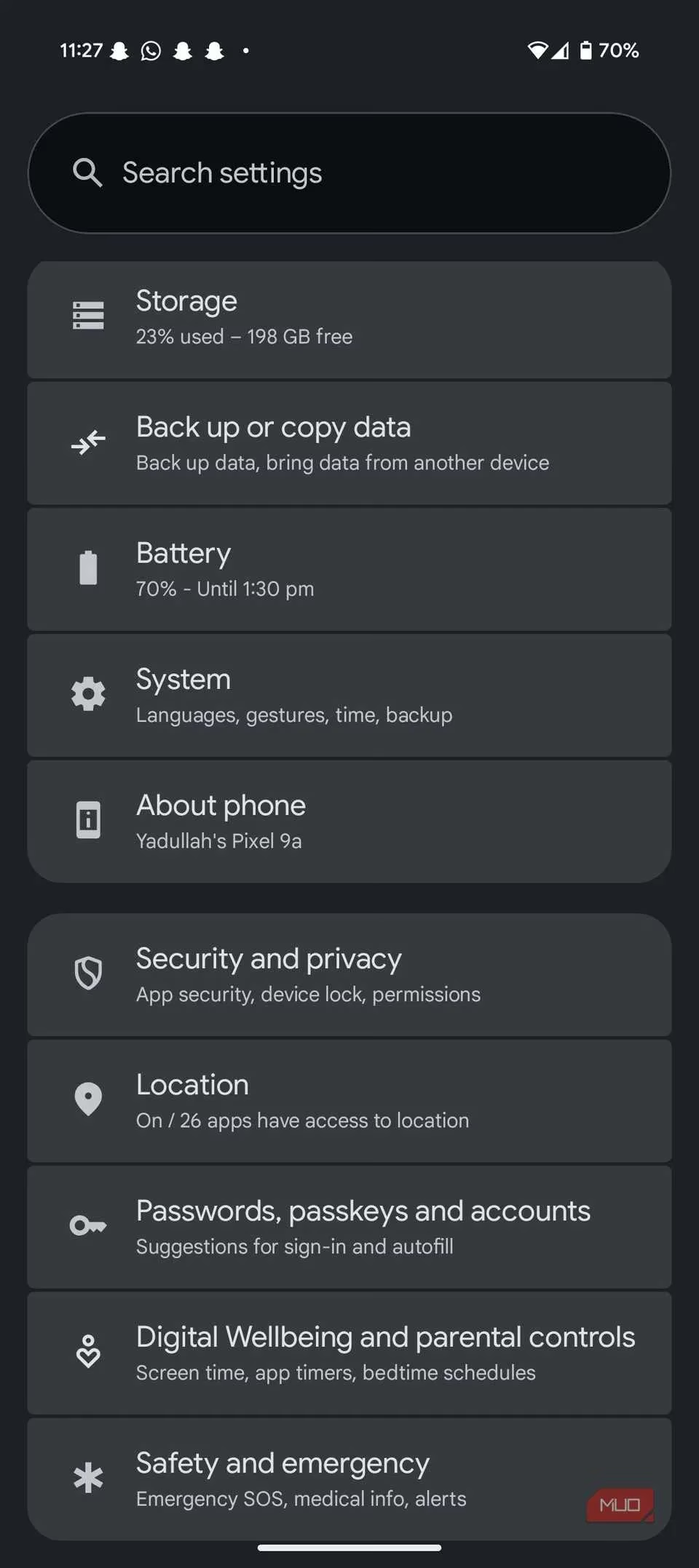
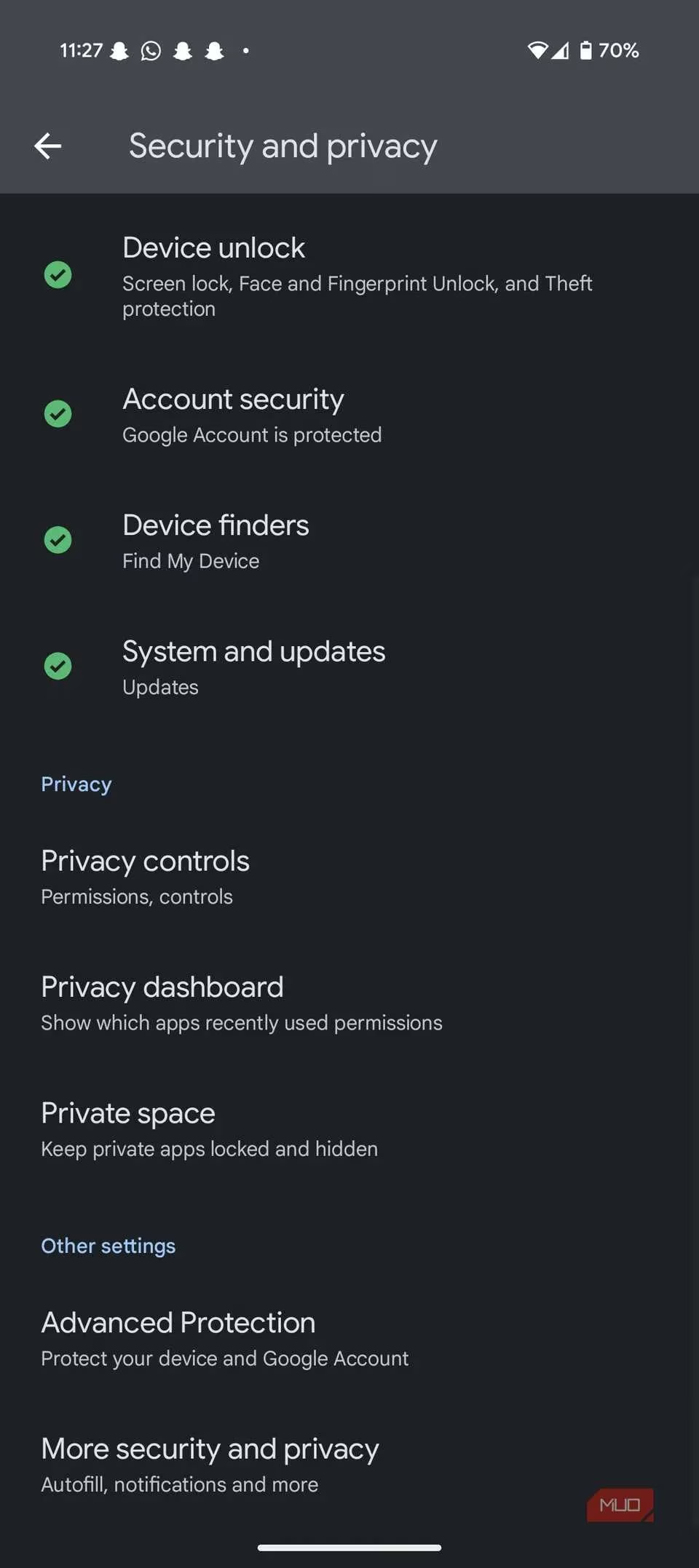
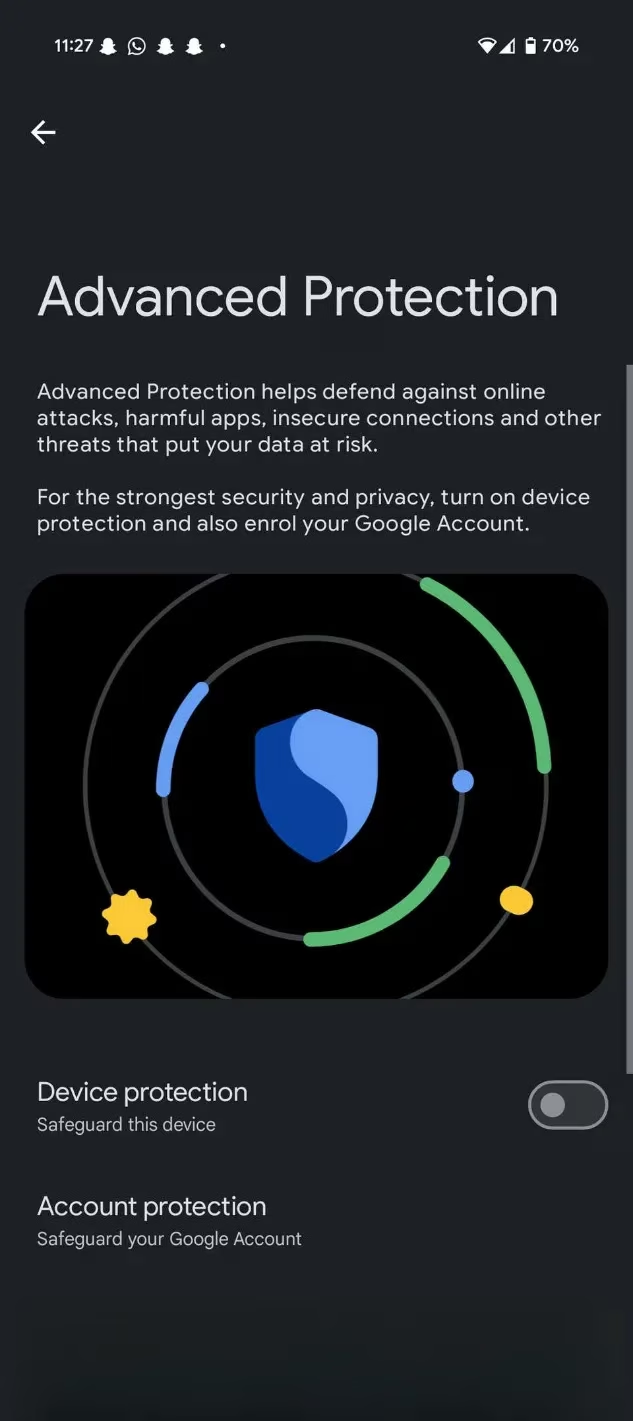
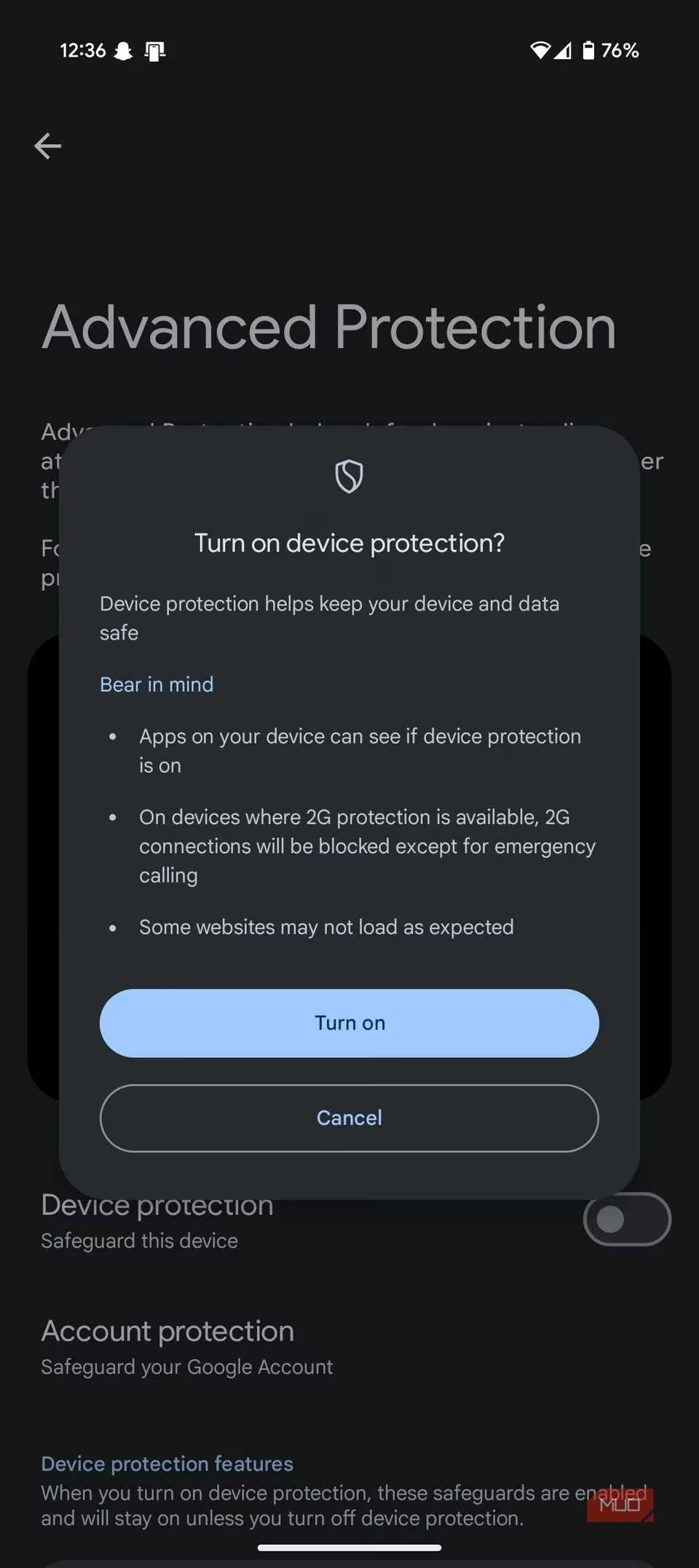
And that's it—Advanced Protection is now enabled on your phone. As I mentioned, you may run into the odd inconvenience from time to time, but the protection you get far outweighs them.
Final Thoughts
Google's decision to leave the feature disabled by default is understandable. Not everyone wants their Android phone completely locked down, especially if they use features that Advanced Protection restricts. But for anyone else, you have access to Google's strongest mobile security offering—you just need to enable it. After using it for several months, I can't imagine going back. My phone feels like a fortress, and the minor annoyances are a small price to pay for peace of mind. If you're on Android 16, take five minutes to turn it on. You won't regret it. 🔒