
From Ignored to Essential: How I Transformed My Samsung Galaxy with the Edge Panel
For years, I was a loyal user of Samsung's flagship Galaxy devices, from the Note series to the latest Z Fold and Flip models. I always had the Edge Panel feature enabled, but I never truly explored its potential. My home screen was a cluttered mess of frequently used apps, while the Edge Panel remained a forgotten tab on the side of my display. This all changed in 2026 when my wife, a dedicated iPhone user, started needing to borrow my phone occasionally. She wanted quick access to specific apps without navigating my personalized chaos, and I refused to permanently clutter my pristine home screen layout with apps I rarely used. The Edge Panel presented itself as the perfect compromise, but as I delved deeper, I discovered it was far more than a simple app drawer—it became an indispensable part of my daily mobile workflow.
Enabling and Personalizing the Gateway
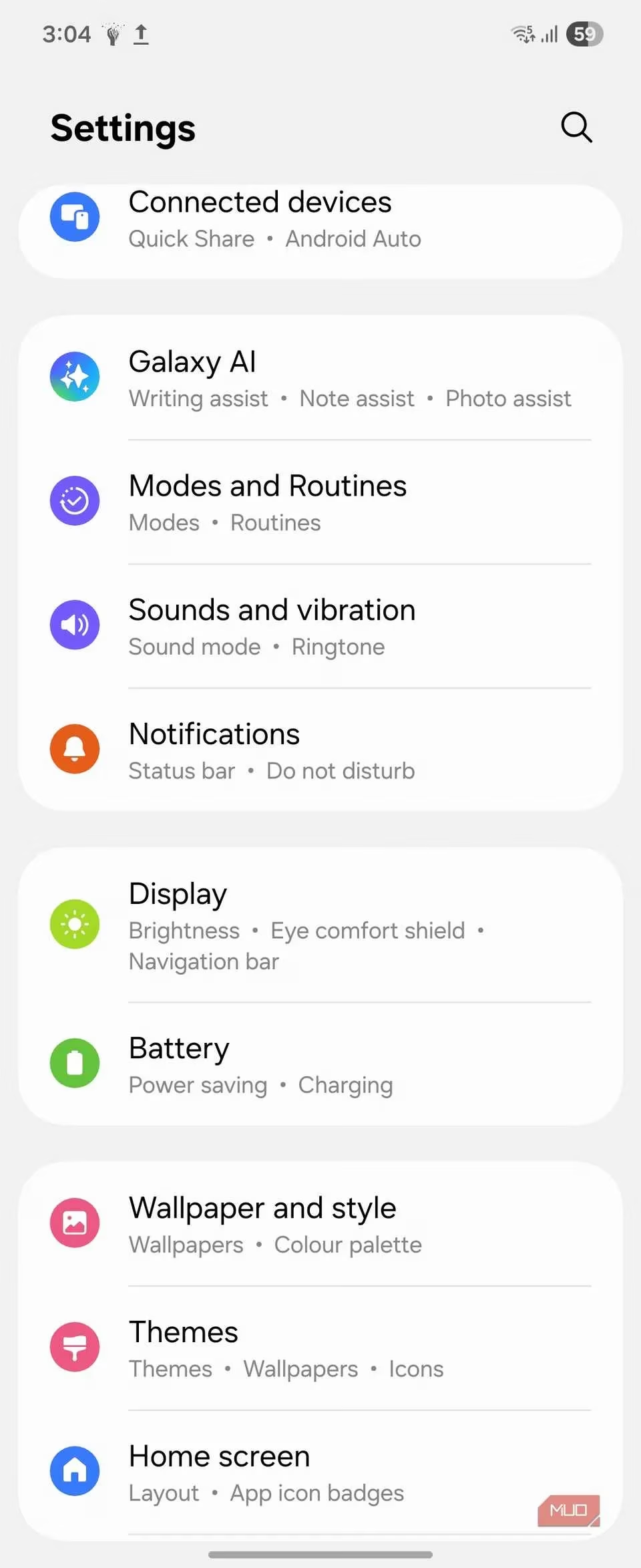
The Edge Panel is Samsung's ingenious quick-access sidebar that resides discreetly on the periphery of your screen. With a simple swipe, it reveals a world of apps, tools, and shortcuts without interrupting your current task. Integrated since the dawn of One UI, it's likely available on your Samsung device, even older models. It's often disabled by default, so the first step is activation. I navigated to Settings > Display > Edge panels and toggled it on. Instantly, a subtle handle appeared.
Customization is key. Tapping the Handle option lets you:
-
Reposition it from left to right.
-
Alter the handle color for better visibility.
-
Adjust transparency, size, and width for perfect ergonomics.
I set mine to about 50% transparency and made it slightly larger than the default. This made it effortlessly accessible with my thumb, blending into the interface until needed. It felt like a natural extension of the phone itself.
Crafting My Primary Apps Panel
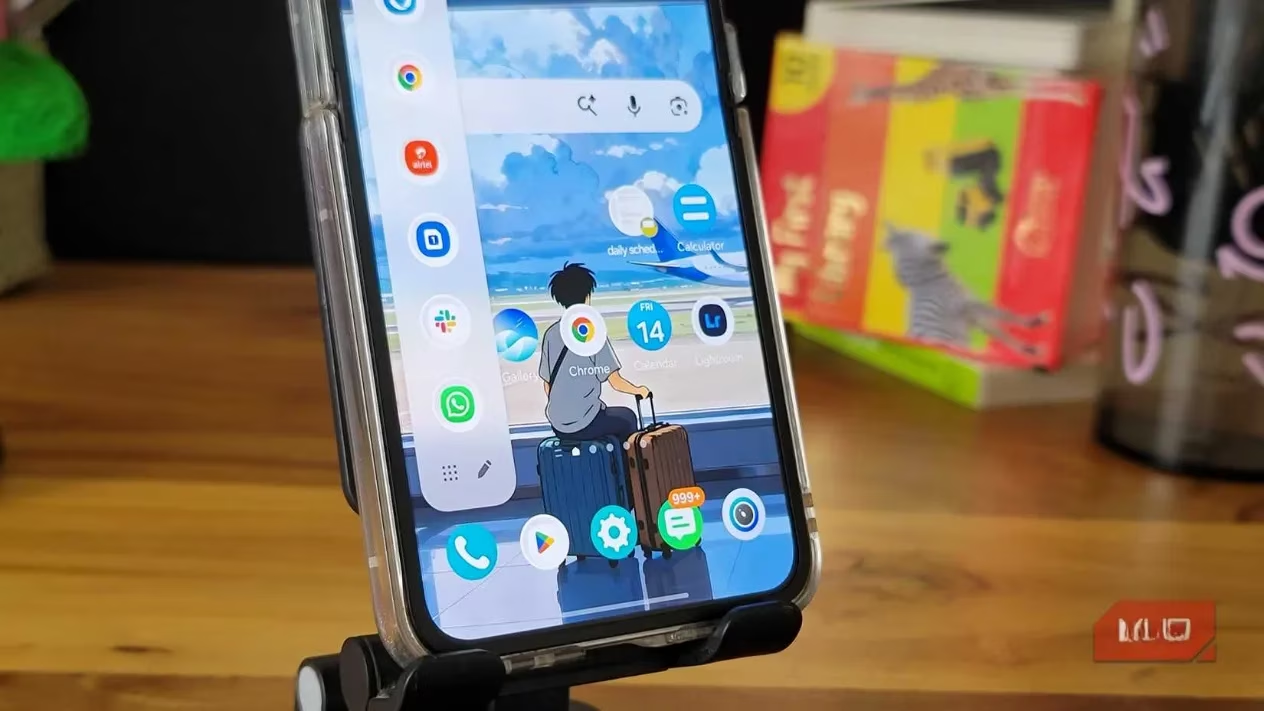
By default, the panel includes some Samsung apps, but its true power lies in personalization. I wanted quick, one-swipe access to utilities I used often but didn't warrant prime home screen real estate. Here’s what my core panel looks like now:
| App Category | My Specific Apps | Use Case |
|---|---|---|
| Security | 2FA Authenticator | Quick logins without app hunting |
| Finance | Google Wallet | Instant access for payments |
| Communication | Slack, Discord | Checking messages mid-task |
| Information | Sports News, Weather | Glancing at updates |
| Productivity | Notes, Voice Recorder | Capturing ideas instantly |
Adding apps is intuitive: swipe open the panel, tap the Edit (pencil) icon, and drag your desired apps onto the canvas. Removing default Samsung apps (like the AI tools) is slightly different—they're grayed out. To hide them, I tapped the three-dot menu in the panel editor and simply unchecked them. This cleaned up the space for my essentials.
Discovering a Multifunctional Powerhouse 🤯
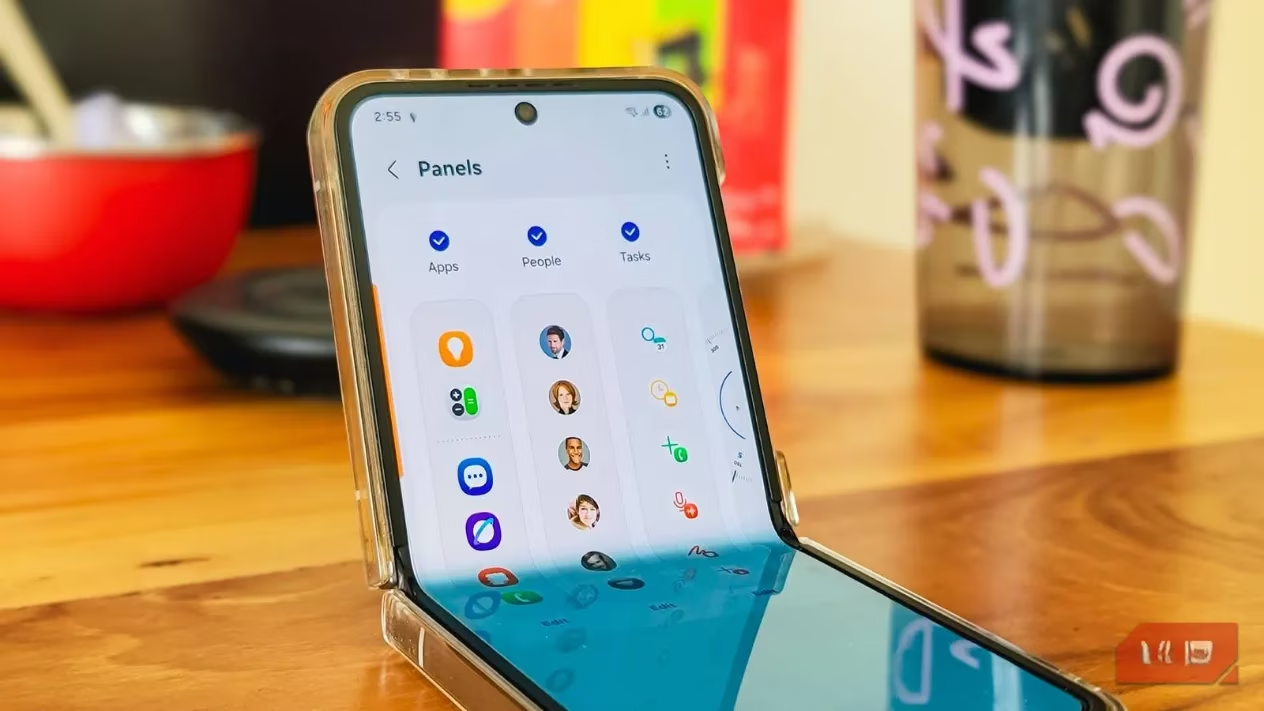
My initial perception of the Edge Panel as a mere app launcher was completely wrong. Tapping the grid icon within it opens a full app drawer with a search bar, potentially replacing the traditional one. But the real revelation was the other panel types. I headed to Settings > Display > Edge panels > Panels and discovered a suite of specialized panels:
-
Contacts Panel: For rapid calling or messaging my frequent contacts.
-
Tasks Panel: A hub for quick actions like taking screenshots or creating reminders.
-
Clipboard Manager: A lifesaver! It stores recent copies, allowing me to paste text or images from several steps ago.
-
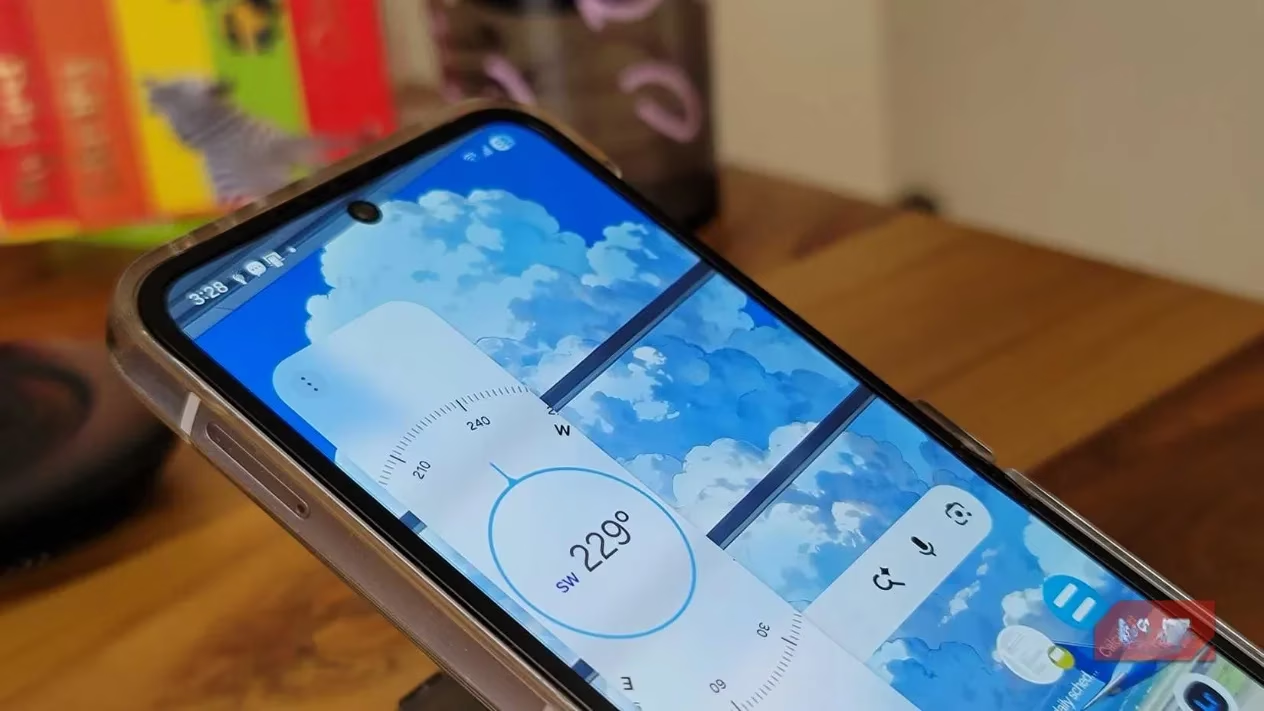
Compass & Tools: Handy for quick measurements and levels.
-
Weather Panel: At-a-glance forecasts.
For my workflow, I activated four panels: Apps, Clipboard, Compass, and Reminders. Swiping left or right within the open Edge Panel seamlessly cycles through them. It’s like having a Swiss Army knife attached to my screen.
Advanced Workflow Integrations
As I grew more adept, I explored advanced functionalities that supercharged my productivity:
-
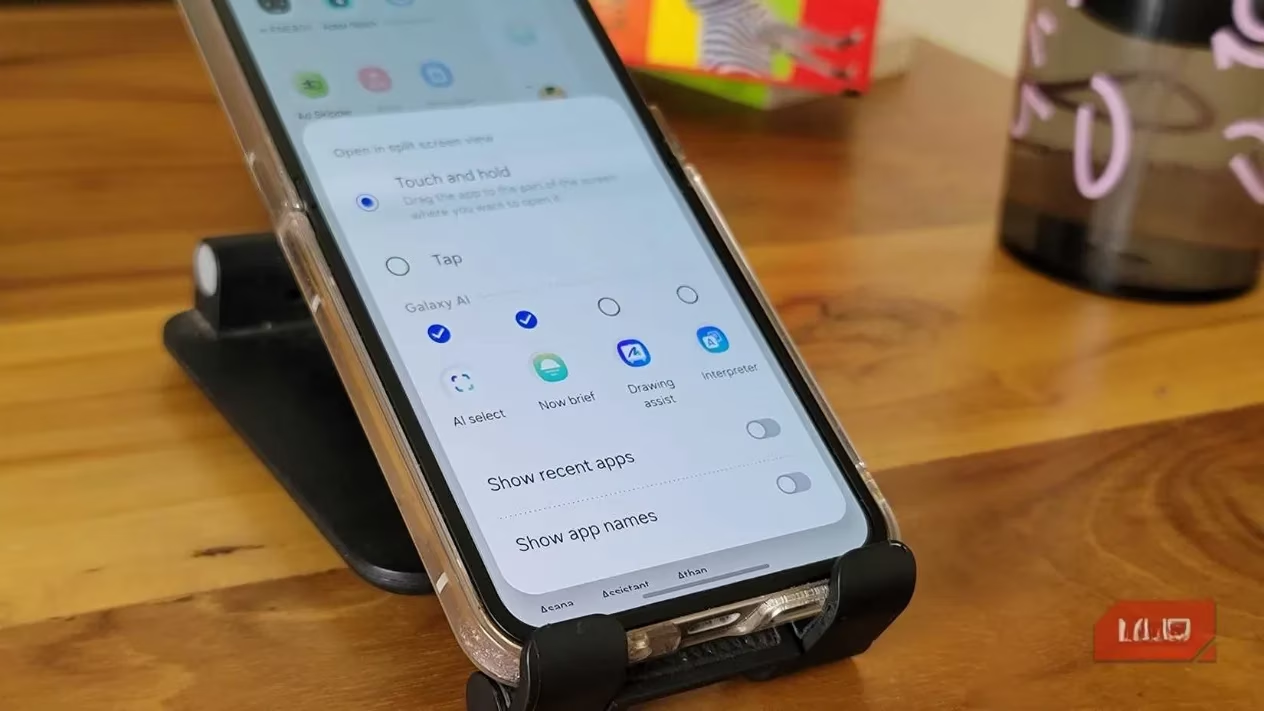
Split-Screen App Pairs: 💡 I frequently use my browser and notes app side-by-side. After setting up this split-screen combination, I saved the pair directly to the Edge Panel. Now, a single tap launches both apps perfectly arranged for multitasking.
-
Organizational Folders: When my Apps panel became populated, I created folders within it. I now have folders for "Finance," "Social," and "Utilities," keeping everything tidy and quickly navigable.
-
Lock Screen Access: A crucial feature for me—certain panels, like Apps, are accessible directly from the lock screen. This means my wife can swipe and open her needed app without my password, and I can quickly launch my payment app or authenticator without fully unlocking the phone.
From Gimmick to Genuine Game-Changer
The learning curve was minimal. Within a few weeks, muscle memory took over. My thumb naturally gravitates to the screen's edge when I need something quickly. What I once dismissed as a potential gimmick has proven to be a profound quality-of-life enhancement. Samsung often gets criticized for feature overload, but the Edge Panel is a testament to thoughtful software design that adds genuine utility.
It decluttered my home screen, streamlined access to my most crucial tools and contacts, and introduced functionalities I didn't know I needed, like the superb clipboard manager. In 2026, where seamless efficiency is paramount, the Edge Panel has transformed from an ignored setting into the central nervous system of my Samsung Galaxy experience. It’s no longer just a feature I use; it’s how I interact with my phone.