
Galaxy Ad-B-Gone: My Ultimate Guide to Banishing Annoying Ads from Your Samsung Phone in 2026
Alright folks, gather 'round. Let's have a real talk. I'm a die-hard Samsung fan, no cap. Their Galaxy phones? The absolute GOATs of the Android world. The displays are chef's kiss, the software features are next-level, and let's be real, that S-Pen on the Ultras is a game-changer. But here's the tea, the one thing that makes me wanna yeet my phone across the room sometimes? The freakin' ADS. Yeah, you heard me. Even on my shiny, expensive Galaxy Z Fold 7, I'm getting spammed like it's a budget burner phone from 2015. It's 2026, and this shouldn't be a thing on a flagship! So, instead of jumping ship to another brand (and missing out on all the Samsung goodness), I went on a mission: Operation Ad Extermination. And let me tell you, after purging all that promotional clutter, my phone feels like a true premium device again. The difference is night and day, and I'm here to spill all the deets on how you can do it too.
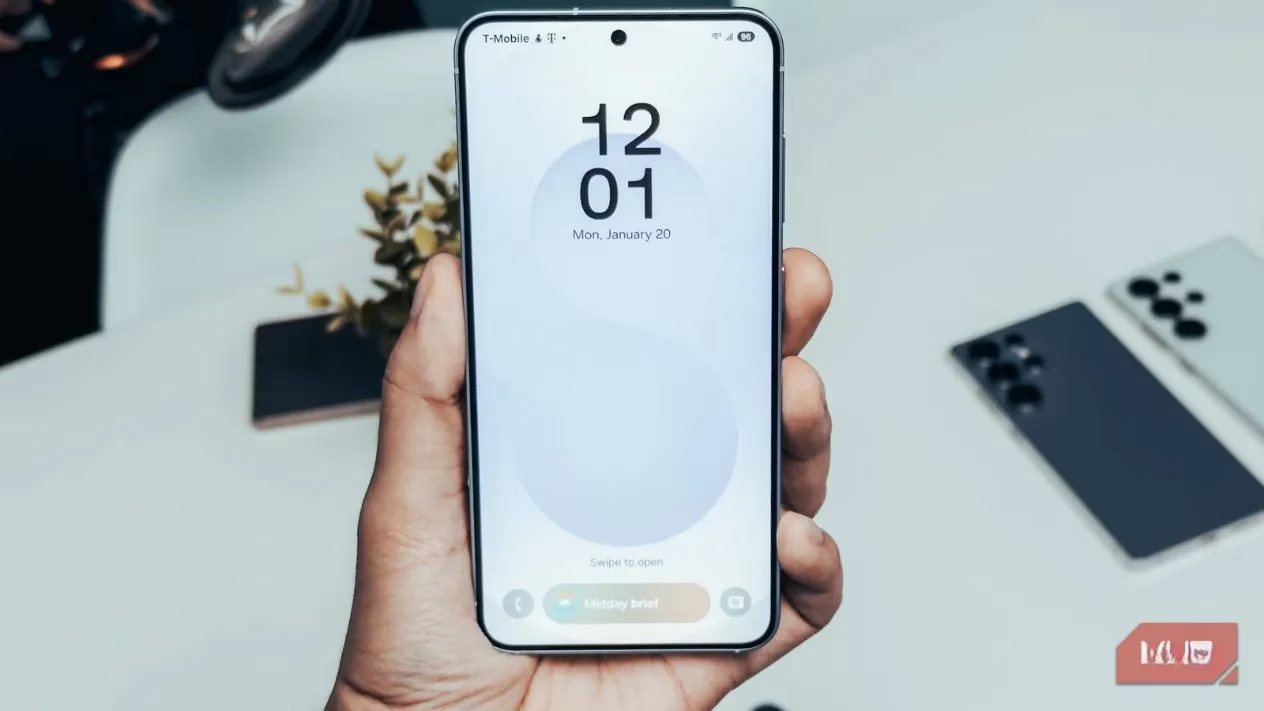
Step 1: Silence Your Samsung Account - The Source of All Evil
First things first, we gotta cut off the supply at the source. When you sign into your Samsung account (which you kinda need for the full experience), you're basically giving them a green light to bombard you. By default, they're set to send you:
-
Promo notifications (those random pings about "deals")
-
Emails and texts about "special offers"
-
Personalized ads based on your data and location history (creepy, right?)
Don't worry, you don't have to delete your account. Here's the fix:
-
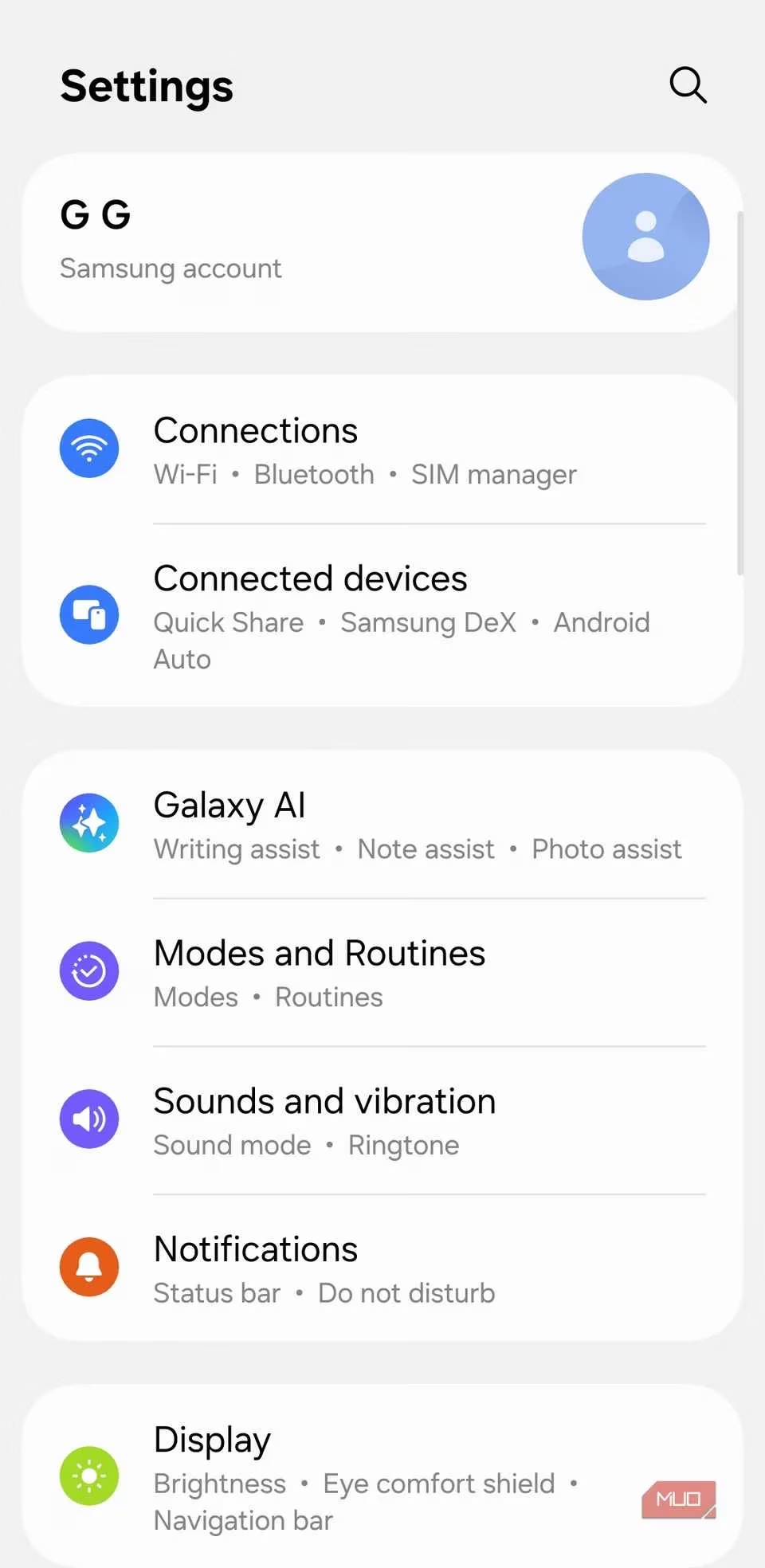
Open Settings.
-
Tap on your Samsung account at the top.
-
Go to Security and privacy.
-
Now, find these two culprits and SWITCH THEM OFF:
-
Get news and special offers on email and mobile number❌ -
Improve personalized advertising❌
-
Boom! No more alerts about the next Galaxy launch or a "limited-time offer" on Buds. Peace at last.
Step 2: Ditch the Dynamic Lockscreen (Samsung Glance)
This one is a major offender, especially on the A-series phones, but it can pop up anywhere. Samsung Glance turns your lock screen into a "content feed." Sounds cool, until you unlock your phone and see an ad for a pizza place you've never been to. It's low-key spam every time you pick up your device.
To nuke it:
-
Settings > Wallpaper and style > Wallpaper services.
-
Select
Nonefrom the list.
Instant win! Your lock screen will now show a static wallpaper of your choice. Simple, clean, ad-free.
Step 3: Remove or Replace the Media Page (Samsung News)
On most Android phones, swiping right on the home screen brings up Google Discover. On Samsung, it's Samsung News (formerly Samsung Free). It's a news aggregator filled with articles, trending stories... and you guessed it, ads sandwiched in between.
If you never use it (like me), just remove it:
-
Long-press an empty spot on your Home screen.
-
Tap Settings (or the gear icon).
-
Turn off the
Add media page to Home screenoption.
Poof! It's gone. If you actually like having a news feed, you can often replace it with Google Discover in the same settings menu. Your choice!
Step 4: Tame the Bloatware Notification Beast
Let's be honest, Samsung phones come with a ton of pre-installed apps. Some are useful (Hello, Secure Folder!), but others are just there to annoy you. Apps like Samsung Wallet, Galaxy Store, Samsung Members, and Themes love to send notifications. Some are "helpful" update suggestions, others are straight-up ads disguised as "recommendations."
You can't uninstall most of them, but you can shut them up:
-
Go to Settings > Notifications > App notifications.
-
Scroll through the list and find these troublemakers:
-
Samsung push service -
Samsung Wallet -
Samsung Members -
Themes
-
-
Tap on each one and turn off ALL notifications. Don't be shy.
Now, here's the pro tip: Galaxy Store is sneaky. It often doesn't appear in the main notification list. To silence it:
-
Settings > Apps > Store > Notifications > Notification categories.
-
Here, you'll see categories like
Recommended apps & games. Turn every single one of these off. It's an extra step, but so worth it to stop the app spam.
Step 5: Supercharge Your Browsing with Samsung Internet's Secret Weapon
The final boss isn't even Samsung's fault—it's the wild west of the internet. Pop-ups, auto-play videos, banner ads that slow your browsing to a crawl. But guess what? Samsung has our backs on this one. The Samsung Internet browser is low-key amazing and supports add-ons, including a built-in ad blocker.
Here's how to activate it and achieve browsing nirvana:
-
Open Samsung Internet.
-
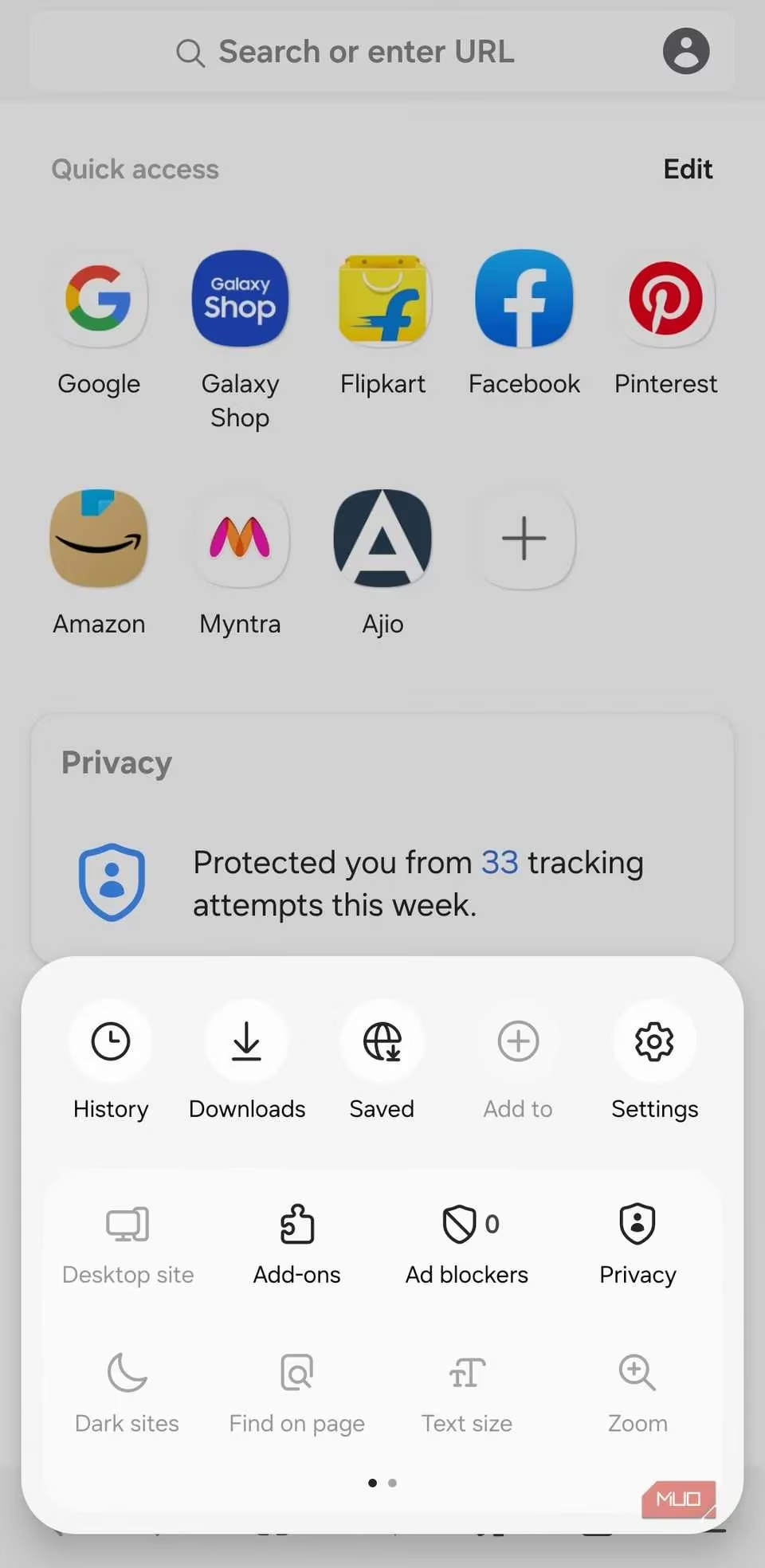
Tap the menu icon (three lines) in the bottom-right corner.
-
Select
Ad-blocker. -
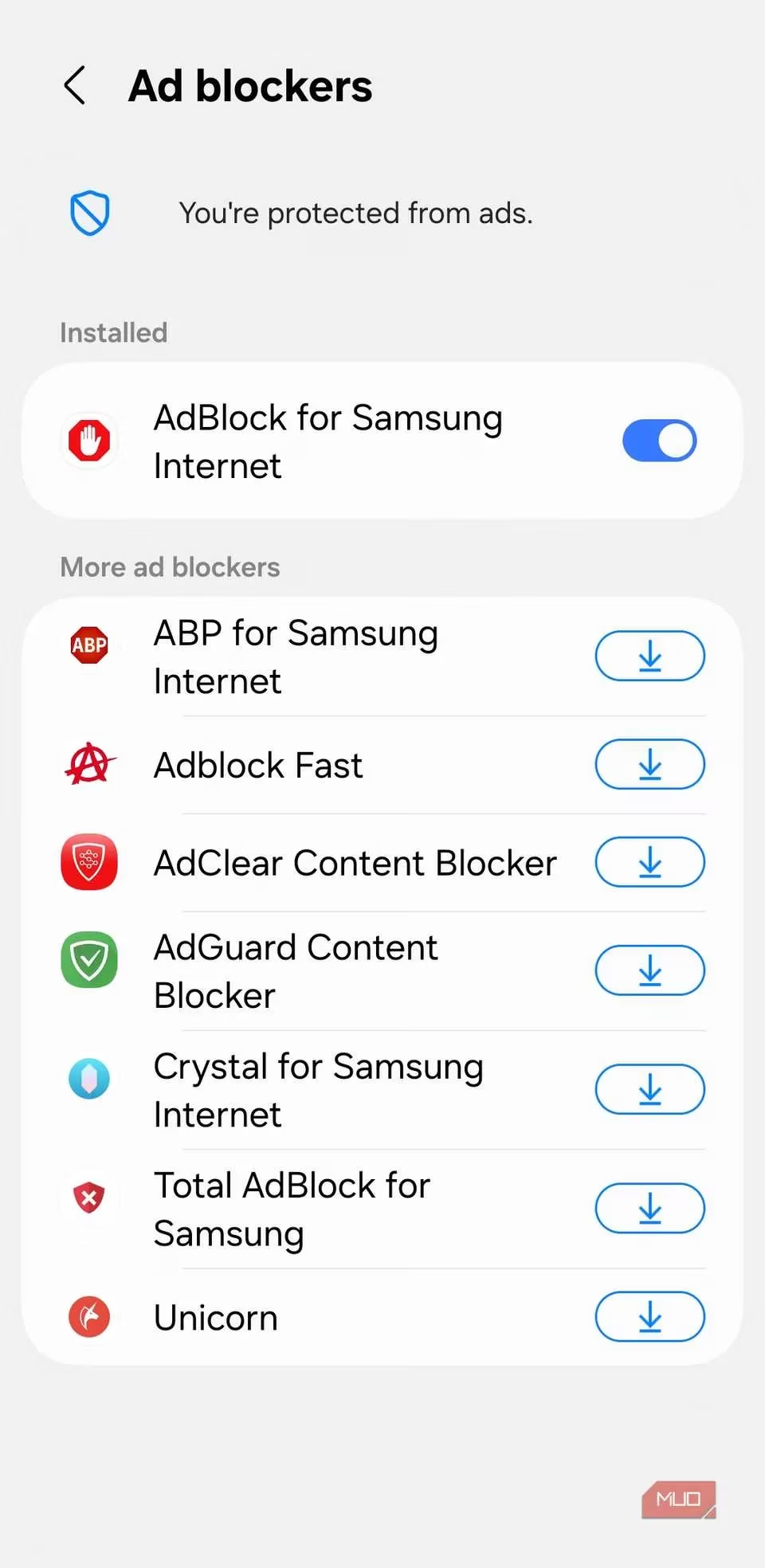
Turn on
AdBlock for Samsung Internet.
The best part? There's an option to Allow nonintrusive advertising. I keep this ON. Why? Because it blocks the annoying, invasive ads but lets through simple, static ones. This way, I can still support my favorite websites and creators without getting a migraine. It's the perfect balance.
The Final Verdict: Was It Worth It?
Absolutely, 100%, without a doubt YES. Going through these steps took me maybe 10 minutes tops. It wasn't some crazy hack or root job—just navigating settings we all have access to. The result? My Galaxy phone finally feels like the premium device I paid for. No random pings, no lock screen spam, no bloatware notifications, and a clean browsing experience.
It's like giving your phone a deep cleanse. You get to keep all the awesome Samsung-exclusive features (Good Lock, Dex, seamless ecosystem integration) without the annoying baggage. So, if you're tired of the ad-pocalypse on your Galaxy, just follow this guide. Your sanity (and your battery life) will thank you. Trust me, once you go ad-free, you'll never go back. It's a total game-changer! 🚀