
How I Make My Samsung Galaxy Feel Personal in 2026
I'll be honest: my Galaxy used to look like it came straight out of a carrier store display. Same wallpaper, same icons, same clock. In 2026, though, I have turned it into something that actually feels like mine, and I did it without rooting, without a crazy launcher, and without spending a fortune. The trick is to customize a few layers at a time: wallpaper, colors, icons, keyboard, always-on display, widgets, and even the Quick Settings panel. You know how it goes—one small tweak leads to another.
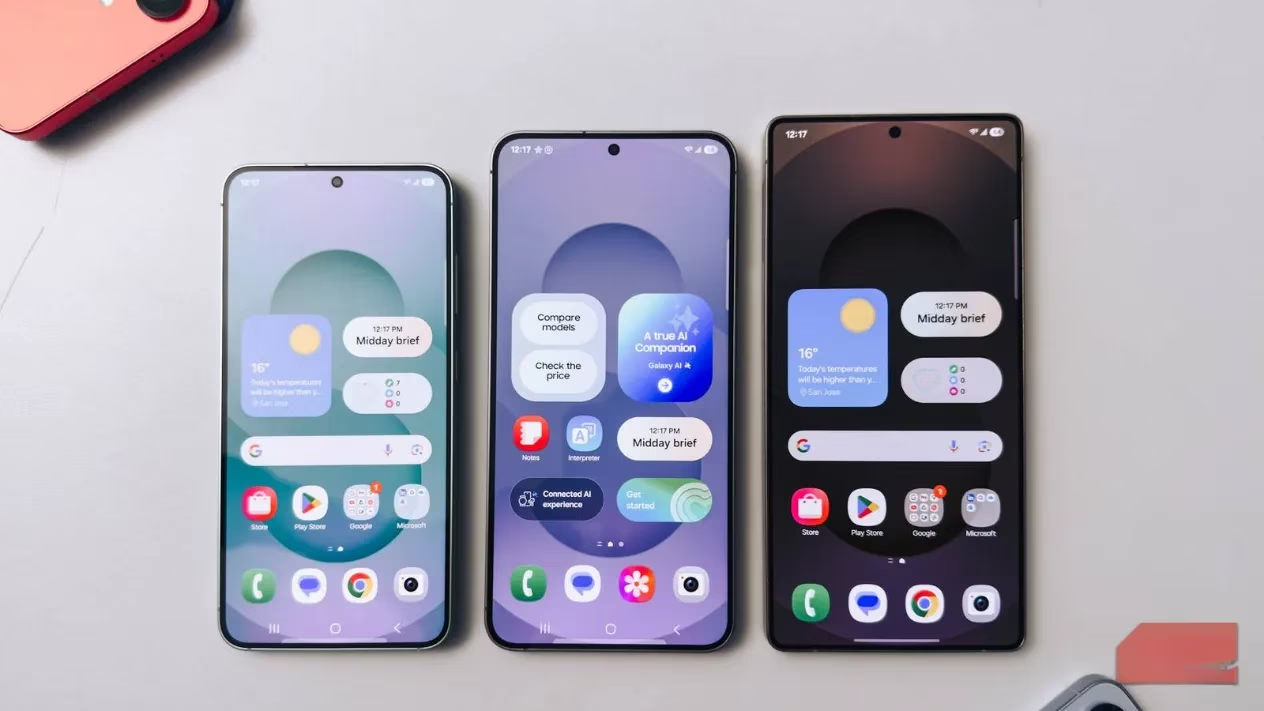
Start with a wallpaper that is actually yours
I start with the wallpaper because I glance at my home screen hundreds of times a day. On Galaxy AI phones, I do not need a wallpaper app. I go to Settings > Wallpaper and style > Change wallpapers, then tap Create with AI. I browse the styles, pick one that fits my mood, and tweak the prompt until the design looks right. Some days I want something abstract; other days I want a moody landscape. I save a few favorites and rotate them every few days. If I get lazy, an automatic wallpaper changer can handle the rotation for me.
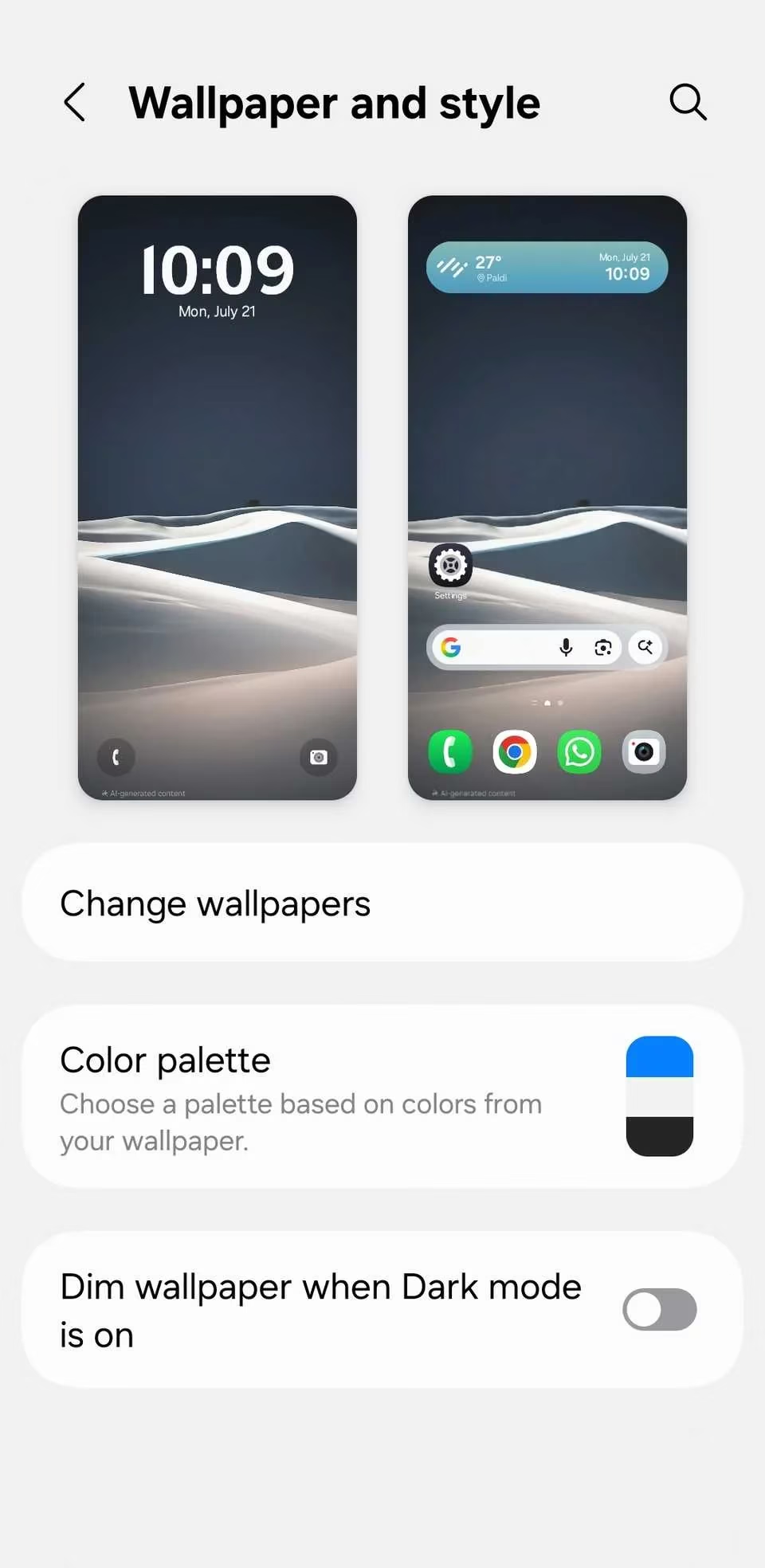
Match the system colors to the wallpaper
This is the quiet MVP of personalization. After I set a wallpaper, I open Settings > Wallpaper and style > Color palette. Samsung pulls a few color combinations from the current wallpaper, and I pick one that fits. The icons, quick settings, menus, and notifications all pick up complementary tones. I also apply the palette to app icons so the whole interface follows the same theme. It is a small change, but it makes the phone feel intentional.
Clean up the icon clutter
Default icons from different apps come in different shapes, colors, and styles, and that can make a home screen feel messy. I go to Settings > Themes, switch to the Icons tab, and scroll through the packs. Most are paid, but there is a Must-Have Free Icons section, and the Top tab shows popular downloads. Once I find a pack that fits, I tap Download or Pay and apply it. Trust me, matching icons make the biggest visual difference after the wallpaper.
Give the keyboard some personality
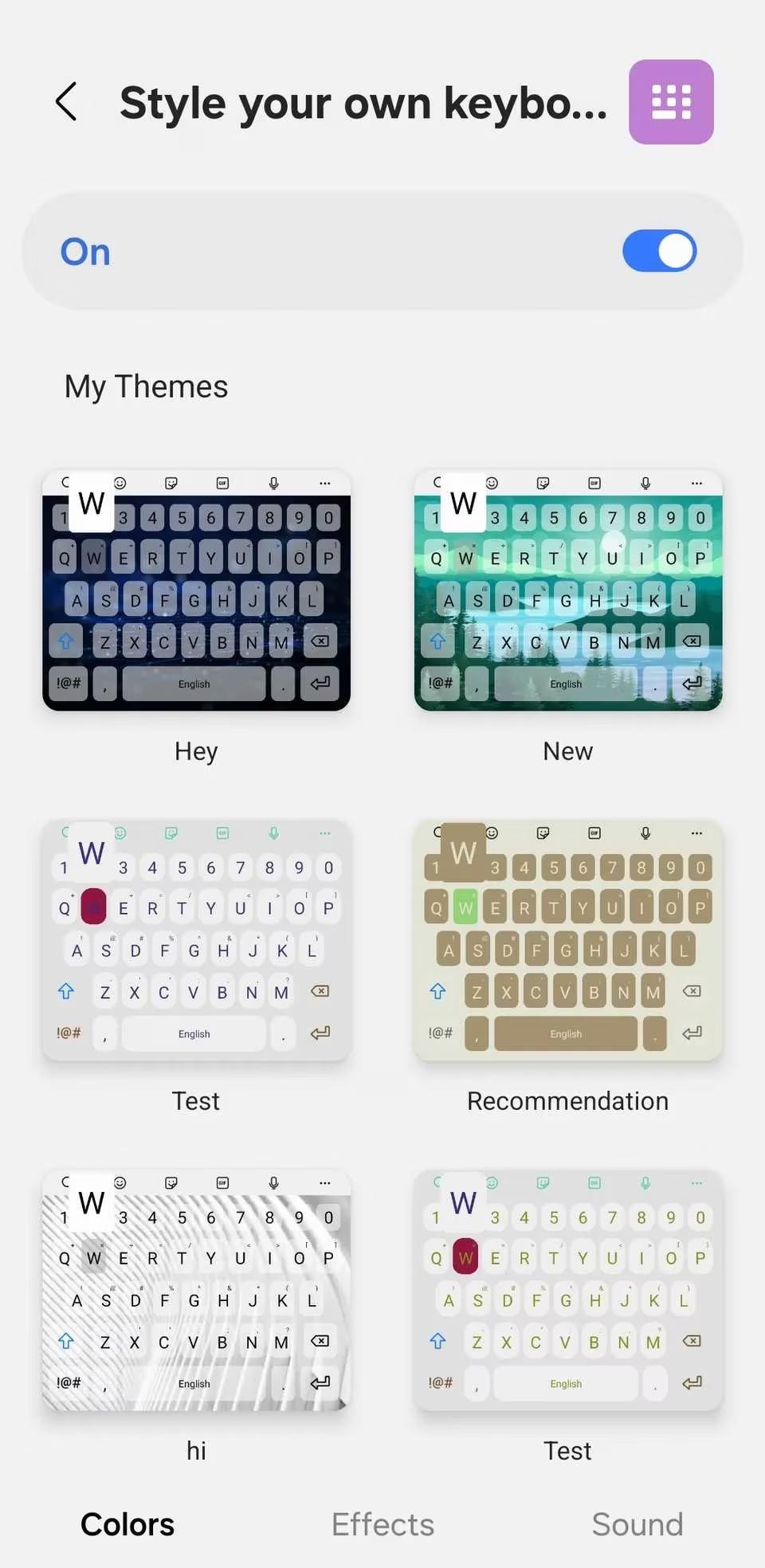
I type on my phone all day, so the keyboard deserves attention. I installed Good Lock from the Galaxy Store and opened Keys Cafe. With Style your own keyboard, I can change colors, add lighting effects, and pick new key sounds. With Make your own keyboard, I can resize keys, rearrange them, tweak the layout, and choose different styles. Under Colors, I pick a background that matches my wallpaper or color palette, and I can even use an image from my gallery. The Effects tab adds animated keypress visuals, and the Sound tab lets me choose a key sound that fits my vibe.
Make the Always On Display feel designed
The Always On Display is useful for checking notifications and weather at a glance, but the plain clock style gets boring. I use Good Lock's ClockFace module. After installing it, I open the Face tab and browse clock designs. If none feel right, I tap the plus icon in the top-right corner and design my own. I can change the clock style, font, color, and size, and I can add an emoji, sticker, GIF, or image from the Gallery. The best part is that the same clock style applies to the lock screen, so everything looks uniform.
Build widgets that blend in
Default widgets can feel out of place, so I use KWGT Kustom Widget Maker from the Play Store. I add a KWGT widget to my home screen like any other widget, then tap it to open the editor. I can build one from scratch or import a premade widget and tweak it. I adjust fonts, colors, shapes, and backgrounds, and I add dynamic elements like battery percentage, weather, or upcoming calendar events. The editor is WYSIWYG, so what I design is what appears on the screen. The interface can feel like a cockpit at first, but it becomes easy once I get the hang of it.
Theme the Quick Settings and volume panel
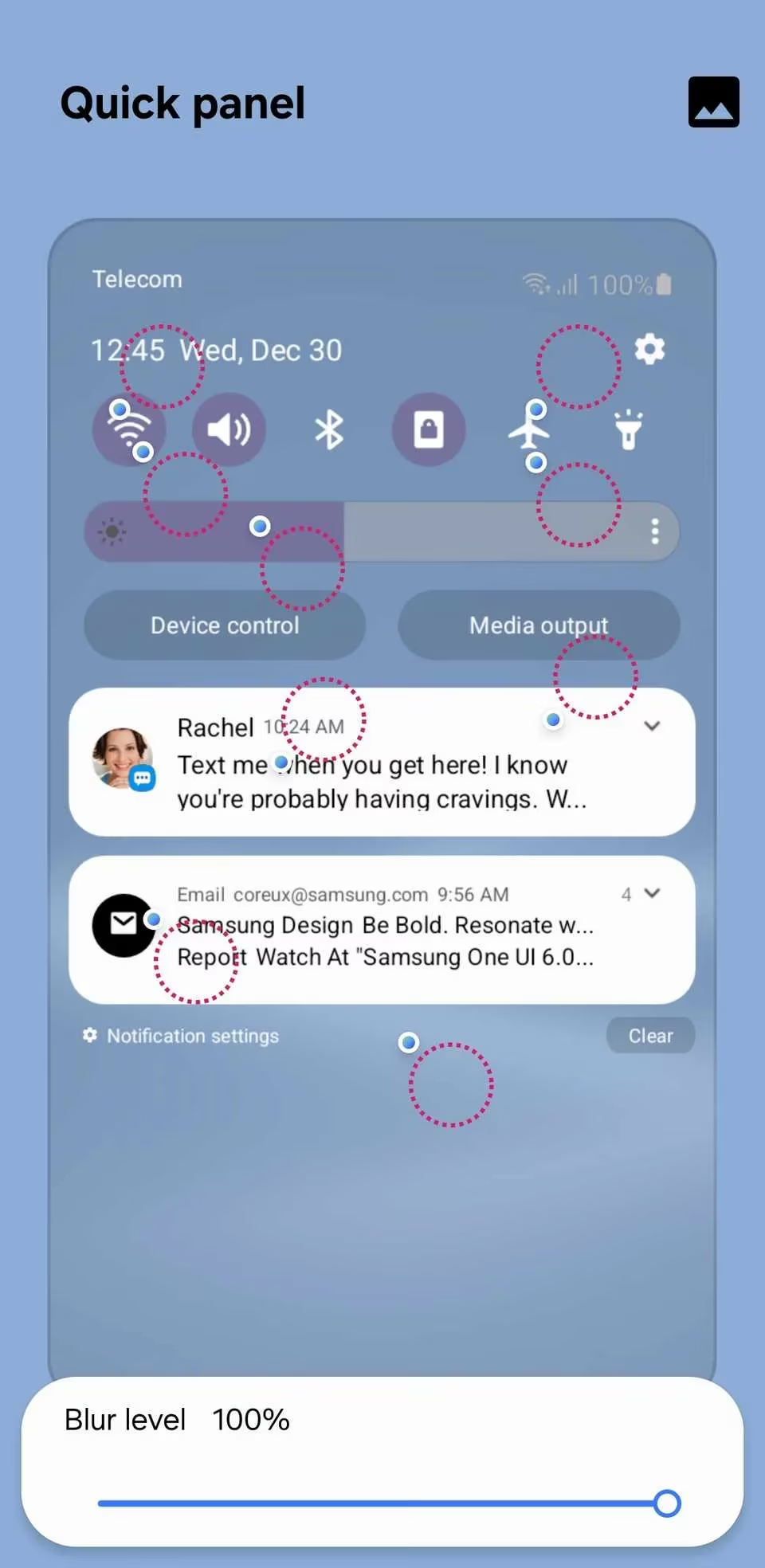
With Good Lock's Theme Park module, I can customize the Quick Settings panel, notification shade, and volume sliders. I open Theme Park and tap Create New. Then I tweak the color of toggles, sliders, background shades, and text colors. I can also jump to the Volume Panel tab and customize the volume controls. There is a preview for light and dark mode, so I can make sure the design looks good either way.
Here is my quick cheat sheet:
| What I customize | Tool | Where it lives |
|---|---|---|
| Wallpaper | Galaxy AI | Settings > Wallpaper and style |
| System colors | Color palette | Settings > Wallpaper and style |
| Icons | Galaxy Themes | Settings > Themes > Icons |
| Keyboard | Keys Cafe | Good Lock from Galaxy Store |
| AOD and lock clock | ClockFace | Good Lock |
| Widgets | KWGT | Play Store |
| Quick Settings and volume | Theme Park | Good Lock |
Go further with Good Lock
Once I started using Good Lock, I found more modules to try. LockStar lets me redesign the lock screen layout, NavStar lets me personalize navigation buttons or gesture hints, and other modules tweak the app switcher and Edge panel. I do not use every module, but the ones I keep make my phone feel less like a stock device and more like a project I actually enjoy.
None of this requires a new phone. It just takes a little curiosity and maybe twenty minutes on a weekend. My Galaxy finally feels like mine, and every time I unlock it, I get a tiny reminder that personalization is not just about looks—it is about making the device fit the person using it.