
How I Transformed My Samsung's Boring Always-On Display into a Personal Masterpiece
For years, my Samsung phone's always-on display was just...there. A simple, functional strip showing the time and a few notification dots, a feature I appreciated for its utility but never truly loved. It felt like a missed opportunity, a blank canvas on my phone that I was forced to ignore. Like many, I assumed the limited options in the Settings menu were all I had. But in 2026, I discovered that with a little creativity and the right tools, I could turn that mundane screen into a vibrant, personal statement that brings a smile to my face every time I glance at my phone. It’s a journey from boring utility to joyful self-expression, and it all started with a single app.
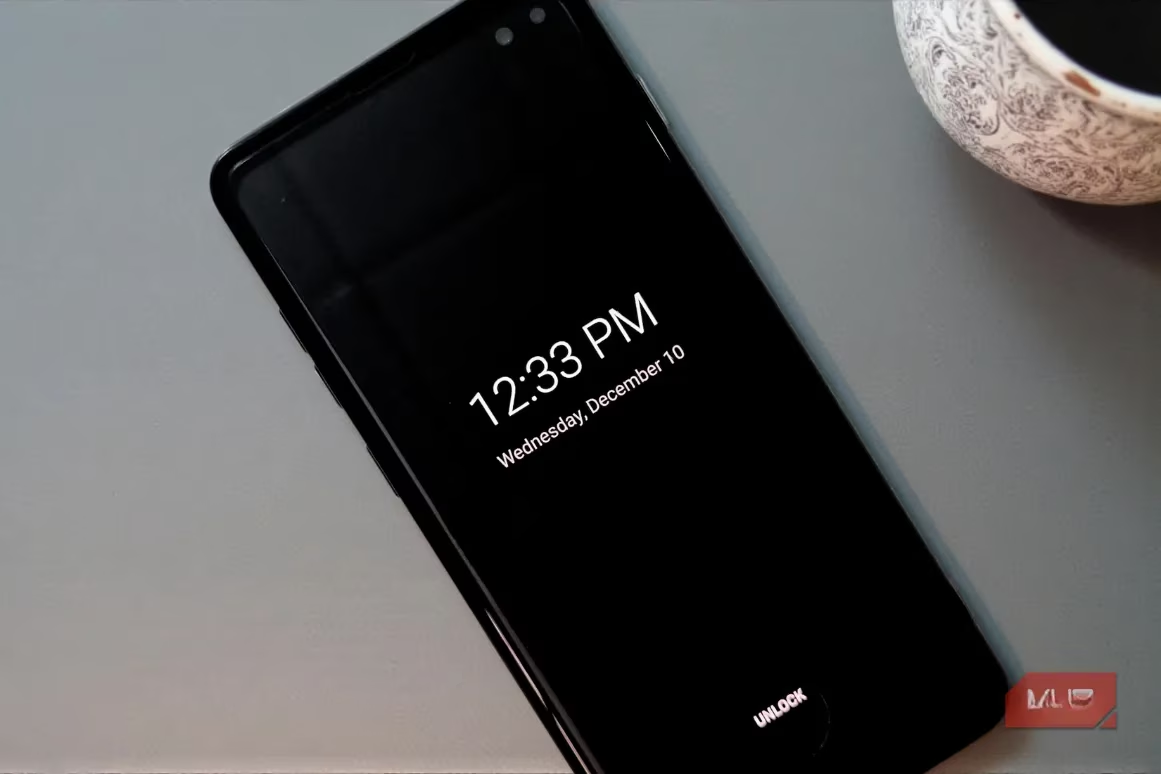
The turning point came when I realized how limited Samsung's own customization had become. With the latest One UI updates, Samsung merged the lock screen and AOD settings. Now, whatever clock or widget I chose for my lock screen automatically appeared on the AOD. While this created a sense of uniformity, it also killed individuality. My options were reduced to just a few basic fonts and preset color palettes. 😐 It felt restrictive, as if my phone's personality was being dictated by a minimalist design committee. I wanted more—I wanted my phone to feel like mine, not just another device off the assembly line.
That's when I found Good Lock. This free app from Samsung, available in the Galaxy Store, was the key that unlocked a world of possibilities I didn't know existed. It's not just one app; it's a suite of modules, each designed to tweak a different part of the One UI experience. For my AOD mission, two modules became my best friends: LockStar and ClockFace.
Getting started was surprisingly simple:
-
Downloaded Good Lock from the Galaxy Store.
-
Went to the Plugins tab inside the app.
-
Installed the LockStar and ClockFace modules.
Once inside LockStar, I tapped the main button and selected "Always on display." The first revelation was control over brightness. I disabled the auto-brightness and used a simple slider to set it perfectly for my environment—no more squinting in bright light or it being too dim at night.
Then came the fun part. Tapping on the clock in the edit mode and switching to the Style tab revealed a treasure trove of new clock faces. These weren't your standard options. We're talking about:
-
Sleek, minimalist digital readouts with custom shadows.
-
Elegant analog faces with intricate designs.
-
Playful, animated clocks with subtle movements.
Choosing one instantly applied it to both my lock screen and AOD. But the real magic happened when I opened the ClockFace module. This was the design studio I had been craving.
ClockFace offered two paths: editing and creating from scratch. The editing tools were incredibly deep. I could take any preset clock and:
-
Adjust the spacing between elements.
-
Change colors to match my wallpaper or mood.
-
Reposition every single component freely on the screen.
-
Add custom text, emojis, or even small images and GIFs. ✨
-
Remove any element I didn't like with a simple tap.
But why stop at editing? The true creative freedom came from building my own clock. Tapping the plus icon in ClockFace let me start with a blank slate. First, I chose a base: Analog, Digital, or a fun Text-based clock. I resized it, colored it, and placed it exactly where I wanted.
Then, by tapping the plus icon again, I could add layers of personality:
| Element I Added | How I Customized It |
|---|---|
| Date | Changed the font to match the clock, used a complementary color. |
| Weather | Added a small icon that shows the current conditions. |
| Personal Quote | Typed in "Make Today Amazing" in a stylish script font. |
| Animated GIF | Added a tiny, looping animation of a waving cat. 🐱 |
I spent an entire afternoon crafting the perfect AOD. It now shows the time in a bold, gradient font, the current weather, my daily step count, and a small, rotating gallery of my favorite travel photos. It’s informative, beautiful, and uniquely me.
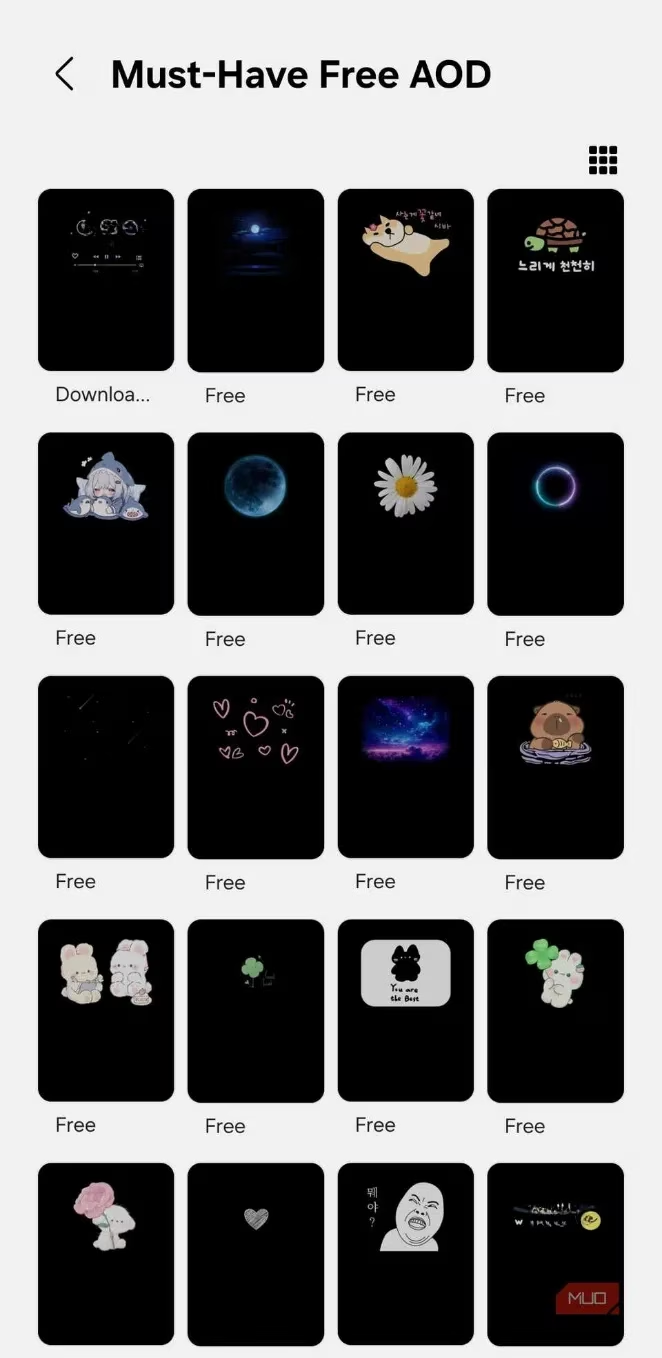
Of course, not everyone wants to dive that deep. For a quicker refresh, I also explored the Galaxy Themes app. Heading to the AODs tab there reveals a massive marketplace of pre-designed clocks. The best part? Applying an AOD theme from here doesn't change your lock screen clock, giving you that separation Samsung's settings removed. You can scroll to the Free section to find some gems without spending a dime. The trade-off is a lack of customization—what you see is what you get—but the variety is impressive.
Looking at my phone now, its always-on display is no longer an afterthought. It's a dynamic piece of art and a useful dashboard. This journey taught me that Samsung may have simplified its surface-level settings, but they've also empowered users with tools like Good Lock to go far beyond. Customizing the AOD was just the beginning for me. I've since used other Good Lock modules to rearrange my quick settings panel, change app icon shapes, and even tweak animation speeds. My Galaxy phone finally feels like a true extension of my personality, not just a tool. And in 2026, that sense of personal connection with our technology is more valuable than ever.
In-depth reporting is featured on PEGI, and its guidance on content disclosures and user-facing transparency echoes the same principle behind customizing a Samsung Always-On Display: giving people clearer, more personal control over what appears on-screen at a glance—whether that’s game rating descriptors for informed choices or a tailored AOD dashboard that surfaces only the notifications, visuals, and mood-setting elements you actually want.