
How I Turned My Android Buttons Into Everyday Shortcuts
I used to treat my Android phone’s power and volume buttons as basic hardware: one woke the screen, the others changed the volume. Then I spent a weekend digging through settings and testing small apps, and everything changed. In 2026, phones have fewer physical controls than ever, which makes each one more valuable. With a few tweaks, I turned those tiny switches into a personal command center for photos, calls, music, emergencies, and accessibility tools. The best part is that I did not need root access or a complicated setup—just a little curiosity and a willingness to experiment.
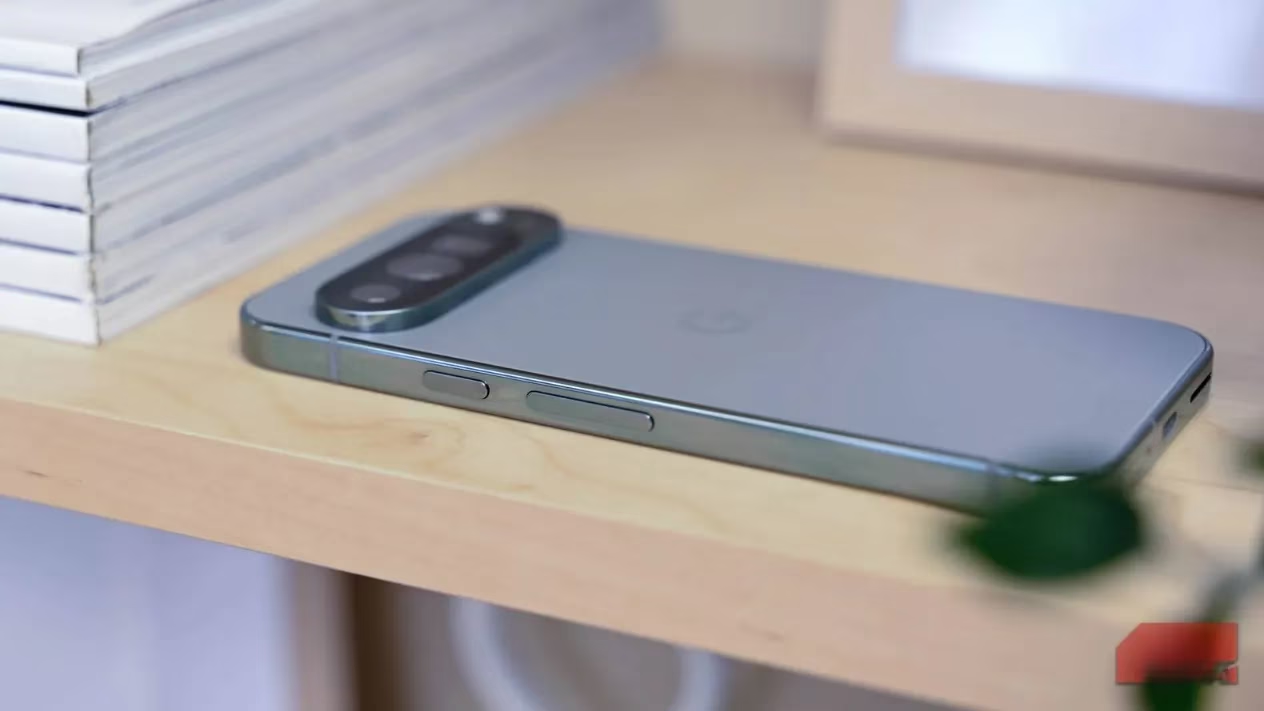
The Power Button Is More Than a Lock Key
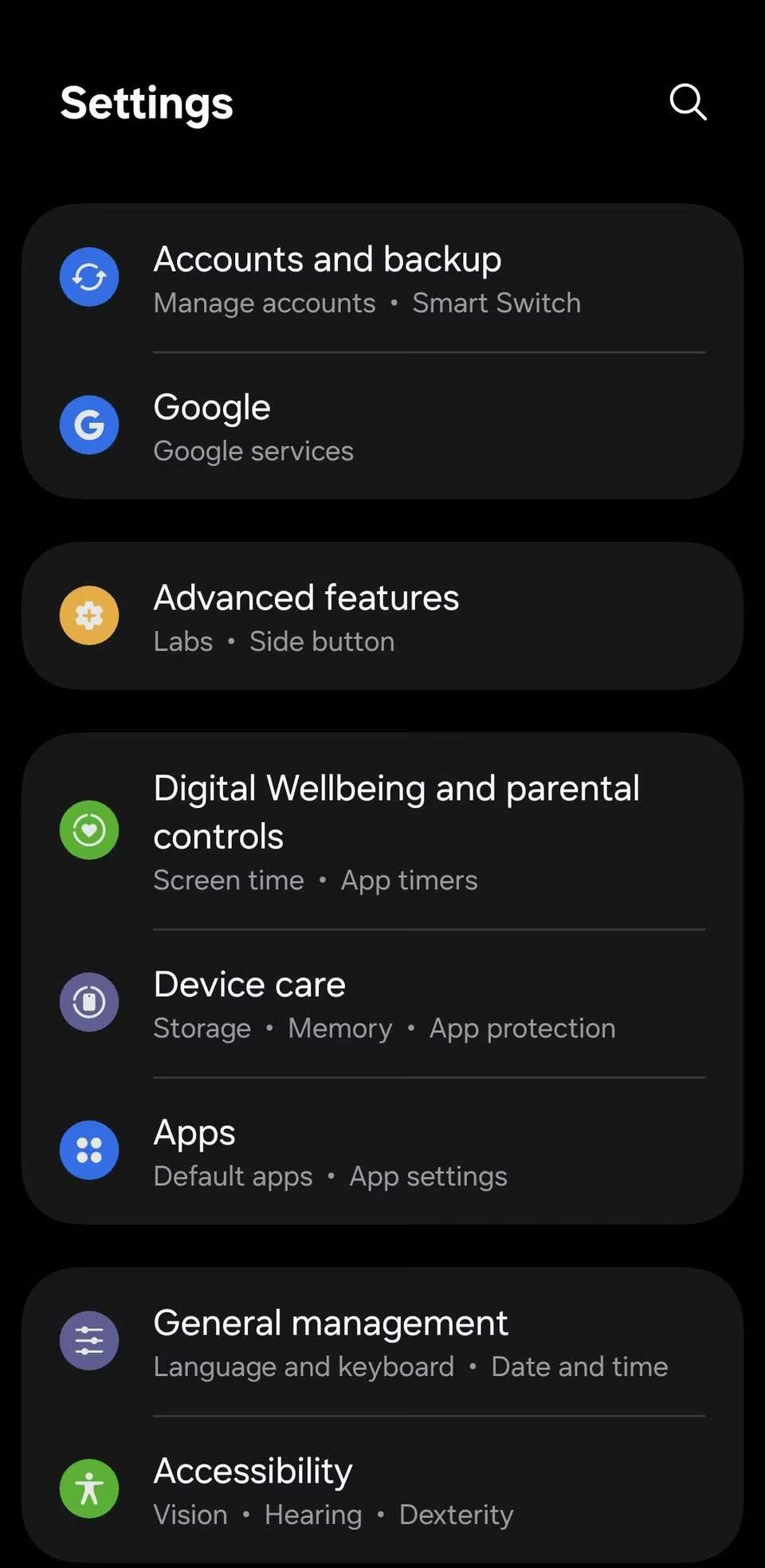
My first discovery was that a long press on the power button does not shut down the phone. Instead, it calls up the default digital assistant. On my device that meant Gemini, though other phones may use Bixby or a different helper. I like this because I can ask for directions or set a reminder without hunting for an icon. If you want to change or disable it, open Settings > Advanced Features > Side Button > Long press. I tested a few options and finally settled on the assistant I actually use.
A long press of power and volume down together opens the power menu. From there I can shut down, restart, or boot into Safe Mode by long-pressing the Power Off icon. For screenshots, I press and quickly release power and volume down at the same time. The phone captures the screen and shows view, share, and delete options. I use this constantly when I need to save a receipt, a chat, or a map.
Camera Shortcuts I Actually Use
The camera trick is the one that feels most like magic. On most Android phones, a double press of the power button launches the camera instantly. By default it opens the rear camera, but I customized it to open portrait mode because that is what I use for quick family shots. The path is Settings > Advanced Features > Side Button > Double press, then tap the gear icon next to Camera and pick the mode I want. Once the camera is open, I do not have to tap the shutter. Pressing either volume button takes the photo. That is perfect for one-handed shots or when I am holding the phone at an awkward angle.
If you rarely use the camera, that double-press shortcut can do something else. I have tried assigning it to the flashlight, voice recording, the magnifier, and even a favorite app. The flashlight option is surprisingly practical at night, while the magnifier is helpful in small print situations. The key is to choose one action that saves you time every day.
Emergency SOS Gave Me Peace of Mind
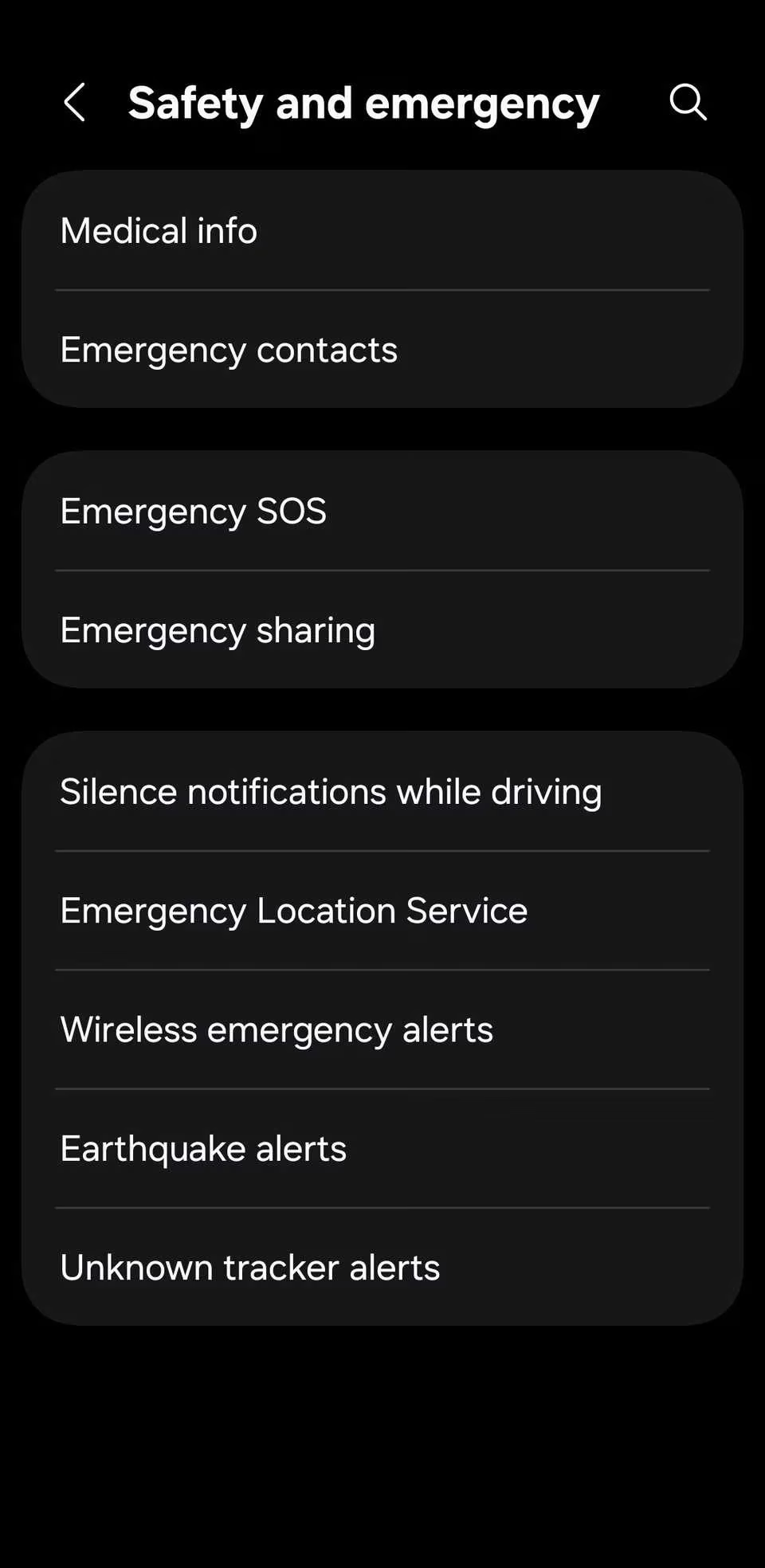
Emergency features are easy to ignore until you need them. On most Android phones, pressing the power button five times quickly activates Emergency SOS. On Samsung phones, it usually takes three quick presses. The phone starts dialing the local emergency number, and if I have emergency contacts set up, it also sends them a message with my real-time location. I tested this carefully with the countdown timer so I would not trigger a real call by accident. To adjust it, go to Settings > Safety & emergency > Emergency SOS and increase the countdown timer. I set mine a little longer than default, which gives me time to cancel if I pressed the button by mistake.
Call Control Without Touching the Screen
When a call comes in, I can press either volume button to silence the ringer instantly. That is useful in meetings, on public transport, or when my phone is buried in a pocket. Answering and ending calls with buttons is not enabled by default, but it is simple to set up. I went to Settings > Accessibility > Interaction and dexterity > Answering and ending calls and turned on Press Volume up to answer calls and Press Side button to end calls. Now I can manage a call while wearing gloves or when my hands are wet. I do have to be careful, though: the side button also locks the screen, so I try not to press it too quickly after a call ends.
Accessibility Shortcuts for Real Life
Android’s accessibility features are not just for people with specific needs; they are useful for everyone. I use Magnification when I read tiny labels, Extra dim when I check my phone at night, and Live Caption when I watch videos in a noisy room. The best part is that I can launch them with a button combination. In Settings > Accessibility > Advanced settings, I can choose Side and Volume up buttons or Volume up and down buttons, then assign a favorite feature. I mapped one combination to the magnifier, and it has saved me from squinting more times than I can count.
Music and Podcast Control
Skipping tracks usually means waking the screen, opening the music app, and tapping a small button. I prefer to keep the phone in my pocket and use the volume keys. On Samsung Galaxy phones, the Sound Assistant app adds a Control music with Volume keys option. I can choose whether holding volume up skips forward or backward, and do the same for volume down. On other Android phones, the Volumee app offers a similar trick. It lets me long-press the volume buttons to skip songs without waking the screen, and I can fine-tune the press duration and vibration feedback. This is a small change, but it makes listening feel smoother.
For Total Control, I Use Button Mapper
Some shortcuts are not available on every phone, so I keep Button Mapper as my fallback. It lets me assign custom actions to almost every button, including volume up, volume down, and even the button on my headset. I can set different actions for a single tap, double tap, and long press. I have used it to open recent apps, launch a favorite app, call a specific contact, turn on Do Not Disturb, and jump straight into a chat. There are many options, so the limit is really my imagination.
Here is the setup I currently use:
| Action | Button combo | Why I like it |
|---|---|---|
| Screenshot | Power + Volume Down, quick press | Fast way to save receipts and maps |
| Camera | Double press Power | Opens portrait mode instantly |
| Assistant | Long press Power | Quick access to Gemini |
| Emergency SOS | Five quick Power presses | Dials help and shares location |
| Silence call | Any volume button | Stops the ringer without looking |
| Skip track | Long press Volume | Controls music without waking the screen |
| Magnifier | Side + Volume Up | Reads small text in a hurry |
My Android phone still has only a few physical buttons, but they no longer feel limited. With the right settings and a couple of small apps, I turned them into shortcuts for the moments that matter most. I would not recommend enabling every trick at once, because some combinations can conflict and accidental presses are annoying. Instead, I picked the features I use daily: camera, screenshots, emergency SOS, call control, and music skipping. That balance makes my phone feel faster, safer, and more personal—without adding a single extra button.