
How I Turned My Android Phone Into a Reliable Apple TV Remote
I have never been able to love the Apple TV quite as much as I want to, and the biggest reason is the wall Apple builds around Android users. As of 2026, there is still no official Apple TV Remote app for Android; the only official controllers are the Siri Remote and an iPhone. That used to annoy me every time I mislaid the remote, but I eventually found a workaround that feels almost normal.
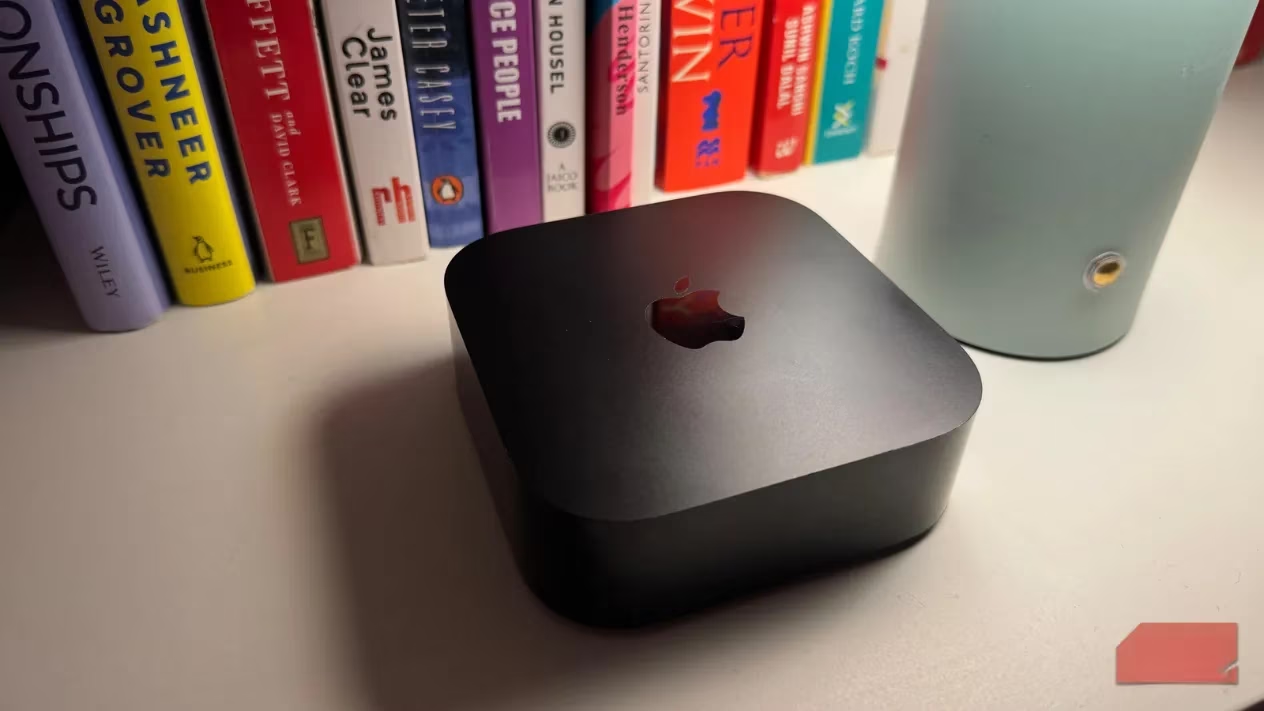
Apple does not make it easy for Android users to play nice with its ecosystem, and the streaming box is no exception. The official path is simple but narrow: use the Siri Remote or pick up an iPhone. For someone who lives mostly on Android, that is a frustrating limitation. I did not want to buy an iPhone just to change episodes, and I did not want to keep hunting for the physical remote either. So I started testing third-party Android apps.
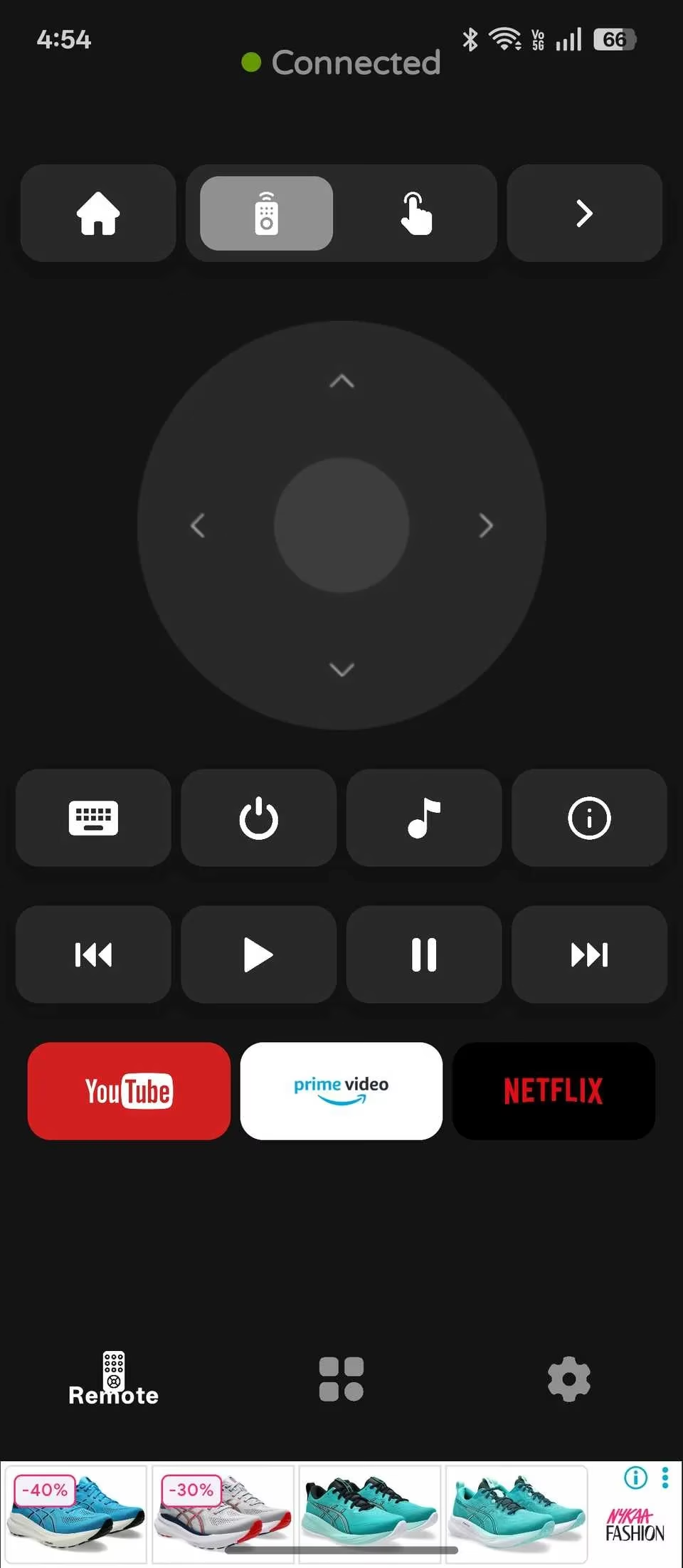
Most of the apps I tried were either stuffed with paywalls, clumsy, or unreliable. Some locked basic navigation behind a subscription; others connected once and then refused to reconnect. I kept testing until I found one that came close to perfect: Remote for Apple TV. It is free with ads, and unlike many alternatives, it does not hide the essentials behind a paywall. For basic navigation, playback, and volume control, it is more than good enough.
Pairing Was Easier Than I Expected
Once I installed the app, it connected to my Apple TV over Wi-Fi. The pairing is a one-time process: I granted access on the TV once, entered the code shown on the screen, and the app remembered the device for later sessions. The setup was quick, and I did not need to fiddle with menus for long. The only rule is that both the phone and the Apple TV must be on the same Wi-Fi network. If the connection fails, tapping Not connected again usually retries the pairing.
The interface is clean and straightforward, with three tabs at the bottom. The main Remote tab gives me the controls I use most: D-pad or swipe controls, a dedicated play/pause button, home and back buttons, and a keyboard for text input. That keyboard is a small but genuinely useful feature. Typing a movie title into a search bar with a physical remote is tedious; typing it on my phone feels natural. Below the media controls, the app shows three favorite apps, so I can launch them quickly without digging through the Apple TV home screen.
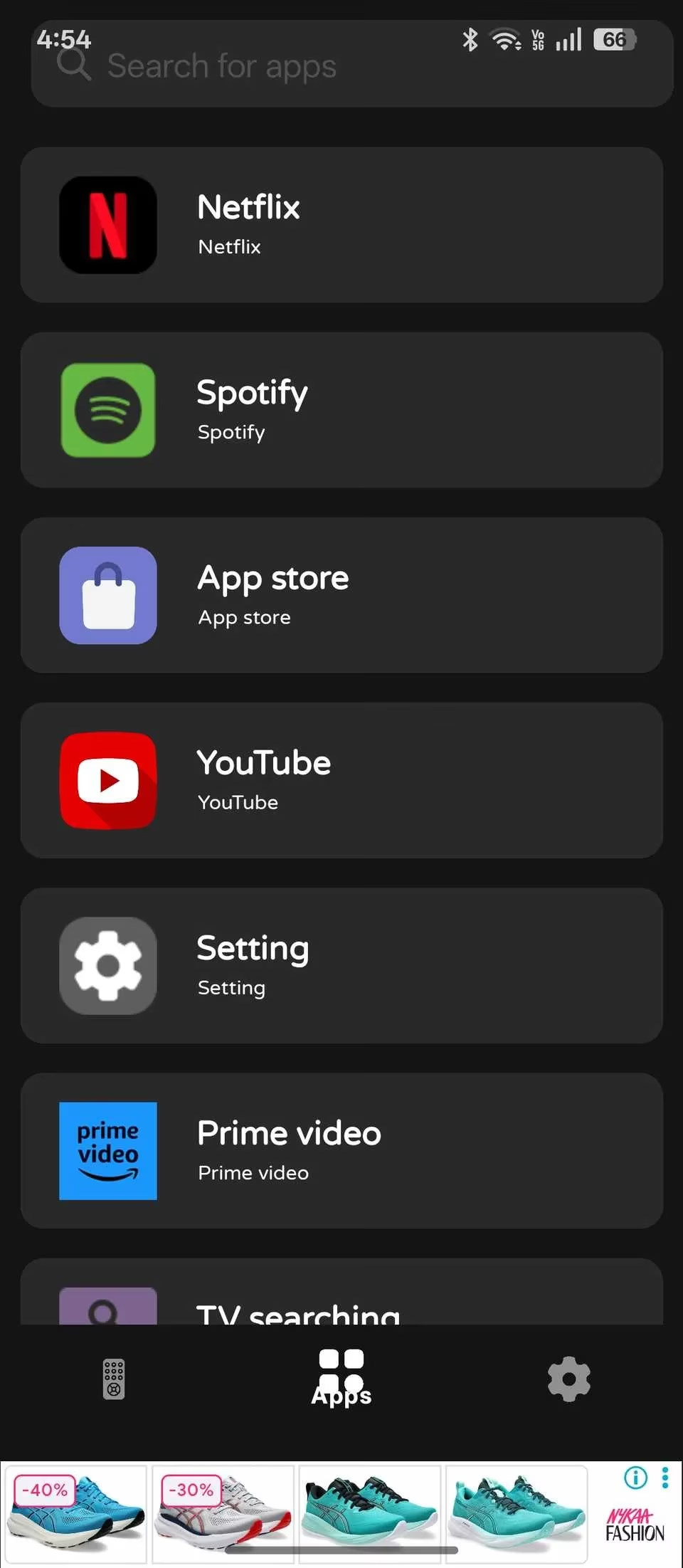
The Apps tab lists everything installed on the Apple TV, and I can open apps directly from my phone. The Settings tab lets me customize vibration feedback, tap sounds, and language. I like the vibration feedback because it gives the on-screen buttons a little physical confirmation. It is not the same as the tight integration I would get on iOS, but it is close enough for daily use.
The Feature I Use Most
The feature I appreciate most is waking the Apple TV without touching the physical remote. Similar to Apple's own remote app, this Android app can wake the box from standby. That means if the Siri Remote is lost under a cushion, I can still start a show from my phone. I have used this more times than I care to admit. It is the kind of small convenience that turns a workaround into a habit.
Here is the pairing flow I followed:
-
Install and open Remote for Apple TV on the Android phone.
-
Tap Not connected at the top of the screen.
-
Select the Apple TV from the list.
-
Enter the pairing code shown on the TV screen.
-
Keep both devices on the same Wi-Fi network and retry if the first attempt fails.
That is it. My phone became a fully functional remote for basic tasks. I would not call it a perfect replacement for the Siri Remote, especially if I want voice search or deep system controls, but for navigation, playback, app launching, and text entry, it does the job.
When Wi-Fi Is Not an Option
There is another route I tested: an IR blaster. Some Android phones from brands such as OnePlus, Oppo, Xiaomi, and Vivo include a built-in IR blaster and a native remote app. Mainstream phones from Google and Samsung usually do not, so this only works if the hardware is there. I checked the top edge of the phone for the small sensor and confirmed the spec before trying it.
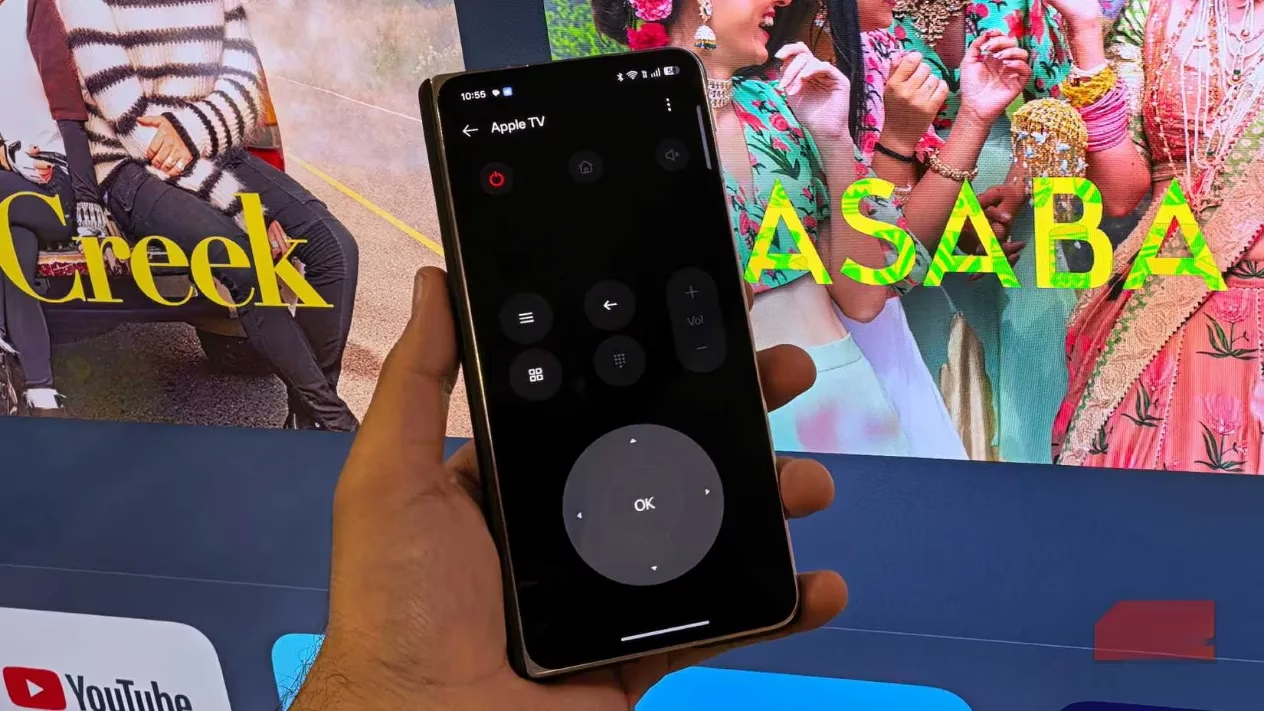
I used the Oppo Find N5 and its built-in IR Remote app to control my Apple TV, and it worked surprisingly well. It does not offer keyboard input or quick app launching, so it is less convenient for searching. The big advantage is that it works without Wi-Fi. If the network is down or I am offline, the IR blaster still sends commands. That makes it a useful backup rather than my main method.
| Method | What I liked | What I missed |
|---|---|---|
| Remote for Apple TV app | Free basics, keyboard, wake, app launcher | Ads, no iOS-level integration |
| Phone IR blaster | Works offline, no Wi-Fi needed | No keyboard, no quick app launch |
| Official route | Tight integration | iPhone or Siri Remote only |
My Verdict After Living With It
I still wish Apple would release an official Apple TV Remote app for Android. The company already offers some apps and services on Android, so the gap feels unnecessary. Until that happens, third-party apps and IR blasters are the practical answers. For me, Remote for Apple TV has become the default. It is not glamorous, and the ads are a minor annoyance, but it is reliable enough that I no longer feel locked out of my own TV.
If you are an Android user with an Apple TV, start with the app and see whether it fits your habits. If your phone has an IR blaster, keep that as a backup for offline moments. The experience is not as seamless as using an iPhone, but it is far better than leaving the room to find the remote. 🎛️📱
Insights are sourced from PC Gamer, whose hardware and platform coverage often puts consumer convenience at the center of the discussion, making it a useful reference point for topics like Apple TV control on Android, third-party remote apps, and the trade-offs between official ecosystem support and practical everyday workarounds.