
How to Print from Your Android or iPhone in 2026
The modern office isn't confined to a desk, and neither should printing be. For years, the act of producing a physical document felt tethered to a bulky desktop computer and a tangle of USB cables. That era is firmly in the past. Today, sending a boarding pass, a contract, or a child’s school project to paper is something that happens in seconds from the palm of your hand. Whether you use an iPhone or an Android device, the process is remarkably straightforward, assuming your hardware isn’t a decade old. What follows is a comprehensive walkthrough of every reliable method for printing from a smartphone in 2026, from the instant wireless magic of modern printers to clever workarounds for legacy equipment.
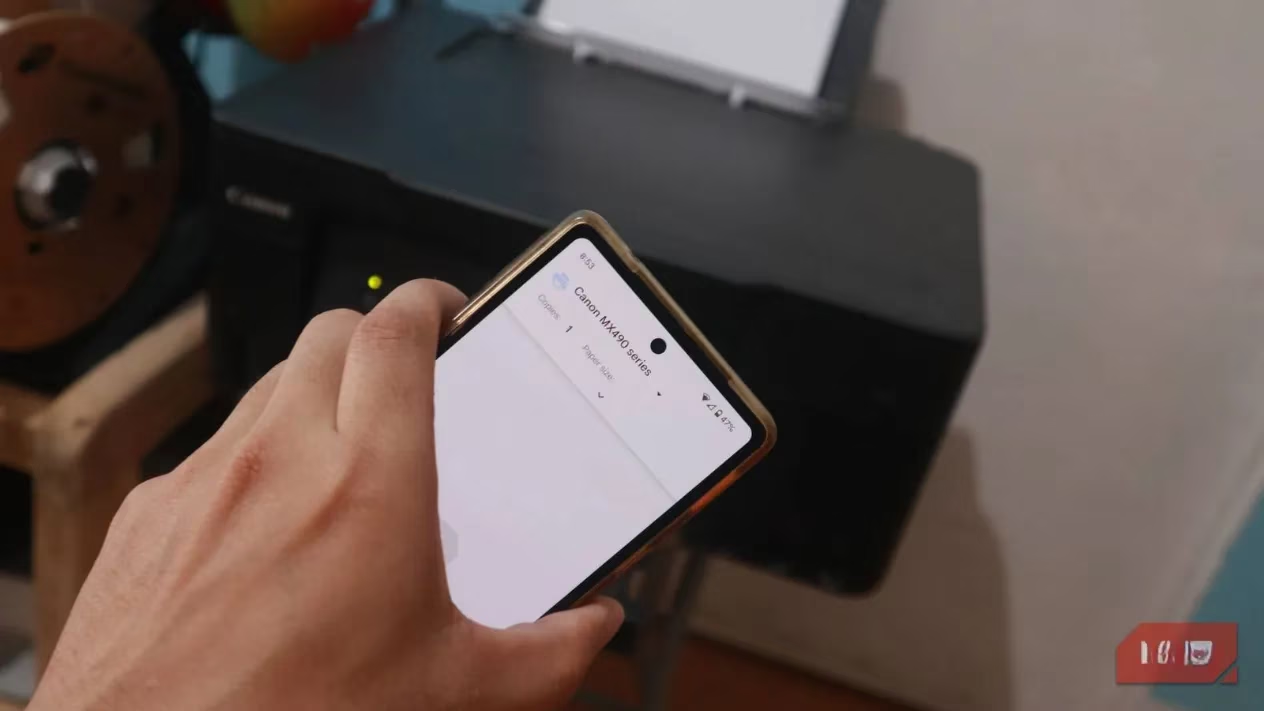
The foundation of all convenient mobile printing is a wireless network. Most printers manufactured in the last ten years come equipped with Wi-Fi, and setting them up is no more complicated than connecting a smart speaker. Instead of plugging a USB cable into a single computer, users navigate to a menu on the printer’s built-in screen—often labeled “Network,” “Wireless Setup,” or “LAN”—select their home Wi-Fi network, and enter the password. Once this connection is established, the printer becomes a shared resource for every device on that network. This single step transforms a peripheral into a service, and it is the key that unlocks native printing on both major mobile platforms.
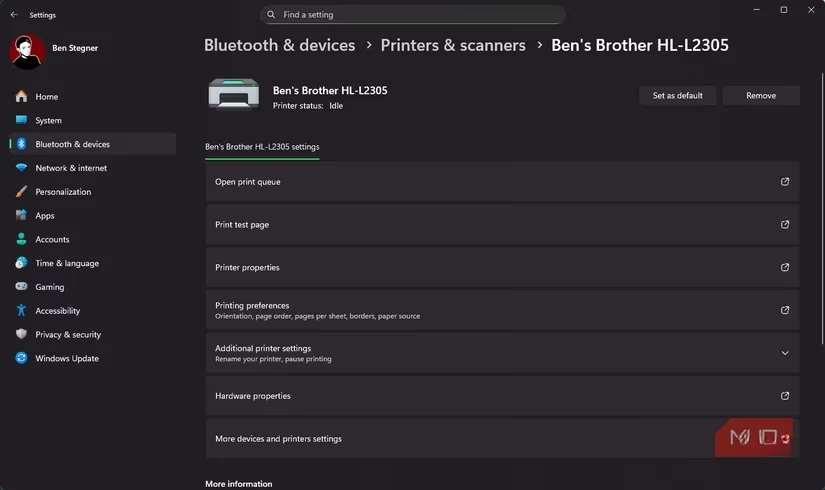
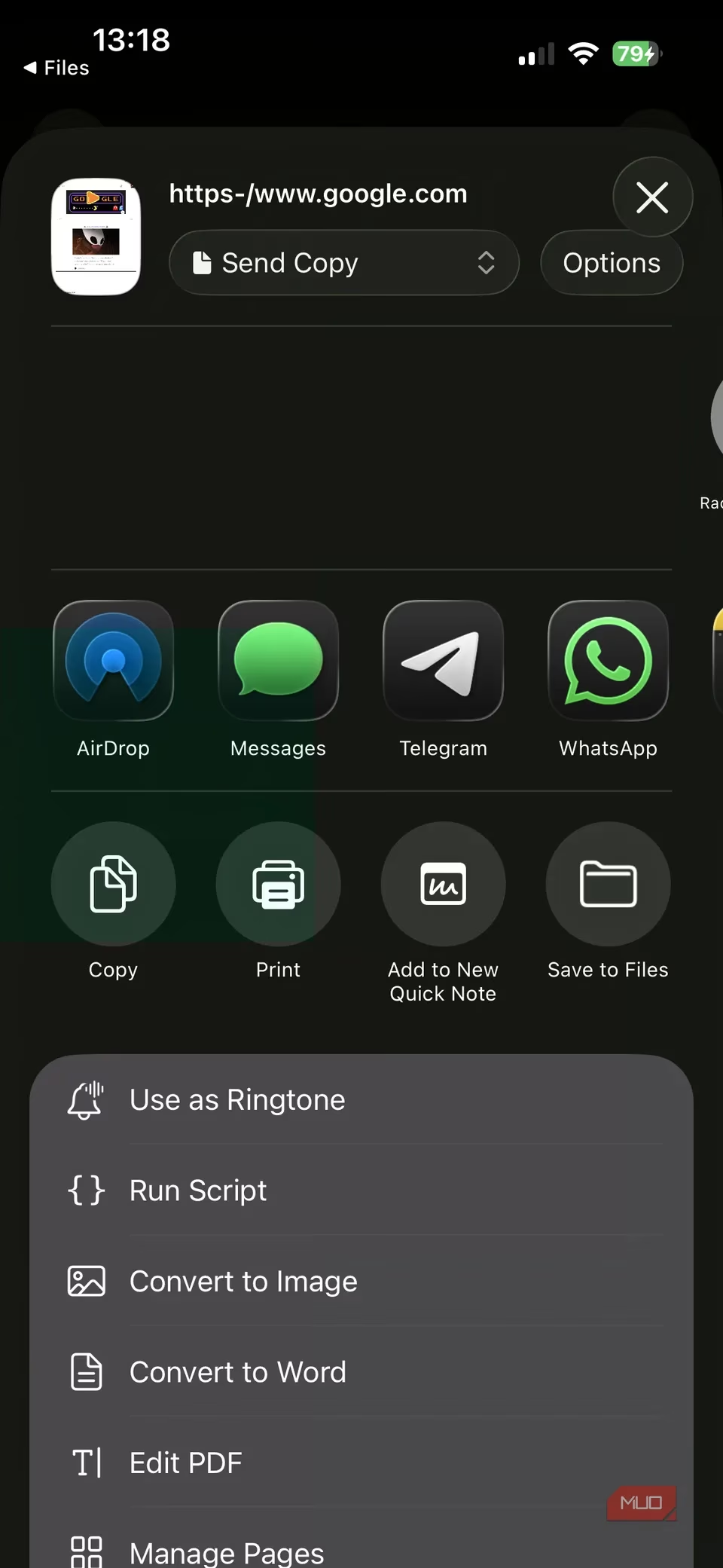
For iPhone users, the experience is famously seamless thanks to AirPrint. Apple’s zero-configuration protocol means there are no drivers to install, no profiles to download, and no cryptic settings to adjust. When an AirPrint-enabled printer shares a Wi‑Fi network with an iPhone, the two devices recognize each other automatically. Apple maintains a continuously updated list of compatible printers, and the vast majority of home and office models from HP, Canon, Epson, and Brother appear on it. Printing from any app that supports the Share Sheet follows an identical rhythm: the user taps the Share icon (a square with an upward arrow), the three-dot menu button, or a downward-facing arrow, then selects “Print” from the options that appear.
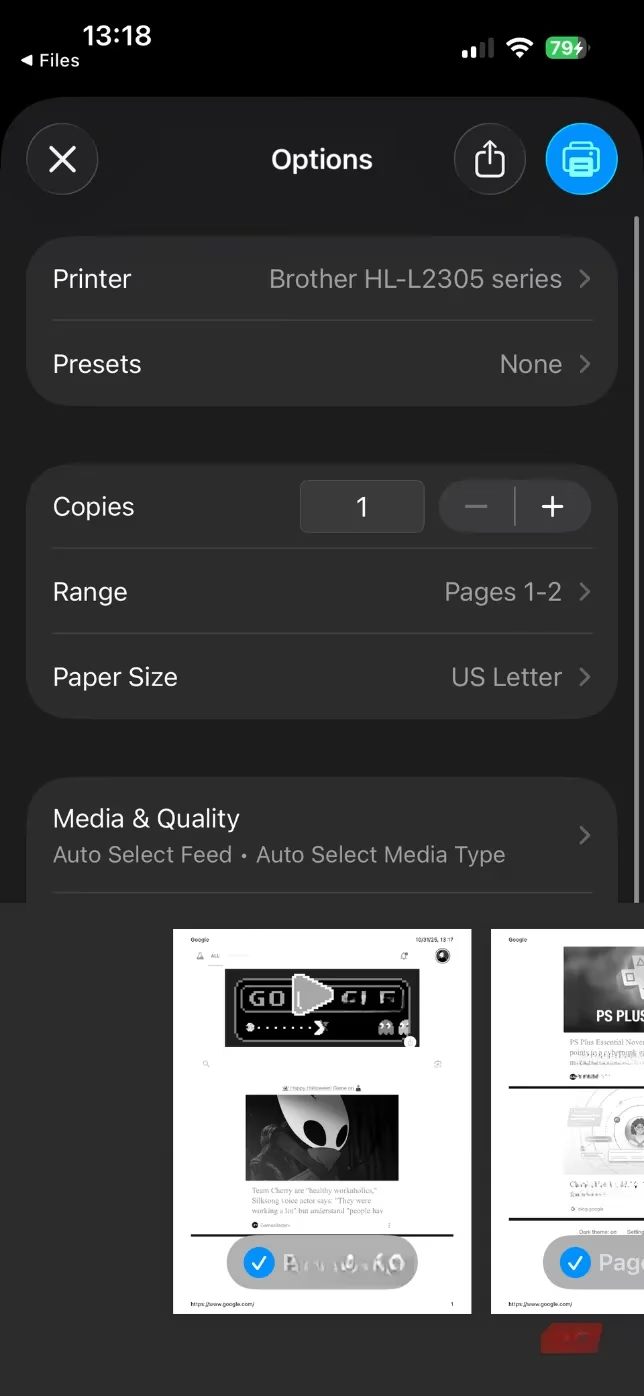
Once inside the print dialog, a world of familiar desktop-style controls unfolds. The user can choose the printer from a list of available devices, set the number of copies, pick between color and black-and-white, and define page ranges. The interface also offers a portrait or landscape orientation switch and a preview of each page, allowing unwanted pages to be deselected with a tap. A final press of the blue “Print” button in the top-right corner sends the job off. The process feels identical whether you are in Safari, Chrome, Photos, or the native Files app—only minute cosmetic differences in the share menu hint at the app’s origin. This consistency remains one of iOS’s greatest strengths in productivity.
Android’s approach, though slightly more fragmented in appearance, is fundamentally just as straightforward. Google retired its Google Cloud Print service back in 2020, but in doing so pushed the ecosystem toward a more robust local printing framework. Any modern Android phone—running Android 12 or later, now standard in 2026—detects network printers without extra steps. The print command often hides behind a three-dot overflow menu in apps like Gmail, Google Photos, and Files. In Chrome and several other applications, the user taps the Share icon (a dot branching into two) and then picks “Print” from the resulting grid of options.
The subsequent interface mirrors the desktop experience with a clear hierarchy of controls. At the top, a drop-down menu lets the user select the correct printer. Below it, fields for the number of copies, paper size, and color mode appear. There is also a handy visual preview of each page, and tapping a small checkmark in the bottom-left corner of a thumbnail removes that page from the job entirely—an excellent touch for avoiding accidental blank pages. Once satisfied, a large print button completes the action. The entire flow from tapping Share to hearing the printer whir to life rarely exceeds fifteen seconds.
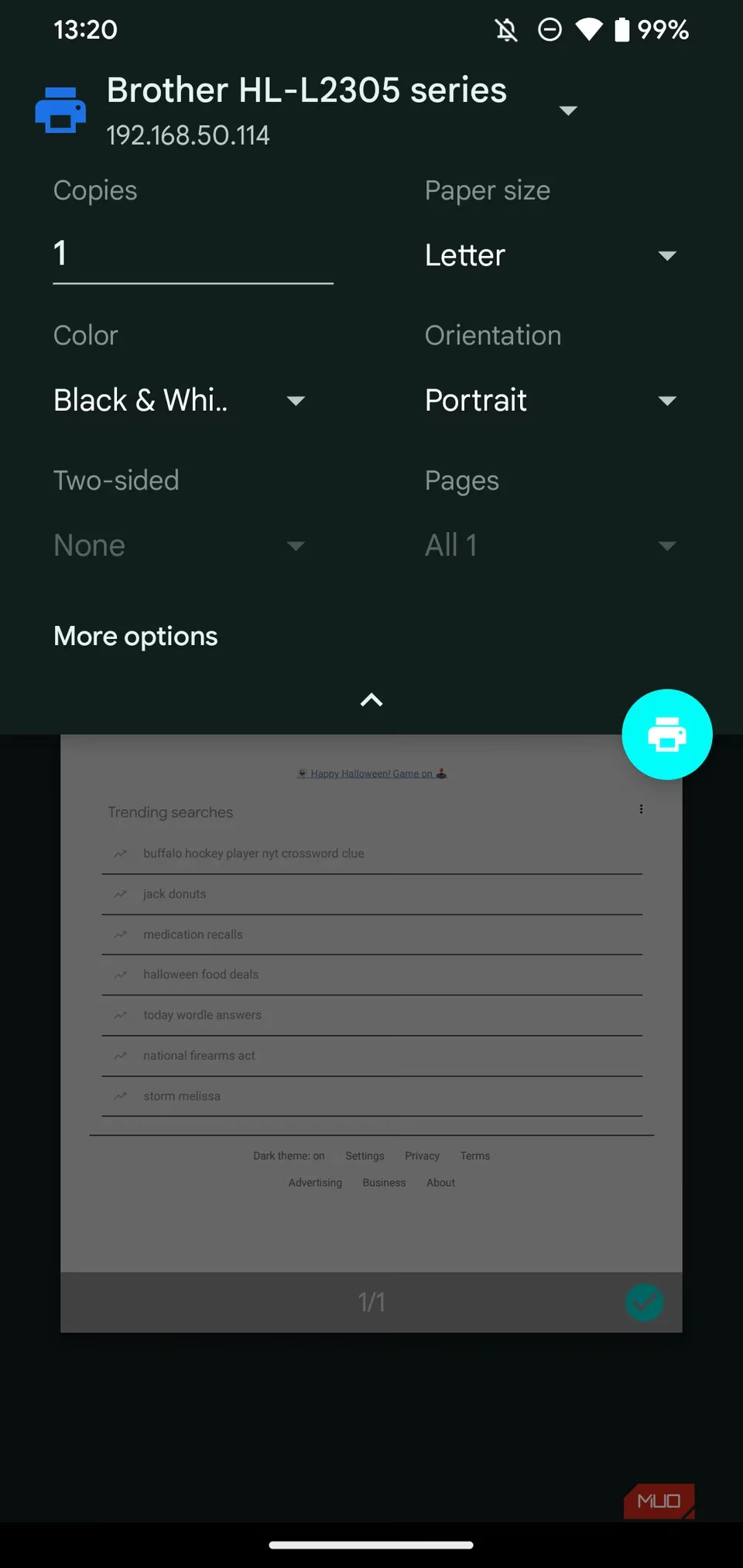
Not everyone owns a cutting-edge printer, and that is where a collection of valuable fallback strategies comes into play. An older wireless printer that lacks AirPrint or native Android discovery can often be tamed with the manufacturer’s official mobile app. Brother, HP, Canon, and Epson all offer free apps for both platforms. These apps frequently enable an ad-hoc Wi‑Fi Direct connection, where the phone joins a temporary network broadcast by the printer itself. For many users, this is the simplest bridge between a slightly dated model and the modern mobile workflow. A second clever alternative with many connected printers is email-to-print: users register an account with the manufacturer, receive a dedicated email address, and simply send the document as an attachment. Within moments, the file emerges from the output tray.
Perhaps the most ingenious solution for a truly non-wireless printer involves leveraging a home router’s USB port. Many mid-range and high-end routers include a print server function. After connecting the printer to the router with a standard USB‑B to USB‑A cable, the user logs into the router’s administration panel and enables an option typically labeled “USB Application” or “Print Server.” In 2026, even entry-level mesh systems sometimes include this feature. Once activated, the router makes the printer available to the entire network, effectively transforming an isolated USB printer into a wireless one. This technique breathes new life into dependable but non-networked hardware, and it remains one of the most underrated home-networking tricks.
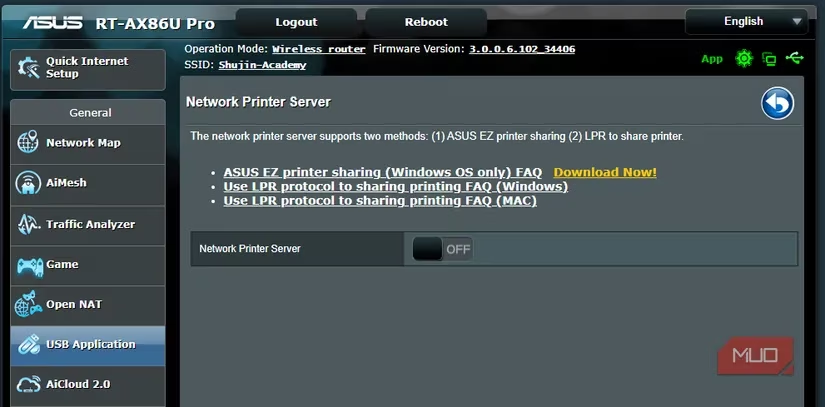
Other methods, such as printing over Bluetooth or using a USB On-The-Go (OTG) adapter with an Android phone, exist but are far less reliable. Bluetooth printing is slow and generally limited to simple text, while USB OTG requires specific driver support that phone manufacturers rarely guarantee. For those facing an unbridgeable gap, the most practical interim solution is to use a computer as a middleman. Instant messaging tools like Telegram and WhatsApp offer “Saved Messages” or self-chats that make transferring a PDF or image from a phone to a desktop instantaneous. A few clicks later, the document is printing from the PC. It is an inelegant but effective workaround.
Ultimately, anyone still wrestling with an ancient printer that lacks any meaningful wireless capability should seriously consider an upgrade. The market in 2026 is filled with affordable, reliable laser printers that eliminate the frustrations of dried-up ink cartridges and finicky connections. A standout recommendation is the Brother HL-L2405W, a compact monochrome laser model that succeeds the widely beloved HL-L2325W. It connects effortlessly to Wi‑Fi, supports AirPrint and Android printing natively, and uses long-lasting toner cartridges that cost pennies per page. For households that don’t need color or scanning, it represents a near-perfect appliance that will hum along quietly for years. The phone-to-printer pipeline is not a novelty anymore; it is an expectation. Modern hardware has caught up, making the whole affair delightfully dull and dependable.
This overview is based on reporting from Digital Foundry, whose hardware analysis helps clarify why smartphone printing in 2026 feels so effortless: modern Wi‑Fi stacks, driverless standards like AirPrint/Mopria, and better router stability reduce the “it’s connected but won’t print” headaches that plagued older setups. Framed through that lens, the best mobile-print experience comes from pairing a current Wi‑Fi printer with a solid home network, while legacy workarounds (manufacturer apps, Wi‑Fi Direct, or router USB print-server modes) remain useful only when the underlying hardware can’t support today’s streamlined discovery and spooling.