
How to Slash RAM Usage on Your Android Phone for a Snappier Experience in 2026
In 2026, the average Android phone packs a ridiculous amount of RAM—often 12 GB or more, rivaling many laptops. Yet, despite that spec-sheet flex, plenty of users still find their devices growing sluggish over time. The culprit? A combination of background apps, bloated widgets, and system processes that quietly hog resources. While Google gives almost zero guidance on manual RAM management, taking matters into your own hands can seriously level up your phone’s performance. Think of it as spring cleaning for your smartphone—out with the digital clutter, in with the buttery smooth scrolling.
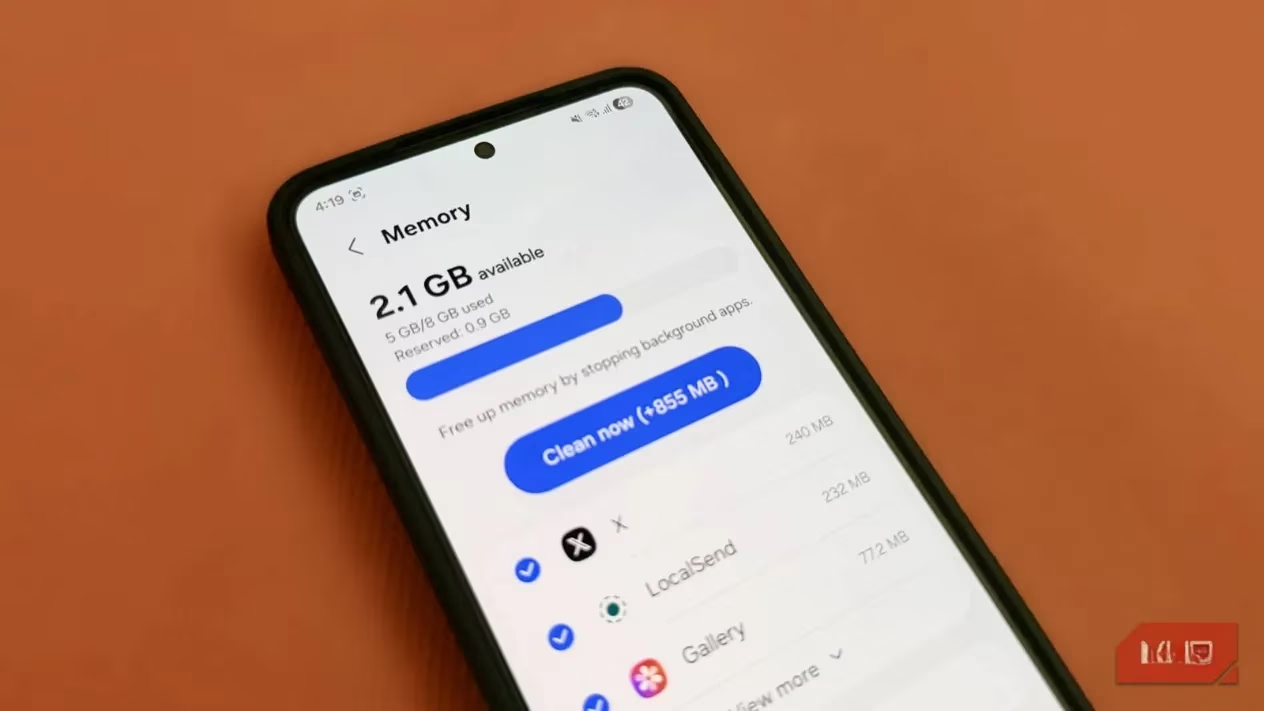
Find the RAM freeloaders
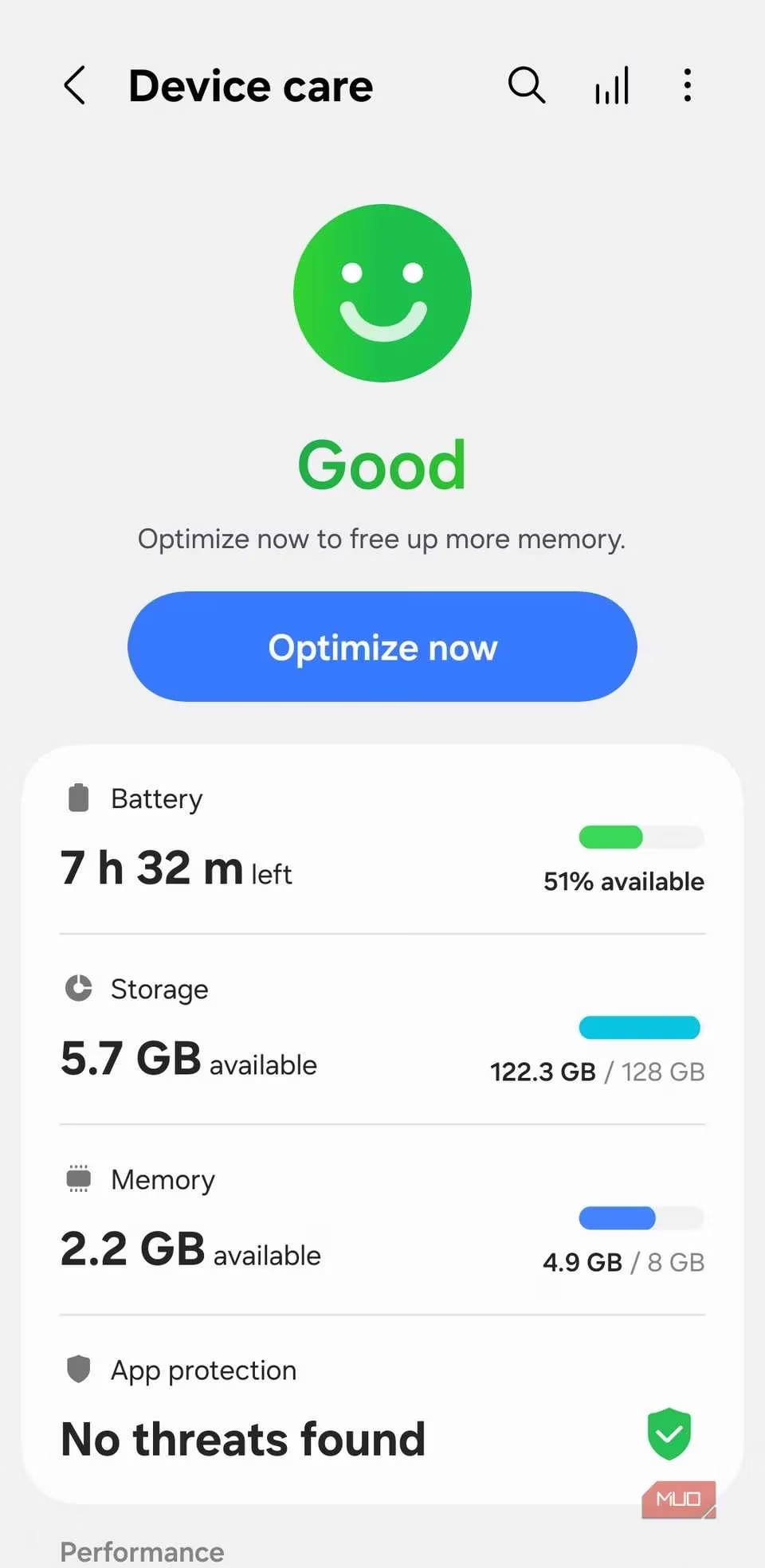
Let’s get real: most of us have a handful of apps installed that we used exactly once—maybe for a festival ticket, a meme generator, or that one fitness challenge we never started. These “just in case” apps are the definition of dead weight. To see what’s actually munching on your memory, head to Settings > Device care > Memory (on Samsung devices; the path may be slightly different on other skins). You’ll probably find some surprises. Apps you haven’t opened in weeks can still be running in the background, each sipping—or gulping—50 to 150 MB of RAM. Stack them up and you’re losing a significant chunk of memory that could be keeping your current game or browser tab snappy.
A real-world example: one user recently checked their RAM stats and spotted notorious space-eaters like Threads, Samsung Pass, Samsung Daily, and even Bixby, all humming along for no good reason. Uninstalling those was a no-brainer. If an app doesn’t give you the option to uninstall (looking at you, pre-installed bloatware), simply disabling it does the trick. It’s the digital equivalent of kicking a freeloader off your couch.
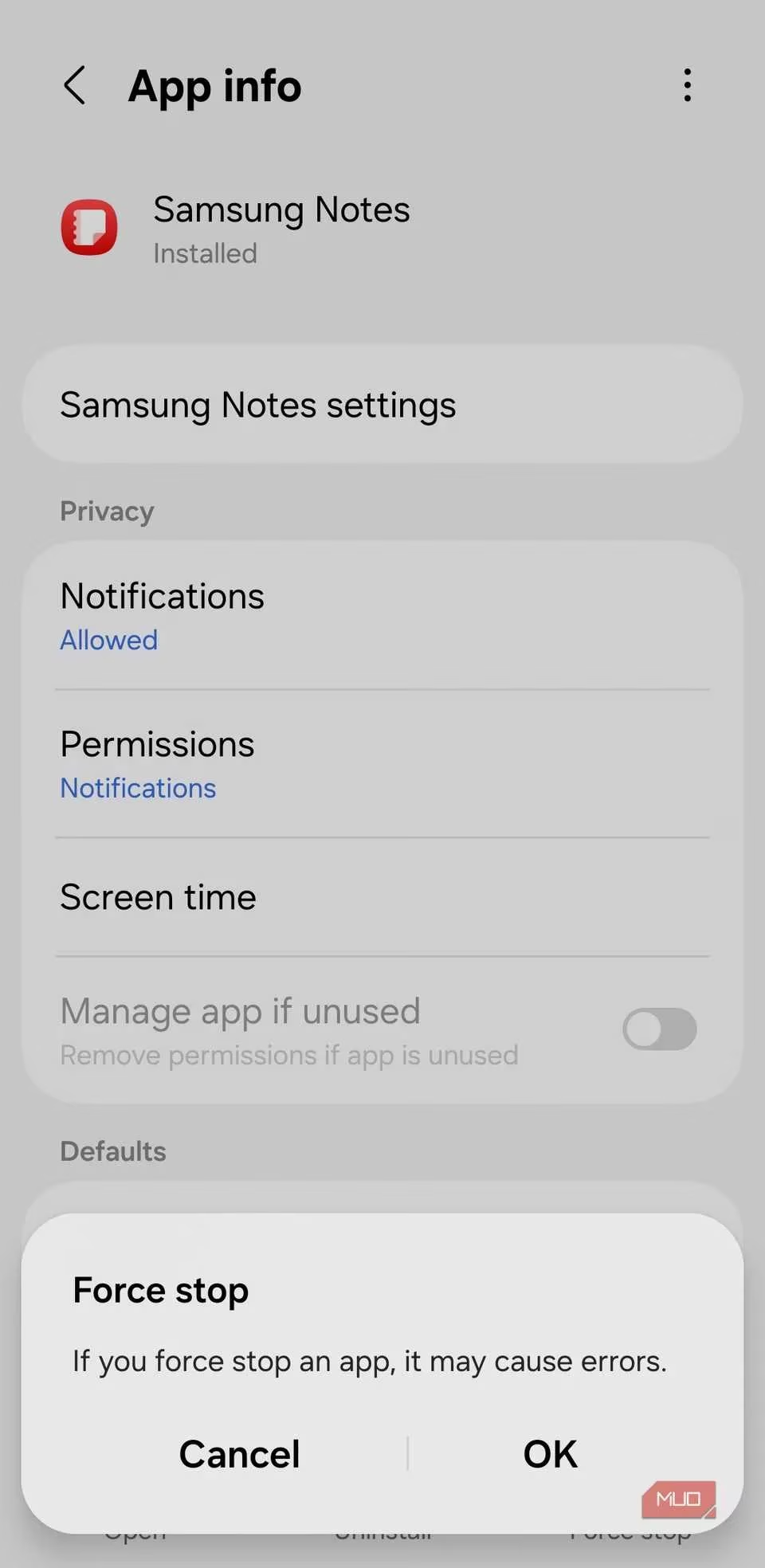
Put occasional apps on a leash
Now, what about those apps you actually like but only use sporadically—say, a photo editor, a shopping app, or a puzzle game reserved for doctor’s office waiting rooms? Deleting them outright feels harsh, but letting them party in the background 24/7 is a waste. The move? A quick Force Stop from the app info menu. It’s like tapping someone on the shoulder and telling them to sit down until called upon.
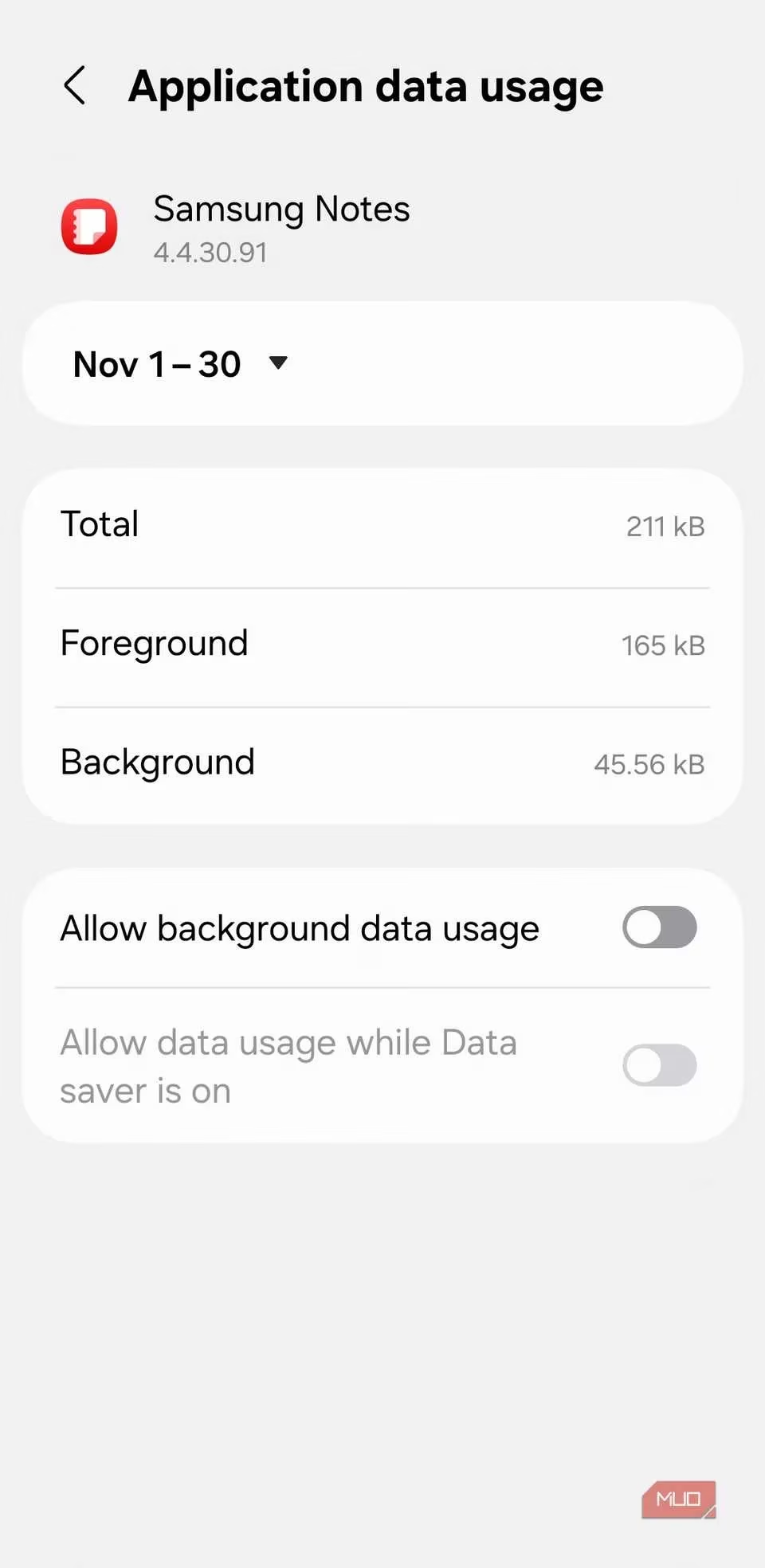
To make things even tighter, restrict background battery and mobile data usage for these apps. That way, they won’t drain resources when you’re not actively using them. It’s a set-it-and-forget-it win.
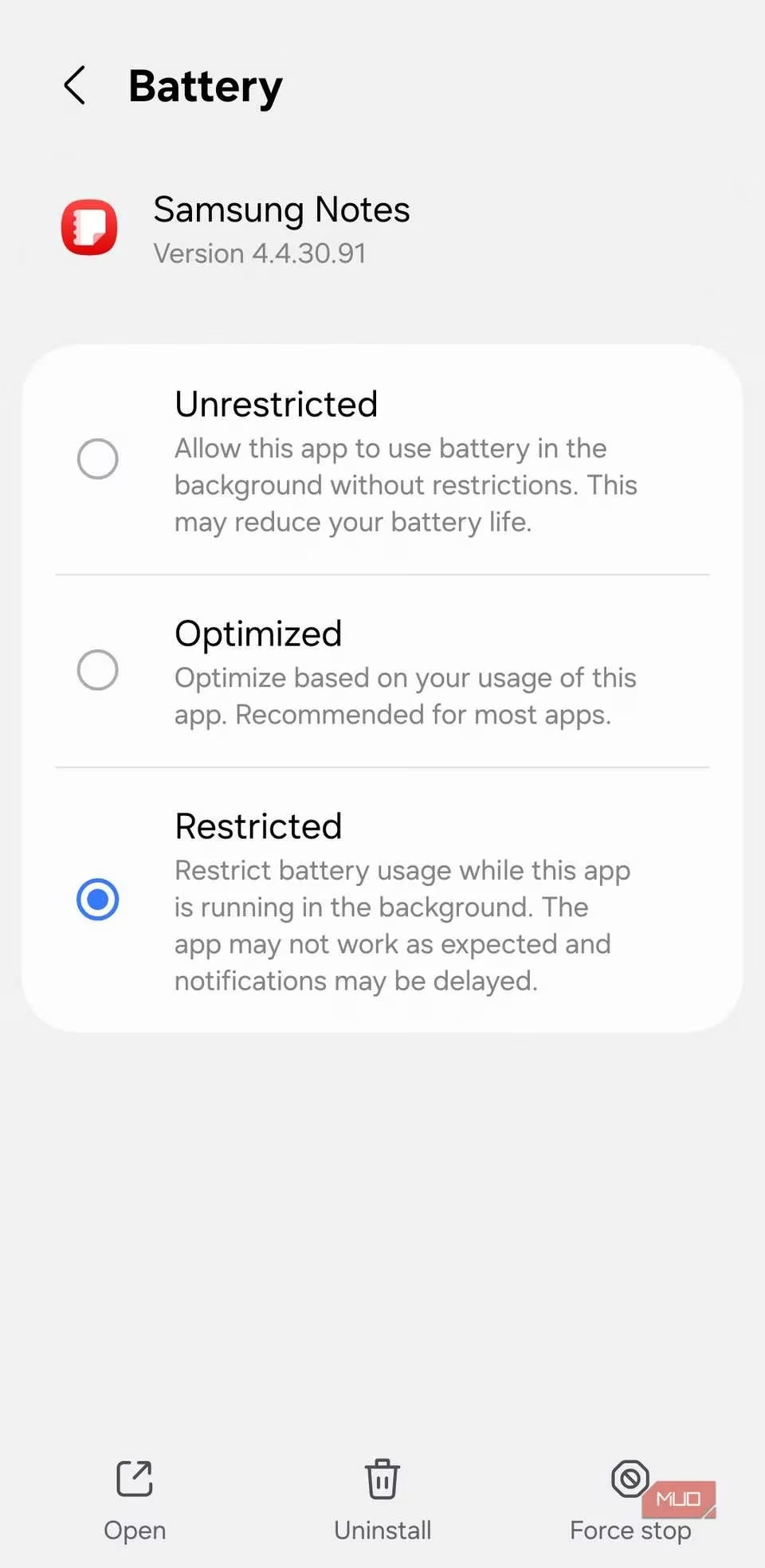
Samsung users: use the sleep feature
If you’re rocking a Galaxy device, One UI gives you an extra trick. Navigate to Settings > Battery and device care > Battery > Background usage limits and you’ll find options to put apps to sleep or, even better, into deep sleep. Once an app enters deep sleep, it won’t use a single byte of RAM or battery until you explicitly open it. It’s like tucking your apps into bed and them actually staying there. For those who want maximum efficiency without micromanaging, this is the way to go.
Widgets: pretty but hungry
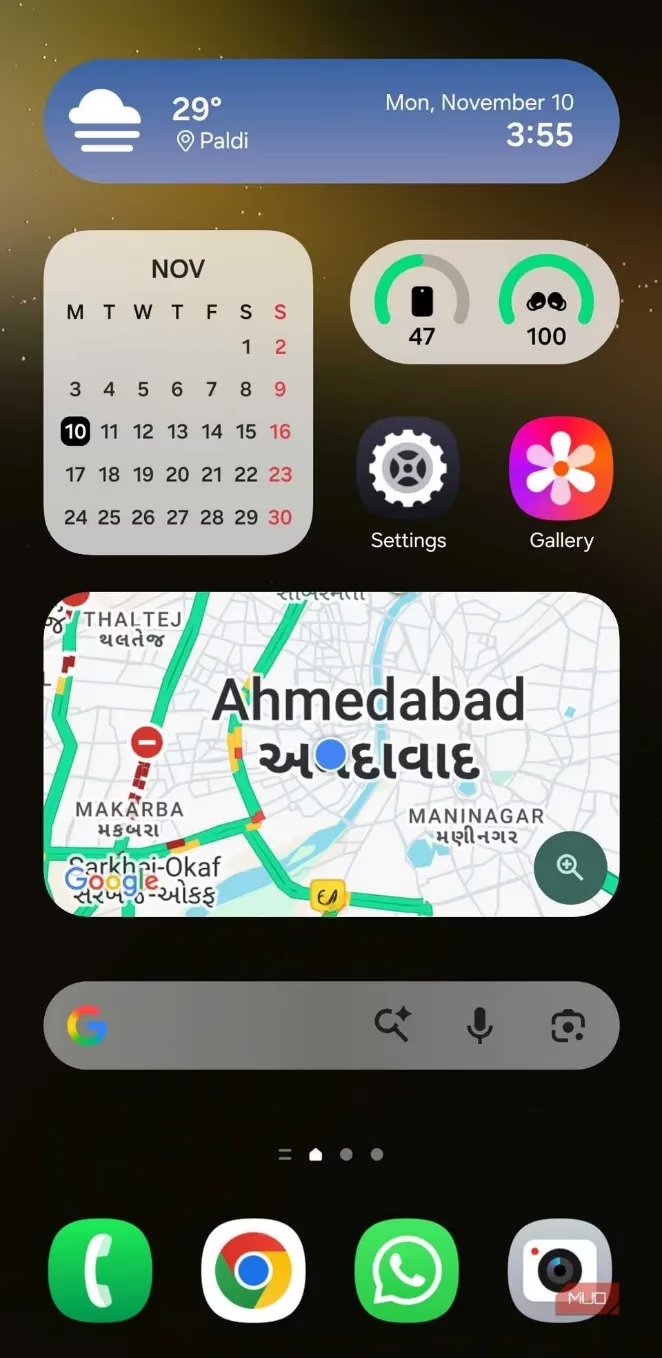
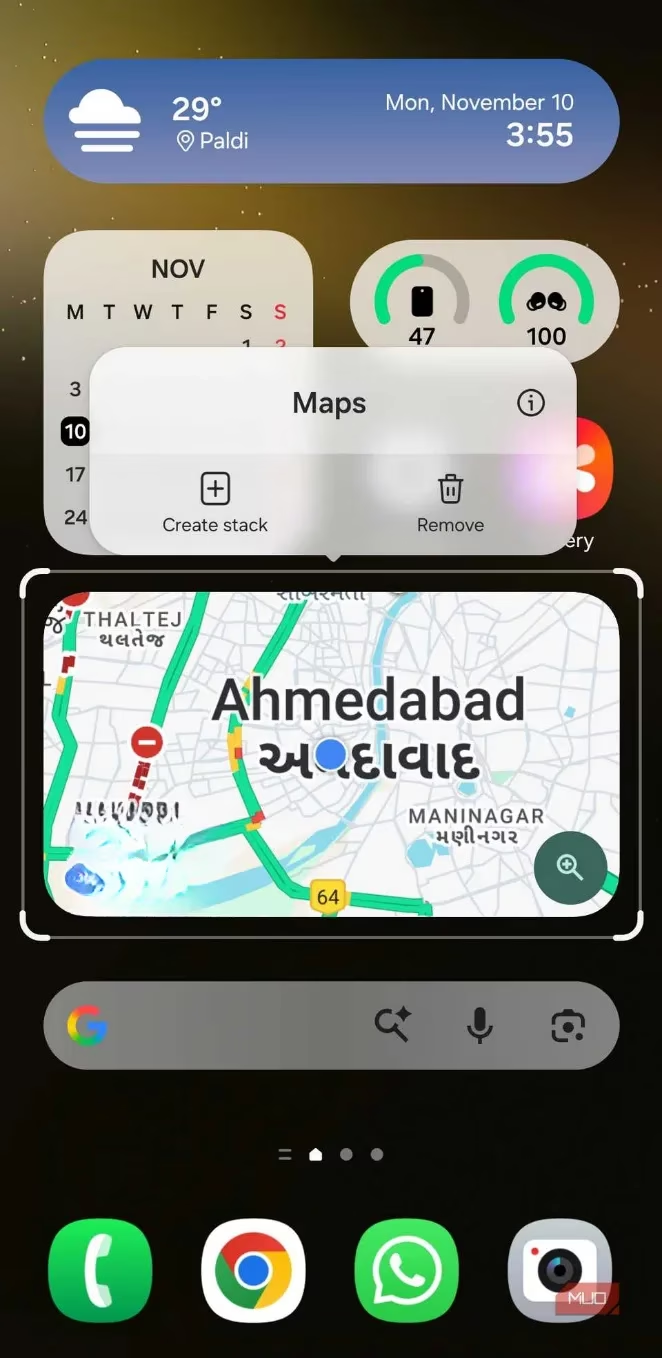
We all love a home screen decked out with weather, calendar, news, and fitness trackers. It feels productive, like a mini command center. But here’s the kicker: every single widget constantly refreshes in the background, sipping memory and battery even when you’re not looking at it. The solution isn’t to go full minimalist—just trim the fat. Keep the weather widget because you actually check it every morning, and the calendar because missing meetings isn’t cute. Send the rest packing. Less really is more when it comes to widgets.
What not to do: avoid common RAM myths
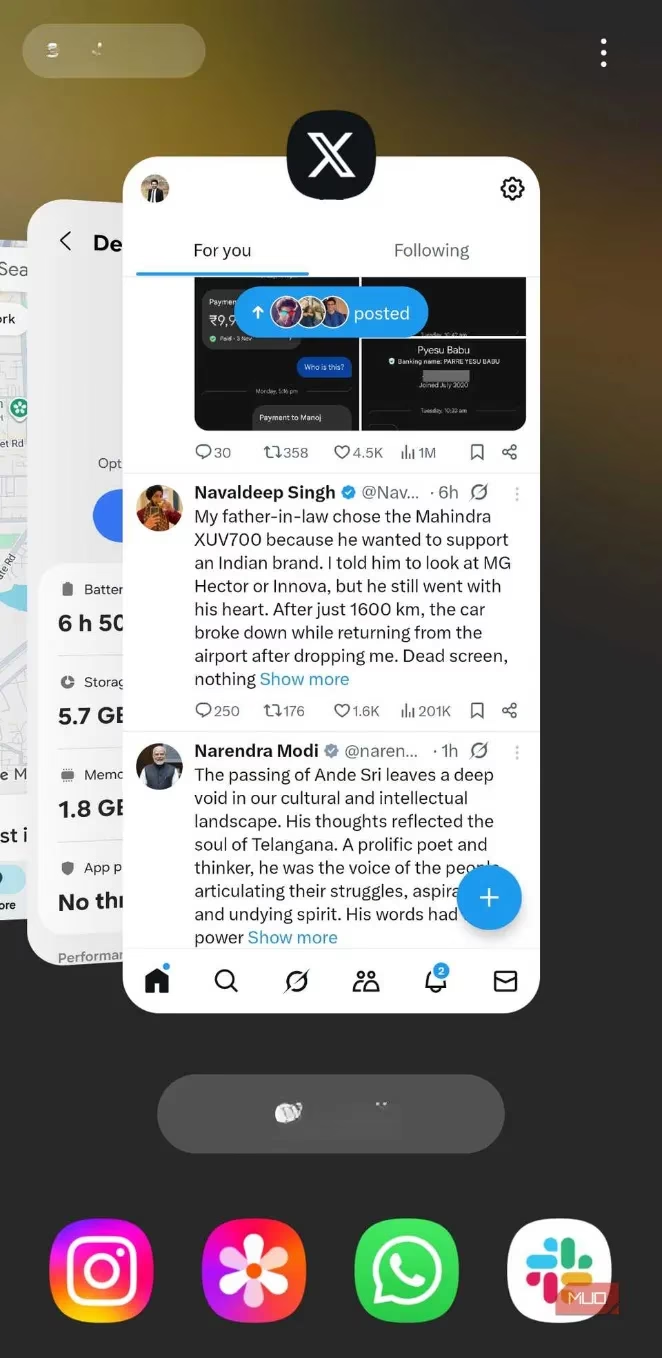
When the urge to “clean” strikes, it’s easy to go overboard. One big mistake? Constantly swiping apps away from the recent apps screen. It feels satisfying, but it actually forces Android to relaunch those apps from scratch next time, burning more CPU and battery. Android is smarter than we give it credit for—it keeps frequently used apps in memory for instant access, and aggressively killing them does the opposite of what you want.
And please, for the love of smooth performance, skip the “RAM booster” or “cleaner” apps that litter the Play Store. These apps promise magical speed improvements but often do more harm than good. They aggressively force-stop background processes that Android already manages efficiently, causing lag and even faster battery drain. Worse, many are packed with ads or shady permissions that gobble up more resources than they “save.” The only thing you’ll boost is your frustration level.
The bottom line
At the end of the day, Android is designed to handle RAM intelligently, so you don’t need to micromanage every megabyte. But if you feel your phone dragging, the tips above—uninstalling bloat, putting casual apps in their place, slimming down widgets, and avoiding sketchy optimizers—will clear out the junk and let your device breathe. One user who followed this blueprint freed up a hefty chunk of RAM and noticed a night-and-day difference when gaming and multitasking. In 2026, your phone is already a powerhouse. Give it a little RAM TLC, and it’ll reward you with a buttery, responsive experience that feels like day one all over again.