
How to Turn Your Old Android Tablet into a Free Stream Deck Alternative with Touch Portal
Have you ever wished for a sleek control panel on your desk to launch apps, trigger shortcuts, and automate your PC with a simple tap? While dedicated hardware like the Elgato Stream Deck exists, what if you could achieve a similar effect for free, using an old Android tablet gathering dust in a drawer? This is the journey of a casual user who discovered that a software solution could effectively replace three expensive gadgets, including a macro controller.
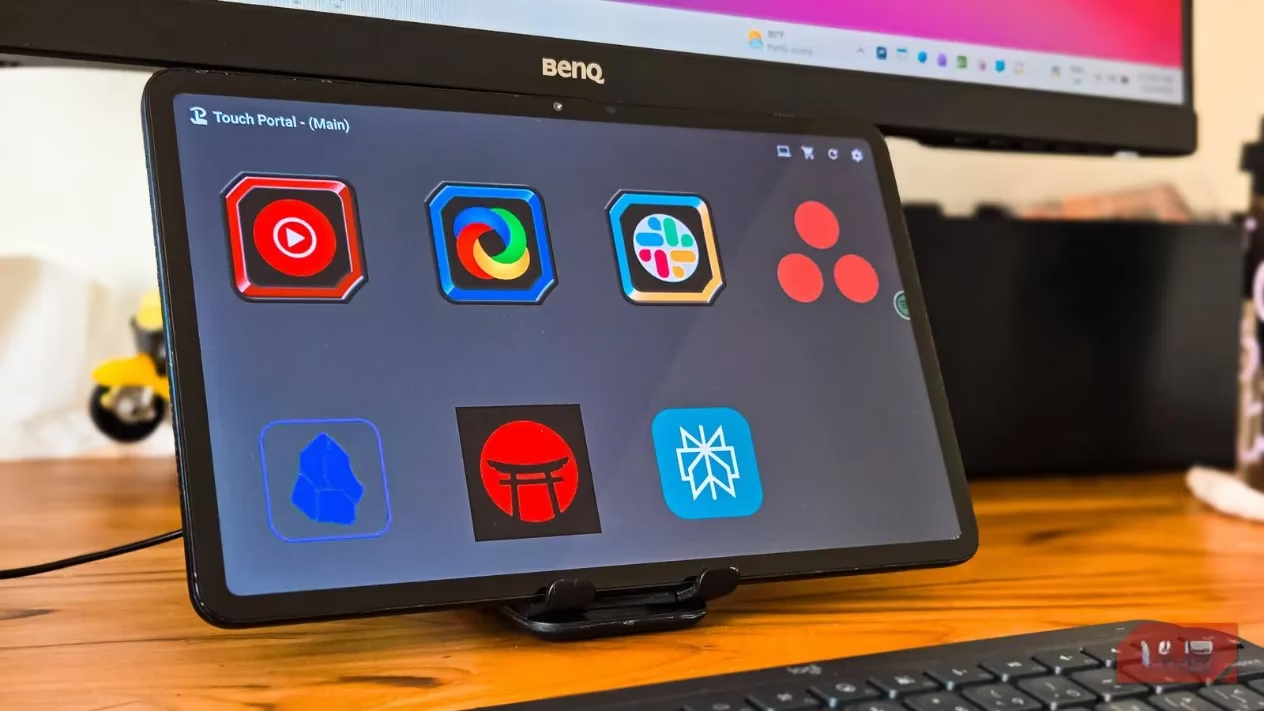
Enter Touch Portal, a free application that transforms your phone or tablet into a fully customizable control surface. The concept is brilliantly simple yet powerful: a mobile app displays pages of tappable buttons and sliders, while a companion desktop application running on your PC receives these commands and executes them. Isn't it fascinating how software can emulate dedicated hardware? For someone who isn't a streamer but values productivity, this opened up a world of possibilities—quickly accessing frequent apps without constantly switching between mouse and keyboard.
How Does Touch Portal Actually Work?
At its core, the workflow is straightforward. You tap a configured button on your tablet screen. Touch Portal then sends that specific command to its desktop counterpart over your local Wi-Fi network or via a USB connection. The desktop app acts on this command, performing the predefined action. But what can these actions be? The range is impressively broad:
-
Launching Applications & Games 🚀
-
Triggering Keyboard Shortcuts ⌨️
-
Controlling Streaming Software (OBS, Streamlabs, XSplit) 📹
-
Running Multi-Step Macros ⚙️
-
Simulating Mouse Movements & Clicks 🖱️
-
Managing Windows (Minimize, Maximize, Close)
The true power lies in customization. Each button isn't limited to a single action. You can stack multiple actions, create conditional logic (like "If This, Then That" workflows), and integrate with various services. While it has built-in support for popular streaming platforms, its ability to automate any application using simulated inputs makes it a versatile tool for anyone, not just content creators.
Getting Started: From Zero to Your First Button
Setting up Touch Portal requires a few steps, but the process is manageable. The initial setup might not be the most intuitive, but following a clear path leads to success. Here’s a simplified guide:
-
Install the Software: Begin by downloading the Touch Portal desktop app for Windows or macOS from the official website. Then, install the mobile app on your Android tablet from the Google Play Store (or the App Store for iOS devices).
-
Establish Connection: Ensure both your PC and tablet are on the same Wi-Fi network. Open the desktop app on your PC and locate the QR code icon in the bottom toolbar to generate a pairing code.
-
Pair the Devices: On your tablet, open the Touch Portal app, go to Settings, and select Setup Wizard. Choose the QR Code connection method and scan the code displayed on your PC screen.
-
Create Your First Control: Once paired, you'll see an empty button grid on both screens. Click an empty slot on the desktop app to open the Edit Control screen.
Let’s create a basic app launcher button, a perfect starting point. In the Edit Control screen:
-
Under General, select "Launch Apps & Games" as the Action Type.
-
Choose your desired application from the dropdown menu. Windows Store apps appear automatically; for others, use the "Other Applications and Games" browser.
-
To make it visually appealing, click the image icon to assign a custom icon. Touch Portal offers an asset database, including the polished IKON pack, which gives your buttons a professional, Stream Deck-like aesthetic.
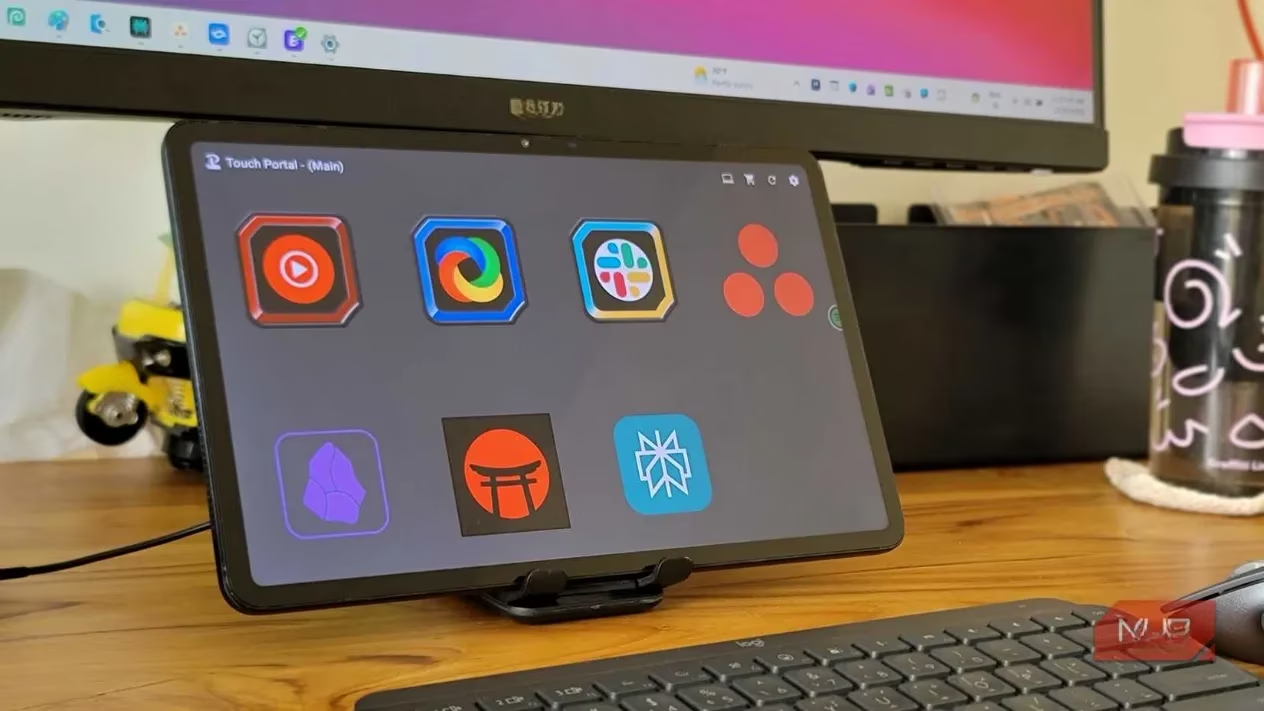
After saving, the button syncs instantly to your tablet. Tap it, and watch the application spring to life on your PC! A basic productivity setup might include buttons for communication (Slack, Discord), media (Spotify), your primary browser, file explorer, and other daily-driver apps.
Free vs. Pro: Is the Upgrade Worth It?
Touch Portal operates on a freemium model, and the free version is surprisingly capable for basic use.
| Feature | Free Version | Pro Version (One-time $13.99) |
|---|---|---|
| Button Grid | 4×2 (8 buttons per page) | Unlimited (Up to 110 buttons per page) |
| Pages | 2 | Unlimited |
| Customization | Basic Icons | Animated GIF Icons, Custom Backgrounds |
| Advanced Features | Core Automation | Plugin Support, Global Variables, Events |
For a simple app launcher and macro setup, the free version often suffices. The limitations primarily affect users who need extensive control panels for complex streaming setups or advanced automation workflows. The Pro upgrade unlocks deeper potential, but for repurposing an old tablet into a productivity remote, the free tier is a compelling starting point.
The Trade-Off: Software Flexibility vs. Hardware Reliability
While Touch Portal is powerful, it's essential to understand its context compared to a dedicated Stream Deck. Think of it this way: are you willing to trade some convenience for a significant cost saving?
Where Touch Portal (and Your Tablet) Shines:
-
Cost-Effective: It turns idle hardware into a useful tool at no (or low) cost.
-
Highly Customizable Screen: Your tablet's display allows for vibrant, detailed buttons and layouts.
-
Portability: Easily move your control surface around.
Where a Physical Stream Deck Has the Edge:
-
Tactile Feedback: Physical buttons allow for muscle memory and use without looking. 👆
-
Plug-and-Play Simplicity: USB connection guarantees zero network-related issues.
-
Integrated Software: Elgato's software is often praised for its user-friendly setup and deep app integrations.
A key consideration with Touch Portal is connection reliability. Relying on Wi-Fi can introduce minor latency and, more annoyingly, potential dropouts. For a more stable experience on Android, the USB connection mode is highly recommended, though it requires enabling Developer Options and USB Debugging first.
Final Verdict: Who Is This For?
So, should you download Touch Portal or save up for a Stream Deck? The answer depends entirely on your needs and resources.
-
Choose Touch Portal if: You have an old Android tablet or phone, want a free or low-cost solution, and need basic to moderate PC automation for productivity. It's perfect for launching apps, triggering common shortcuts, or managing a simple workflow. Why spend money when you can repurpose what you already own?
-
Invest in a Stream Deck if: You are a serious streamer, content creator, or professional requiring rock-solid, instantaneous, and tactile controls with seamless software integration. The dedicated hardware experience is unmatched for intensive, reliable use.
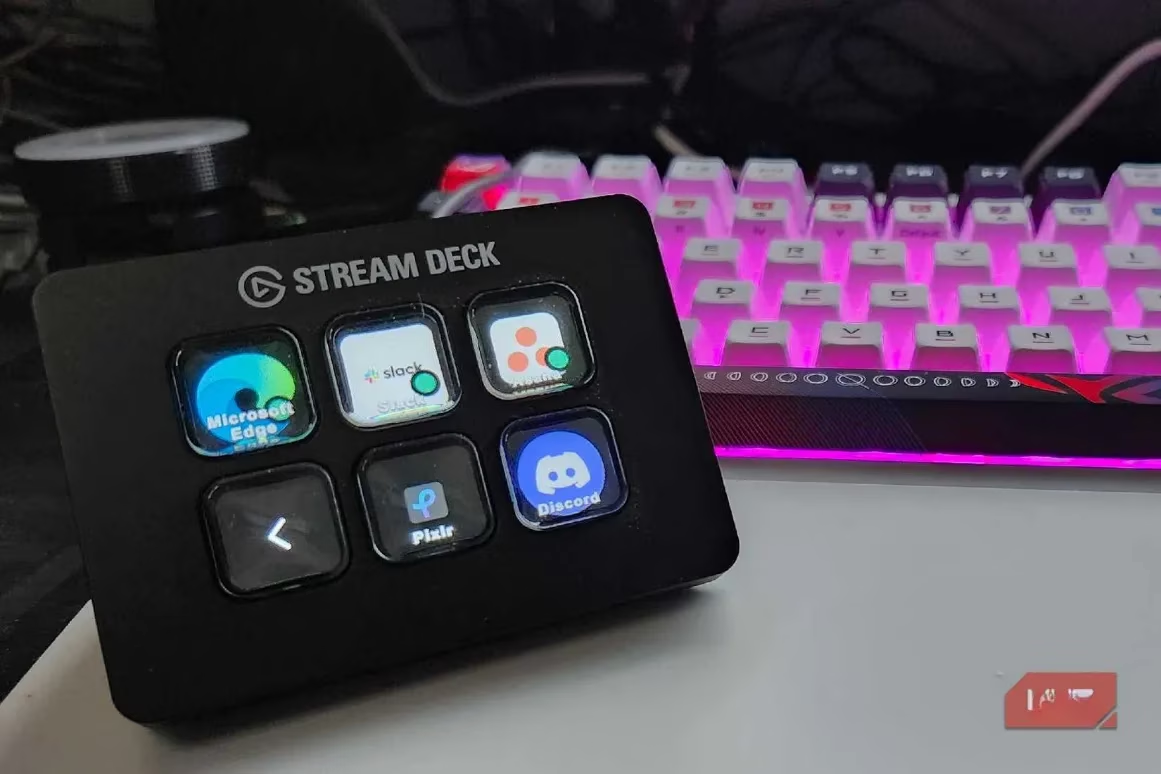
For the casual user in 2026, looking to declutter their digital workspace and add a layer of convenience, Touch Portal presents an ingenious solution. It proves that with a bit of software magic, even outdated technology can find a new, powerful purpose. The journey from a dusty tablet to a personalized control deck is not just about saving money—it's about creatively maximizing the tools already at your fingertips. Isn't that the ultimate form of productivity?