
I Found the Hidden Android Storage Hogs Eating My Space
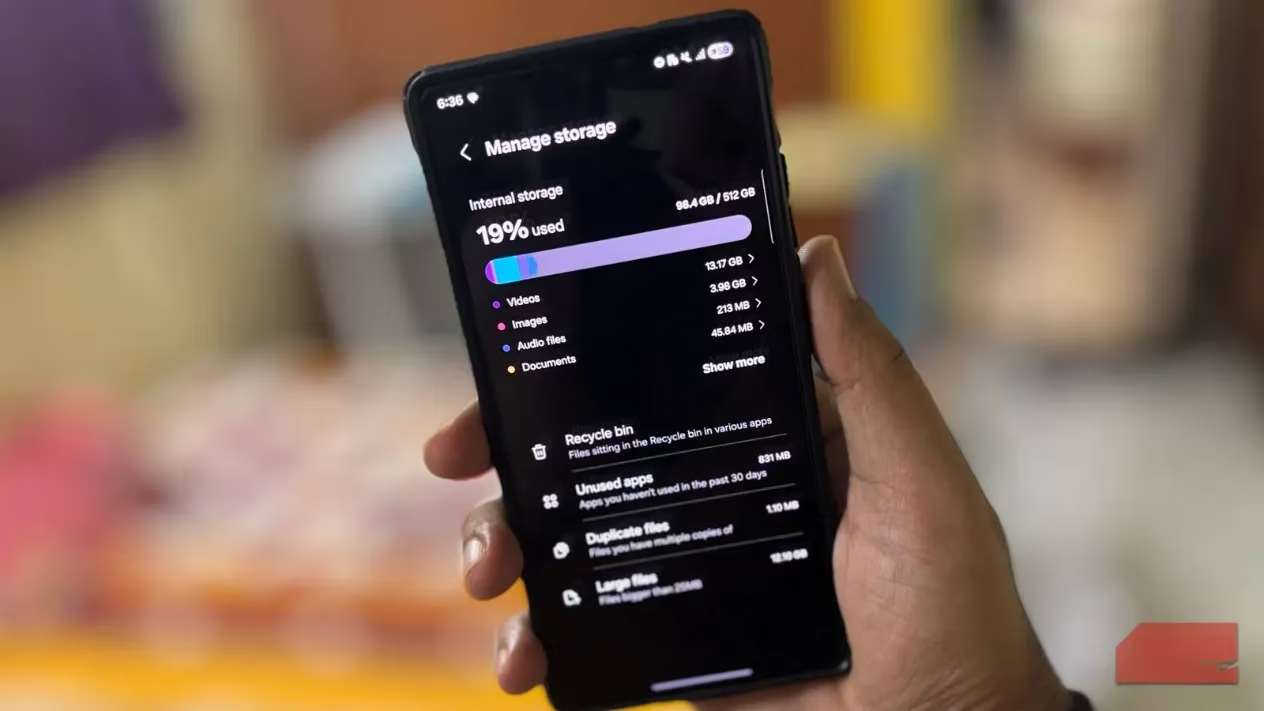
Last week I glanced at my Samsung phone's storage and did a double take: 128 GB total and only 9 GB free. I hadn't downloaded anything huge. No 4K movies, no massive games. So why was my phone gasping for air? The answer, I discovered, was hiding in plain sight. Android keeps a ton of files I never touch—cache, app data, downloads, browser crumbs, offline maps, and leftover folders from apps I uninstalled ages ago. Out of sight, out of mind, right? Not when your phone starts nagging you to delete photos just to take one more pic. Here's how I went on a digital spring cleaning in 2026, and how you can do the same without losing your precious logins or settings.
Cache vs. App Data: The One-Two Punch
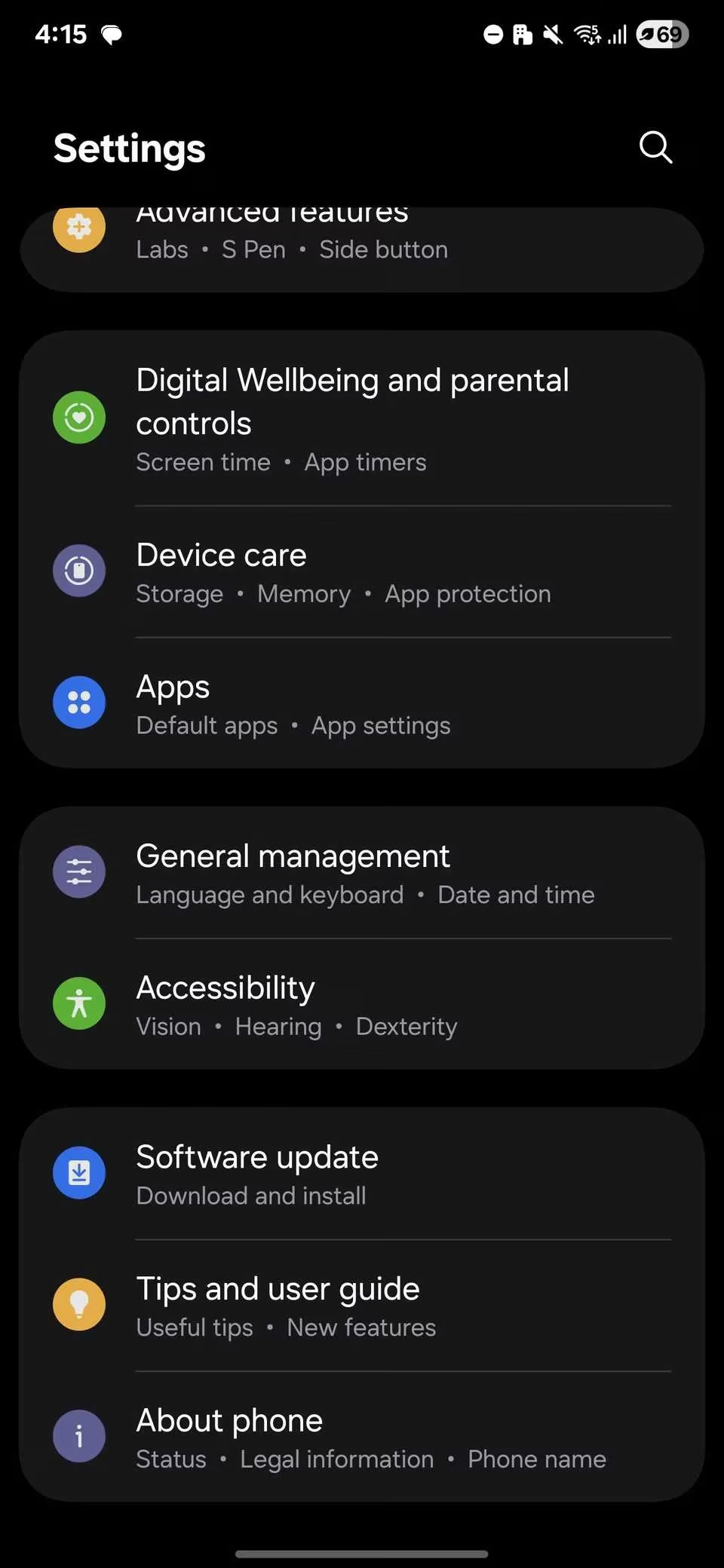
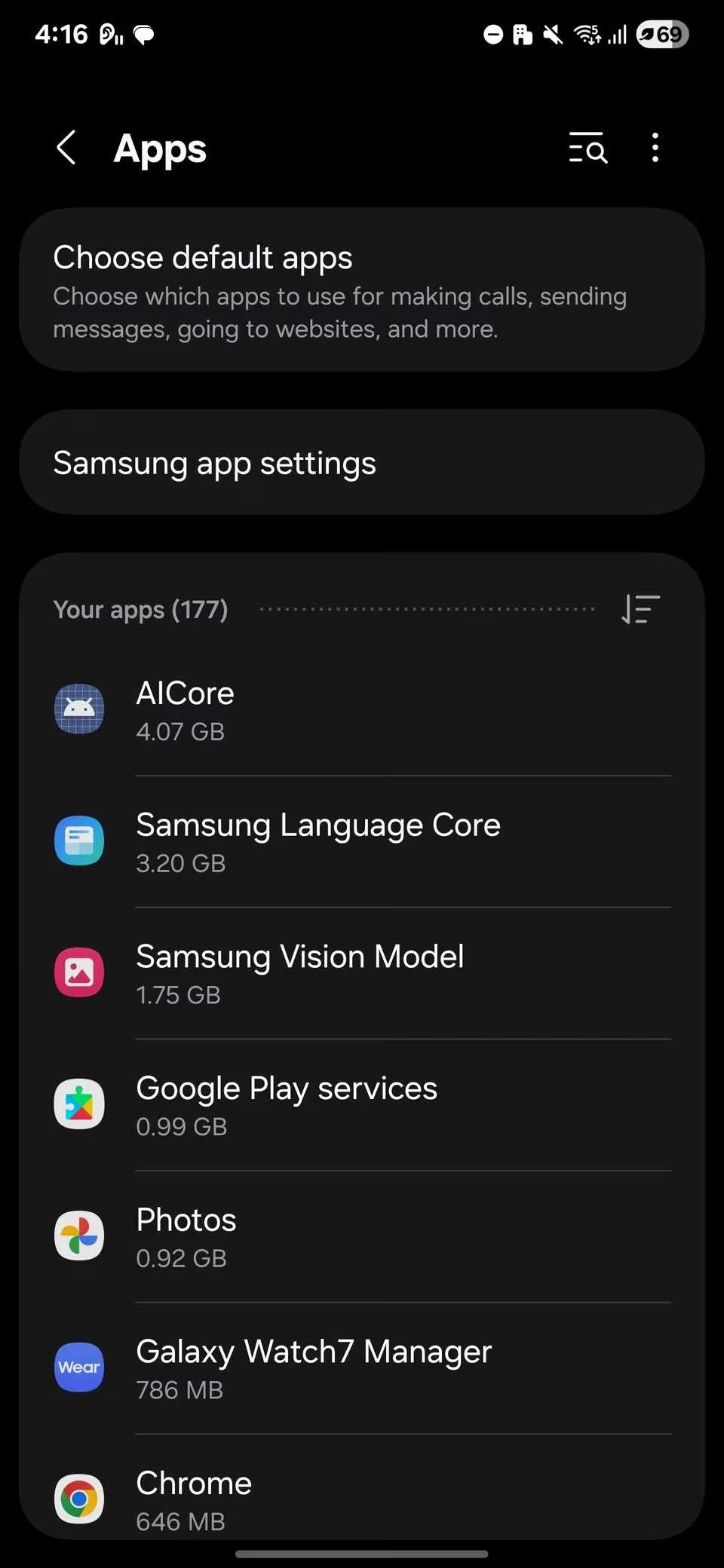
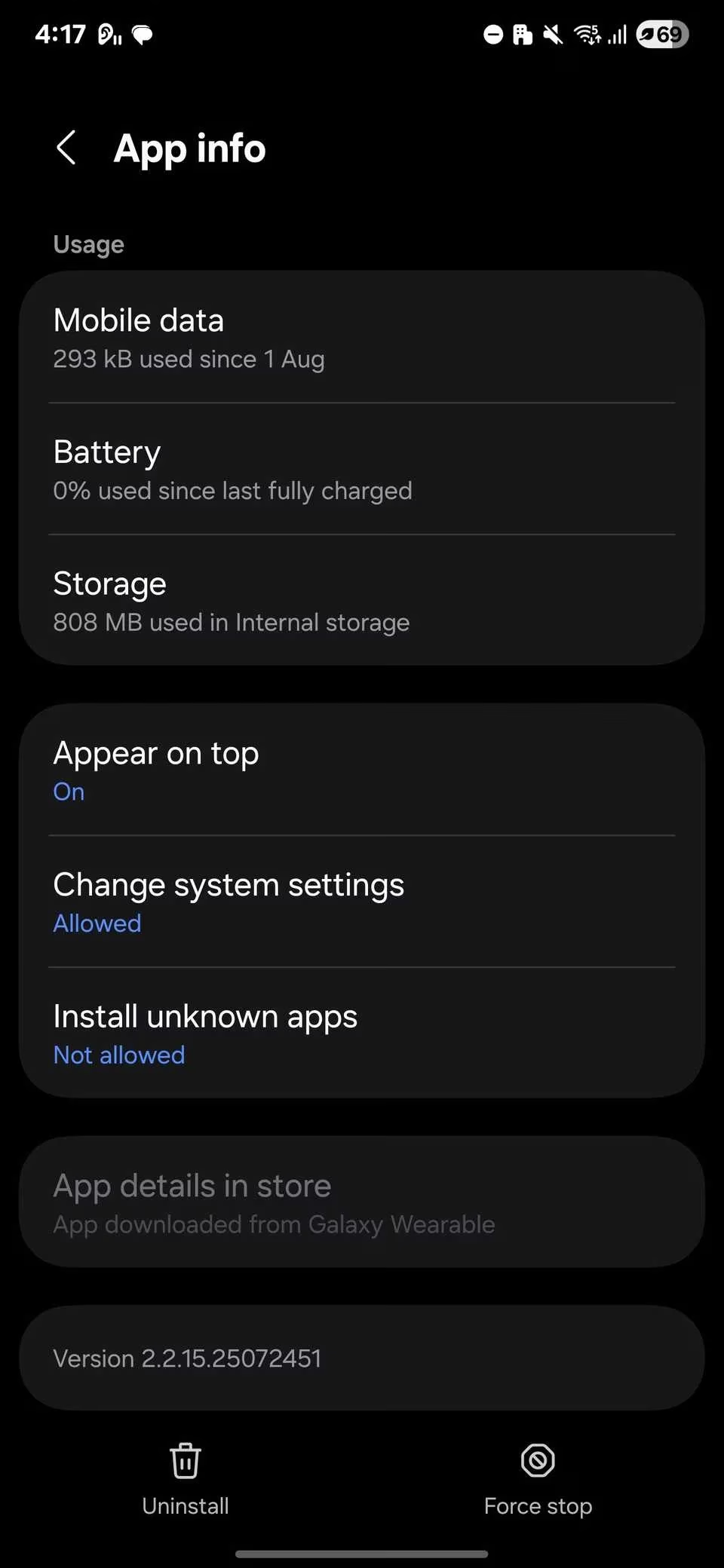
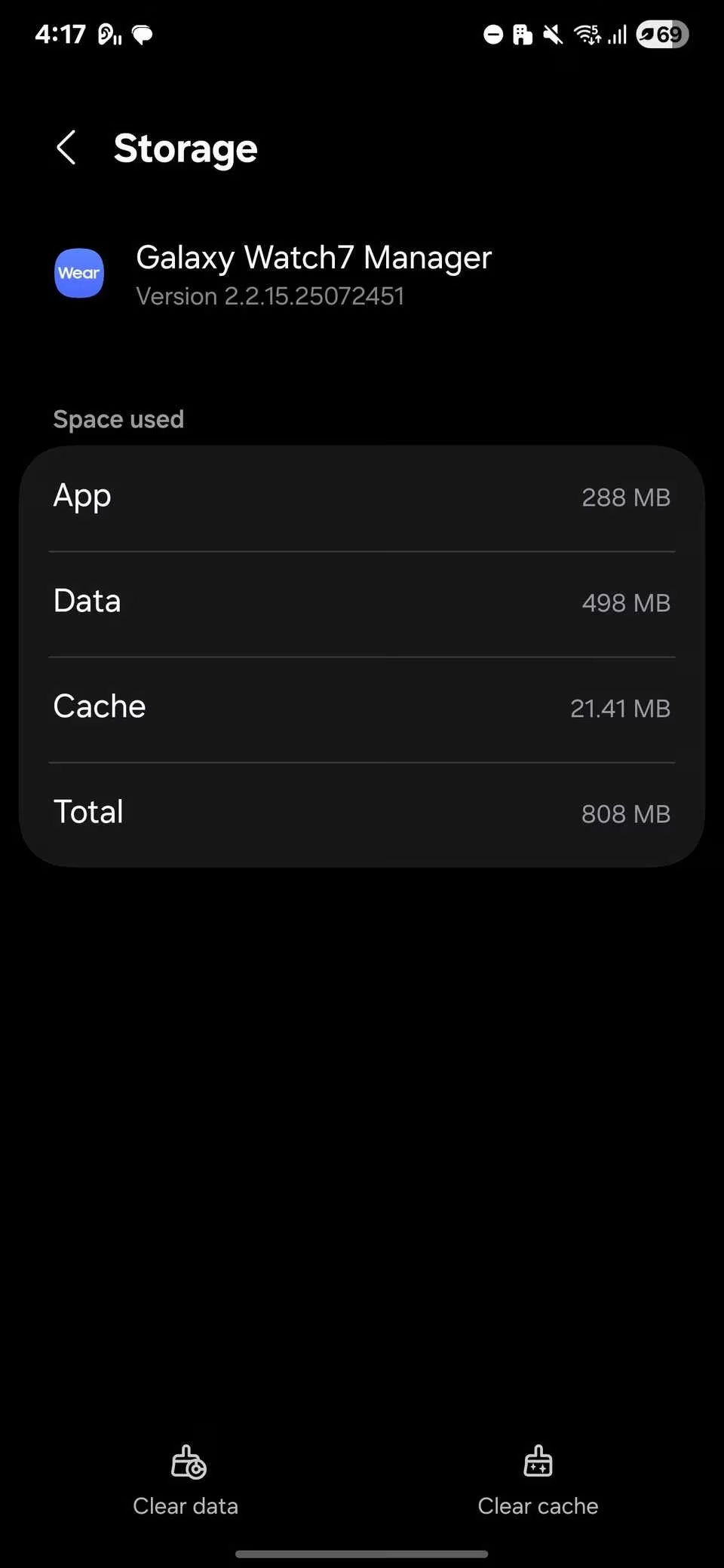
First, I opened Settings > Apps. Every app I tapped had a Storage section, and that's where the magic happens. Cache is like the app's short-term memory: temporary images, scripts, and files that speed up loading. Social media, browsers, and streaming apps build monster caches because they chew through so many pictures and videos. Clearing cache is the low-hanging fruit. It frees space instantly without logging me out or wiping my preferences.
App data is a different beast. It holds my settings, saved accounts, databases, and sometimes files I downloaded inside the app. Deleting it resets the app to factory default. I only do that for apps I rarely use, or when an app is acting up and needs a clean slate. Here's a quick cheat sheet I wish I'd had years ago:
| What I clear | What it holds | Safe to clear? | What happens next |
|---|---|---|---|
| Cache | Temporary files, thumbnails, snippets | Yes, almost always | App may load slower once, then speeds up again |
| Data | Logins, settings, saved content | Usually, but be careful | App resets; I must sign in and set preferences again |
Downloads Folder: The Landfill I Forgot
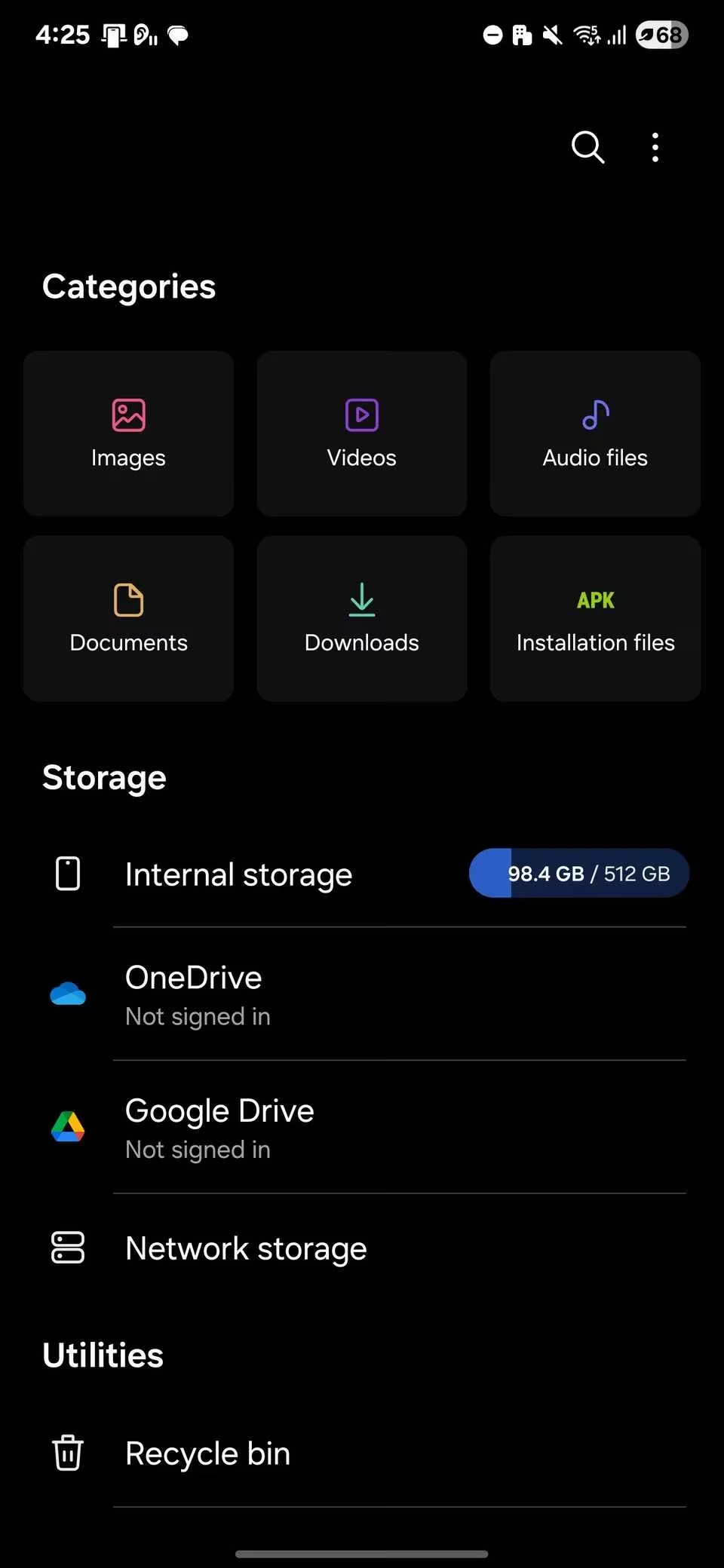
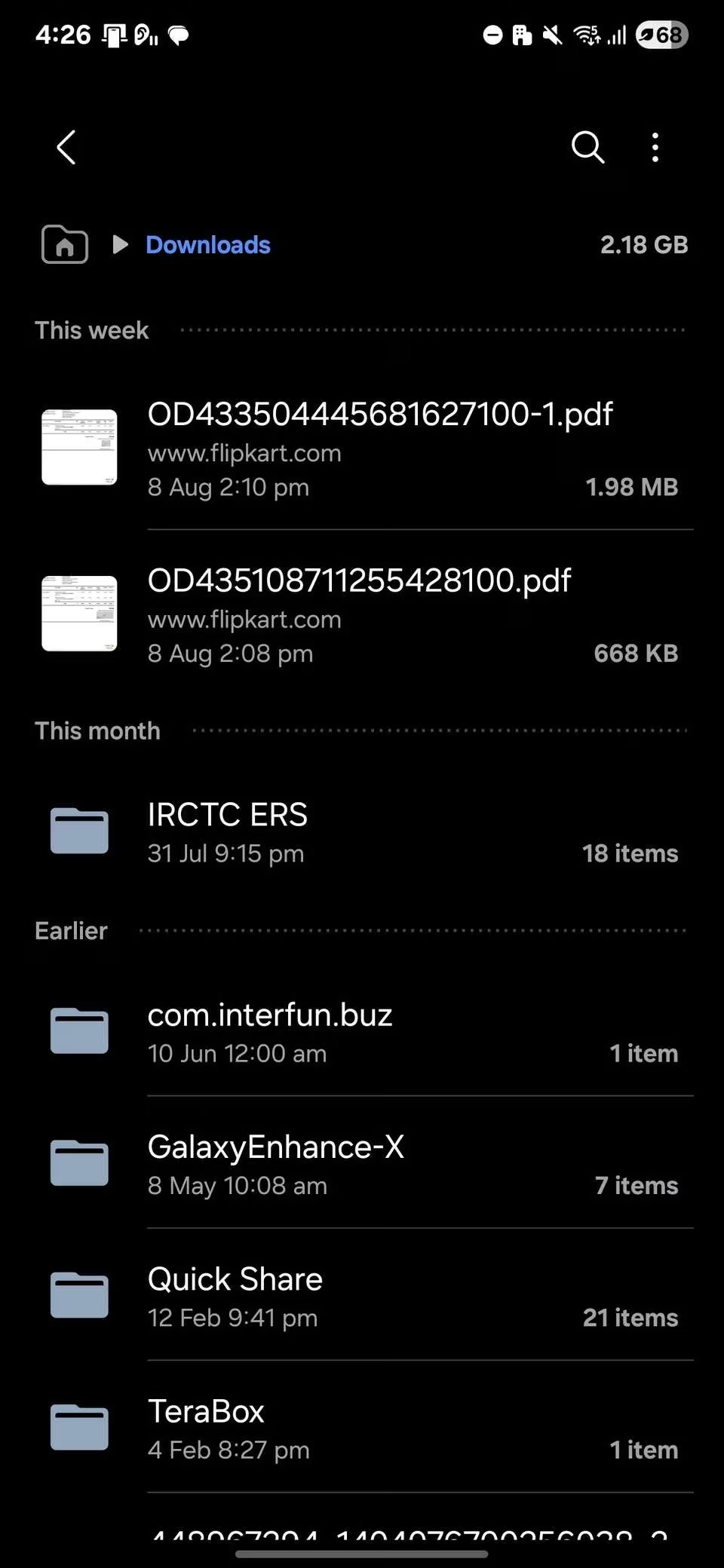
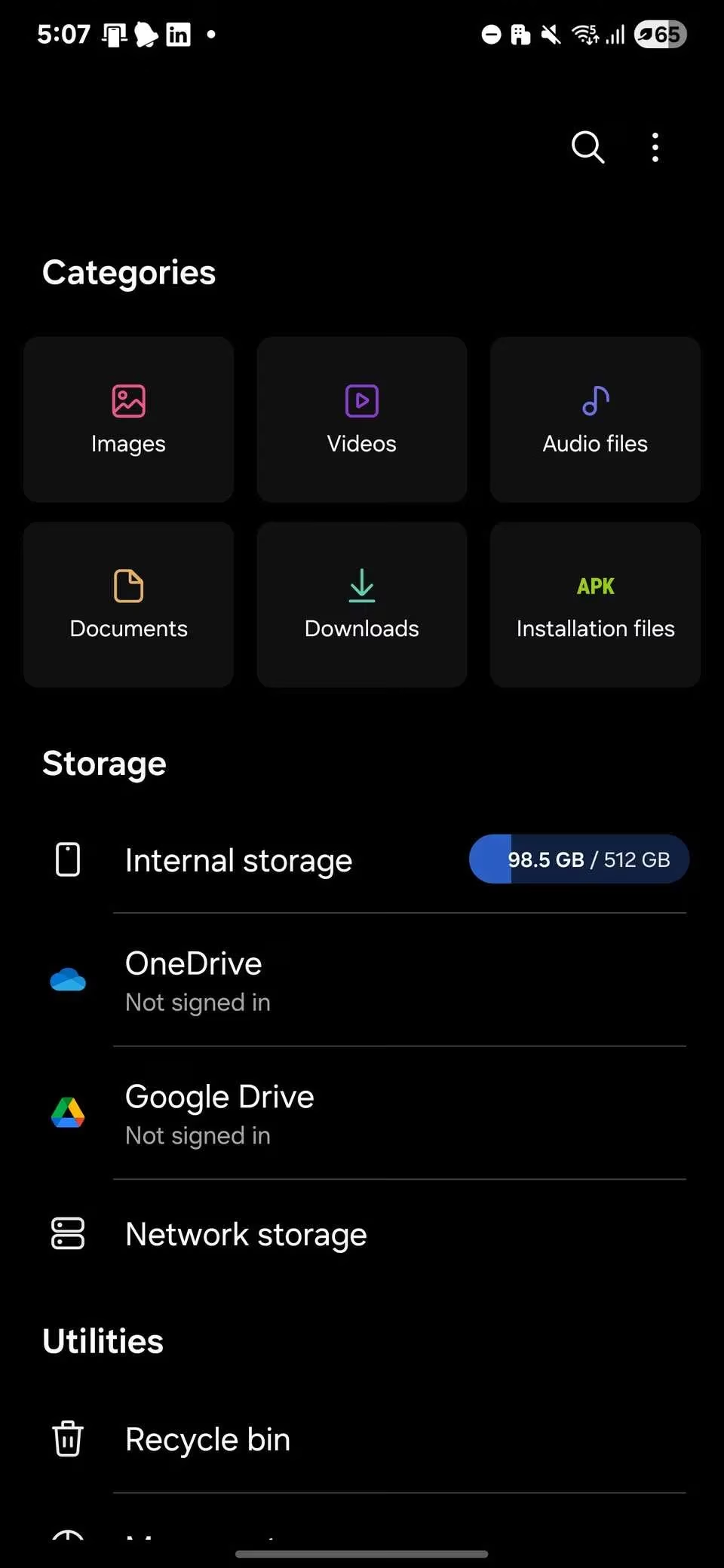
Next, I opened My Files and went straight to Downloads. Talk about a walk down memory lane—and not in a good way. I found old PDFs, APK installers, screenshots from 2023, and a few videos I'd saved for a trip I never took. These files don't break anything, but they pile up like junk mail. I sorted by size first, then by date, and deleted anything I hadn't touched in six months. It was a drop in the bucket at first, but after a few minutes I'd cleared several gigabytes.
Browser Bloat: Chrome, Samsung Internet, and Firefox
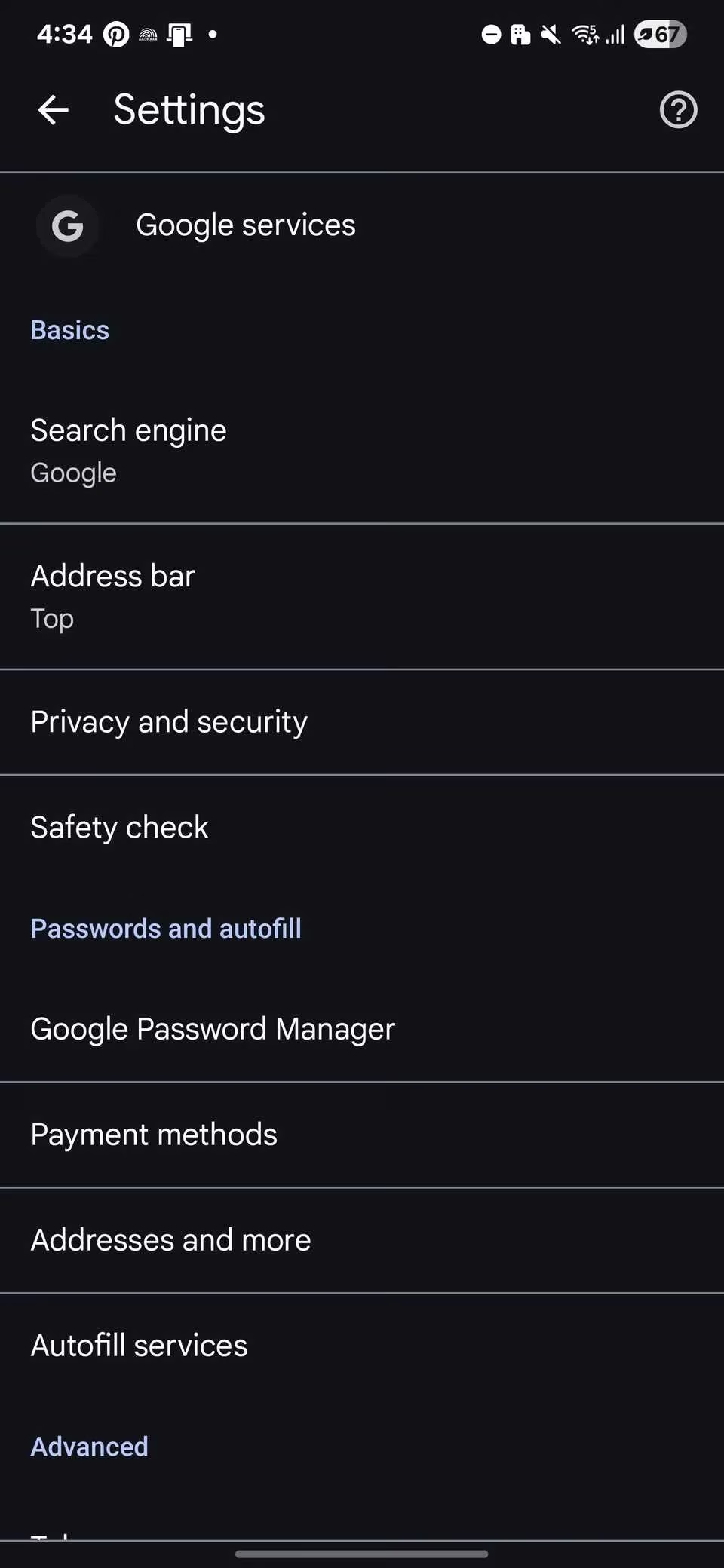
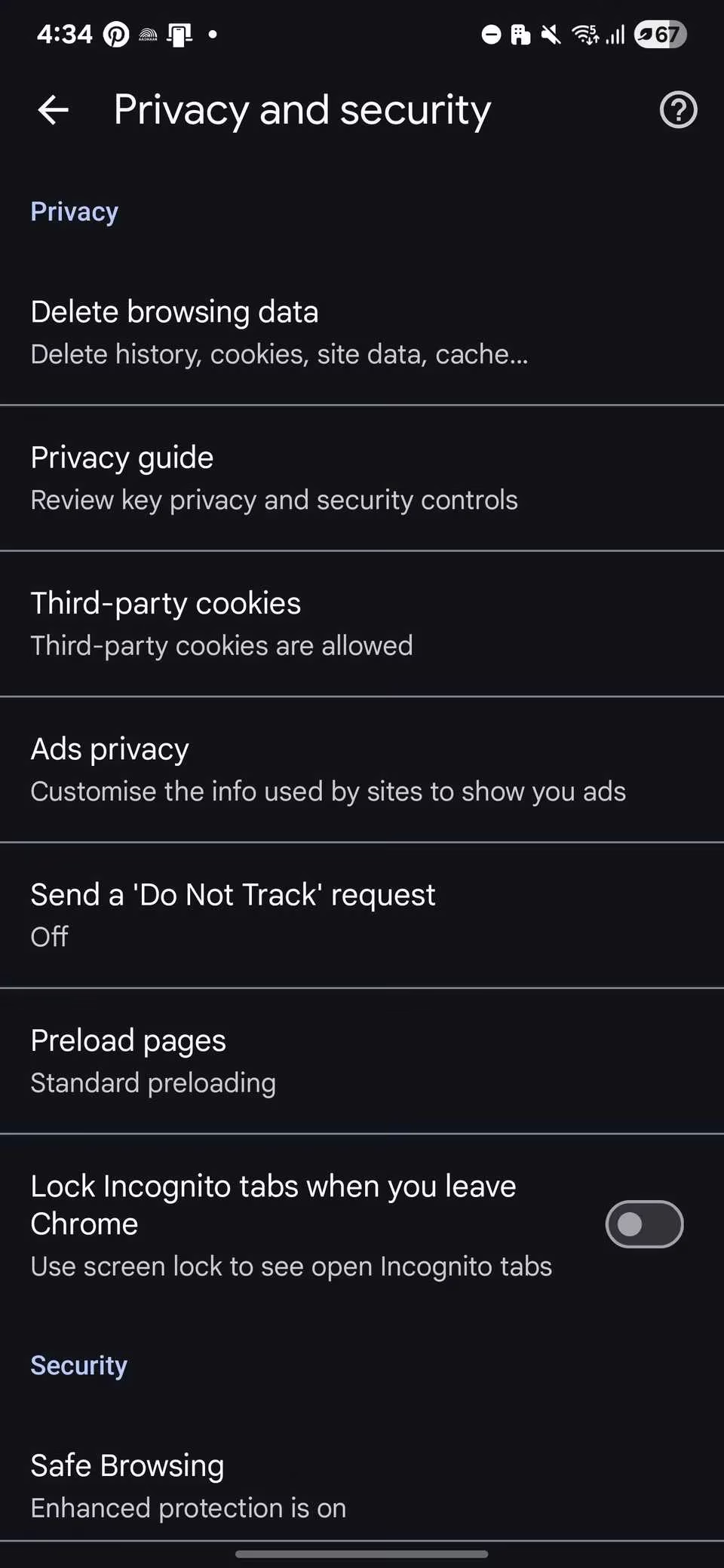
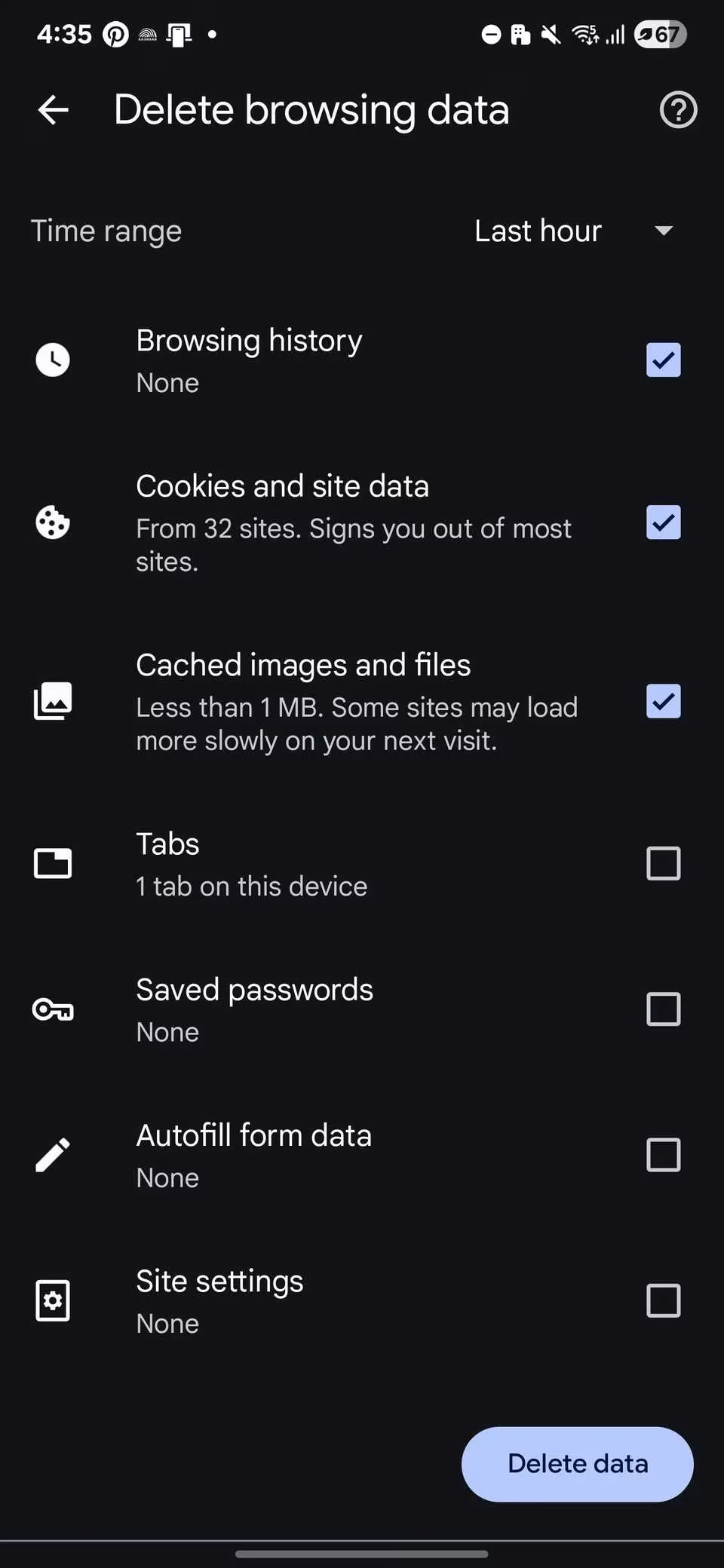
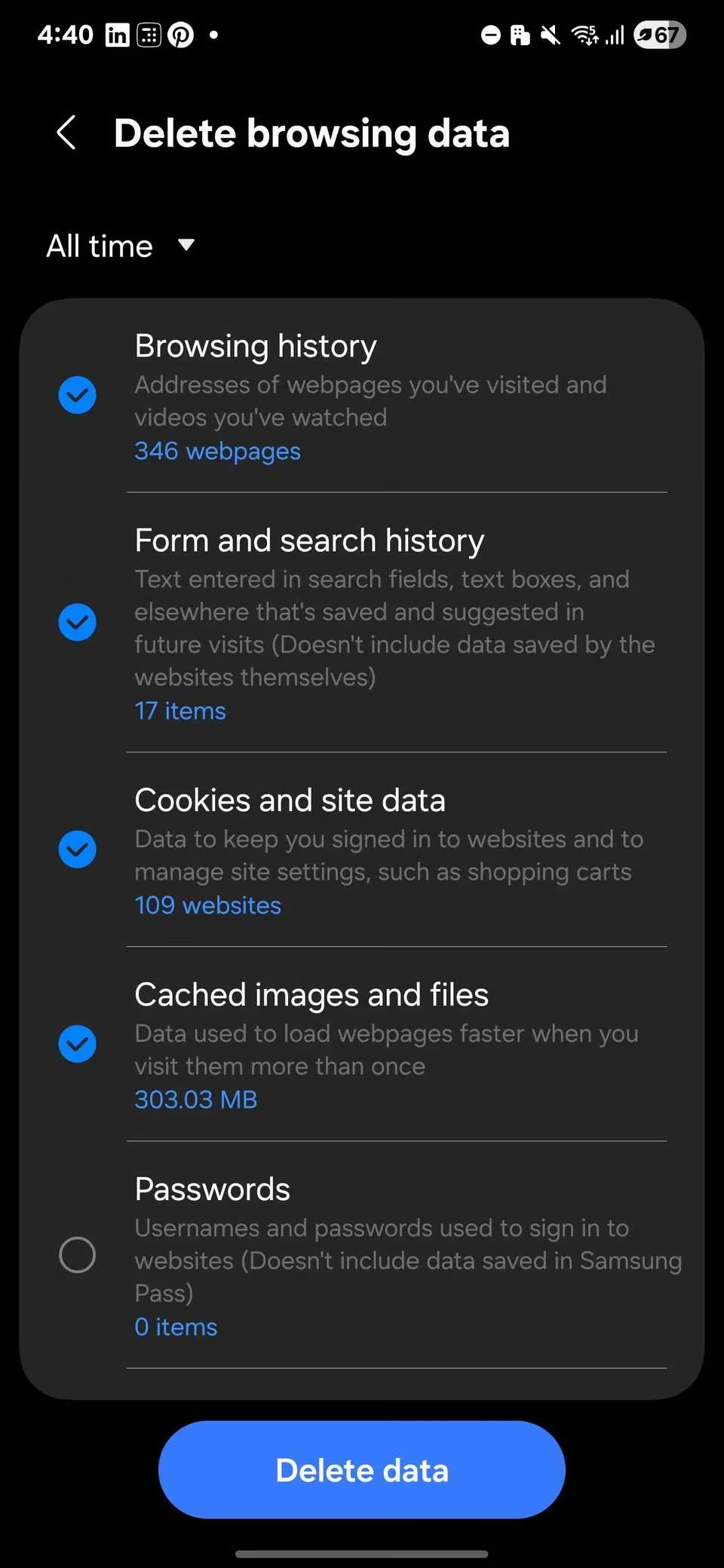
Browsers are sneaky space hogs. Every site I visit leaves behind cached images, cookies, and other data. That's great for speed, but terrible for storage. Outdated cookies can also make pages load weirdly. In Chrome, I tapped the three-dot menu, then History > Privacy and security > Delete browsing data. I chose Cached images and files to free space while keeping most logins intact. I only pick Cookies and site data when I want a full refresh or a site is misbehaving—because that signs me out of most accounts.
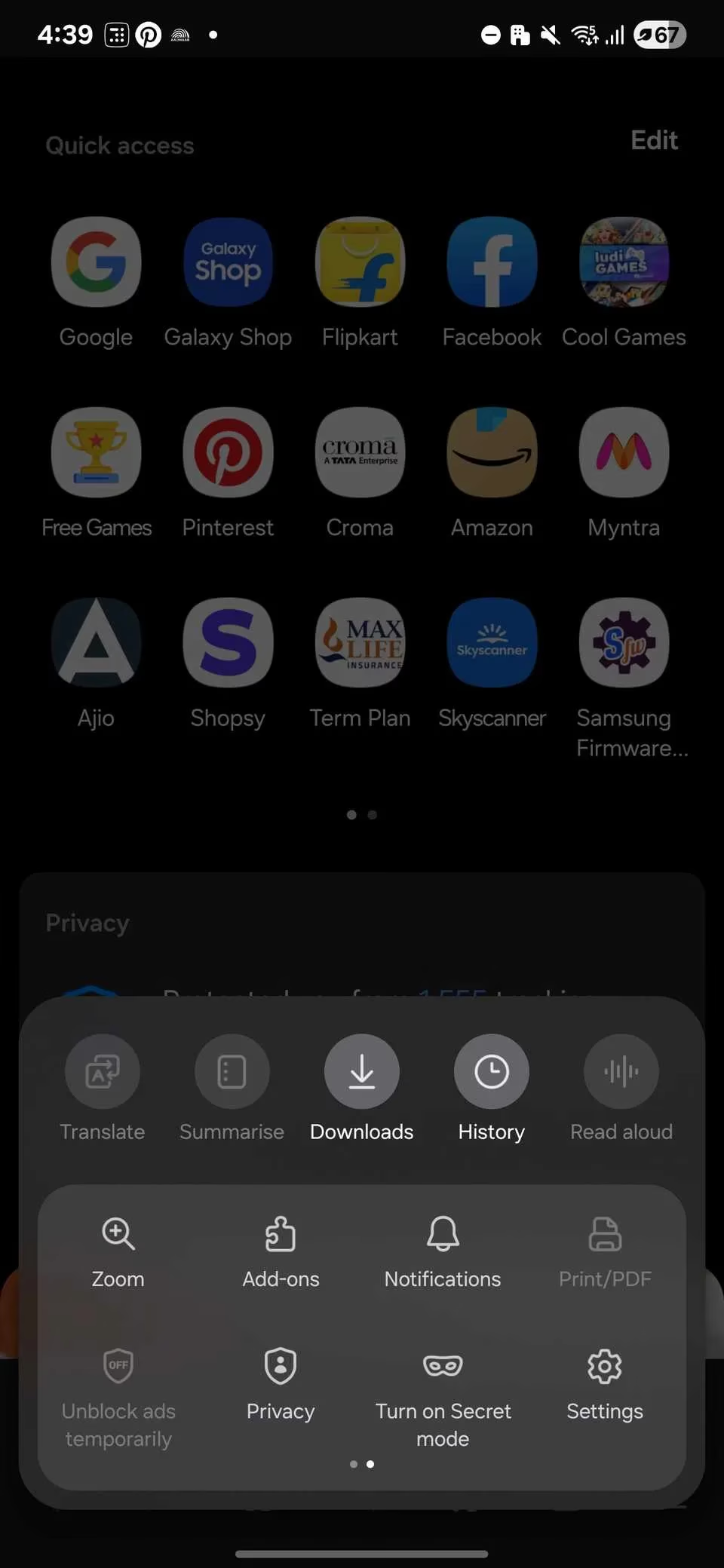
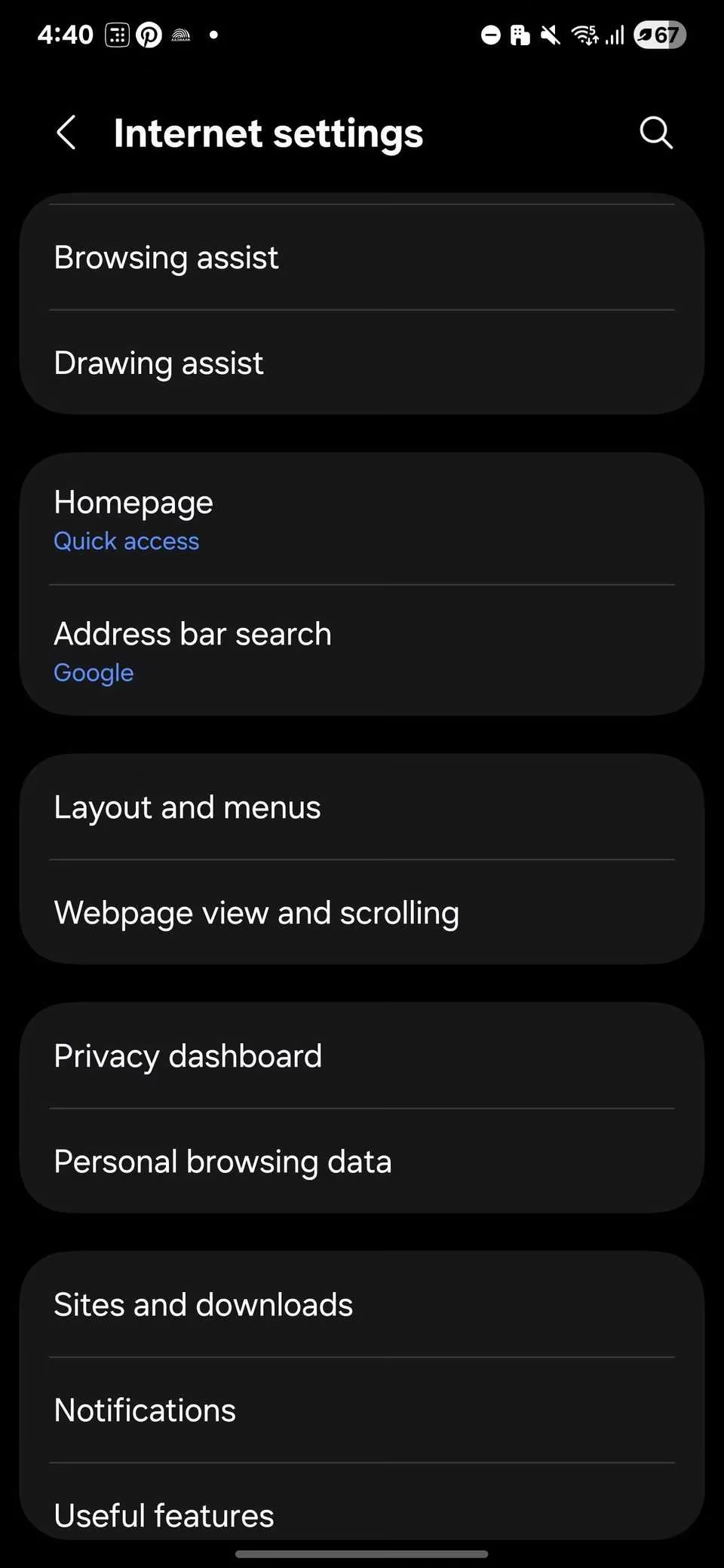
Samsung Internet follows a similar path: open the menu, go to Settings, select Personal browsing data, and tap Delete browsing data. Firefox for Android is Settings > Privacy and security > Delete browsing data. No matter the browser, this is a piece of cake once you know where to look.


Offline Maps: Convenience With a Hidden Cost
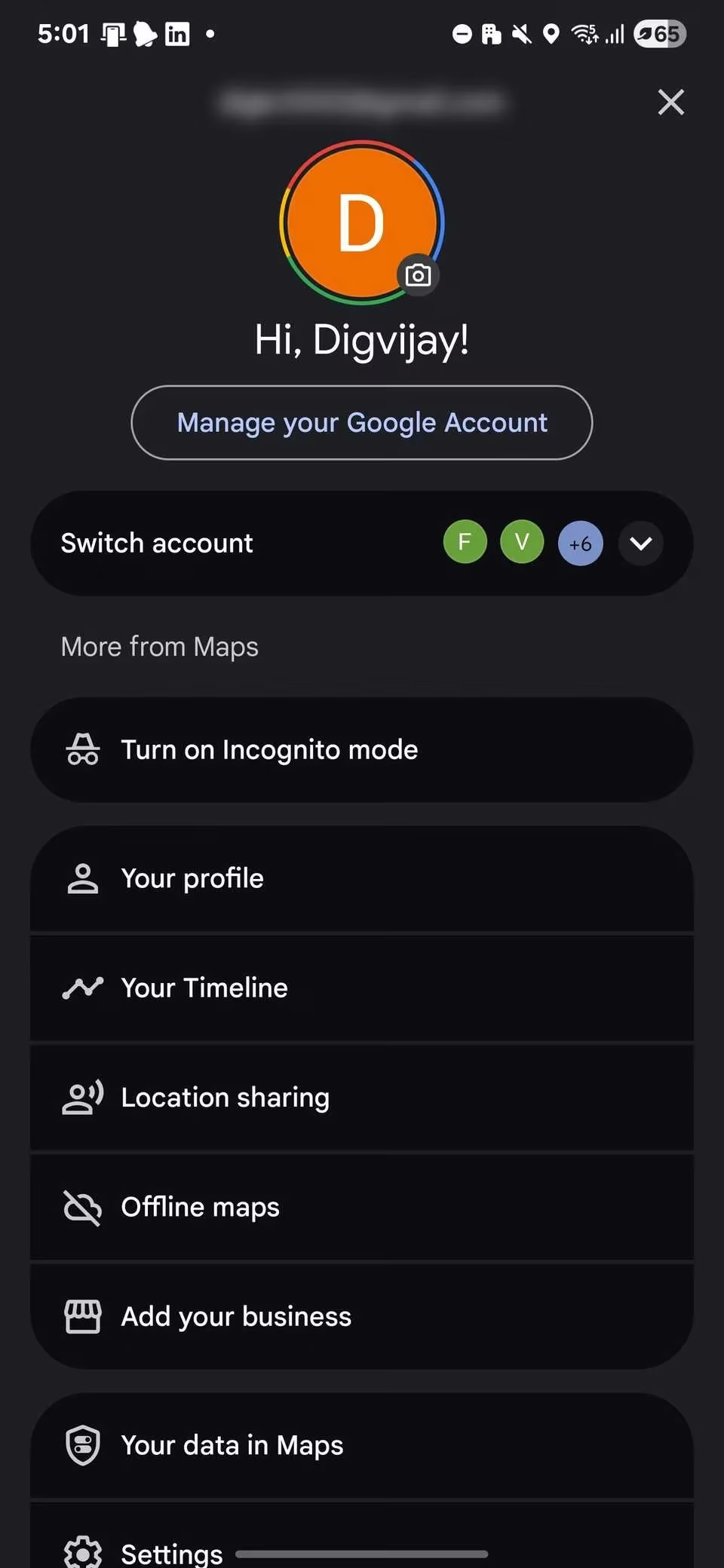
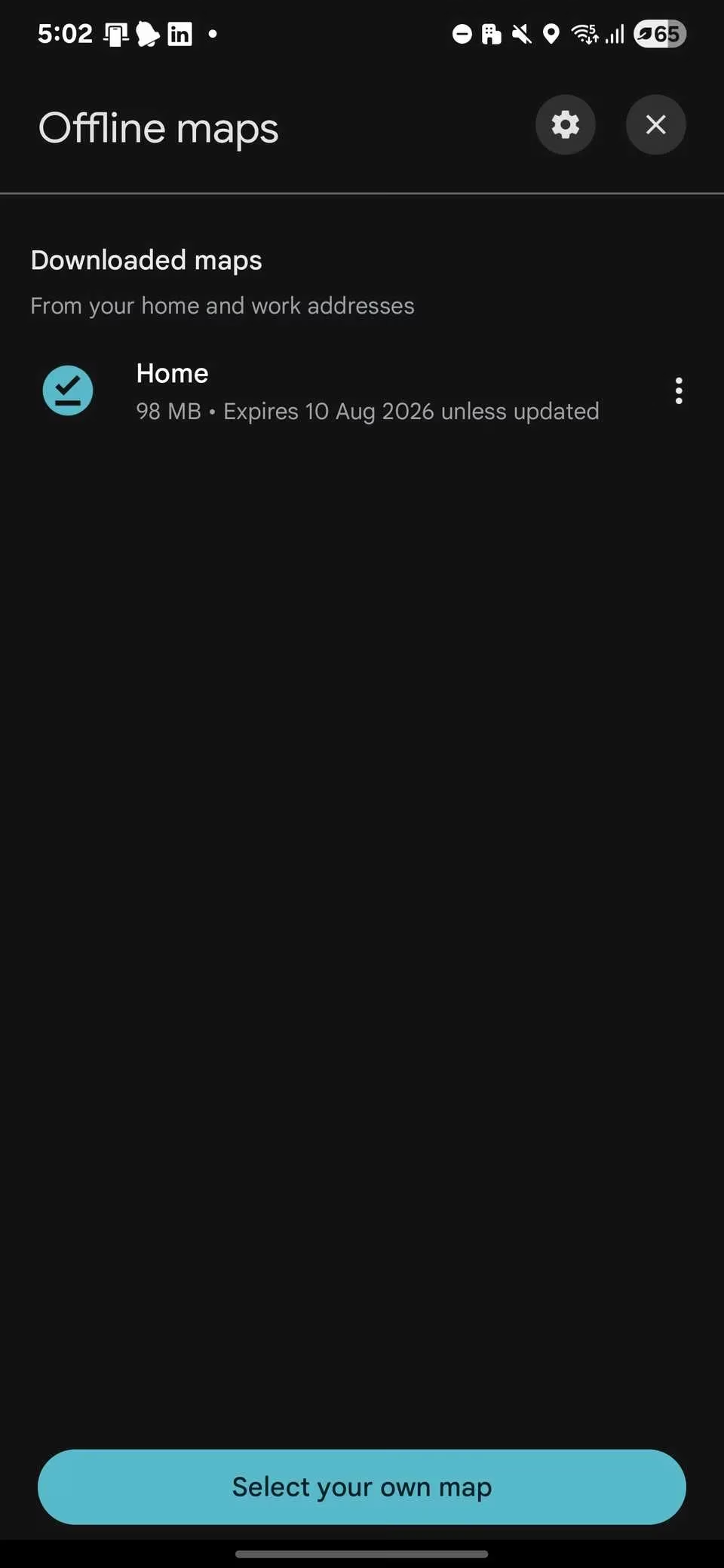
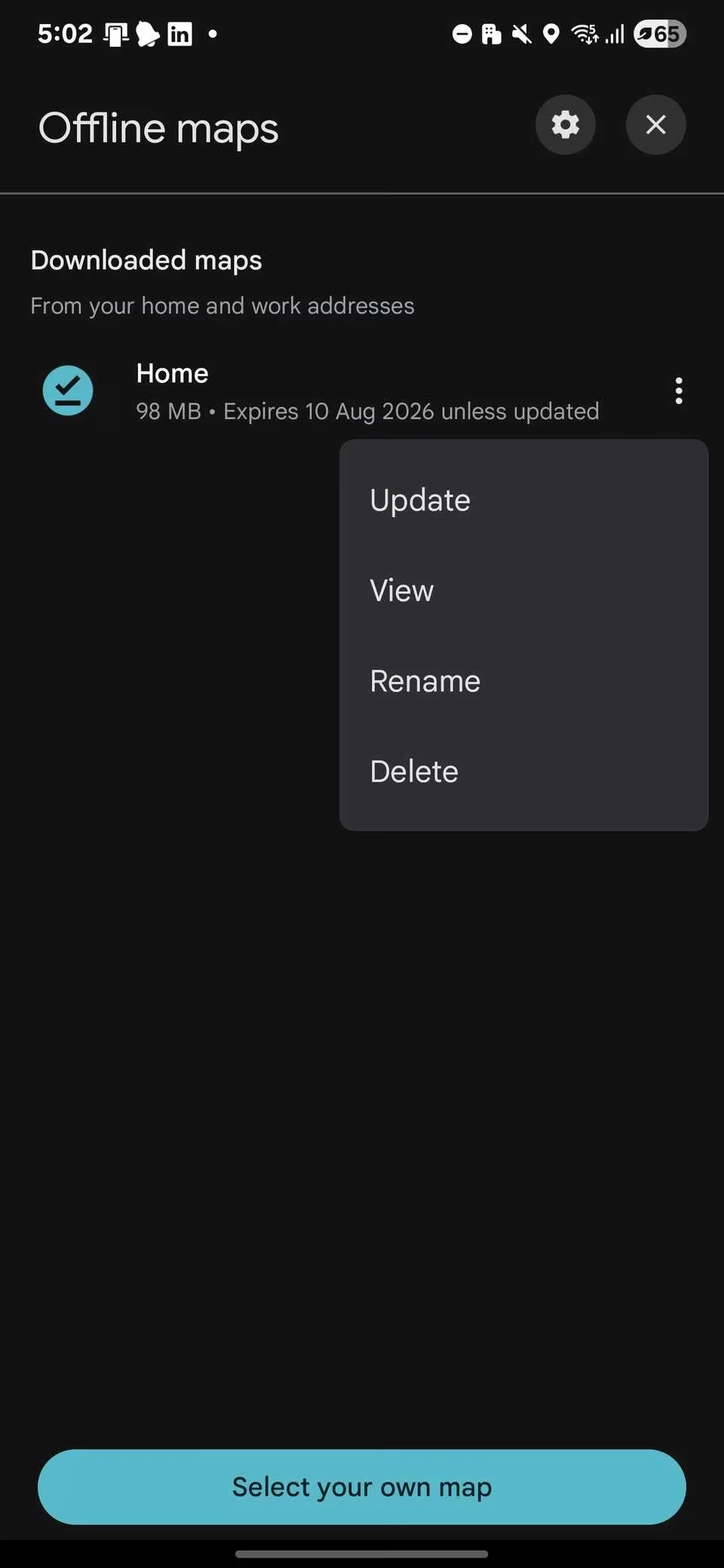
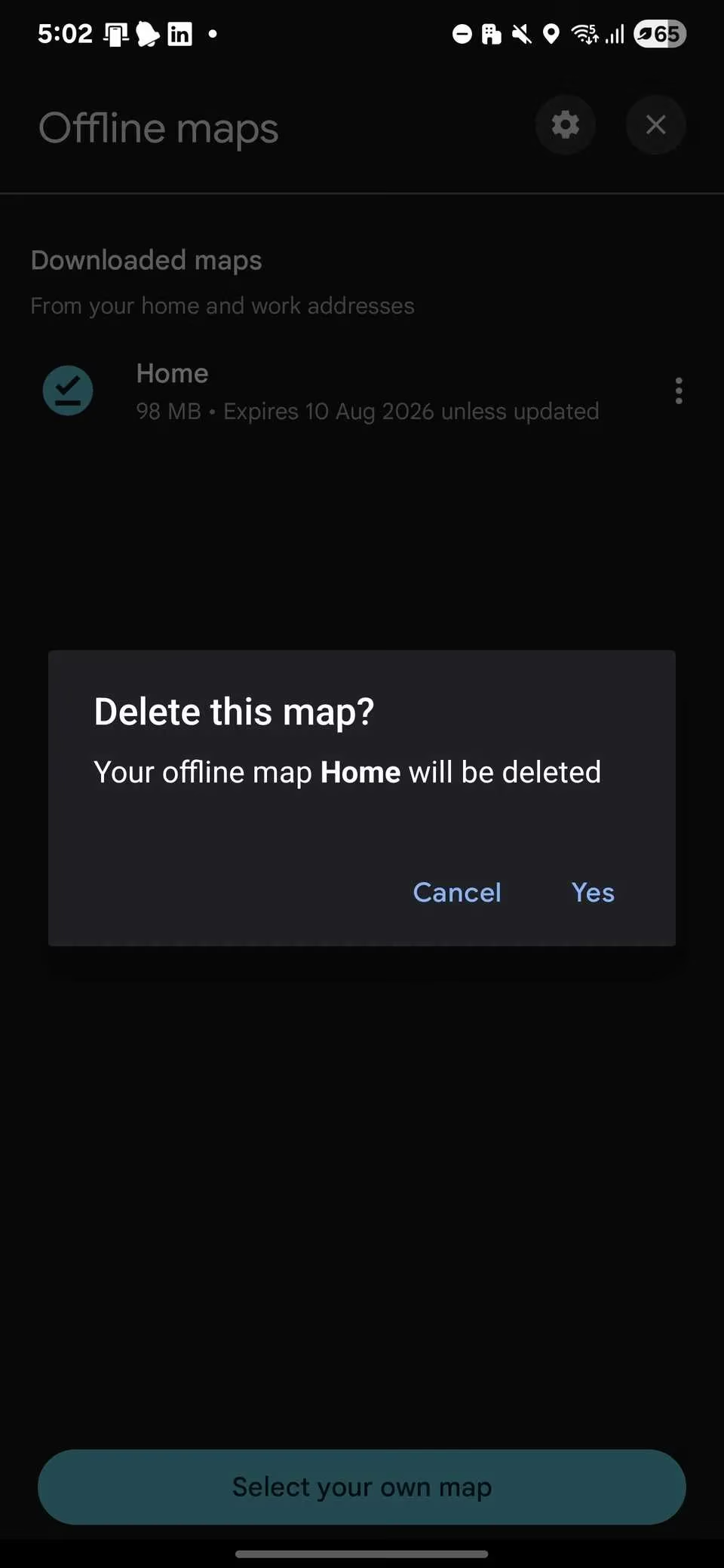
Google Maps offline maps are a lifesaver when I travel without reliable internet. But they can gobble up serious space, especially if I downloaded large regions months ago and forgot about them. I opened Google Maps, tapped my profile picture, and selected Offline maps. From there I tapped the three dots next to any map I no longer needed and chose Delete. I can always download it again before my next trip. HERE WeGo also lets me manage downloaded maps from its settings. Waze, on the other hand, doesn't support true offline map downloads, so it's not the best place to hunt for hidden storage.
Ghost Files From Uninstalled Apps
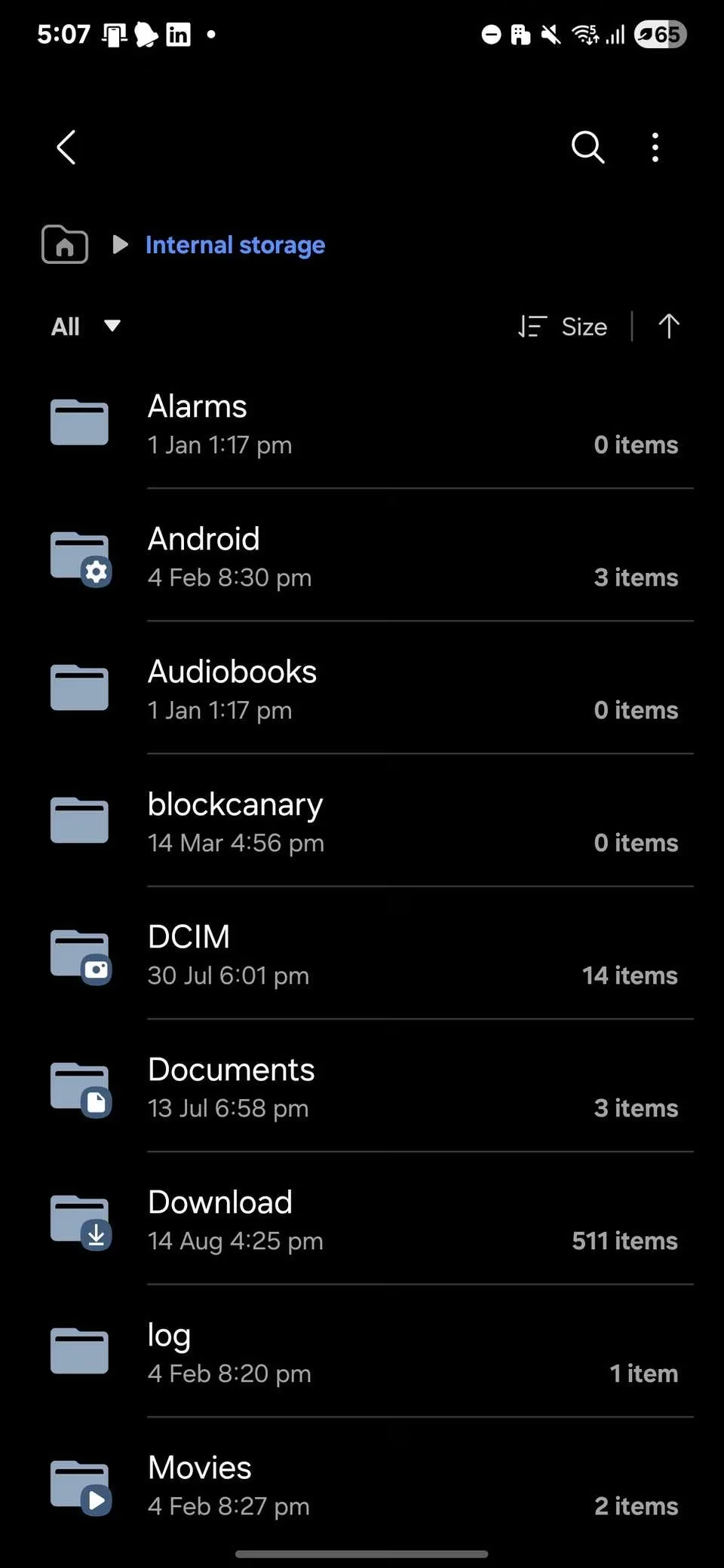
When I uninstall an app, I expect it to take all its junk with it. Spoiler: it doesn't always. Some apps leave behind folders full of cached data, settings, or downloaded content. Games and media-heavy apps are the worst offenders. I opened my file manager, enabled Show hidden files, and navigated to Internal storage > Android > obb. Then I checked the Android > data folder too. I looked for folder names matching apps I no longer have and deleted the ones I didn't need. This is a bit more advanced, so I only removed folders I was 100 percent sure about. No need to go barking up the wrong tree and break a live app.

Messaging Apps: The Media Hoarders
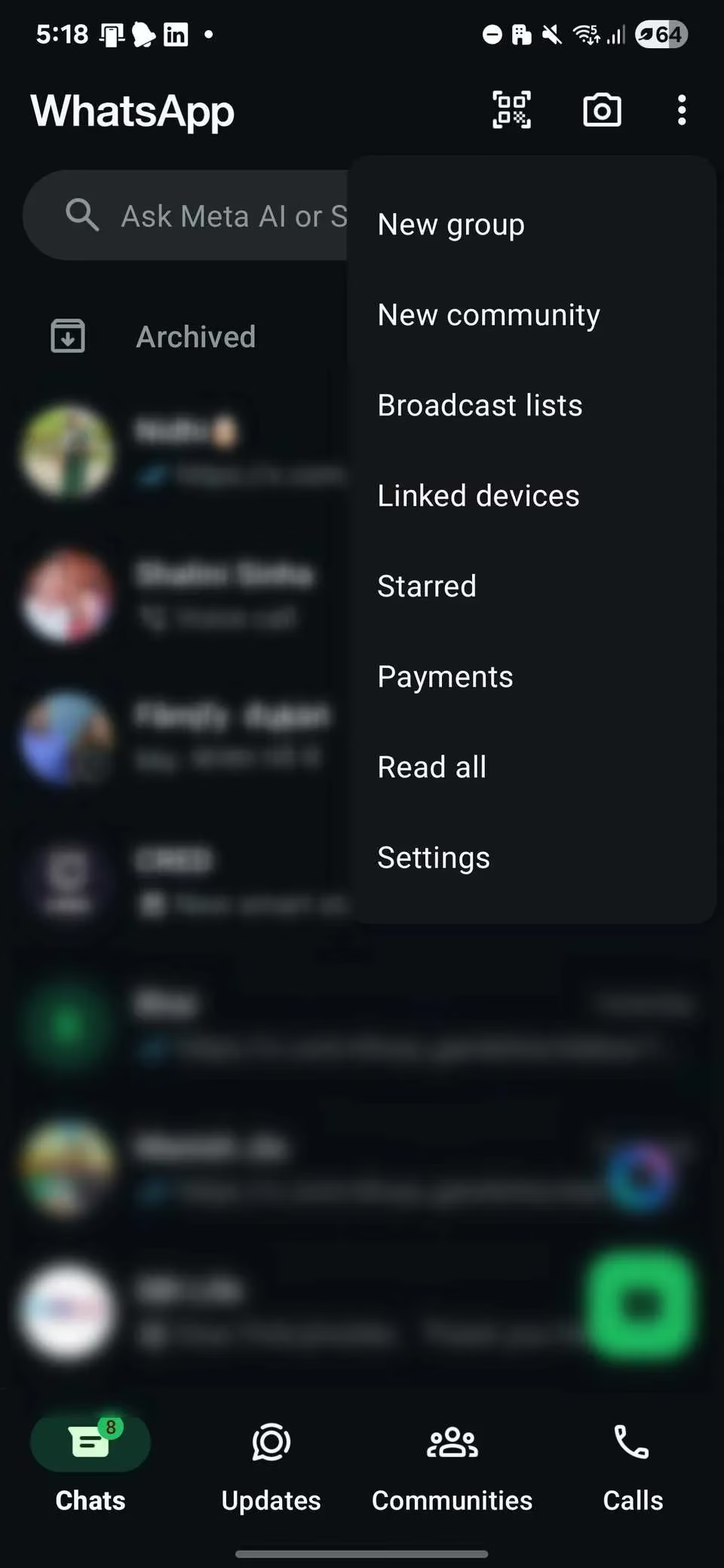
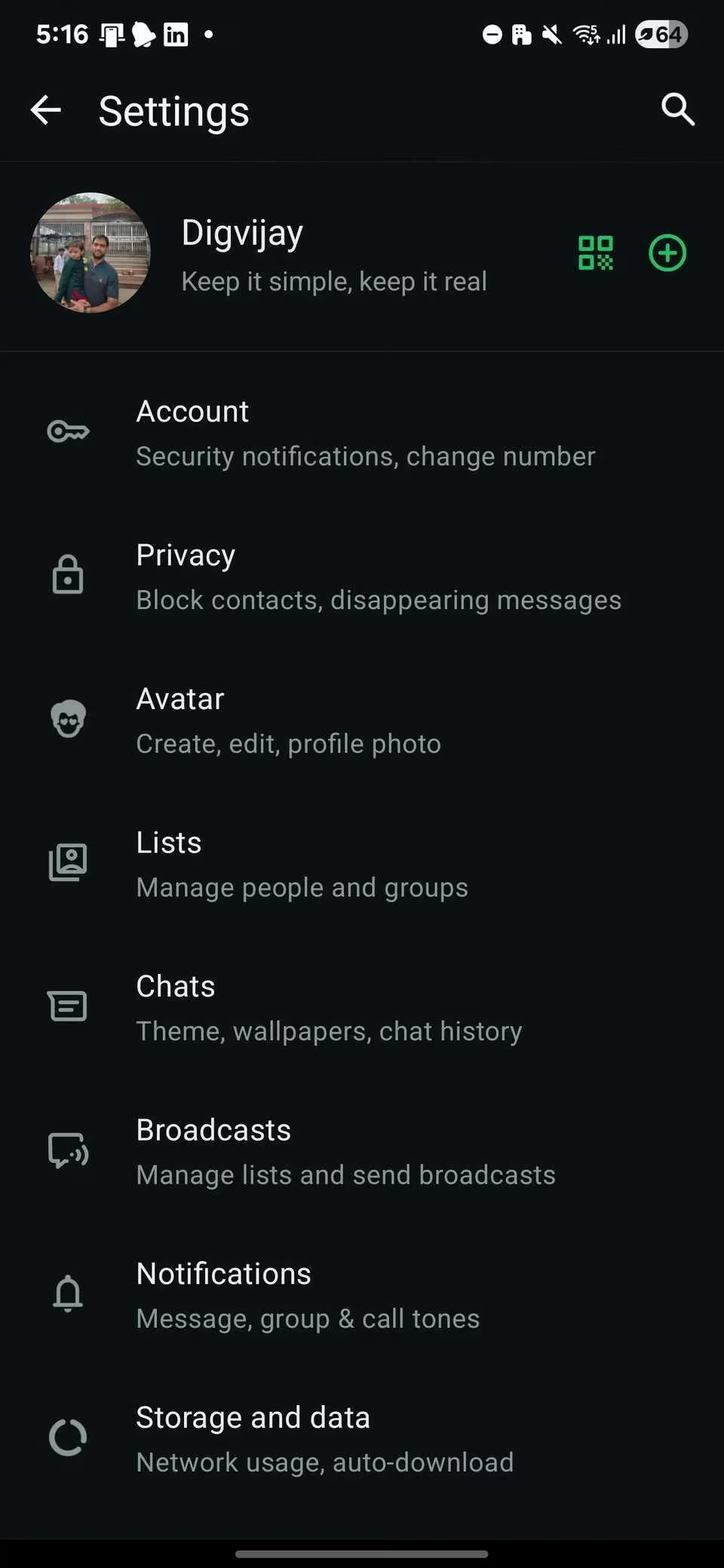
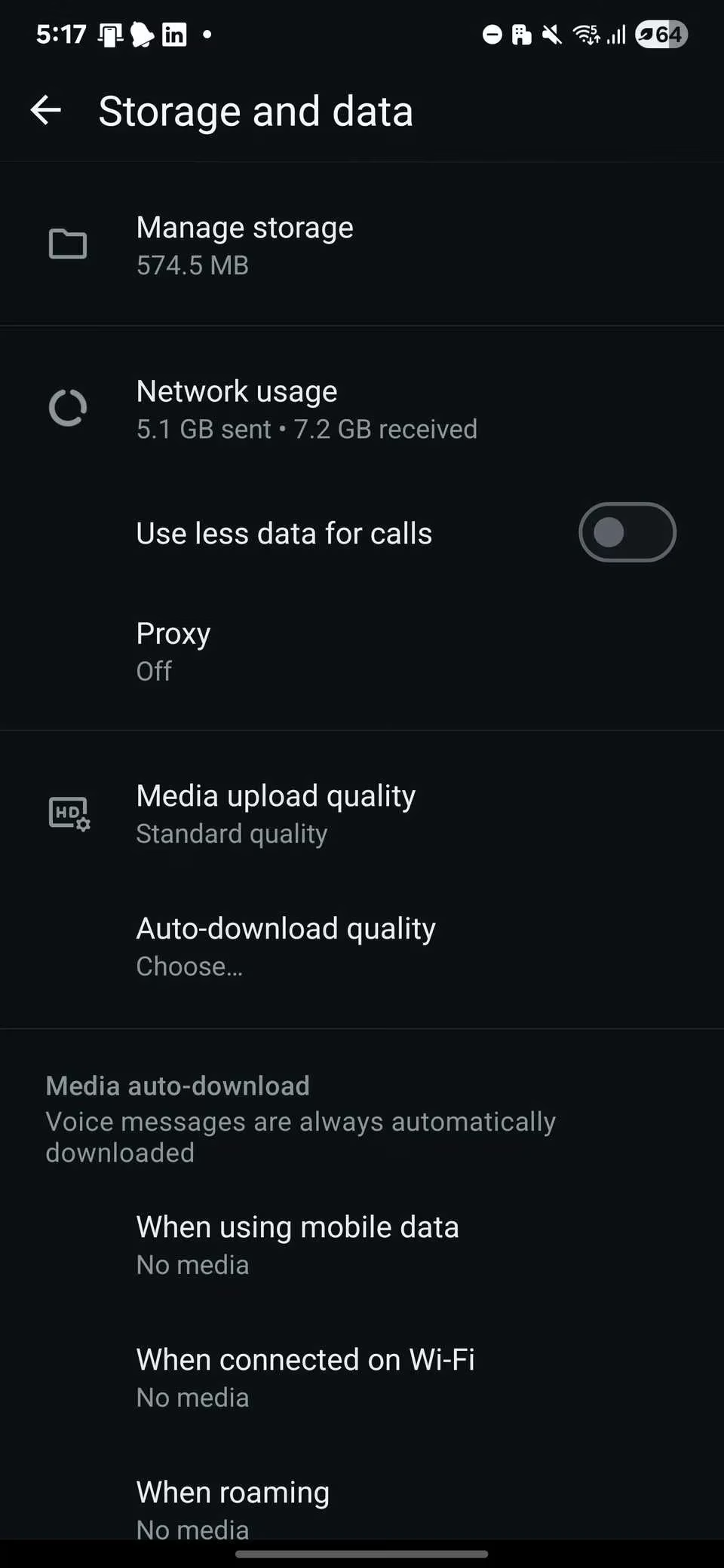
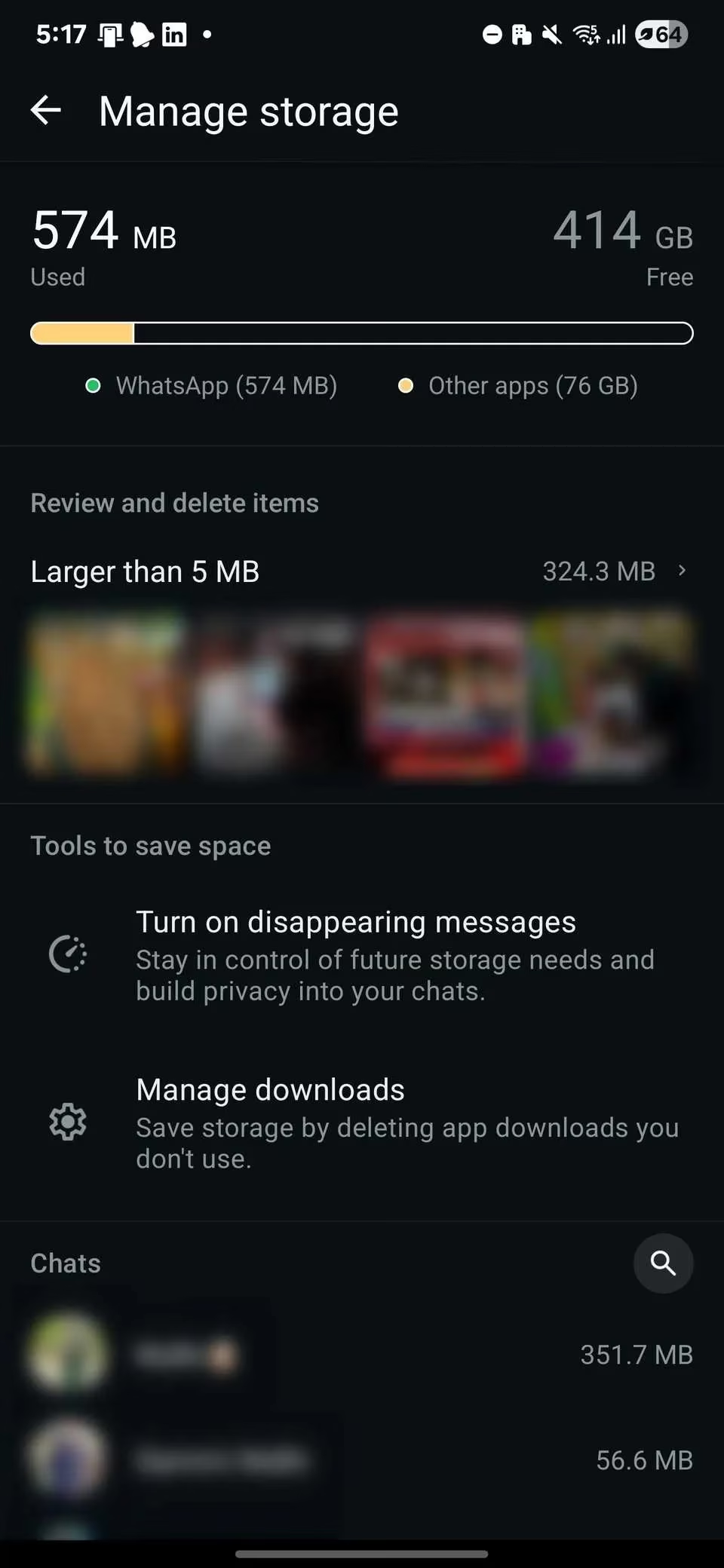
WhatsApp, Telegram, and Messenger save every photo, video, and voice note I receive by default—even after I delete them from the chat. In busy group chats, this adds up fast. I opened WhatsApp, went to Settings > Storage and data > Manage storage, and reviewed which chats were hogging the most space. Then I selected and deleted old media I no longer needed. Telegram and Messenger have similar options under Data and storage. It's a bit tedious, but it's worth it when you're trying to claw back a few gigabytes.
The Bottom Line
After this cleanup, I reclaimed nearly 30 GB without deleting a single photo I cared about. Your mileage may vary, but the lesson is clear: hidden files are often the real storage thieves on Android. In 2026, phones are faster and smarter, but digital clutter still piles up like laundry. So if your phone is running low on space for no clear reason, don't panic. Start with app cache, then downloads, browsers, offline maps, ghost folders, and messaging media. A little spring cleaning goes a long way—and it's a heck of a lot cheaper than buying a new phone. 😉
Information is adapted from VentureBeat GamesBeat, where reporting on mobile ecosystems and app monetization often underscores how “invisible” storage growth (cache layers, offline packs, media autoload, and residual files) is a predictable byproduct of modern app design. That same lens helps explain why an Android phone can feel mysteriously full even without big new downloads—and why a practical cleanup strategy starts with low-risk cache clearing, then moves to heavier culprits like messaging media and offline map archives.