
Master Google Messages Hidden Gestures Like a Pro in 2026 🚀
Did you know that your plain old texting app has turned into a powerhouse of hidden tricks? 💬 Back in the day, Google Messages was just a simple SMS tool, but in 2026, with RCS fully mainstream, it’s practically a social app in disguise. Swipe here, long-press there, and suddenly you’re breezing through chats faster than ever. Yet so many Android users are still tapping away the old way, completely missing out on the secret sauce baked into every conversation. Ready to unlock some next-level messaging magic? Let’s spill the tea on all those subtle gestures and shortcuts that make you feel like a true tech ninja. ✨
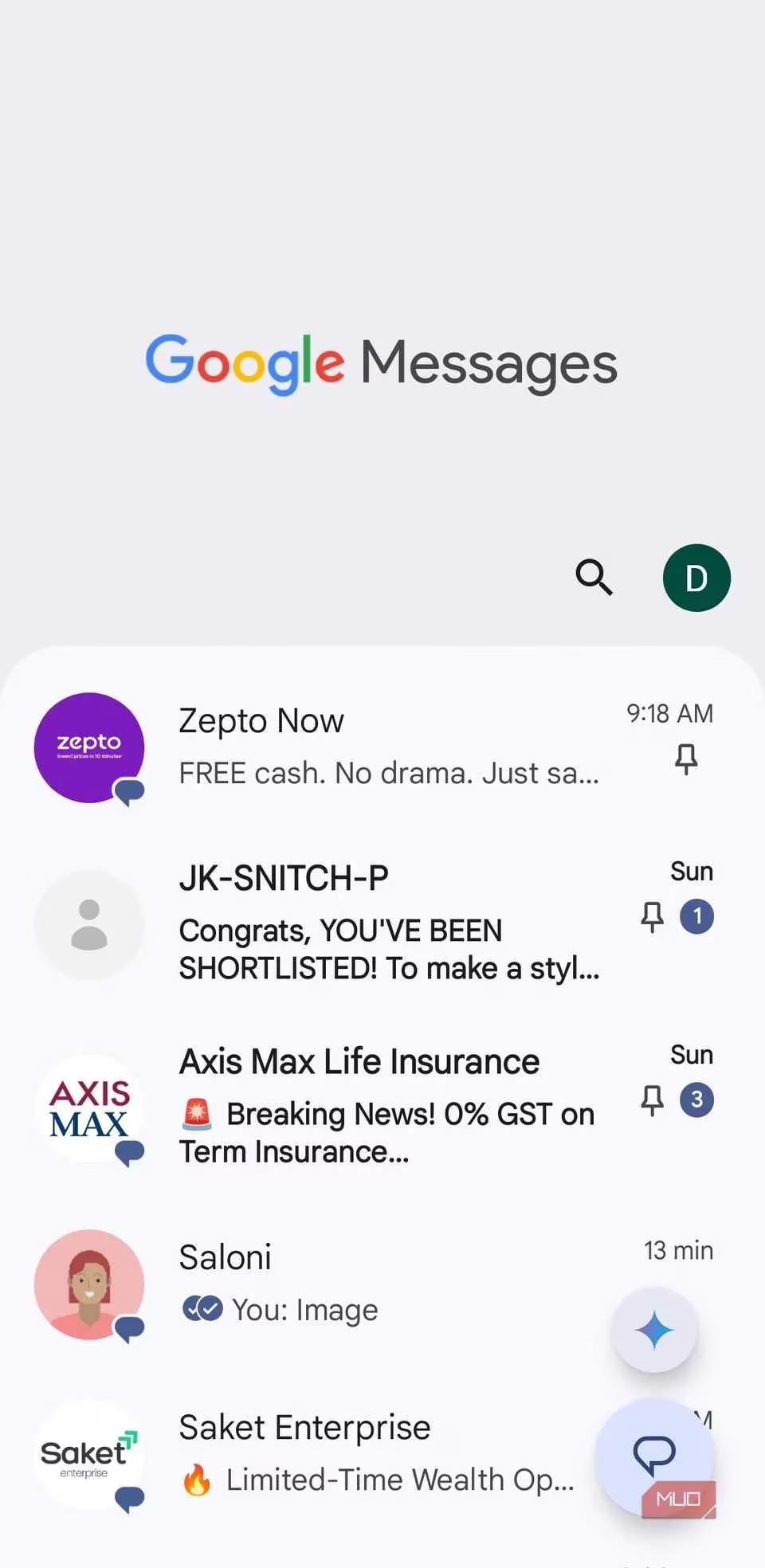
The Inbox Clean-Up: Swipe Your Way to Zero Unread 💨
Do you often stare at a cluttered chat list with annoyance? 😤 Google Messages comes with a silky smooth swipe gesture that lets you tidy up in seconds. By default, a quick left or right swipe on any conversation archives it – poof, out of sight! But here's the kicker: you can actually customize what that swipe does. Want to delete the thread instead of just hiding it? Or mark it as read without opening? You got it.
Head to your profile picture → Messages settings → Swipe actions, then tap Customize next to “Swipe right” or “Swipe left.” Pick between archive, delete, mark read/unread, or nothing at all. Pro tip: set one direction for delete and the other for archive, and you’ll fly through your inbox like a boss. 🧹
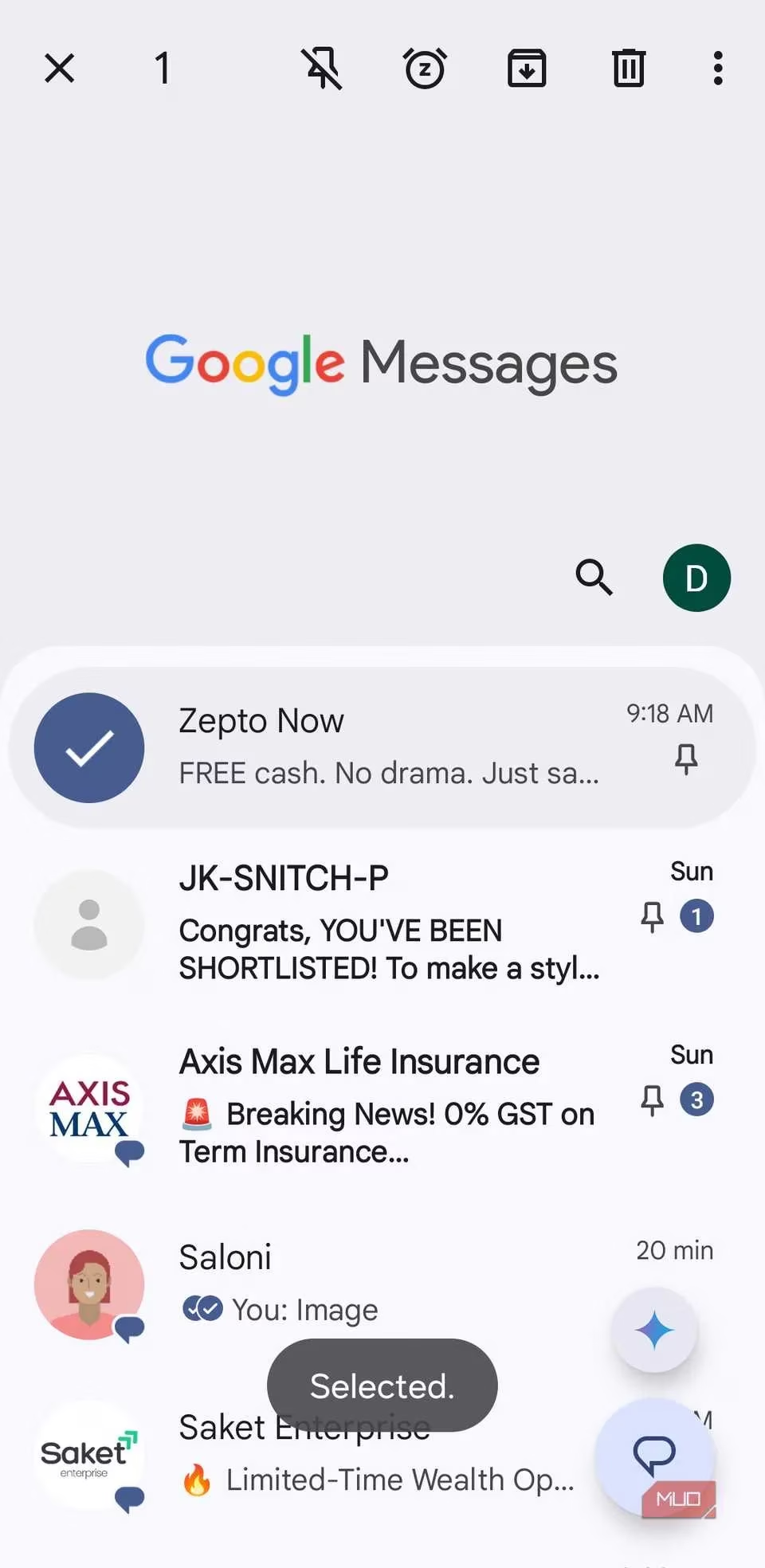
The Long-Press Power Menu: Pin, Snooze, Block 🛑
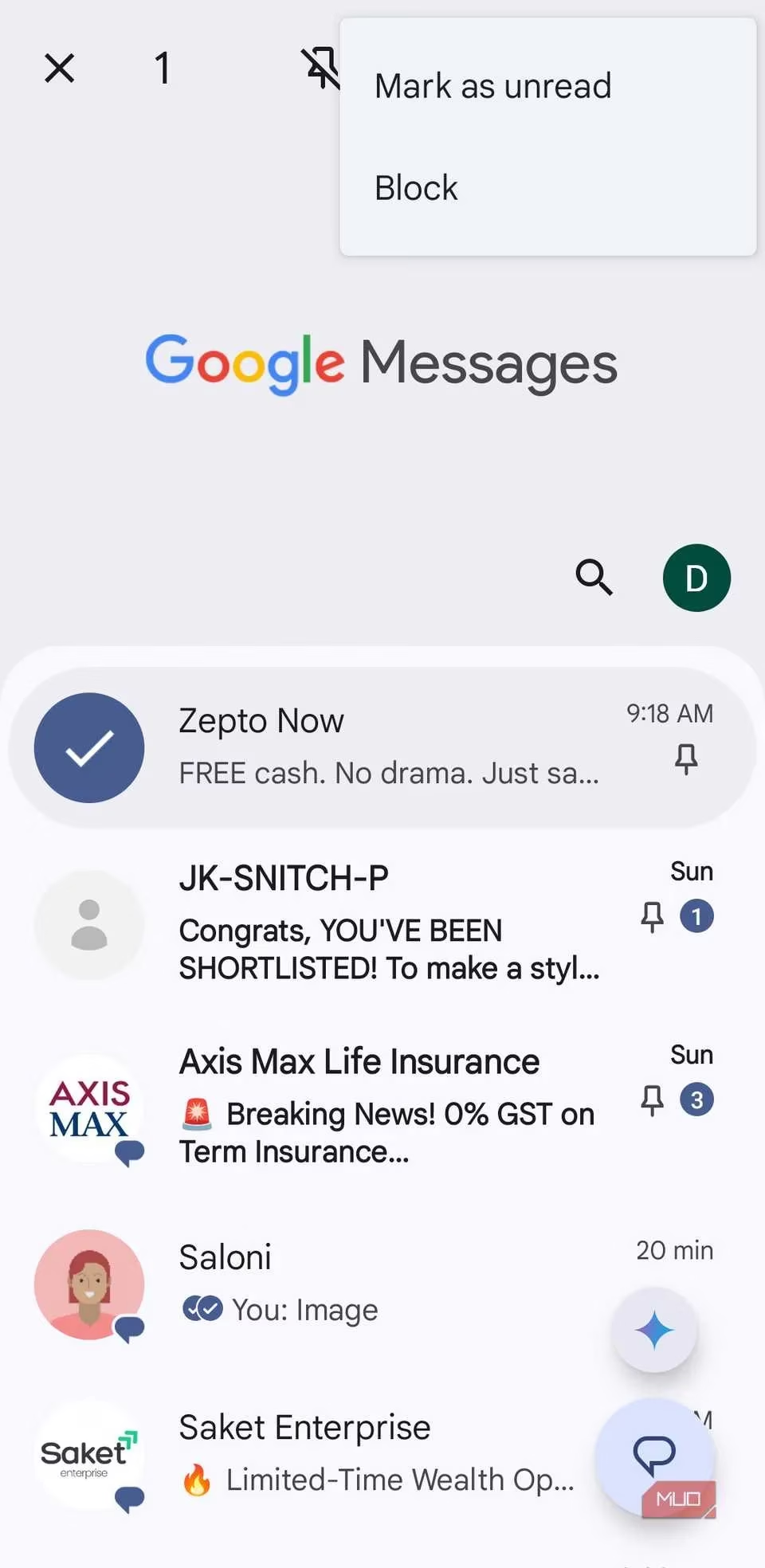
Sometimes archived isn’t enough – what if you need to keep a specific chat always on top, or mute a noisy group without leaving it? Just long-press any conversation in your inbox. A sleek toolbar appears at the top with instant options: pin important chats, snooze notifications with the bell icon, or dive into the three-dot menu to block unwanted spammers. No need to open the chat, no digging through settings. It’s the kind of convenience that makes you wonder how you ever lived without it. 🗂️
Double-Tap to Like & Long-Press to React – Just Like Social Media ❤️🔥
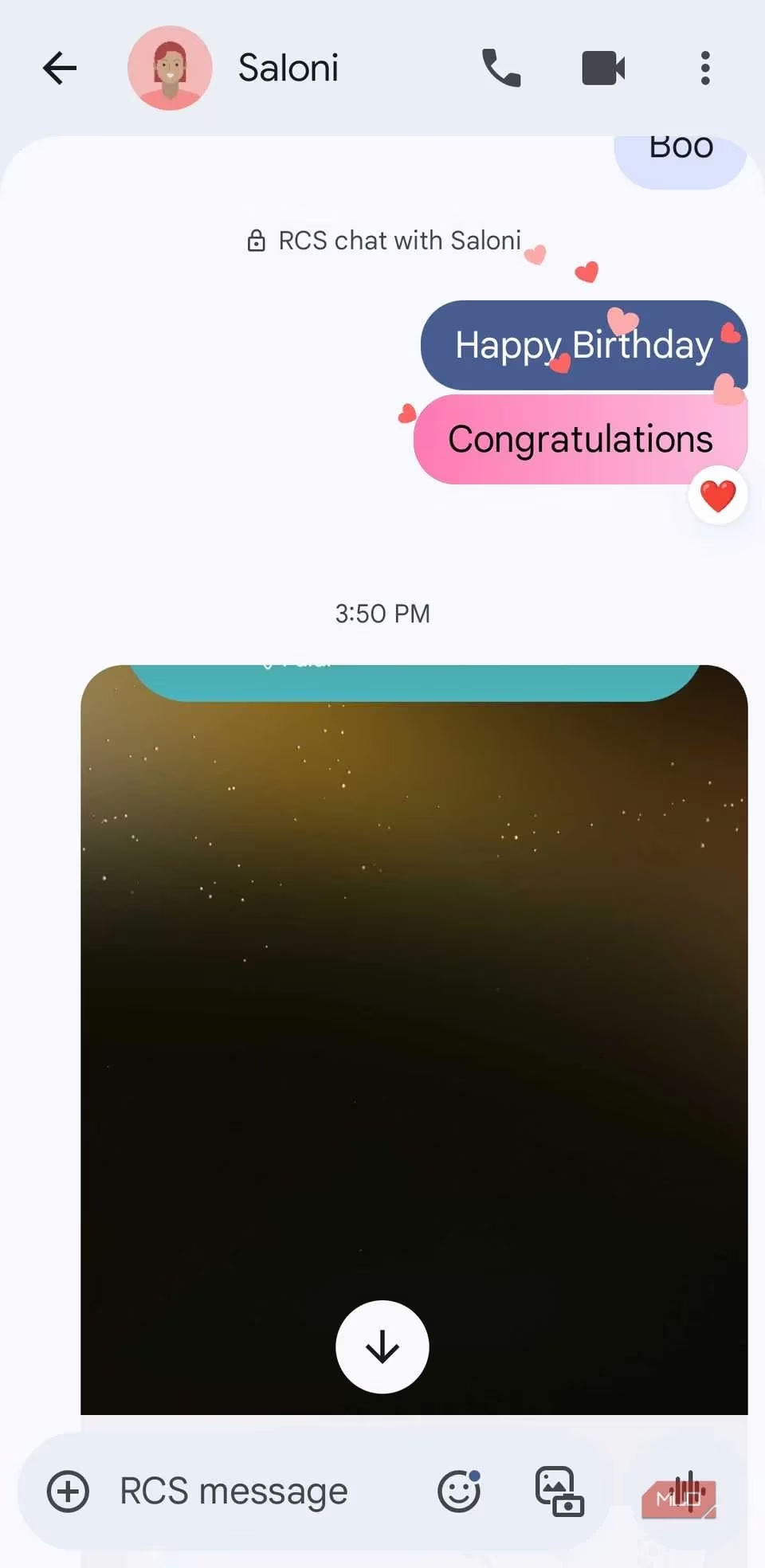
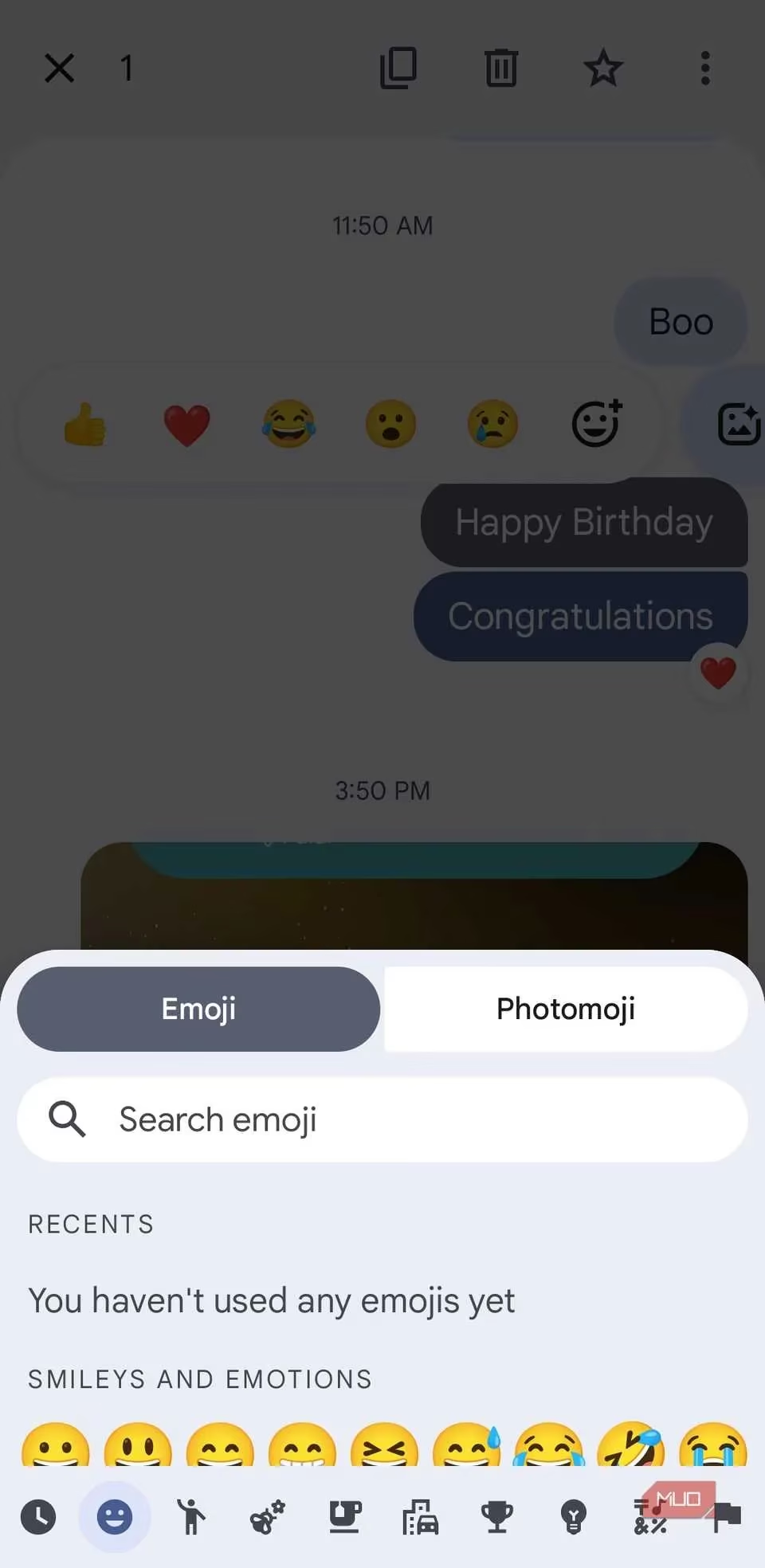
Does typing an entire reply feel too heavy for a casual “haha” or “wow”? Google Messages stole a page from Instagram’s playbook and gave us double-tap to like. That’s right – a lightning-fast double tap on any message instantly sends a heart reaction. No more searching for emojis. 💗
But wait, there’s more. If you’re feeling extra expressive, simply long-press a message to pop up a wheel of reactions: 😂, 😮, 😢, 😡, and more. Still not satisfied? Tap the “+” emoji for the full picker, or even create a photomoji – a custom reaction from your own photos. These instant feedback gestures make group chats feel alive and keep the conversation flowing without ever touching the keyboard. (Fair warning: you can’t customize these reactions, but honestly, they’re already pretty perfect.) ✨
Swipe Right to Reply – No More “What Are You Talking About?” 🧵
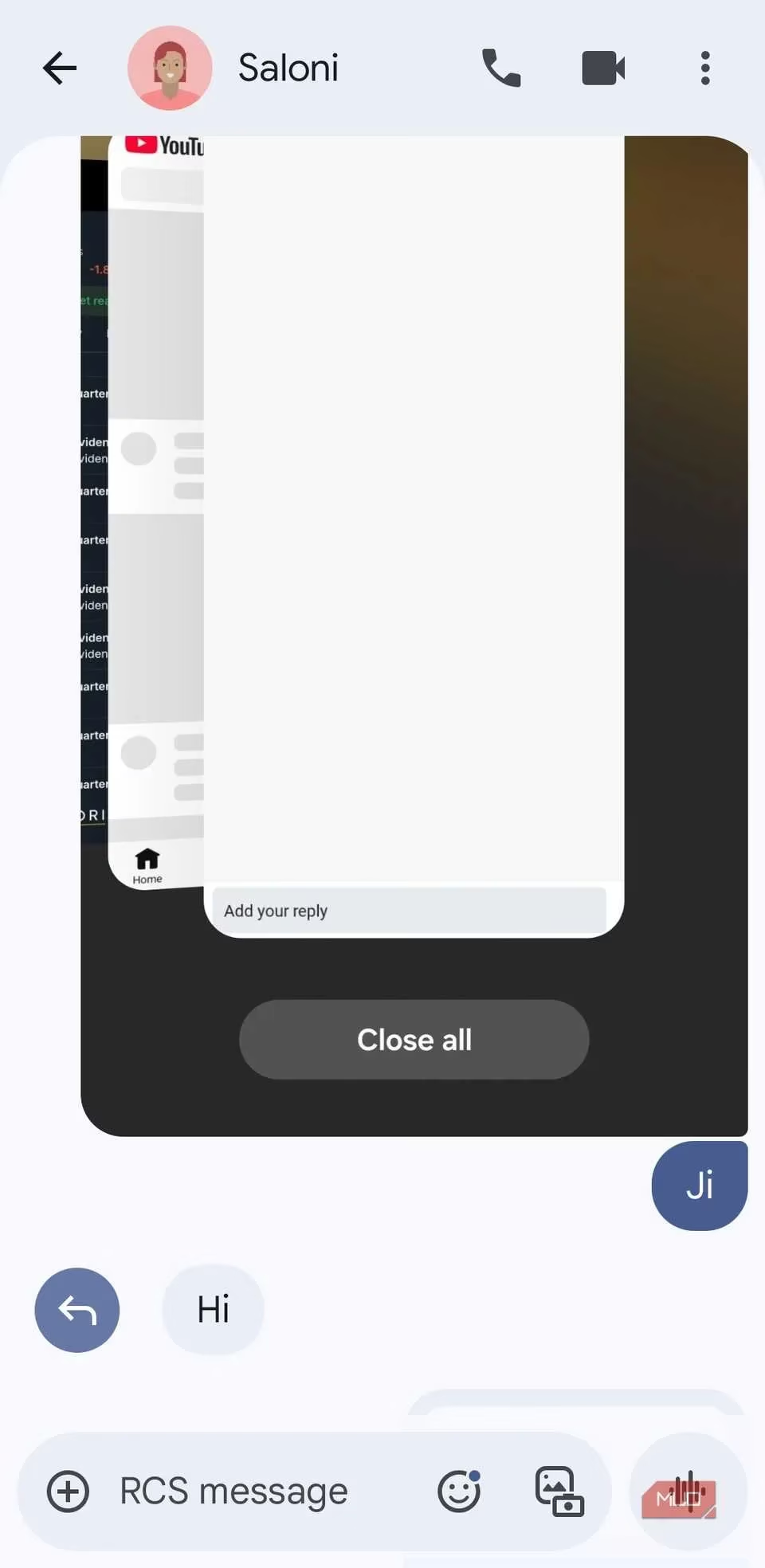
We’ve all been there: in a busy group chat, someone responds “Yeah, totally!” and you have zero clue which earlier message they’re referring to. Android’s Messages app has a slick solution. Inside any conversation, swipe right on a specific message – boom, a reply box appears directly linked to that text. Your answer then appears neatly threaded underneath the original, so everyone sees the context instantly. No confusion, no awkward backtracking. It’s a lifesaver in family groups and work threads alike. 📩
Pinch to Zoom Text – See Clearly Without Glasses 🔍
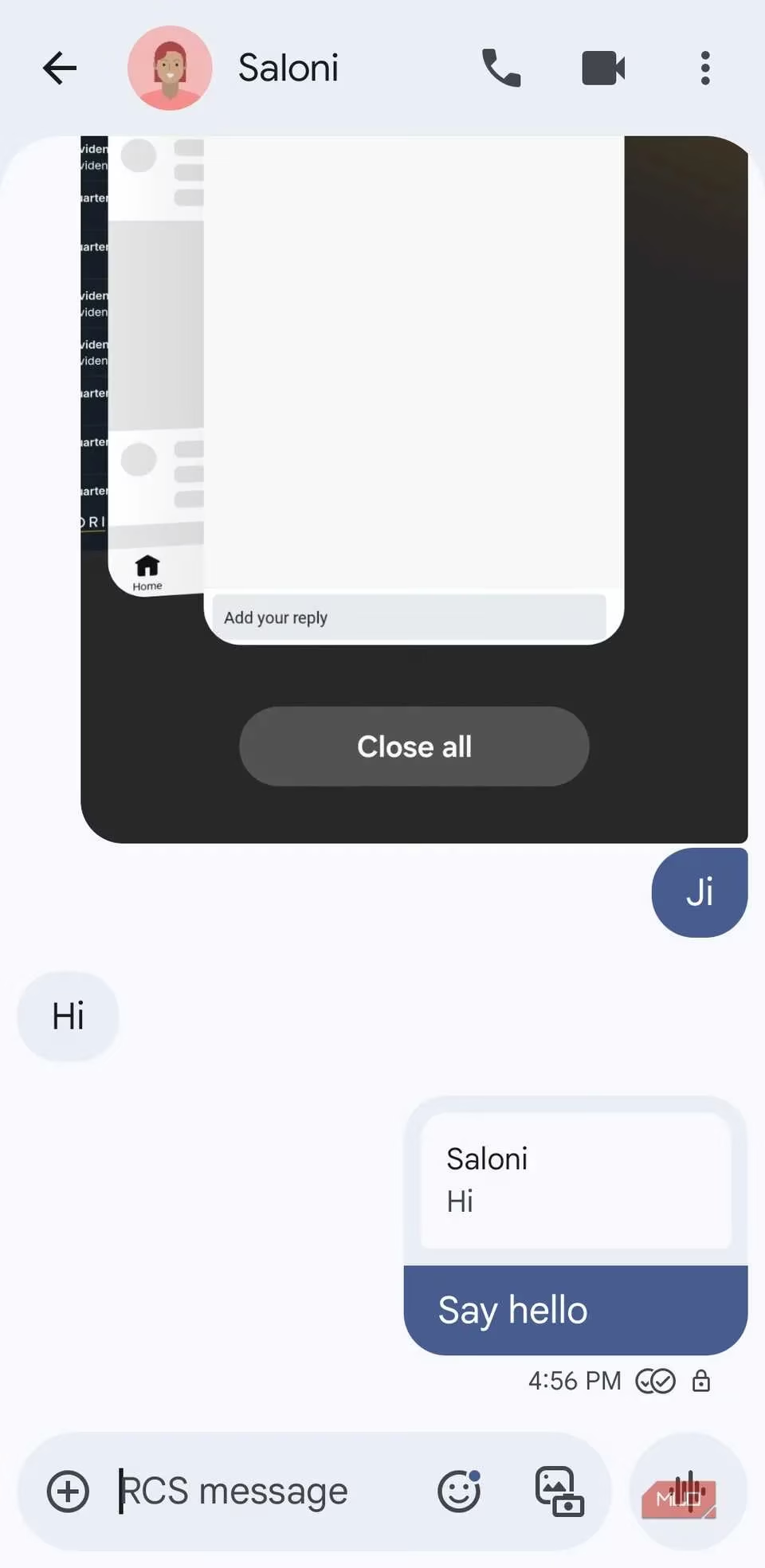
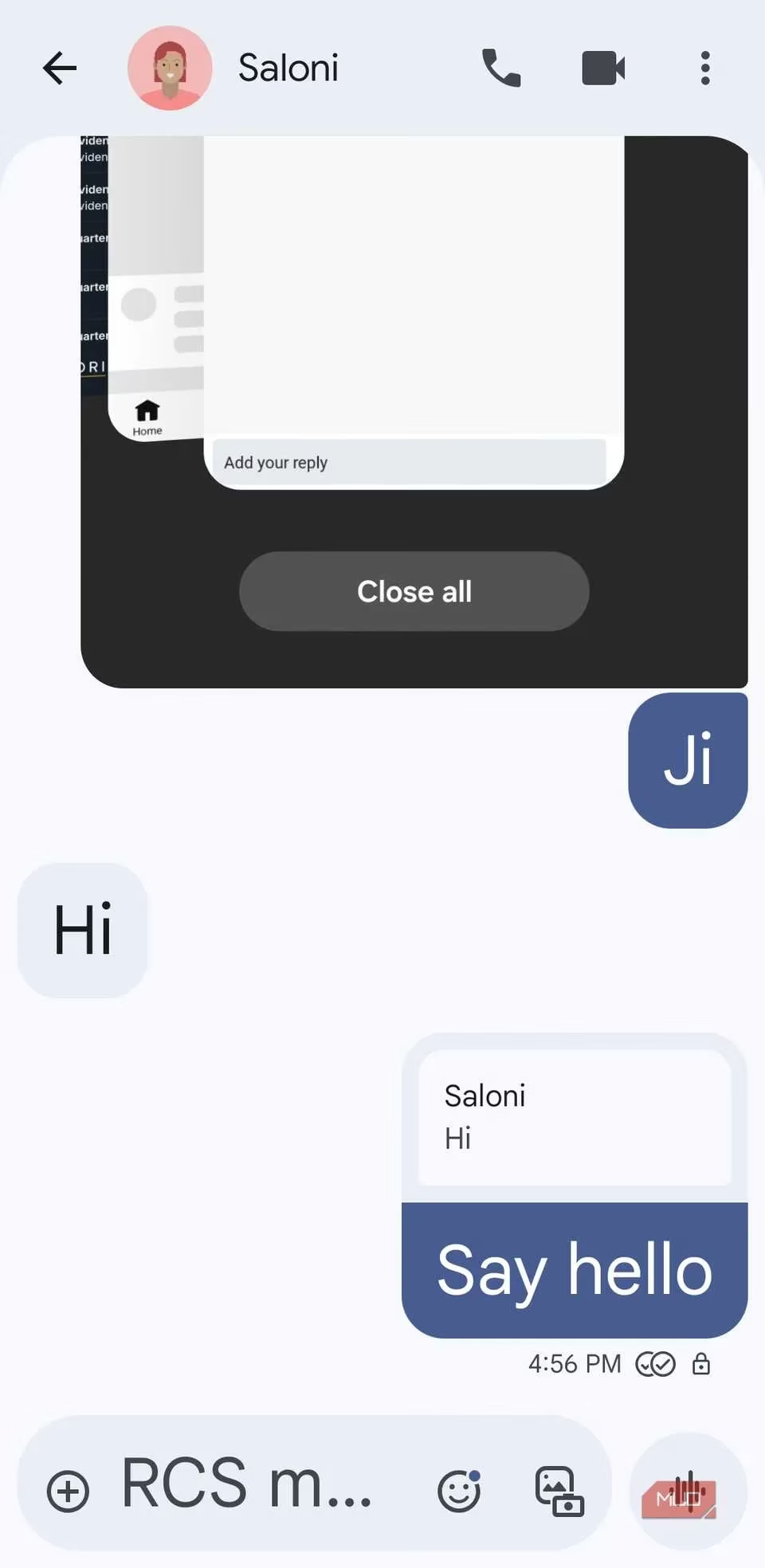
Is the default font size just a tad too small for your eyes? Or maybe you handed your phone to grandma and she’s squinting. Here’s an underrated gem: pinch to zoom works inside any conversation, just like zooming in on a photo. Place two fingers on the screen and spread them apart – the text enlarges beautifully. Pinch back to shrink. The magic? This change applies globally to all your chats, so you do it once and forget about it. (Heads-up: it doesn’t work on the main chat list, but inside threads it’s a game-changer.) 👀
Split-Screen Drag & Drop – Multitask Like a Desktop Pro 💻📱
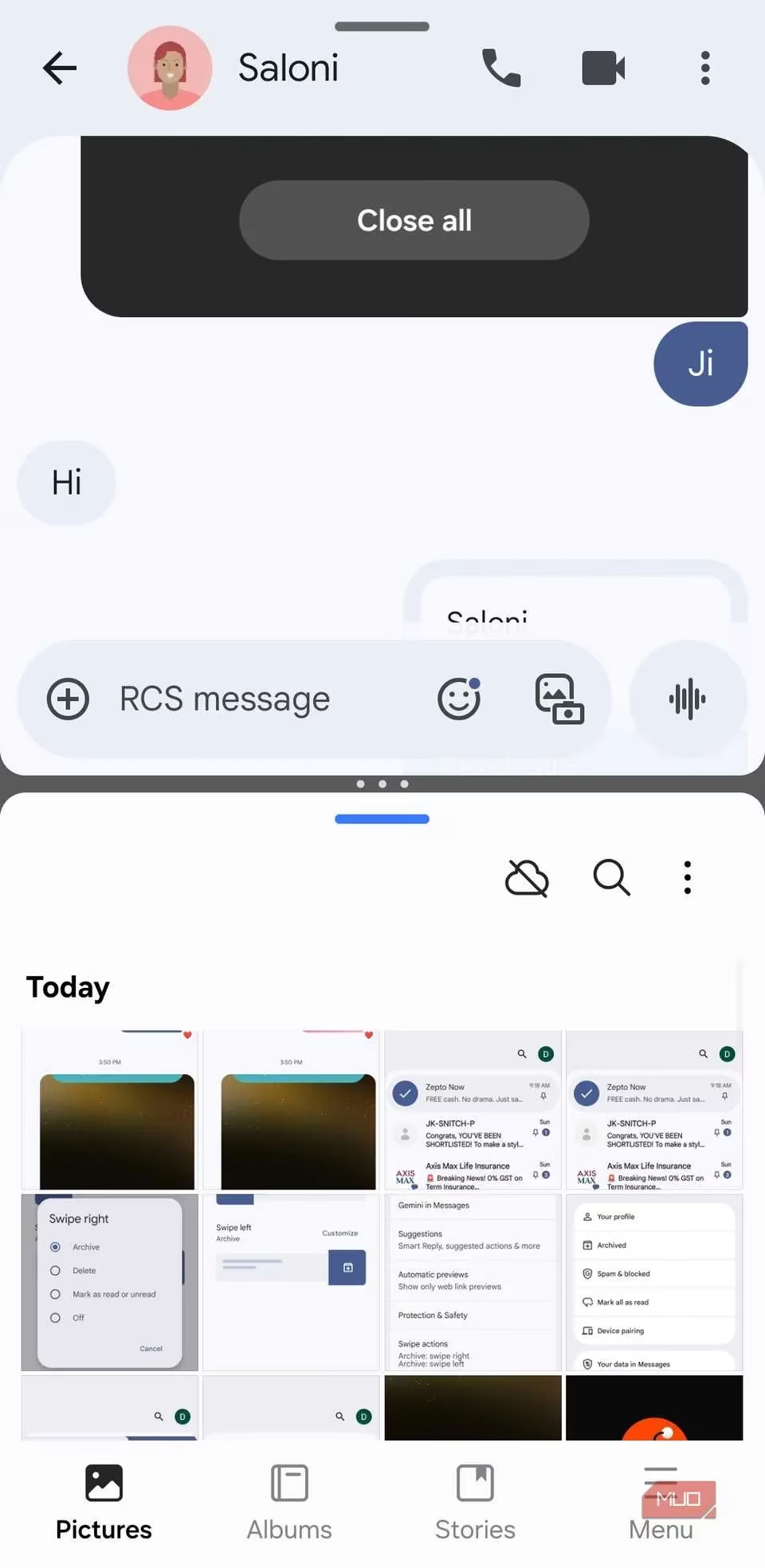
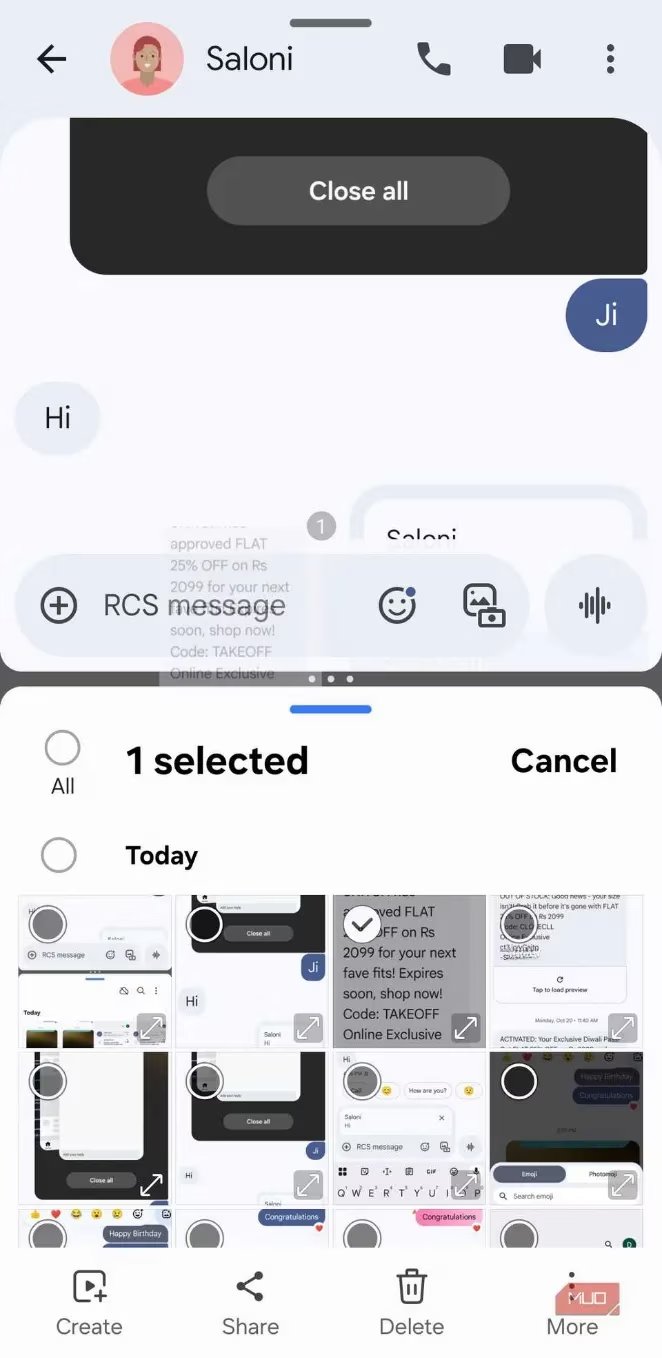
Android’s split-screen capabilities have evolved, and when paired with Google Messages, they become a productivity dream. Open Messages on one half of the screen and your Photos or Gallery app on the other. Then simply tap and hold an image or video, drag it across, and drop it right into the message box. No more attaching files from menus – it’s pure drag-and-drop magic, just like on a PC. This is especially glorious on foldable phones or tablets, but works on any modern Android device. Suddenly sharing memories feels effortless. 🖼️
Ready to Become a Gesture Guru? 🧘
All these hidden tricks turn Google Messages from a boring utility into a smooth, almost fun communication hub. The best part? Most of them work instantly without any setup – you just need to know they exist. So go ahead, try a long-press here, a swipe there, and watch your texting game level up overnight. Did you already know about all of these, or is your mind blown? Drop that heart reaction (double-tap, obviously) if you’re never going back to the old way. 💬💖