
My KWGT Rabbit Hole: How a Simple Clock Quest Transformed My Android Home Screen
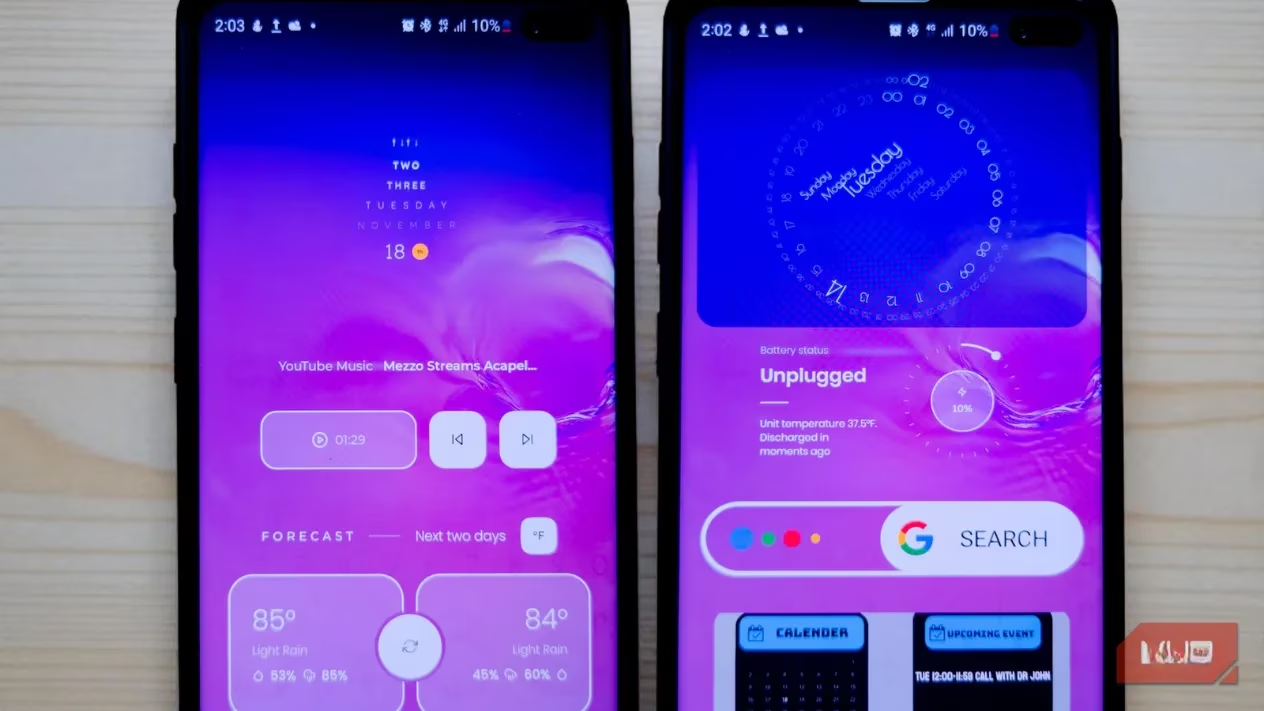
Let me tell you a story of unintended consequences. It was a quiet Tuesday in 2026, and my mission was simple: find a nicer-looking clock widget for my Android phone. I downloaded one app, then another, and suddenly, I found myself staring at the download page for KWGT Kustom Widget Maker. What started as a five-minute tweak snowballed into a weekend-long obsession of redesigning my entire home screen dashboard, and honestly, I have zero regrets. It was like going to the hardware store for a light bulb and coming home with power tools to remodel the kitchen. The sheer power KWGT puts in your hands to personalize every pixel is both terrifying and exhilarating.
Step One: The Gateway Widget
Before the fun begins, you need to get the app and place that first widget. The process is straightforward but feels like a rite of passage.
-
Install: Grab KWGT from the Google Play Store. Open it, and you'll see a welcome screen telling you the magic happens on your home screen.
-
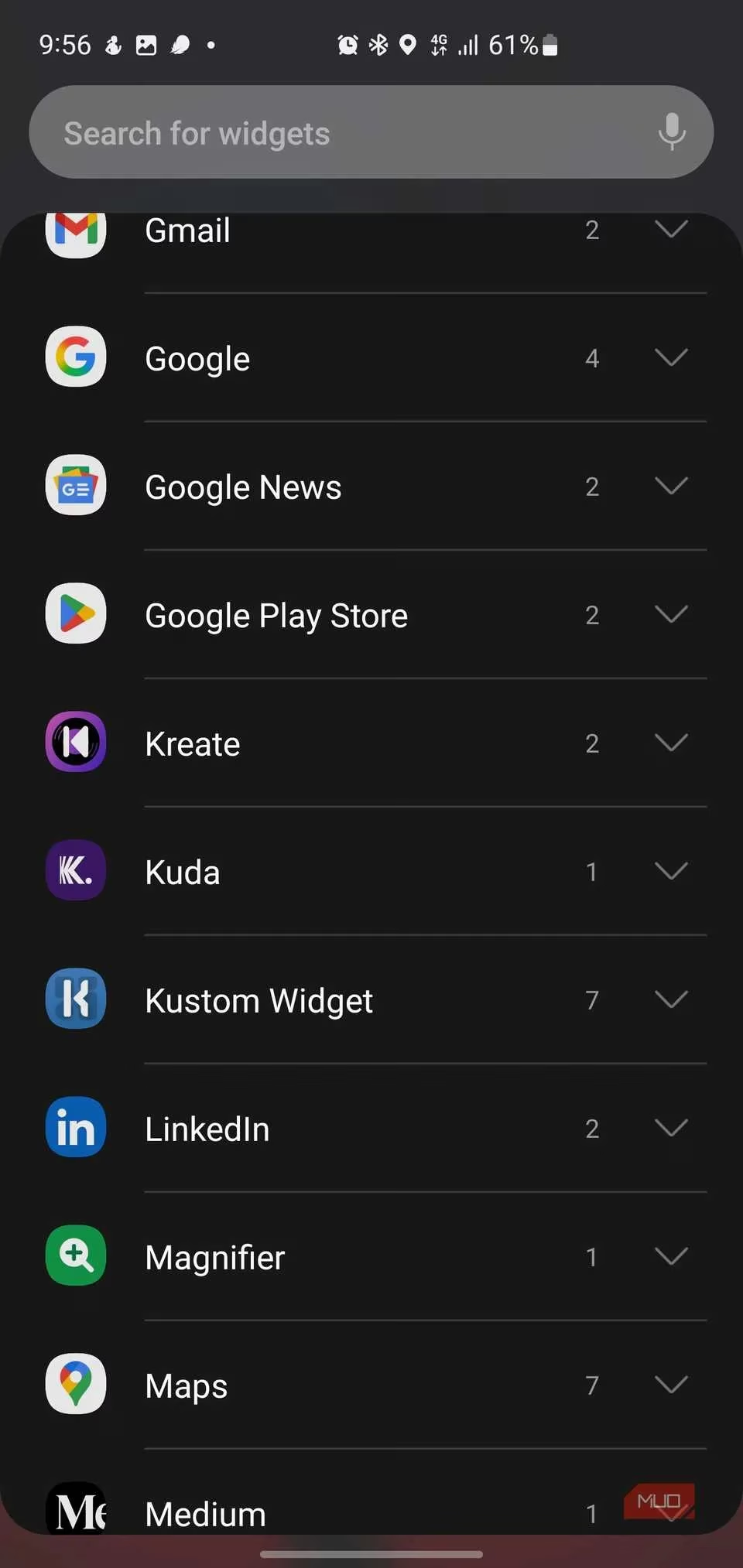
Place: Long-press any empty spot on your home screen, tap Widgets, and scroll until you find Kustom Widget.
-
Size: You'll see grid sizes like 1x1, 2x2, 2x4, and 4x1. For your first creation, I highly recommend a 2x2 or 2x4—it's the Goldilocks zone: not too small, not too big, just right for experimentation.
-
Launch: Drag your chosen size onto the screen, drop it, and then tap the empty placeholder box to launch the mighty KWGT editor.
Dipping Toes with the Base Pack
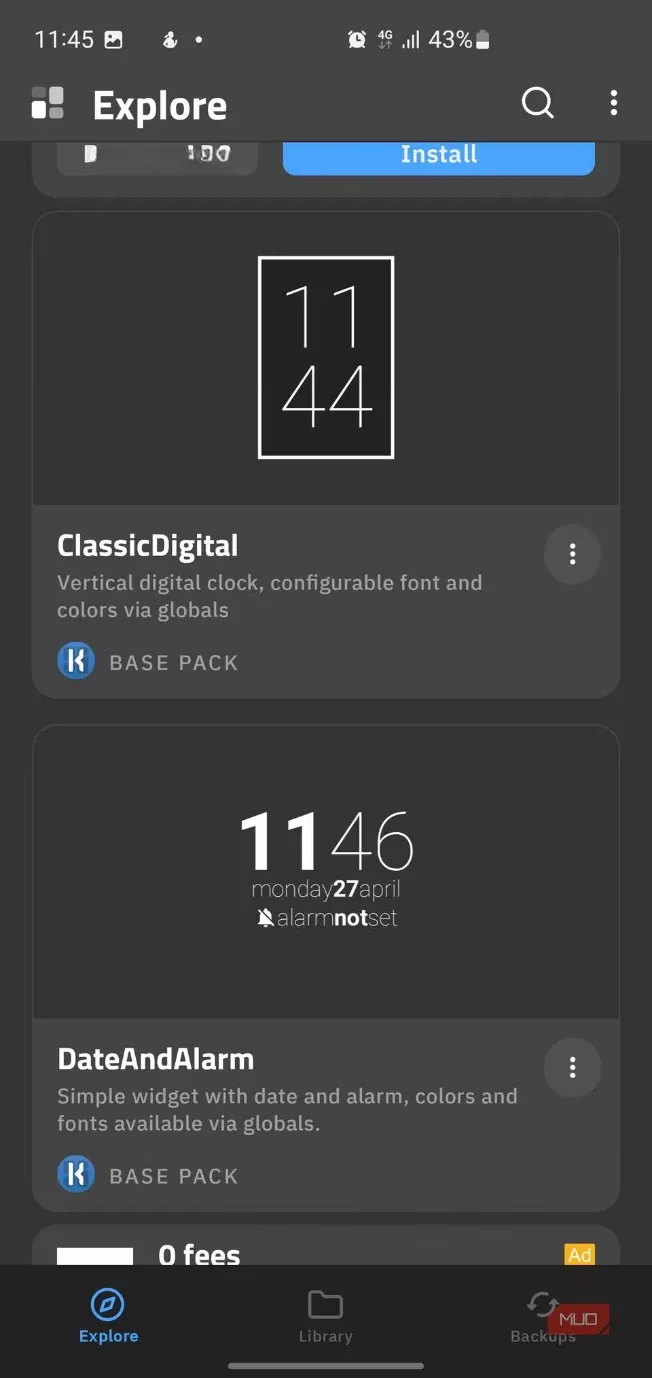
KWGT comes with a Base Pack of twenty-two sample widgets, and they are not your grandma's boring defaults. They're a showcase of possibilities, from sleek text clocks to complex dashboards with weather, battery stats, and system info. To explore, just tap Load Preset and choose the Base Pack.
My personal favorites from the pack were:
-
TextClock: A minimalist time-and-date display that's deceptively simple.
-
Series: A stylish circular arc showing the date, day, and week progress. Very chic.
-
MicroTraveller: A compact powerhouse showing time, date, and location—perfect for a world clock setup.
Tapping any preset loads it into the editor. You can save it as-is, or, you know, take it apart to see how it ticks. Which is exactly what I did.
The Treasure Hunt: Discovering Widget Packs
The Base Pack is just the tutorial island. The real open world is the massive library of free and paid widget packs. Inside KWGT, tap "Discover new packs" to be whisked away to the Play Store.
Here are some fantastic free packs that became instant staples on my screen in 2026:
| Pack Name | Style & Vibe | Why I Love It |
|---|---|---|
| M Exclusive KWGT / Evolve KWGT | Clean, modern, minimalist | Perfect for sleek, uncluttered home screens. |
| Koda for Kustom 😍 | Elegant, polished, comprehensive | Over 90 gorgeous widgets covering everything. A community legend. |
| Blended KWGT / Gift KWGT | Colorful, playful, vibrant | Adds a wonderful pop of personality and fun. |
Tap Install on any pack, and it'll appear under "Installed packs" in KWGT. Suddenly, you have dozens of new presets to play with, mix, and match. It's like having a new box of LEGOs every time.
Becoming the Architect: The KWGT Editor Deep Dive
This is where you go from consumer to creator. Tap the + Create button, and you're greeted by a WYSIWYG editor (What You See Is What You Get—see, not so scary!). It's a blank canvas with a powerful toolbar on the right.
Key Editor Tools:
-
Snap-to-grid & Alignment: For pixel-perfect placement.
-
Layer Management: Crucial when you start stacking text, shapes, and images.
-
Animation Preview & Flows Tab: To make your widgets subtly come alive.
The Five Control Tabs at the Bottom:
-
Items: The master list of every object in your widget.
-
Background: Set colors, transparency, or even a blur.
-
Layer: Fine-tune positioning and stacking order.
-
Globals: Create universal variables (like a main color) to change everywhere at once.
-
Flows: The gateway to animations.
To add anything, tap the + button in the top-right. You can add:
-
Shapes (Rectangles, circles, arcs)
-
Text (The most powerful element!)
-
Images
-
Progress Bars
-
Overlap Groups (to bundle elements)
The Secret Sauce: KWGT Formulas 🤯
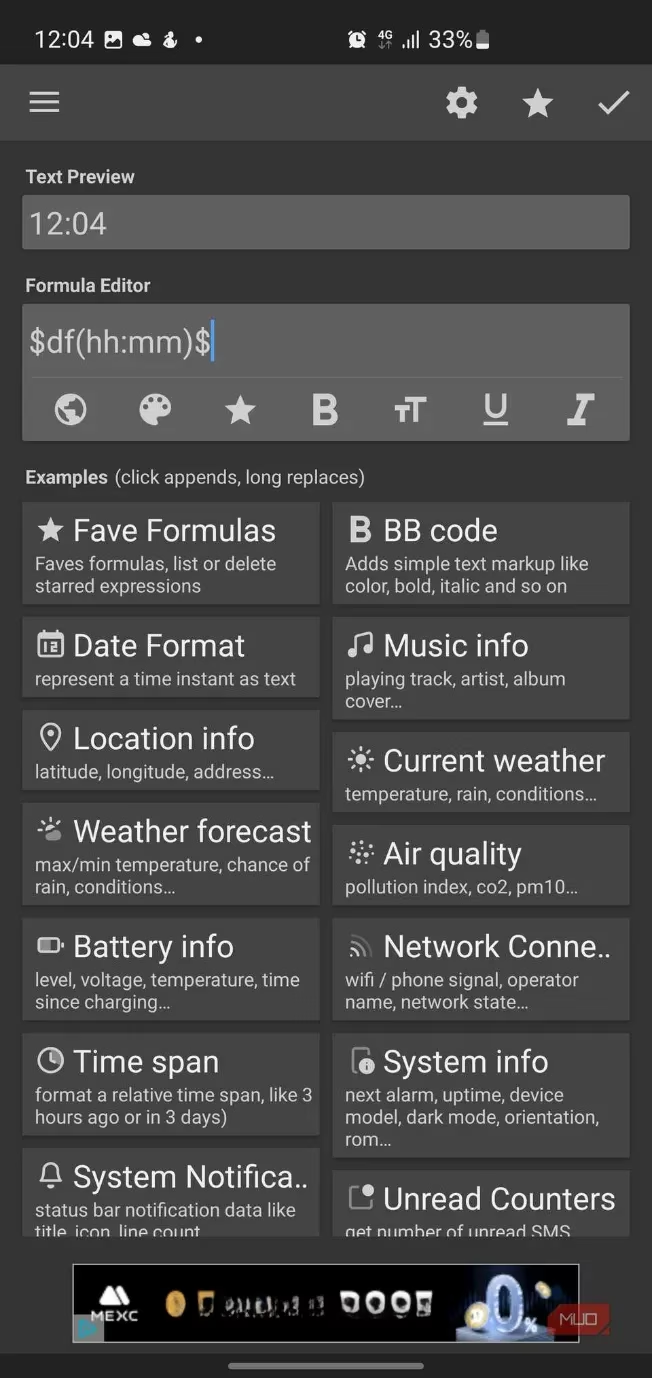
This is KWGT's superpower. Formulas are tiny bits of code that pull live data from your phone. Whenever you add a Text element, you'll see the Formula Editor field.
Below it is an Examples section—a glorious buffet of pre-made formulas. It's like magic incantations for your phone's soul:
-
Date/Time:
$df(hh:mm)$gives you the current time (like 14:30). -
Battery:
$bi(level)$outputs your battery percentage. -
Weather:
$wi(temp)$fetches the current temperature. -
System:
$si(memused)$shows used RAM.
You can chain them, add conditions ($if(bi(level)<20, "LOW BATTERY!", "All good")$), and format them endlessly. It's where the real customization happens.
Fine-Tuning: Making It Yours
Once you have an element with a formula, tap the checkmark to place it. Then, the real detailing begins with these tabs:
-
Text: Font, size, alignment. Make it pretty.
-
Paint: Colors, gradients, filters. Make it pop.
-
FX: Blurs, shadows, textures. Make it dimensional.
-
Position: X, Y coordinates, rotation. Make it sit just right.
-
Touch: This is genius. Assign an action—launch an app, toggle Wi-Fi, open a website—when someone taps the widget. It turns a passive display into an interactive button.
The Honest Truth & The Amazing Community
Let's be real: KWGT has a learning curve. 🧗♂️ It's not a ten-minute app. You will poke around, break things, delete layers in frustration, and spend an hour adjusting a shadow offset by 2 pixels. But that friction is what makes the final result so satisfying. You're not just applying a skin; you're engineering a widget.
The best part? You're not alone. The Kustom community, especially on platforms like Reddit, is one of the most supportive corners of the internet. Thousands of experienced designers share their work, offer tips, and provide solutions to problems you haven't even encountered yet. Stuck on a formula for a circular battery meter? Someone has solved it and will happily guide you.
So, here I am in 2026, with a home screen that shows me the time, date, weather, my next calendar event, battery levels for my phone and watch, and a subtle progress bar for my daily step count—all in a cohesive design that makes me smile every time I unlock my phone. It started with a quest for a nicer clock. It ended with me feeling like a digital artist. If you have even a shred of curiosity about making your Android device truly yours, take the plunge into KWGT. Just clear your schedule first.