
My Secret Weapon for Travel Work: How I Turned My Old Android Tablet into a Touchscreen Portable Monitor for FREE!
As someone who's always on the move, the idea of dragging around a bulky ultrawide monitor for my laptop was a total no-go. 🚫 I knew I needed a portable solution, but the thought of shelling out $60-$150+ for a dedicated portable monitor, maybe even an ASUS ZenScreen, made me pause. What if I told you I found a way that costs absolutely nothing? 🤯 Yup, before you spend a dime, you should definitely try what I did: I repurposed my old Huawei Honor Pad 8 Android tablet. And guess what? It turned out to be an AMAZING secondary display! It's not just a screen; it's a full-blown touch-capable device that makes multitasking a breeze. The magic sauce? A free little app called GlideX that unlocked this whole new world for me.
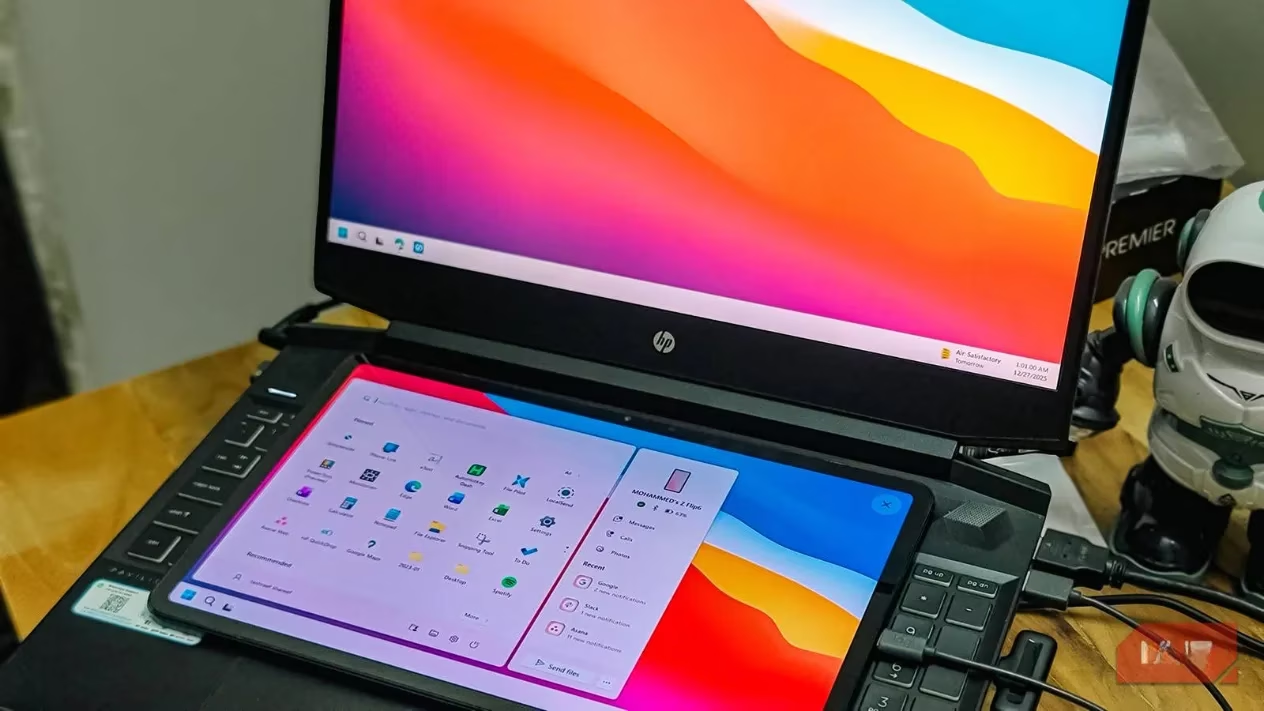
I'll be honest, when I first set this up, I just wanted a cheap portable screen. But after using it for a couple of months, I've realized this is a criminally underrated hack! Let me break down why it's so good and how you can do it too.
🤔 Why a Tablet Beats a Budget Portable Monitor
Think about it. A tablet you already own solves problems you didn't even know you had with a portable monitor:
-
No External Power Needed! 🔋 Unlike some monitors that need an extra power brick or to siphon power from your laptop (draining its battery), my tablet runs on its own battery. One less cable to pack and carry!
-
The Display is Already Great! 📺 Most mid-range tablets have at least a crisp FHD screen, often 2K, tuned for watching videos and looking at photos. You're getting a high-quality panel for free.
-
Touch Input is a Game-Changer! 👆 This is the BIG one. Navigating on-screen, switching tabs, zooming in on docs—it's all so intuitive with touch. A touchscreen portable monitor costs way more, and even then, the fluidity of a good tablet is hard to beat.
🛠️ How to Set It Up in 5 Minutes (Seriously!)
The hero of this story is ASUS's GlideX. It's a free utility that effortlessly turns your Android or iOS device into an extended display for Windows.
Here’s my simple, step-by-step guide:
-
Step 1: Download the Apps
-
On your Windows PC, get GlideX from the Microsoft Store.
-
On your tablet, download the GlideX companion app from the Google Play Store.
-
-
Step 2: Connect the Devices
-
Wi-Fi Method: Make sure both devices are on the same Wi-Fi network. Easiest, but can have slight lag.
-
USB Method (My Preferred Way!): For zero lag and the best quality, connect your tablet to your PC with a USB cable. You'll need to enable Developer Options and USB Debugging on your Android tablet first (just google "enable USB debugging on [your tablet model]"). Trust me, it's worth this one extra step!
-
-
Step 3: Pair and Extend!
-
On your PC, open the GlideX app, go to the Cross-device tab, select "Extend", and click "Search for device".
-
A prompt will pop up on your tablet—accept it!
-
Voilà! Your tablet is now an extra screen.
-
⚙️ Customizing Your New "Monitor"
Once paired, you can tweak everything from the GlideX Preferences menu:
-
Layout: Set your tablet as an extension to the left, right, top, or bottom of your main screen.
-
Mode: Choose Dynamic (auto-adjusts quality) or Manual (locks your settings for a stable connection).
-
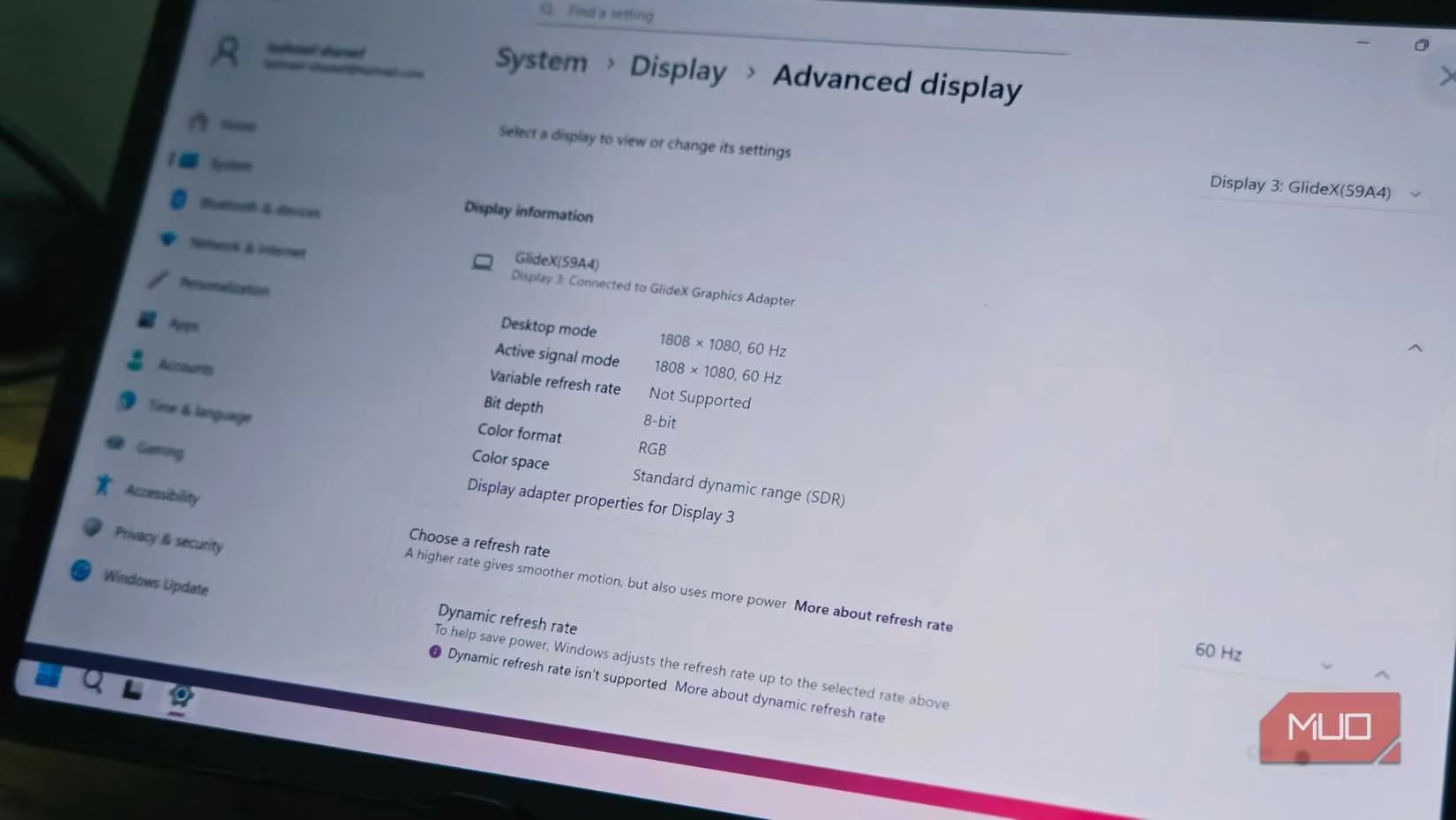
Resolution & Frame Rate: The free version supports up to 1080p at 60 FPS, which is perfect for work tasks.
✨ What Can You Actually DO With It?
The free GlideX edition is surprisingly powerful:
| Task | How It Helps |
|---|---|
| Multitasking | Keep Slack/Teams/Discord, your calendar, or reference PDFs on the tablet screen. No more frantic Alt+Tab! |
| Touch Navigation | Scroll through long documents, pinch-to-zoom on images, or tap links directly on the tablet. It feels like a touchscreen laptop! |
| Window Management | Drag any window (browser, Word doc, Spotify) over to the tablet screen. It works seamlessly. |
| Quick File Transfer | GlideX also lets you drag and drop files between your PC and tablet. Super handy! |
⚠️ A Few Things to Keep in Mind (The Real Talk)
It's not all sunshine and rainbows. Here are the trade-offs:
-
It's Not Plug-and-Play: You need to open the app and pair devices each time. A dedicated monitor is just "plug in and go."
-
Resolution/Refresh Rate Cap: Most apps, including free GlideX, cap at 1080p/60Hz. Even if your tablet has a 90Hz or 120Hz screen, you likely won't use it here. Fine for work, not for color-grading or hardcore gaming.
-
Wi-Fi Can Be Tricky: If your Wi-Fi is spotty, you might get lag or dropped frames. This is why I swear by the USB connection.
-
Size: Most tablets are 10-12 inches, which is actually the perfect portable size—big enough to be useful, small enough to fit in your bag.
🎯 My Final Verdict
So, should you try this? ABSOLUTELY YES, especially if you have an old tablet collecting dust.
Think about it: The only cost is a bit of your setup time. You get a high-res touchscreen "monitor" that's self-powered and incredibly versatile. Before you spend money on new gear, give this free method a shot. Use the wired USB connection for the best, lag-free experience.
Turning my old Honor Pad 8 into a portable monitor has been one of my best tech discoveries. It’s sustainable (hello, repurposing old tech!), cost-effective, and genuinely improves my workflow on the go. Have an old iPad or Android tablet? Go dig it out and give GlideX a try today! You might just save yourself $150. 💸✨