
Samsung One UI 8's Underrated Power Moves: Multitasking, Audio Magic, and Privacy 2.0
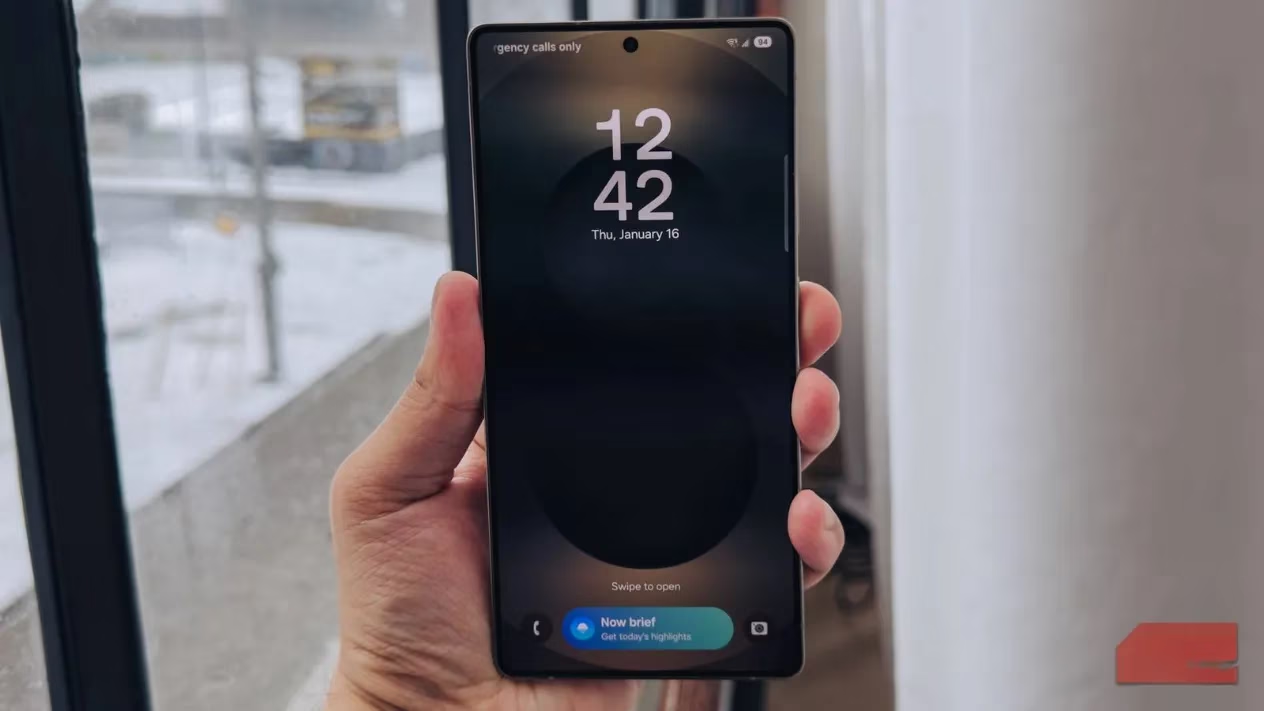
When I first updated my Galaxy S25 Ultra to One UI 8, I'll be honest—I wasn't exactly jumping with excitement. Samsung’s latest overlay didn’t come with the flashy, headline‑grabbing overhaul we saw in earlier versions. It felt more like a quiet houseguest than a loud party guest. But, as the weeks rolled by, I started noticing small changes that completely shifted how I use my phone every day, especially as someone who’s constantly juggling game streams, voice chats, and quick edits. So, let me walk you through the features that actually made me say "oh, that's clever"—ones you might have overlooked.
Split Screen That Finally Stops Fighting You
Split screen on Android has been around for ages, and Samsung’s had its own take for years. But if you’ve ever tried to multitask on a phone, you know the struggle: you’d end up with two cramped windows at a stiff 50:50 ratio, or at best a 70:30 that still felt awkward. With One UI 8, that rigidity is gone. And I mean gone.
The new split-screen behavior lets you drag the divider almost anywhere, creating a wild 90:10 view. Picture this: I’m grinding through a mobile RPG, and I’ve got Discord floating in that tiny sliver on the side. I can glance at my guild chat without interrupting the game, then tap the small window to instantly bring it full focus. It’s seamless. The secondary app never vanishes—it just shrinks and waits patiently, like a loyal sidekick.
To activate it, just swipe up for Recents, tap the app icon, and choose "Split screen view." You can also long‑press the app in the Recents menu. Once both apps are open, grab the middle divider and slide it to the edge. The secondary app collapses into a minimal strip that’s still interactive. Honestly, it’s the first time phone multitasking has felt natural, not like a compromise.
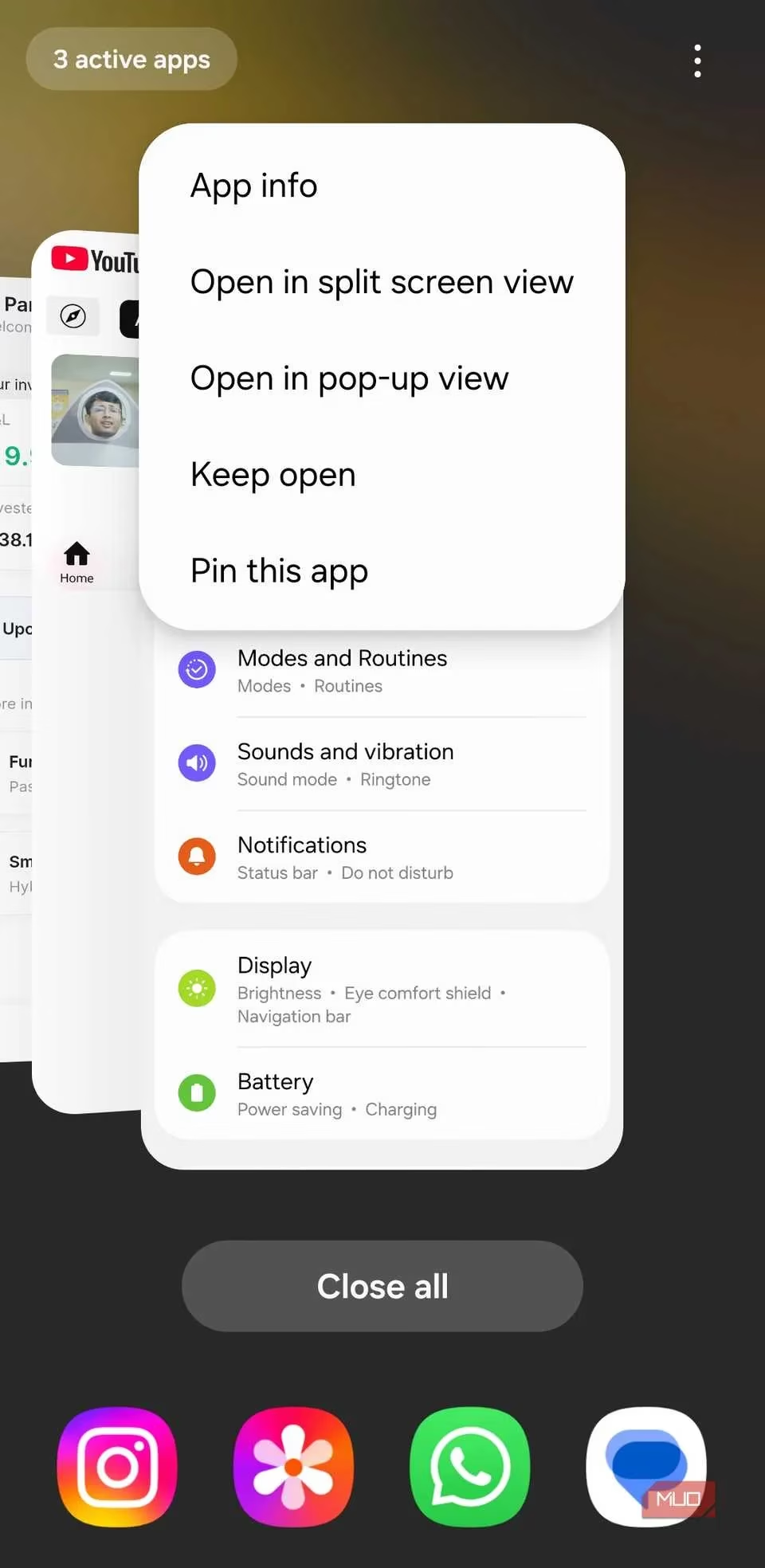
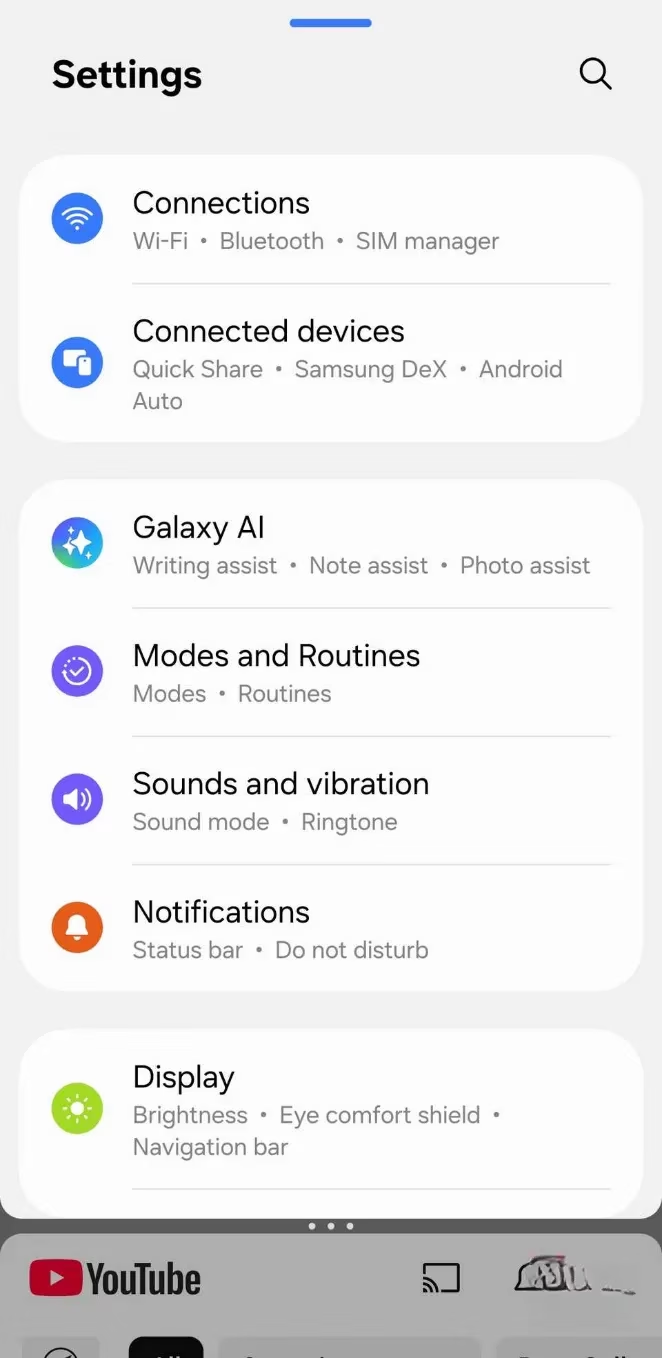
What’s even better is the flexibility. You can have a YouTube walkthrough running in that lean‑back 90% screen while keeping a note‑taking app barely visible for quick jots. Or, when I’m livestreaming, I keep the chat window in the tiny portion and my streaming dashboard dominant. No more fumbling to switch apps and missing critical moments.
The Audio Eraser That Feels Like Sorcery
Alright, this is where Samsung’s Galaxy AI truly shines, and I’m not exaggerating—Audio Eraser is one of those features that makes you feel like you’ve hired a post‑production team for your pocket. Introduced in One UI 8, it automatically detects sound layers in any video and lets you strip away unwanted noise with surgical precision.
I record a lot of mobile gameplay clips, and nothing ruins a clutch victory clip faster than a truck rumbling by or my mechanical keyboard clacking in the background. With Audio Eraser, I just open the video in the Gallery app, tap the edit pencil, then the speaker icon, and… boom. I see sliders for Voices, Music, Noise, Crowd, and Nature. I can reduce the "Crowd" layer to zero while keeping my voice crisp, or dial down "Wind" until it’s but a whisper.
You can even target specific frequencies with the "Auto" option—it analyzes the track and suggests the best cleanup. The real‑time preview lets you toggle between original and edited with a tap. It’s almost unfair how good it is.
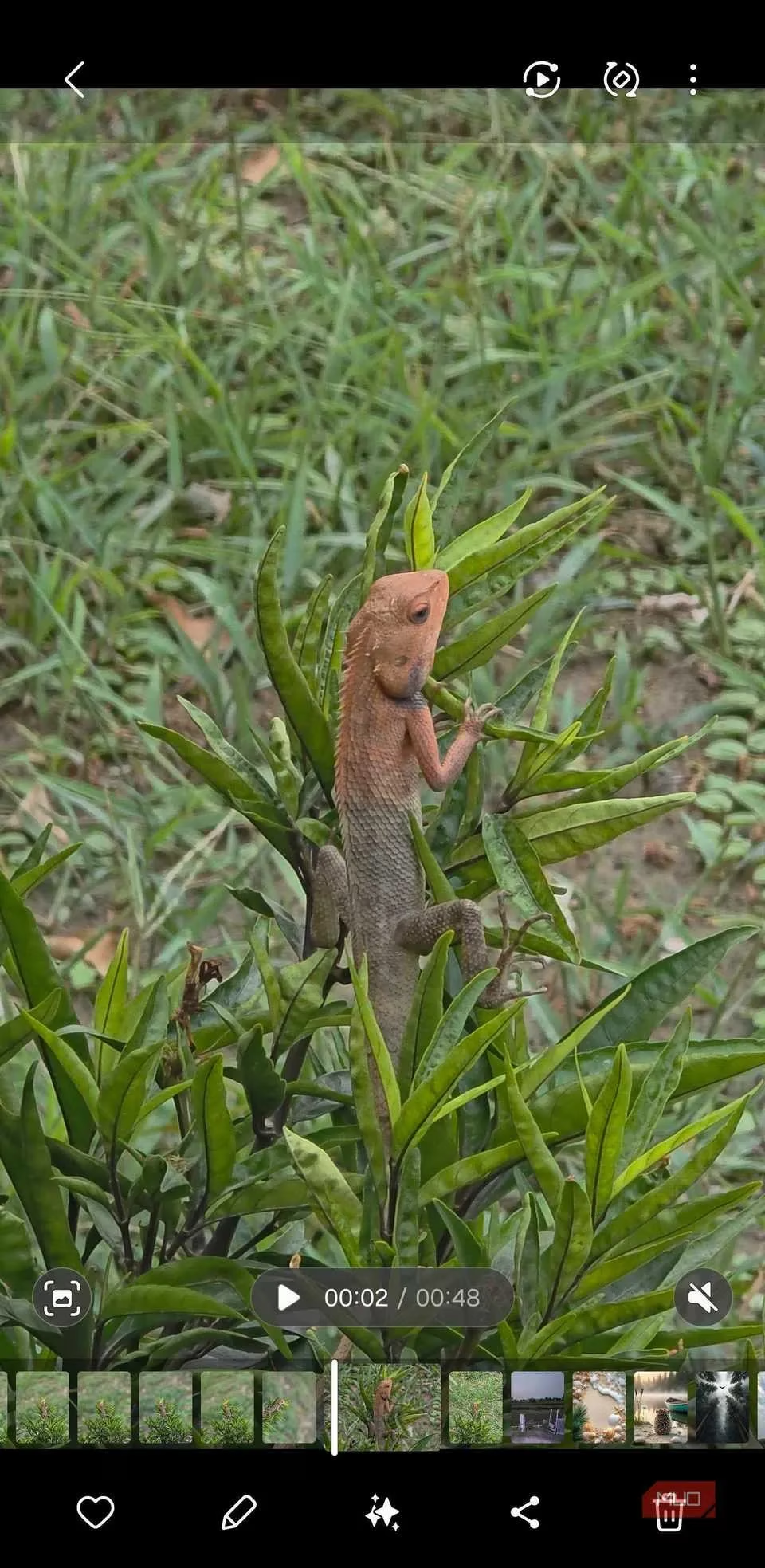
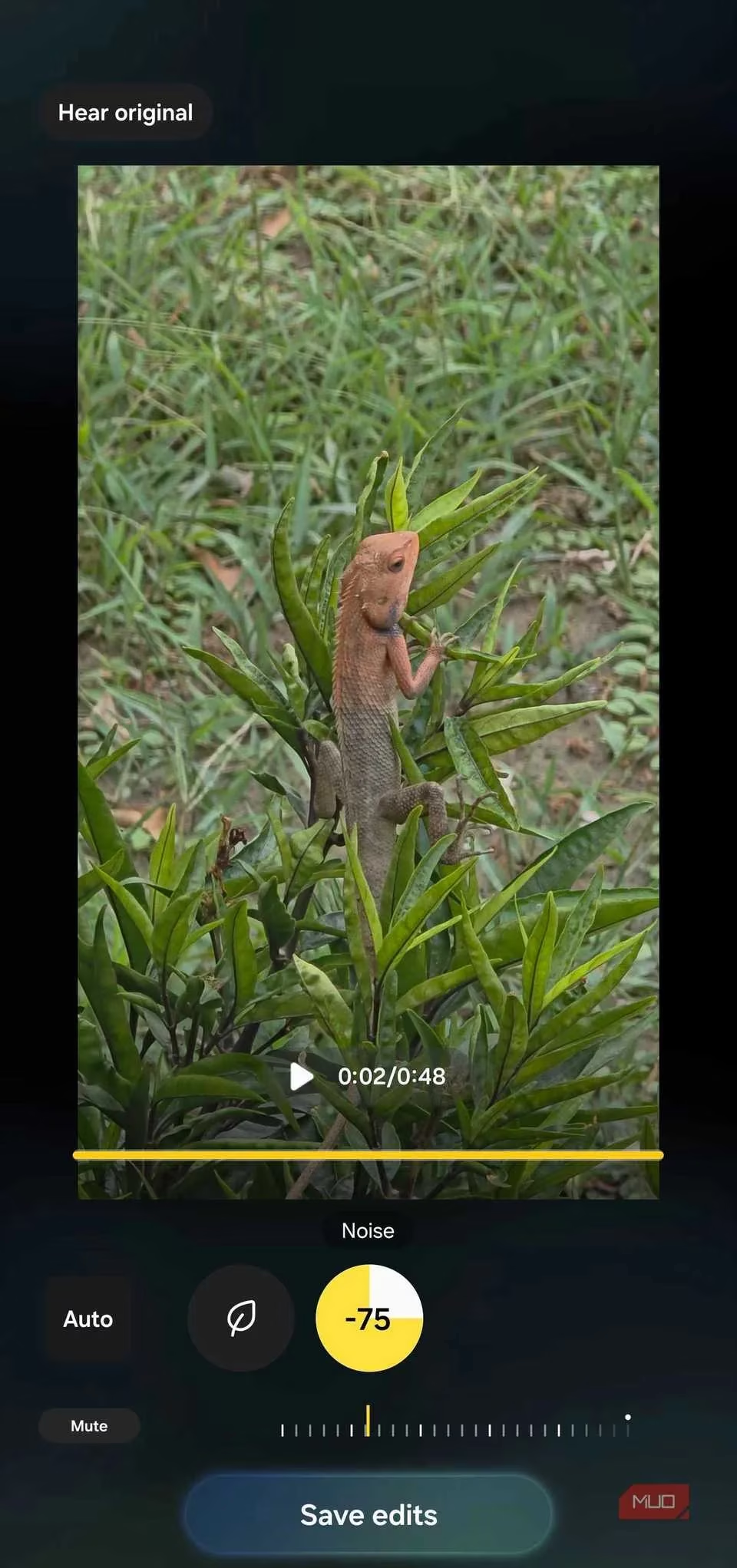
But here’s the kicker: Audio Eraser isn’t stuck inside the Gallery. It’s integrated into the Voice Recorder, Samsung Notes, and even call recordings. Got a voice note taken during a hectic LAN party? Just erase the background chaos. Need to clean up a recorded phone call for a podcast? Same deal. This is one of those tools that, once you start using it, you’ll wonder how you ever lived without it.
Secure Folder Grows Up into a True Private Profile
Secure Folder has been Samsung’s digital vault since 2017, but there was always a nagging worry in the back of my mind: could some system apps still peek inside? With One UI 8, that question is finally put to rest. Samsung has rebuilt Secure Folder as a genuine Private profile in Android, not a Work profile masquerading as one.
What does that mean? Previously, components like Permission Controller could theoretically access data within Secure Folder. Now, the entire environment is completely walled‑off. Core system processes can’t see what’s in there—your hidden photos, confidential documents, and the banking apps you keep off the main grid are truly isolated.
There’s a subtle catch, though: for full protection, you need to close and hide Secure Folder from the quick settings panel, not just dismiss the app. But once you do, it’s as if that data doesn’t exist to the rest of the phone. Peace of mind goes through the roof.
Another smart tweak: fingerprint authentication is now independent. In the past, Secure Folder automatically used the same fingerprints as your lock screen. Handy, but not exactly Fort Knox if you share your phone with family. One UI 8 prompts you to register separate fingerprints just for the Private profile. So even if your kid’s thumb can unlock the device, they can’t wander into your work‑related vault. Tiny change, huge impact.
Final Thoughts
One UI 8 might not scream for attention, but its quiet refinements have genuinely made my daily routine smoother. The smarter split screen keeps my game and comms in harmony, Audio Eraser rescues my content from audio nightmares, and the rebooted Secure Folder finally feels like the privacy sanctuary it always promised to be. And with One UI 8.5 already looming (expected to ship with the Galaxy S26 series), I’m eager to see what Samsung polishes next. For now, if you’ve already updated, dig into these features—you might just find your phone feeling brand new again.