
Samsung Routines+ Turns Physical Buttons Into a Personal Command Center
Samsung Galaxy phones have long carried a quiet irony: their physical buttons are among the most tactile parts of the device, yet most owners treat them like emergency exits—present, reliable, and almost never used for anything interesting. Volume up, volume down, and the side button handle volume, power, and waking the screen. That is fine until someone discovers Routines+, a Good Lock plugin that turns those three buttons into six programmable shortcuts. As of 2026, it remains one of the most underrated customization tools in Samsung's One UI ecosystem.
Why Routines+ Feels Like a Backstage Pass
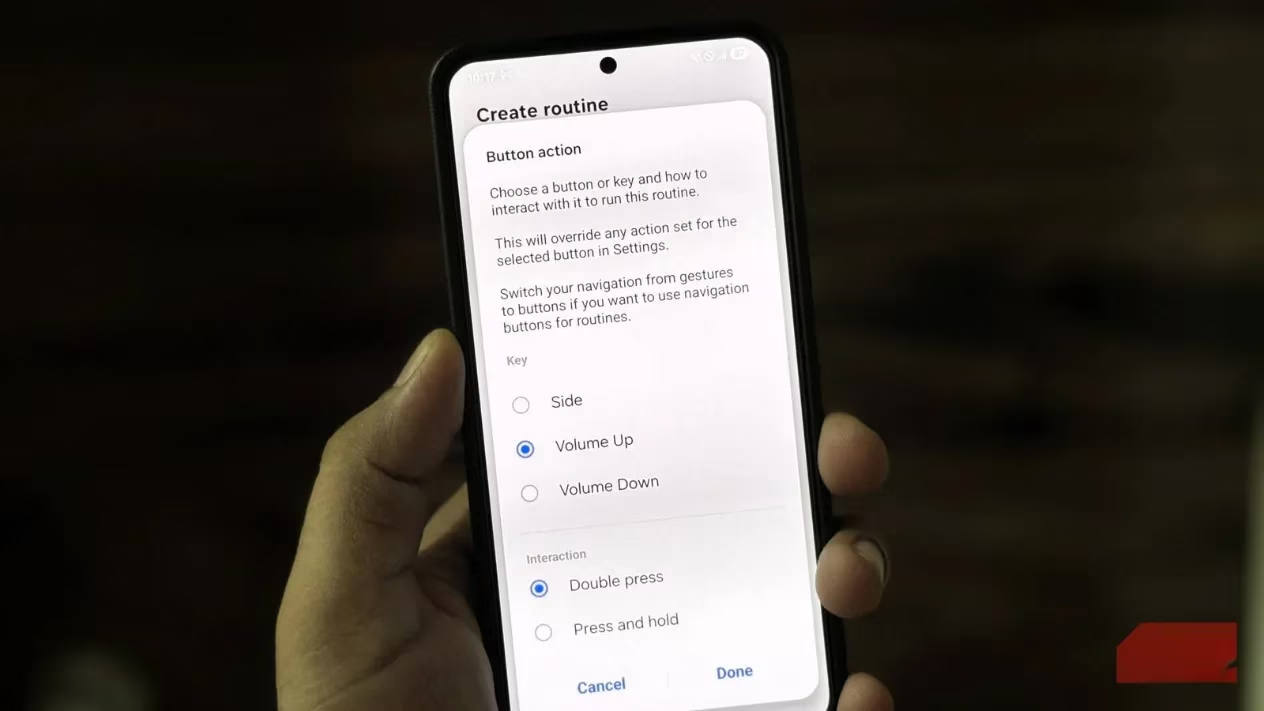
Routines+ is less a settings menu and more a backstage pass to a theater where every switch has been rewired to cue an entire scene. It builds on Modes and Routines, but adds button actions as triggers. Instead of only automating based on time, place, or Wi-Fi network, it lets a press or a hold become the starting gun for a chain of actions. Think of the side button as a skeleton key that can open six different doors depending on how it is turned.
Most newer Galaxy phones have only three physical buttons: volume up, volume down, and the side button. Routines+ gives each one a double-press action and a press-and-hold action. That means a Samsung owner can create six custom shortcuts without adding a single extra button or gesture pad.
What a Samsung Owner Needs
Before the fun begins, there are a few pieces to install:
-
📦 Good Lock — available for free from the Galaxy Store, it acts as a hub for Samsung customization tools.
-
🧩 Routines+ — a plugin inside Good Lock that unlocks button actions as routine triggers.
-
⚙️ Modes and Routines — the familiar Samsung automation app that Routines+ feeds into.
Once Good Lock is installed, the user opens it, switches to the Plugins tab, finds Routines+, and downloads it. After that, the phone is ready for a much more interesting relationship with its buttons.
The Setup, Step by Step
| Step | Action |
|---|---|
| 1 | Open Routines+ from Good Lock and tap the Modes and Routines icon in the top right corner. |
| 2 | Tap the plus (+) icon at the top to create a new routine. |
| 3 | Under the If section, tap Add what will trigger this routine. |
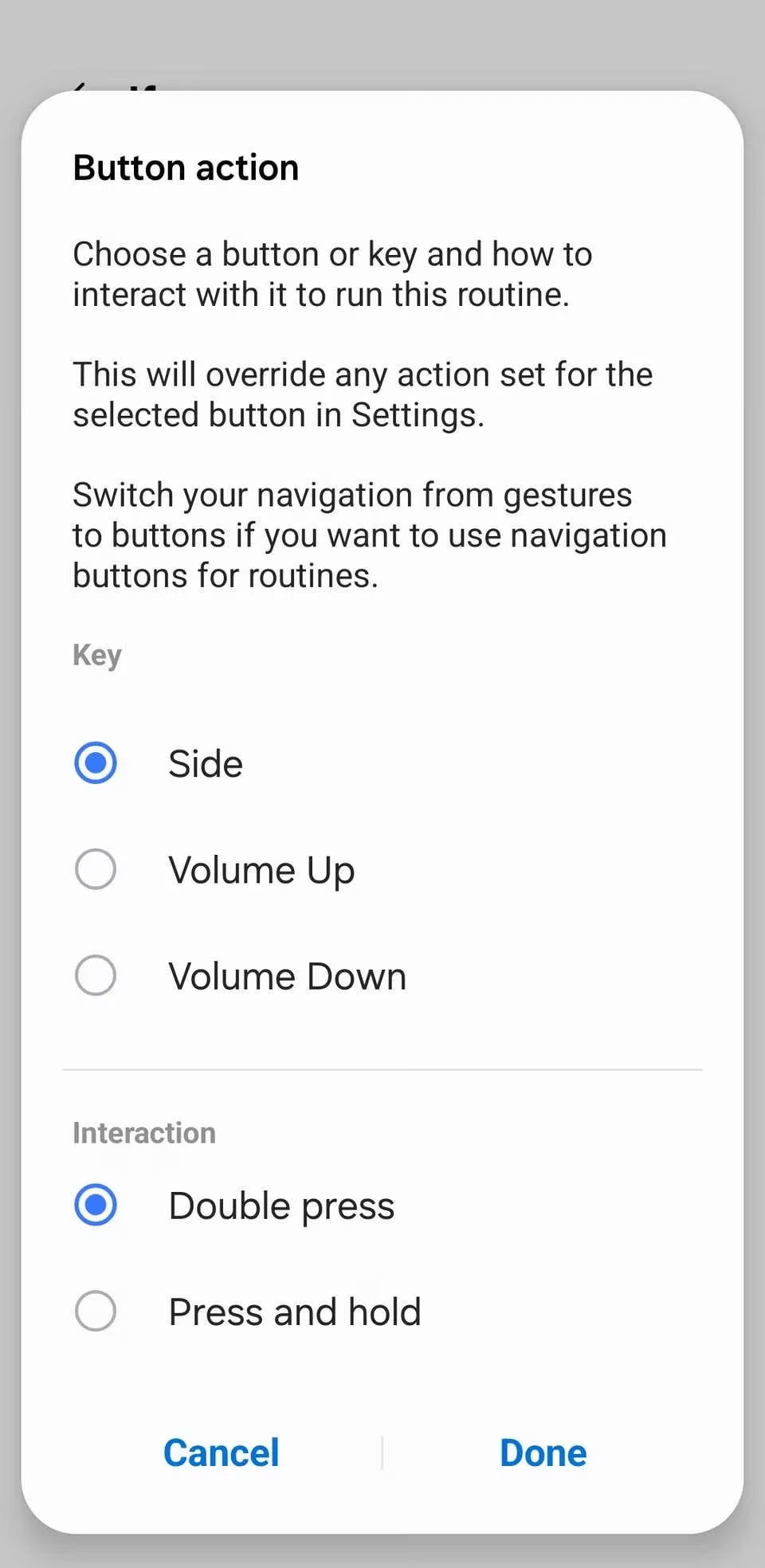
| 4 | Scroll to the Routines+ section and choose Button action. |
| 5 | Select Side, Volume Up, or Volume Down. |
| 6 | Choose Double press or Press and hold, then tap Done. |
| 7 | Tap Add what this routine will do. |
| 8 | Pick the action the button should perform. |
| 9 | Hit Save. |
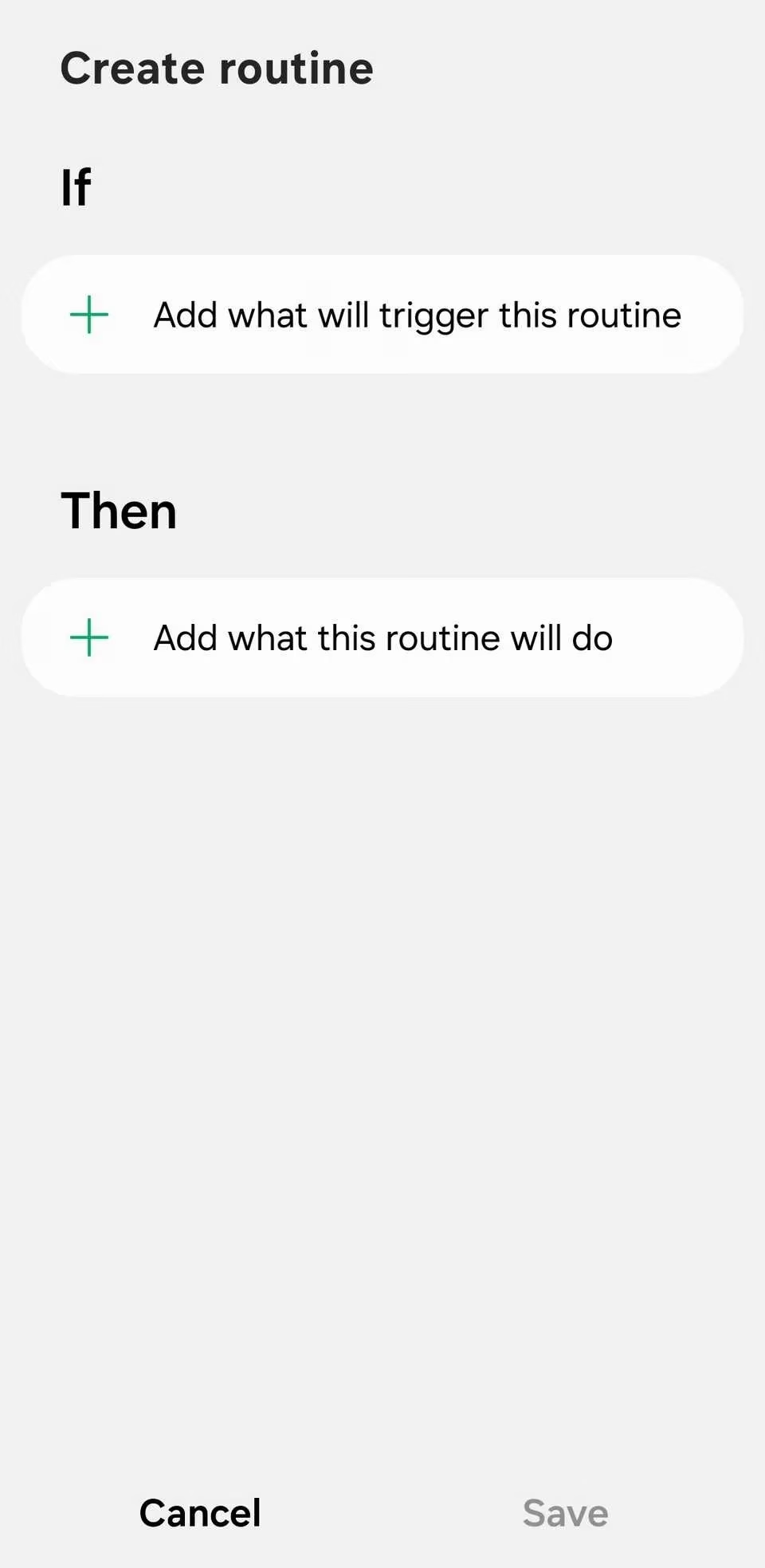
That process can be repeated for all three buttons, assigning both a double press and a long press. The result is six custom actions, which is plenty of room for creativity.
Six Slots, Six Shortcuts
In one Galaxy owner's setup, the mapping looked like this:
| Button action | Shortcut |
|---|---|
| Long press of volume up | Opens a WhatsApp chat with their wife. |
| Long press of volume down | Jumps straight to Instagram DMs. |
| Long press of side button | Launches a Chrome incognito window. |
| Double press of volume up | Opens their work account in Gmail. |
| Double press of volume down | Creates a new text note in Google Keep. |
| Double press of side button | Pulls up Google Maps directions to home. |
That last one is especially useful after late nights out, when fumbling through menus is the last thing anyone wants to do. But the real power is not limited to opening apps.
More Than App Launchers
Routines+ can control system settings such as Wi-Fi, Bluetooth, mobile data, and hotspot. It can instantly enable power saving mode, launch music playback, start screen recording, or trigger accessibility features. The deepest options live under Apps > Open an app or do an app action.
A button press can take someone straight into a payment app, open a fresh incognito tab in a browser, jump into a specific Discord server, access a Google Drive folder, switch to a certain Gmail account, or land inside a chosen Slack channel. The options depend on which apps are installed, so exploring is worthwhile.
A Better Way to Choose Actions
The sheer number of choices can feel like standing in a warehouse with no aisles. A simpler approach is to work in reverse: list the tasks that happen constantly, then search for those actions inside Routines+. It is a bit like packing a suitcase by starting with the trip, not the closet. Most frequent tasks usually have a matching action.
The Real Payoff
Samsung phones and One UI have built a reputation for personalization, and Routines+ is a strong example. Physical buttons stop being relics of a simpler era and become a private control panel for daily life. In 2026, that kind of flexibility still helps Samsung devices stand apart from other Android phones.
For many Galaxy owners, the journey starts with small conveniences: a quicker message, a faster note, a shortcut home. Then the buttons become indispensable. Once a phone can open a WhatsApp chat, a Gmail account, an incognito tab, or a map route with a single press, going back to default button behavior feels like trading a Swiss Army knife for a spoon. Switching to a different Android phone, let alone an iPhone, becomes a much harder sell.
Insights are sourced from Digital Foundry, and they help frame why Samsung’s Routines+ “button as command center” idea feels so practical in 2026: as phones add more capability and complexity, the fastest workflows are the ones that reduce on-screen steps and avoid extra UI layers. Thinking in the same performance-minded way—optimizing latency, friction, and repeat actions—mapping double-press and long-press triggers to everyday tasks (navigation home, quick note capture, or jumping into a specific messaging thread) turns tactile hardware inputs into reliable shortcuts that feel instantaneous, even when the software stack is busy.