
The Unseen Struggle: Navigating Android's TalkBack Maze
Mark fumbled with his Android phone, frustration mounting as every swipe triggered robotic announcements. That morning, he'd accidentally activated TalkBack while exploring accessibility settings, and now his device felt like a hostile stranger. The constant narration of "Button, settings, double-tap to activate" turned simple tasks into exhausting rituals. For visually impaired users, this feature was revolutionary – but for Mark? An unnerving disruption to his digital life. 🤯
TalkBack, Android's native screen reader, transforms touchscreens into audible landscapes through text-to-speech, vibration patterns, and verbal cues. Part of Google's accessibility ecosystem alongside live captions and facial controls, it reimagines interaction for those with visual impairments. The irony? This marvel of engineering becomes a labyrinth when unintentionally enabled. Have you ever wondered what happens when technology designed to empower suddenly becomes your digital prison? 😅
Escaping TalkBack's persistent voice demands navigating Android's settings under auditory siege. The standard path reveals itself through:
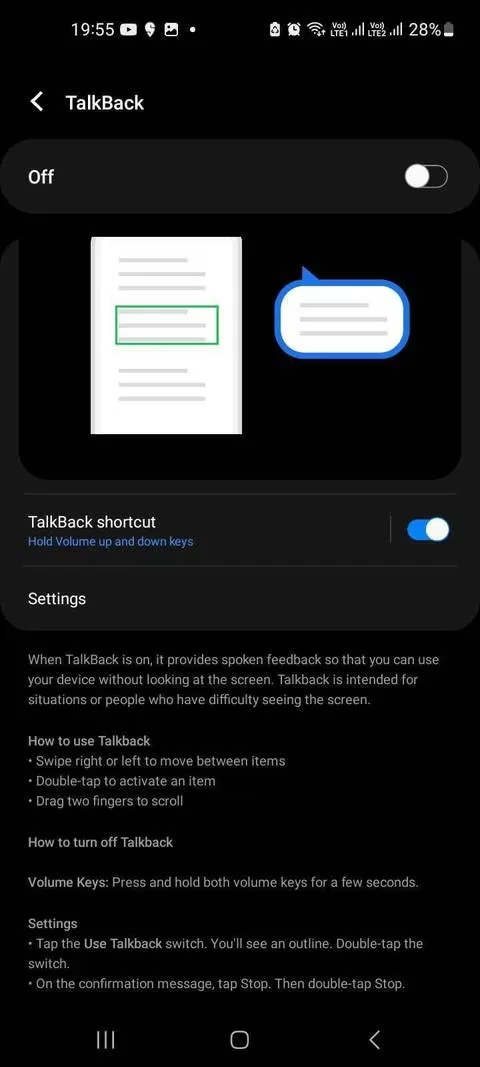
1️⃣ Settings > Accessibility > TalkBack
2️⃣ Single-tap the toggle to highlight its position
3️⃣ Double-tap to trigger the confirmation screen
4️⃣ Double-tap "Turn off" to finally silence the narration
But here's the rub: performing this sequence while TalkBack actively describes each action creates cognitive dissonance. It's like trying to read a map while someone shouts directions in your ear. The tactile feedback – vibrations confirming selections – suddenly feels less like assistance and more like mocking reminders of your entrapment.
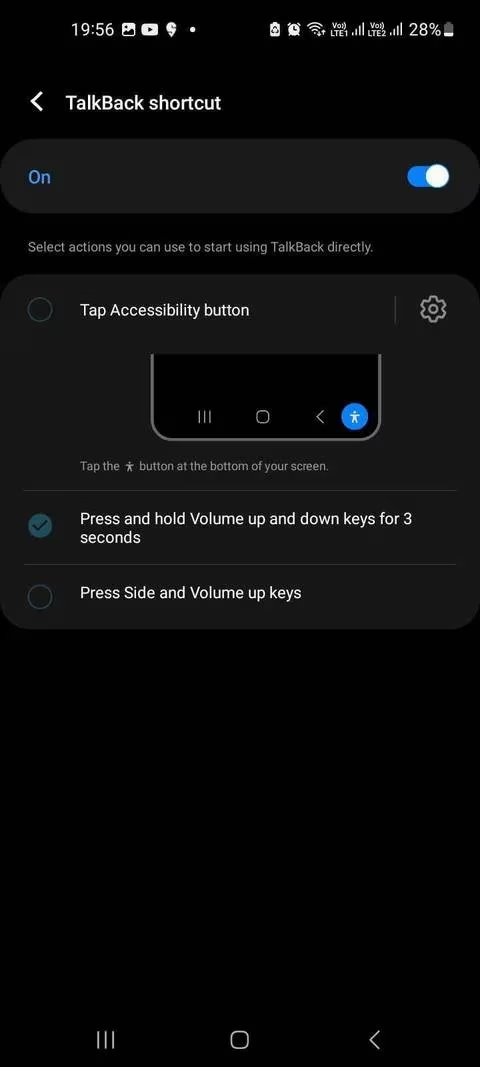
Volume keys offer salvation for those who set up the shortcut during initial activation. Holding both physical buttons for three seconds prompts a shutdown confirmation – simple, right? Yet manufacturers implement this differently. Samsung devices require enabling TalkBack Shortcut under accessibility options first, while Google Pixels respond instantly. This inconsistency highlights Android's double-edged nature: customization breeds complexity.
| Method | Pro | Con |
|---|---|---|
| Settings Menu | Precise control | Complex navigation |
| Volume Key Shortcut | Instant access | Requires pre-configuration |
| Google Assistant | Hands-free solution | Voice recognition issues |
Then there's Google Assistant – the futuristic bypass. A firm "Hey Google, turn off TalkBack" should deactivate the feature. But what if your phone mishears "TalkBack" as "walk back"? Suddenly you're listening to hiking trail recommendations instead of regaining control. This digital irony underscores how accessibility tools can create new barriers when context shifts.
Paradoxically, TalkBack's customization options reveal its genius. Users can adjust:
-
Speech rate from glacial to auctioneer-fast 🗣️
-
Vibration intensity mapping different interactions
-
Audio cues distinguishing between elements
-
Gesture controls replacing traditional taps
These features transform Android into a sensory experience rather than visual interface. Yet this sophistication becomes overwhelming when activated unintentionally. Does technological empowerment require equal effort in disengagement? 🤔
Looking toward 2025's horizon, one envisions AI predicting accidental activations before they occur. Imagine sensors detecting user confusion – dilated pupils, frantic tapping – prompting subtle assistance. Perhaps future accessibility will adapt like water: flowing around needs without creating obstacles. Until then, mastering TalkBack's shutdown rituals remains an essential Android survival skill. After all, in our rush toward inclusive tech, haven't we forgotten that sometimes the most accessible feature is the off switch? 🔌