
Unlock Faster Typing: 10 Gboard Tips Every Android User Should Know in 2026
For millions of Android users, the smartphone keyboard is the gateway to daily communication, yet it often remains a source of frustration. Slow taps, autocorrect blunders, and the tedious chore of cursor placement can drain productivity. But what if that familiar keyboard holds a treasure trove of hidden capabilities designed to make typing not just bearable, but surprisingly fast and enjoyable? Google’s Gboard, the default keyboard for many, is packed with precisely those features. From AI-powered text refinement to clever gestures and customizable shortcuts, mastering these tools can transform the mobile typing experience.
Gboard’s feature set has evolved significantly by 2026, integrating advanced on-device intelligence while retaining the gesture-based tricks that power users have relied on for years. Whether composing a quick reply, drafting an email, or polishing a social media caption, these tips can save precious seconds with every interaction. After all, why poke at individual letters when a single swipe or tap can generate an entire phrase?
🛠️ Customizing the Toolbar for Instant Access
One of the most overlooked yet powerful sections of Gboard is the toolbar sitting just above the keys. It offers one-tap access to tools like the Clipboard, GIF search, Stickers, and more. Tapping the four-squares icon expands the menu further, revealing options such as Emoji, Undo, and Translate. The real magic begins when a user personalizes this space.
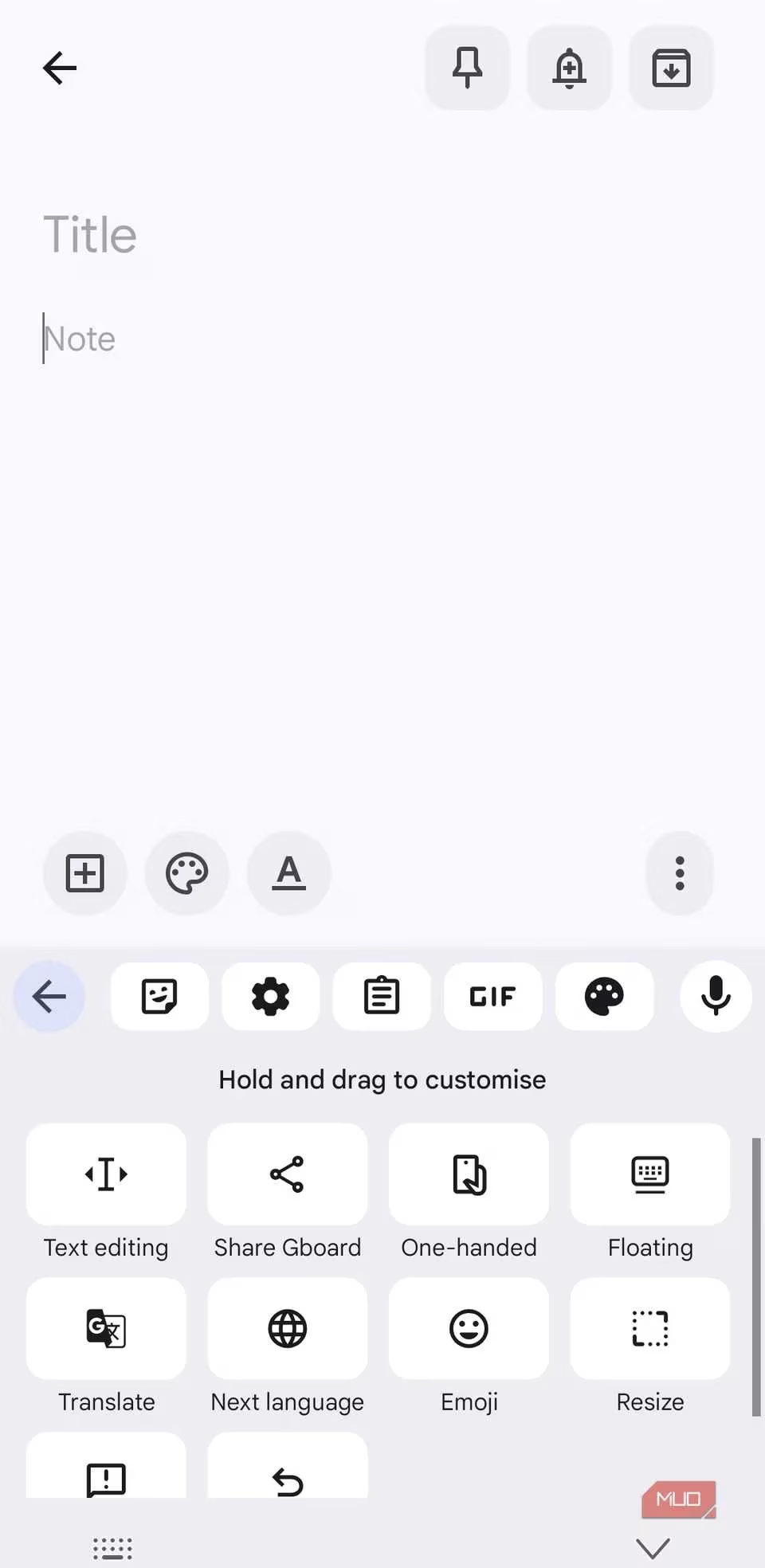
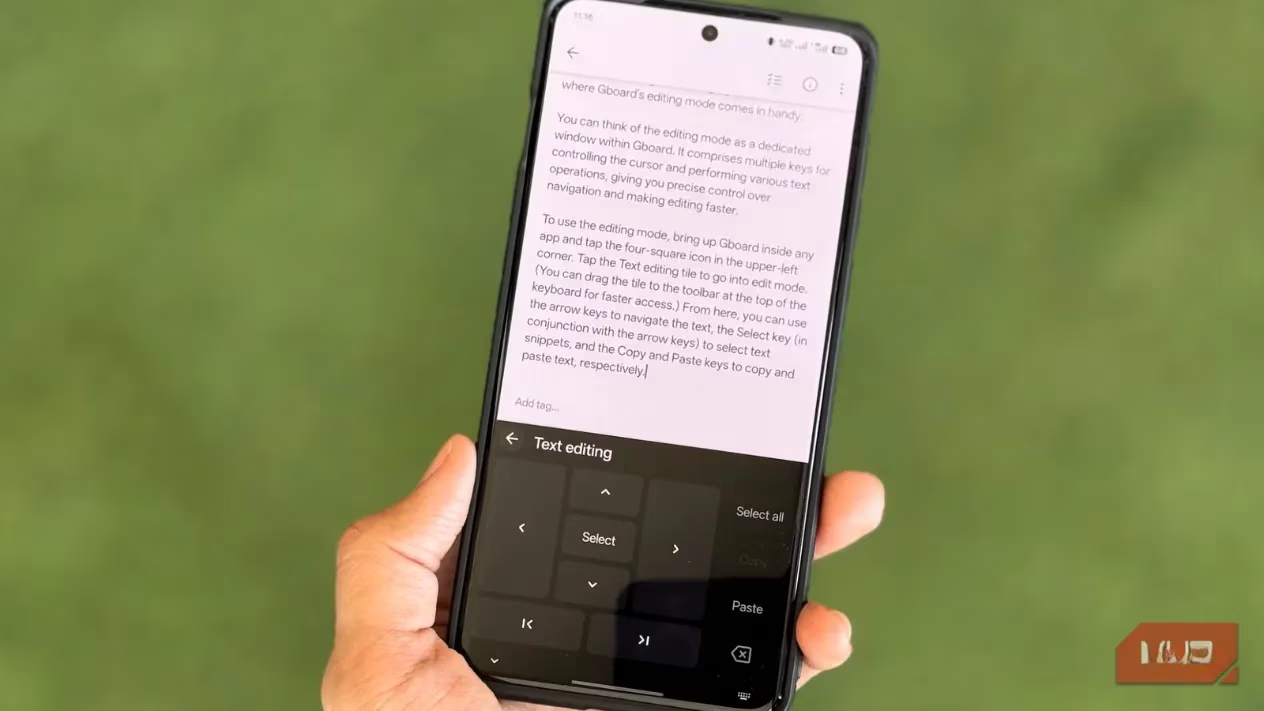
Rearranging the toolbar icons to prioritize frequently used functions eliminates the need to hunt through menus. For example, placing the Emoji button on the top row removes the necessity of long-pressing the comma key. Similarly, adding the Undo button to the toolbar allows near-instant correction of typing mistakes. Another standout tool is the Text Editing option, which transforms a portion of the keyboard into a miniature directional pad. From there, users can precisely move the cursor or select text, with Cut, Copy, Paste, and backspace controls immediately available. It turns the clunky task of fixing a single misplaced letter into an effortless action.
🤖 Fine-Tuning Autocorrect and Predictive Smarts
Gboard’s text correction is a double-edged sword for many. When poorly configured, it can introduce embarrassing typos or stubbornly suggest the wrong word. But with a few settings tweaks, it becomes a powerful speed booster. The keyboard can predict the next word based on context, allowing a user to compose entire sentences by repeatedly tapping suggestions without touching a single letter.
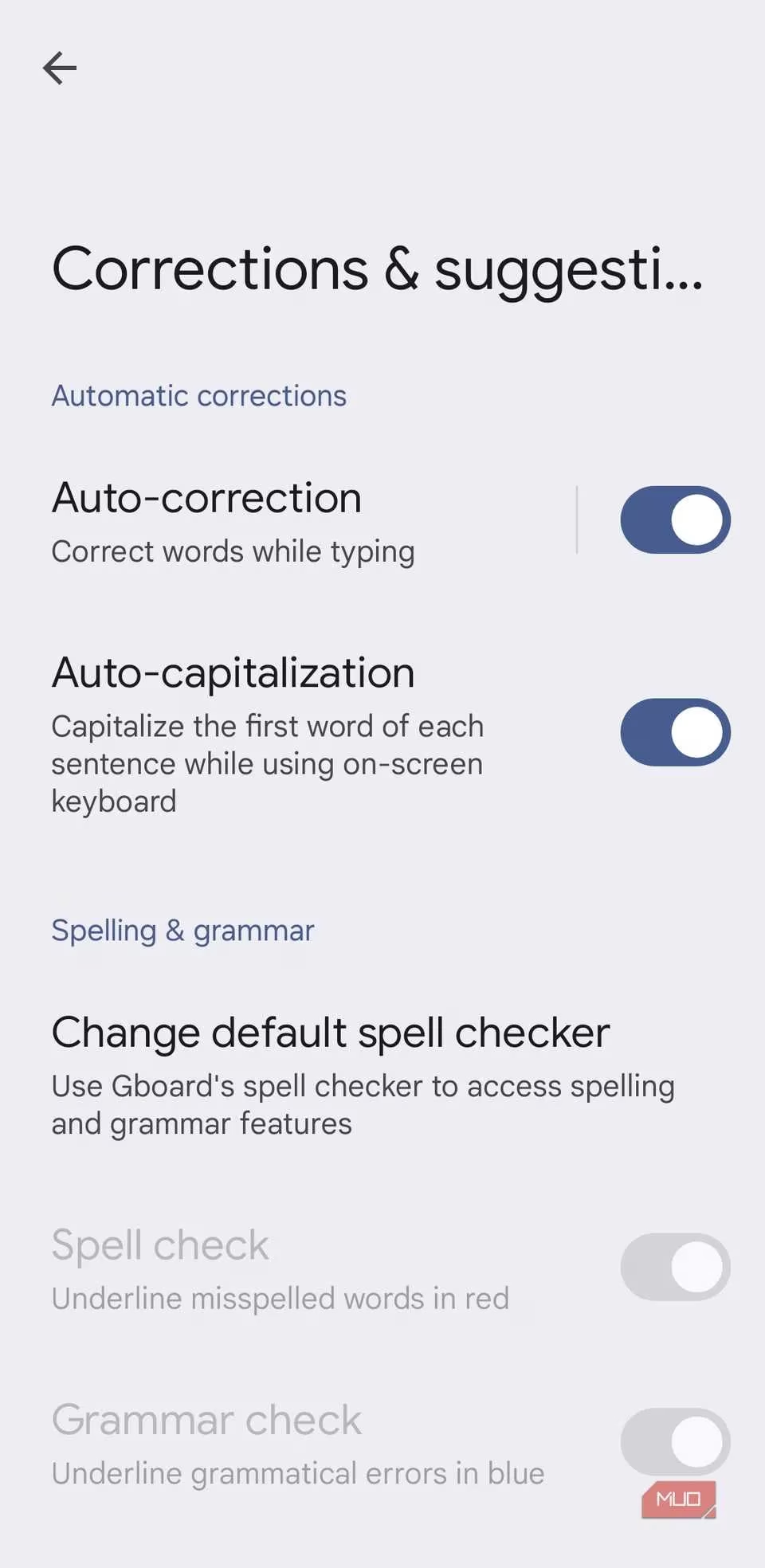
Diving into Gboard’s settings reveals several toggles that shape this behavior. Keeping Next-word suggestions, Auto-correction, Auto-capitalization, and Suggest contacts enabled creates a responsive typing environment. On the other hand, some users find that disabling Double-space period or Undo auto-correct on backspace prevents interference with their natural rhythm. If an unwanted suggestion ever appears, a long press on that word and a drag to the trash icon teaches the keyboard to avoid it in the future. This level of control ensures the predictive engine works for the user, not against them.
⚡ Text Expansion and the Personal Dictionary
Every person has phrases they type repeatedly—an email address, a home address, a standard greeting, or even a phone number. Manually typing these out dozens of times a day is an inefficiency begging to be solved. Gboard’s text expansion tool, housed within the personal dictionary, turns long phrases into bite-sized shortcuts.
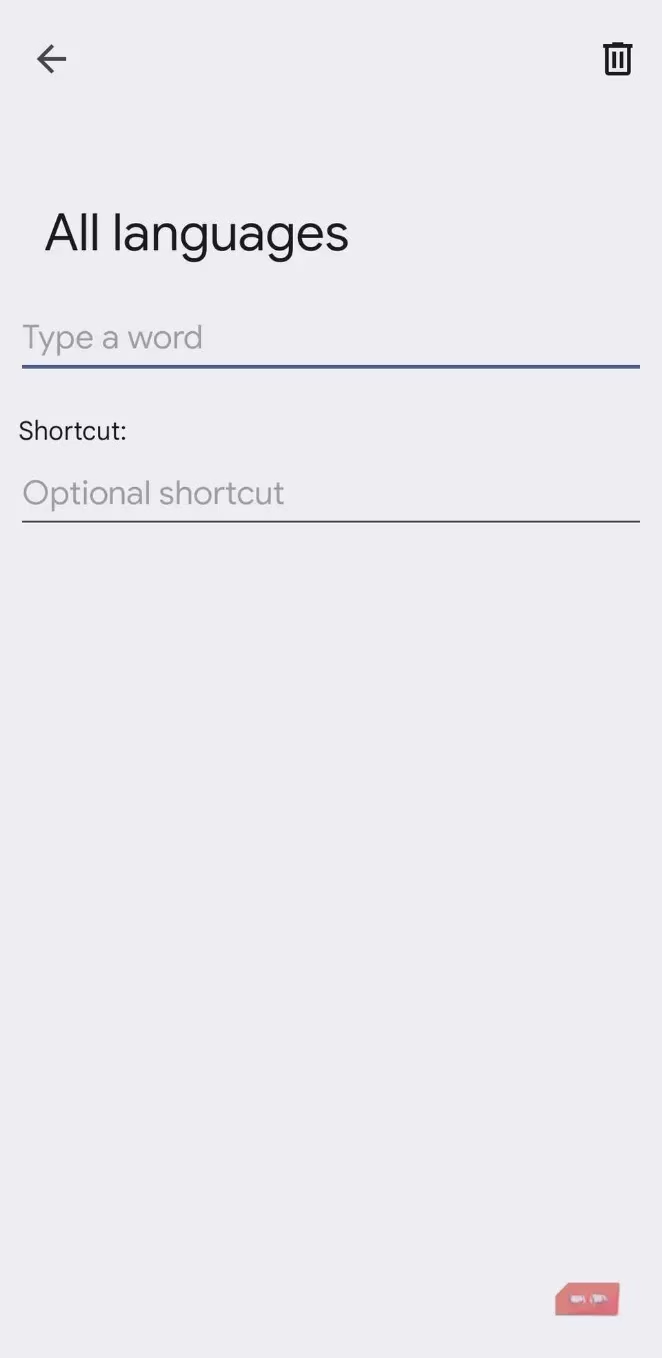
The process is straightforward. In Gboard’s settings, under Dictionary > Personal dictionary, users can add a word or a full sentence and assign a shortcut. Typing “@@” could instantly expand to a full email address, while “omw” might autofill “On my way!”. Once saved, the keyboard suggests the expanded text whenever the shortcut is typed. This feature alone can save hours over the course of a year, especially for those who juggle multiple standard responses in messaging apps.
📋 Clipboard Pinning for Frequently Used Blocks
While text expansion is ideal for short strings, longer reusable content—such as a formatted response, a social media caption, or a set of emoji combinations—needs a different solution. Gboard’s clipboard feature stores recently copied text and images temporarily, but its pinning function offers permanent, one-tap retrieval.
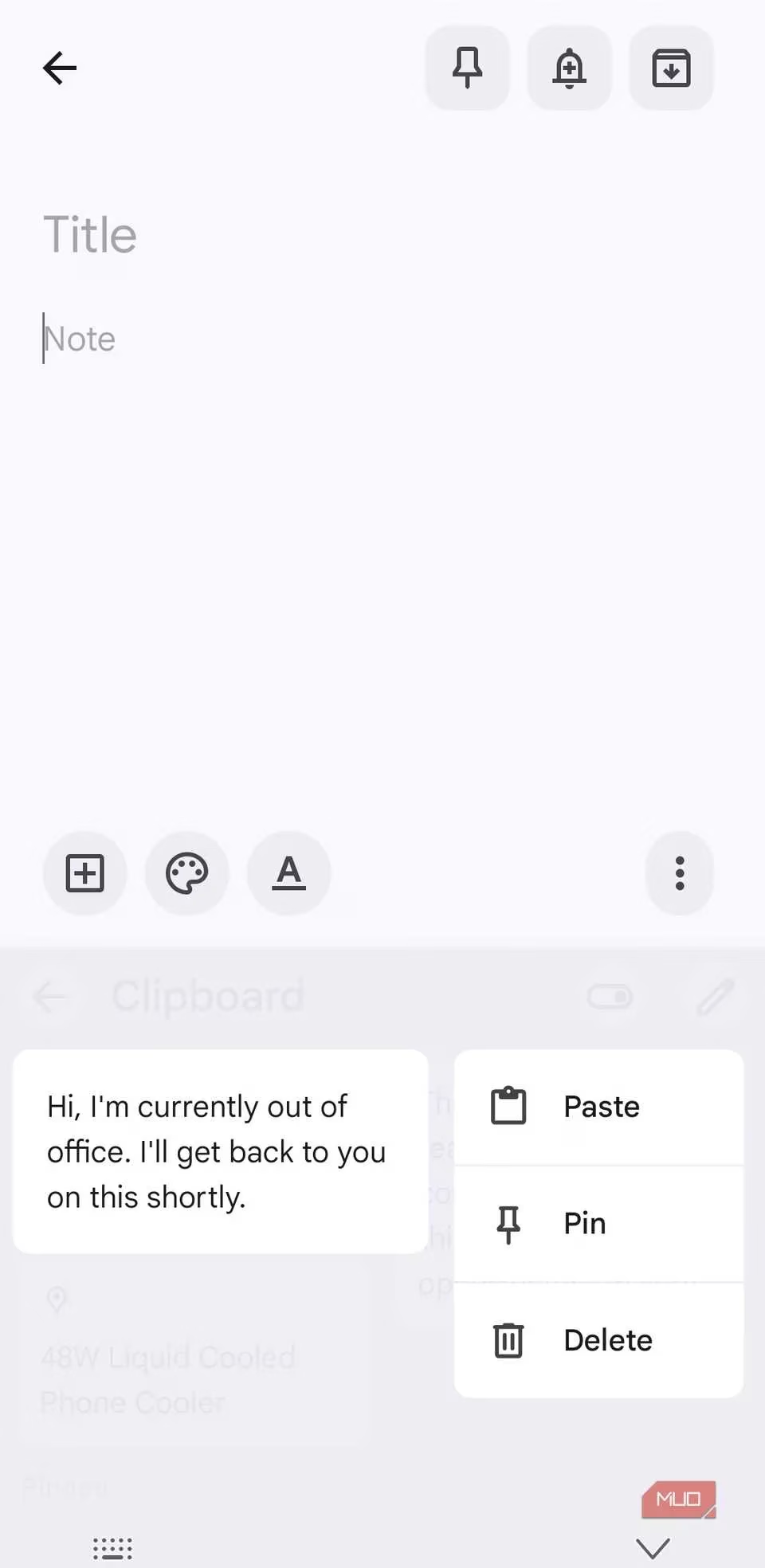
After copying a desired snippet, a quick visit to the clipboard from the toolbar reveals the item. A long press and the selection of Pin will keep it available indefinitely. Items can also be added manually with the plus icon. This turns Gboard into a repository for all sorts of reusable information, accessible across apps without needing to switch to a notes application. It’s a perfect complement to the personal dictionary for longer or more complex content.
🔠 Instant Case Switching to Fix Capitalization
Few things are more irritating than glancing at a sent message and noticing an accidental caps lock. Retyping the entire block of text is the instinctive reaction, but Gboard offers a far quicker remedy. By highlighting the affected text and tapping the Shift key, users can cycle through lowercase, UPPERCASE, and Capitalized Case in sequence.
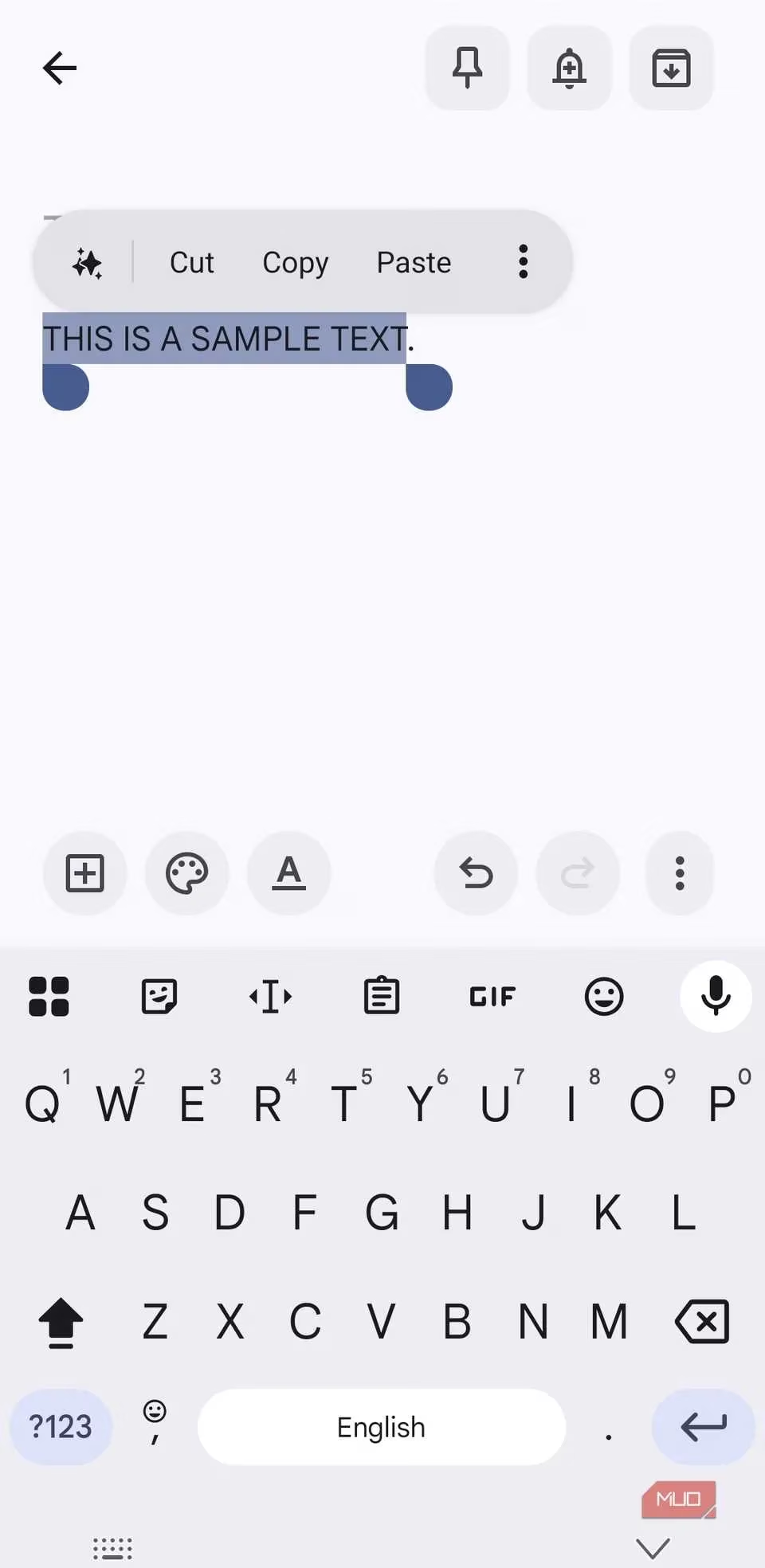
This simple trick erases the need for manual correction and is equally useful for formatting titles or adjusting the tone of a message. What might have taken a minute of frustrating editing now resolves in a couple of taps.
👆 Glide and Gesture Shortcuts for Effortless Editing
Gboard’s gesture controls take the keyboard beyond the realm of simple tapping. Swiping across letters to type—Glide Typing—is a well-known feature, but the gestures for editing text are what truly elevate efficiency. Long-pressing the full stop key reveals common punctuation marks, eliminating the need to switch to a secondary symbol layout. Swiping left or right on the space bar moves the cursor character by character, offering precision without covering the screen with a finger. This functionality requires Glide Typing to be enabled, which most devices have by default.
Deleting text becomes equally fluid. Instead of tapping backspace repeatedly, swiping left from the backspace key starts highlighting words. The further the slide, the more words are selected. Sliding back to the right fine-tunes the selection before lifting the finger erases everything in one go. These subtle motions, once integrated into muscle memory, make composing and editing messages feel dramatically faster.
✨ AI-Powered Writing Assistance on Device
By 2026, artificial intelligence is deeply woven into Gboard’s feature set, but with a strong emphasis on privacy. On supported devices, tapping the AI icon after composing text offers instant improvements—fixing spelling and grammar, refining phrasing, or proofreading an entire message. Crucially, this processing happens entirely on the device, meaning no text is sent to the cloud. Currently, these AI writing suggestions are available on Pixel 10 and select handsets equipped with Gemini Nano v2 or higher.
For users on Samsung phones, an alternative exists in the form of Galaxy AI writing tools, which integrate alongside Gboard. After selecting text, tapping the Galaxy AI icon provides similar polishing capabilities. This dual ecosystem ensures that even if native Gboard AI isn't available, fast, intelligent text editing is still within reach.
Putting It All Together
Each of these Gboard tricks might save only a breath of time individually, but when combined, their impact on daily typing speed and accuracy is substantial. Customizing the toolbar keeps essential tools visible, while text expansion and clipboard pinning automate repetition. Fine-tuned autocorrect and gesture shortcuts make composition and editing feel effortless, and on-device AI adds a final layer of polish without compromising security. For anyone who types on an Android phone daily, ignoring these features is like leaving a high-performance engine idling. In an era where efficiency is paramount, mastering Gboard is a small investment that yields enormous returns.
This discussion is informed by reporting from The Verge, whose tech-focused analysis helps contextualize why features like gesture navigation, on-device AI writing aids, and privacy-first personalization in tools such as Gboard are becoming central to how people communicate and work faster on mobile—making keyboard mastery feel less like a tweak and more like a productivity upgrade.