
Unlock Gboard's Hidden Power: From Frustrated Typing to Pro-Level Efficiency
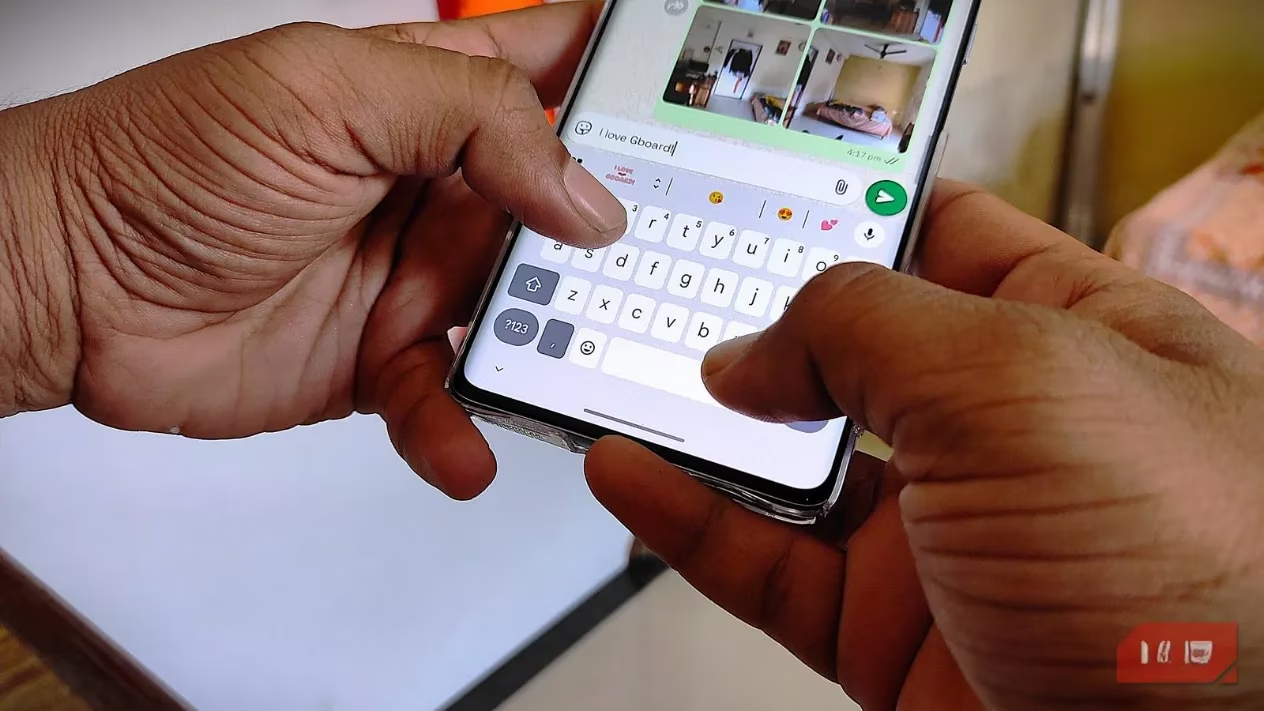
Let's be real for a second—typing on a slab of glass in 2026 can still feel like a hot mess. Fat-finger syndrome, autocorrect fails that make you cringe, and the endless struggle of placing a cursor with pinpoint accuracy... sound familiar? For years, I blamed the hardware, thinking touchscreens were just inherently chaotic compared to the satisfying click-clack of a mechanical keyboard. But the plot twist? The real villain wasn't the screen; it was how I was using Gboard. I was treating this powerhouse app like a basic keypad, totally missing out on its secret weapon features that turn typing from a chore into a superpower. After diving deep into its settings and exploring even some open-source alternatives, I discovered a suite of tools that saved my sanity and precious seconds every day. This isn't just about typing faster; it's about working smarter on Android.
🚀 Personal Directory & Text Shortcuts: Your Typing Autopilot
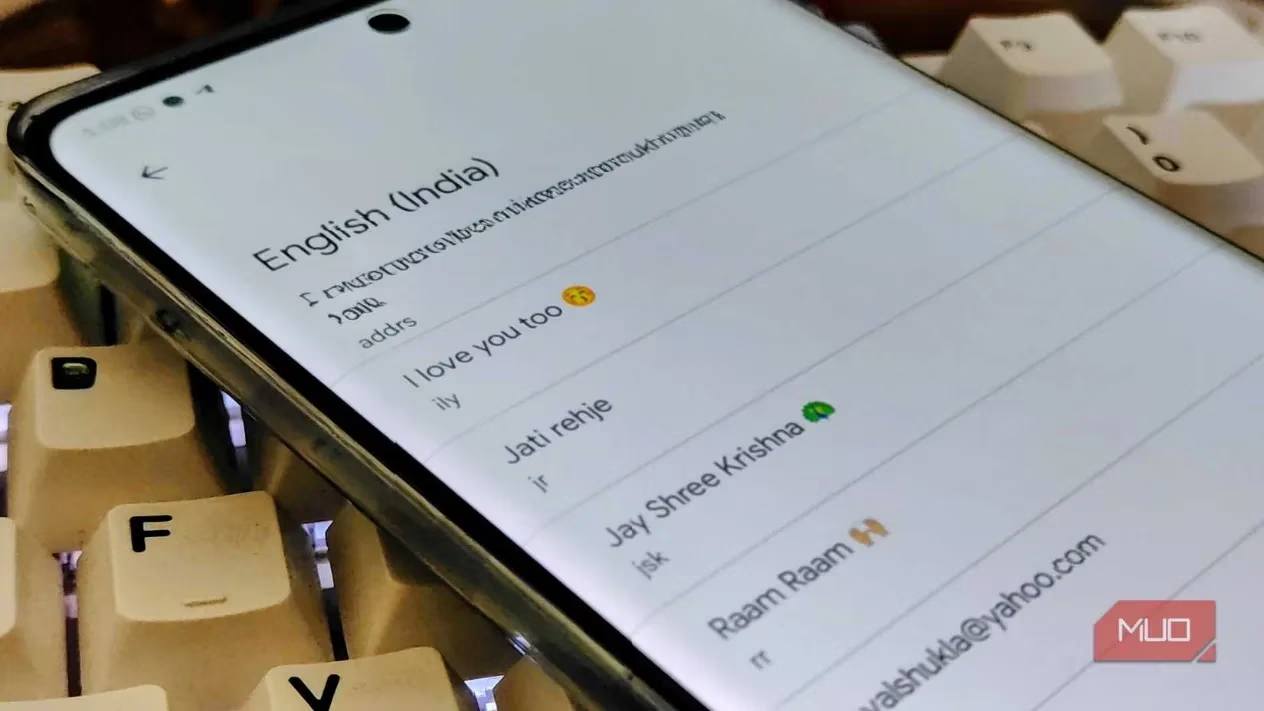
This feature is, hands down, my personal favorite and a total game-changer. How many times have you painstakingly typed out your full email address, home address, or a standard work message like "I'm in a meeting, will get back to you ASAP"? One typo in your email could mean a critical package gets lost forever. Gboard's Personal Directory lets you map short, unique abbreviations to these long, typo-prone strings.
-
Example Time: I set
@@to expand to my full email address and##addrto my complete home address. -
The Magic: It transforms a 15-second, error-prone typing session into a 1-second reflex. No more typos in critical info. The best part? Since it's tied to your Google account, set it up once on your Pixel phone, and it's instantly available on your Galaxy Tab or any other Android device. It's like having a personal assistant for your fingers.
📋 Smart Clipboard Manager: Never Lose a Copy Again
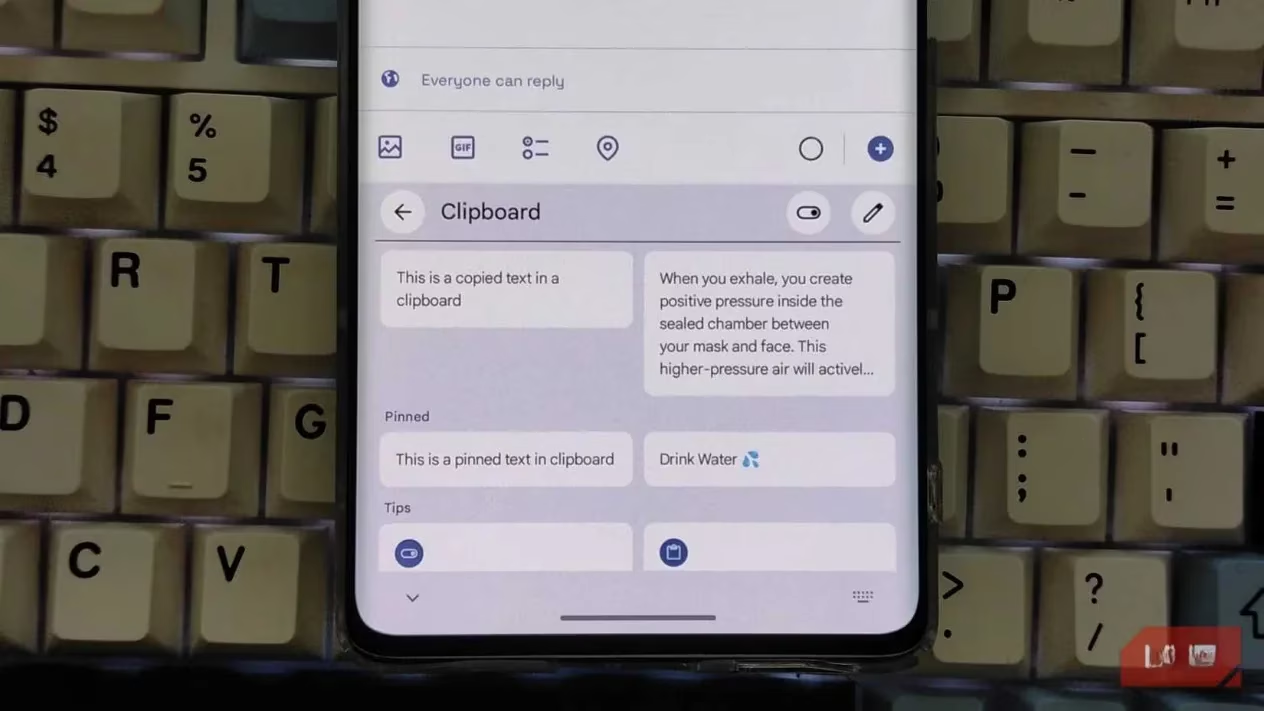
Android's native copy/paste can be finicky AF. We've all been there: you copy an important tracking number, get distracted by a meme, copy the link, and... poof! The tracking number is gone forever, overwritten. Gboard's built-in clipboard manager is the hero we didn't know we needed.
| Feature | System Clipboard | Gboard's Clipboard |
|---|---|---|
| History | Usually only the last item | Saves multiple items from the last hour |
| Organization | None | Visual history with previews |
| Pinning | No | YES! Pin crucial items forever |
The pin feature is pure gold. Use it for stuff you need often but don't want a shortcut for:
-
Bank account or routing numbers
-
A set of hashtags for your social media posts
-
Canned email responses for work
It's a lifesaver for managing multiple pieces of information without the mental load.
✏️ Precision Editing: Tame the Cursor Chaos
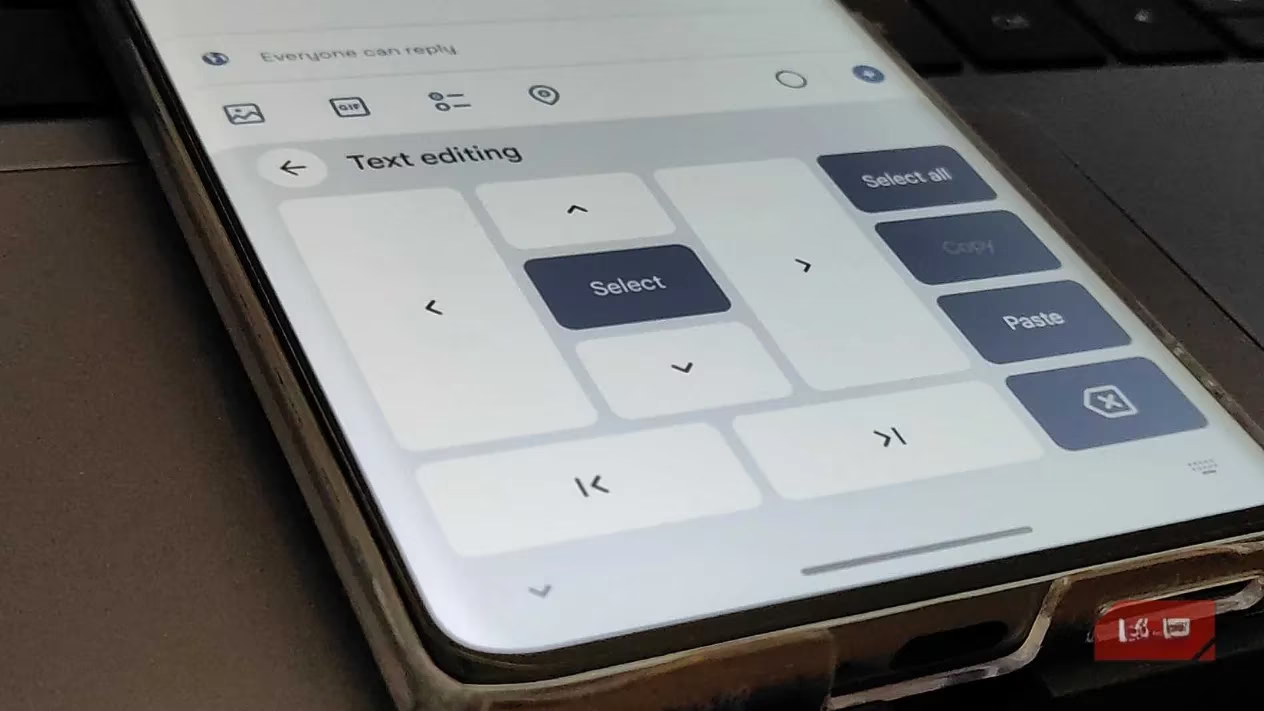
Editing a long document or email on your phone is a special kind of frustration. Trying to tap between two specific letters often feels like playing a cruel game of "The floor is lava" with your cursor. Your fat thumb blocks the view, and the cursor ends up three words away. Gboard's Text Editor Mode to the rescue!
Activate this mode, and your keyboard transforms into a directional pad (D-pad). You get:
-
Arrow keys for single-character precision (up, down, left, right).
-
Dedicated Select, Copy, and Paste buttons.
This turns the lower half of your screen into a precise input device, emulating the control of desktop arrow keys. It's a must-use for any serious editing on the go.
⚡ Pro Gestures: The Speedrunner's Secret
While the full editor is great, sometimes you just need to fix a typo three words back. Enter the Spacebar Cursor Control. Simply press and slide your thumb on the spacebar. The cursor glides through your text. It's intuitive, fast, and eliminates tap-target frustration for quick fixes.
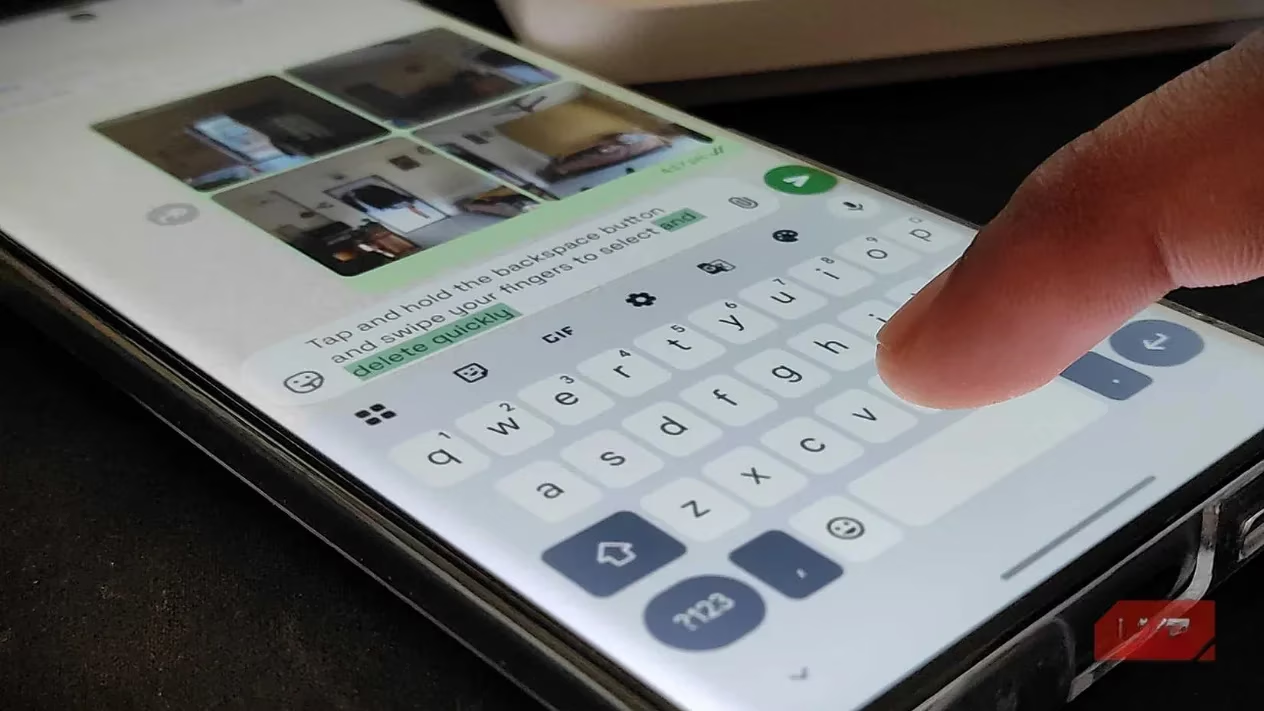
But what about deleting text? Tapping backspace 50 times is slow. Holding it down is a risky game of "how much did I just delete?" Gboard has a genius solution: Swipe to Delete.
-
Place your finger on the Backspace key.
-
Swipe left. The cursor moves backward, highlighting text as you go.
-
Lift your finger to delete the highlighted section.
Pro Tip: Swipe faster to select more text with less finger travel. Perfect for deleting accidental pocket-typed paragraphs. And if you overdo it? A big, beautiful Undo button appears immediately in the suggestion strip. Crisis averted!
🎯 The Bottom Line: Stop Fighting, Start Controlling
Gboard's default settings prioritize simplicity, which is why its power-user features feel hidden. The difference between feeling frustrated and feeling like a productivity ninja is just a few toggles in the settings menu. By leveraging text shortcuts, the smart clipboard, and these intuitive gesture controls, I stopped battling my phone and started genuinely controlling it.
The ROI on setting this up is insane. I highly recommend you start right now:
-
Create one text shortcut (your email is a perfect start).
-
Pin 2-3 items you copy constantly to your Gboard clipboard.
-
Practice the spacebar slide and swipe-to-delete gestures for 5 minutes.
The time you'll save in the next 24 hours alone will make it all worth it. It's time to unlock Gboard's full potential and make that glass slab work for you, not against you. You got this! 🚀