
Unlocking Android Auto’s Secret Developer Settings in 2026: The Hidden Tweaks You Should Try
I’ve been using Android Auto for years now, and in 2026 it’s more polished than ever. But even with all the updates Google has rolled out, the out-of-the-box experience still leaves a few things to be desired. That’s when I stumbled upon a hidden menu that completely changed the way I interact with my car’s infotainment system — the Android Auto Developer options. If you’ve never opened it, you’re missing out on a handful of genuinely useful tweaks.
Tucked away behind a familiar tap-tap-tap ritual, this menu isn’t meant for the average driver. It’s primarily aimed at developers testing new features, but many of the settings hidden here can seriously improve your daily commute. From forcing wireless connections to letting sideloaded apps appear on your dashboard, the options are surprisingly practical. Just be warned: with great power comes the chance of a few bugs, so tread carefully.
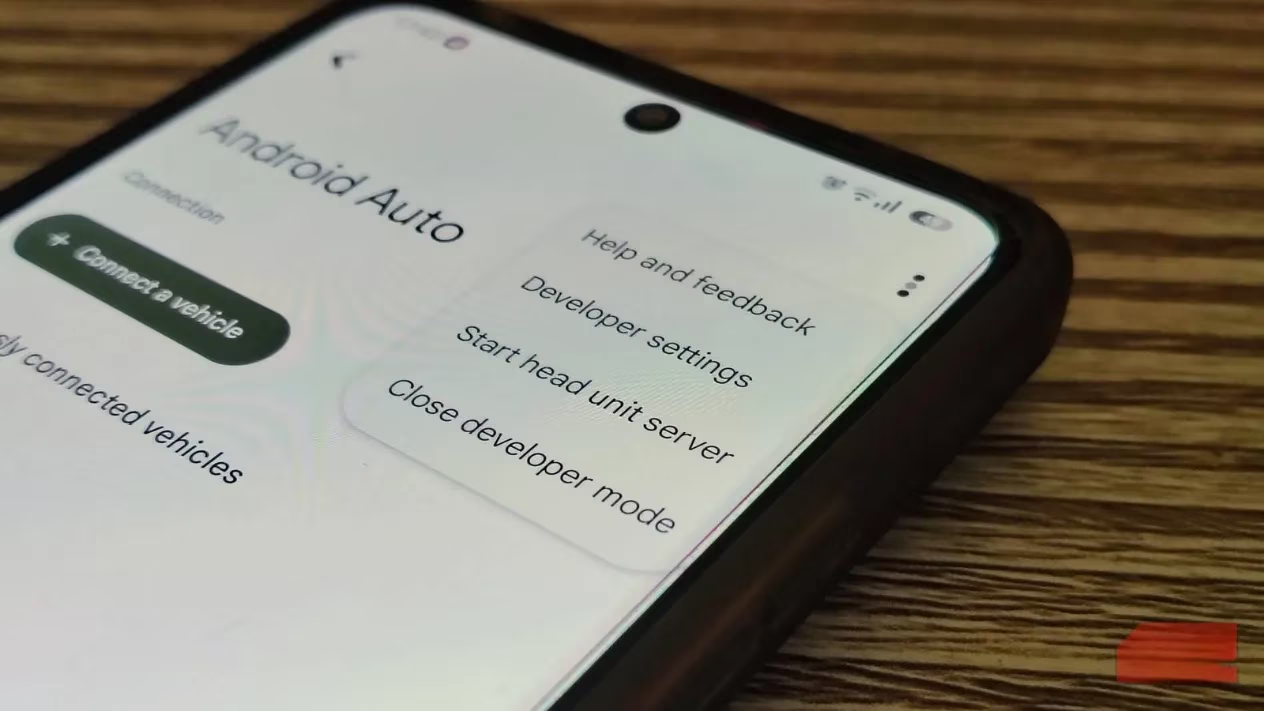
How I Unlocked the Hidden Developer Settings
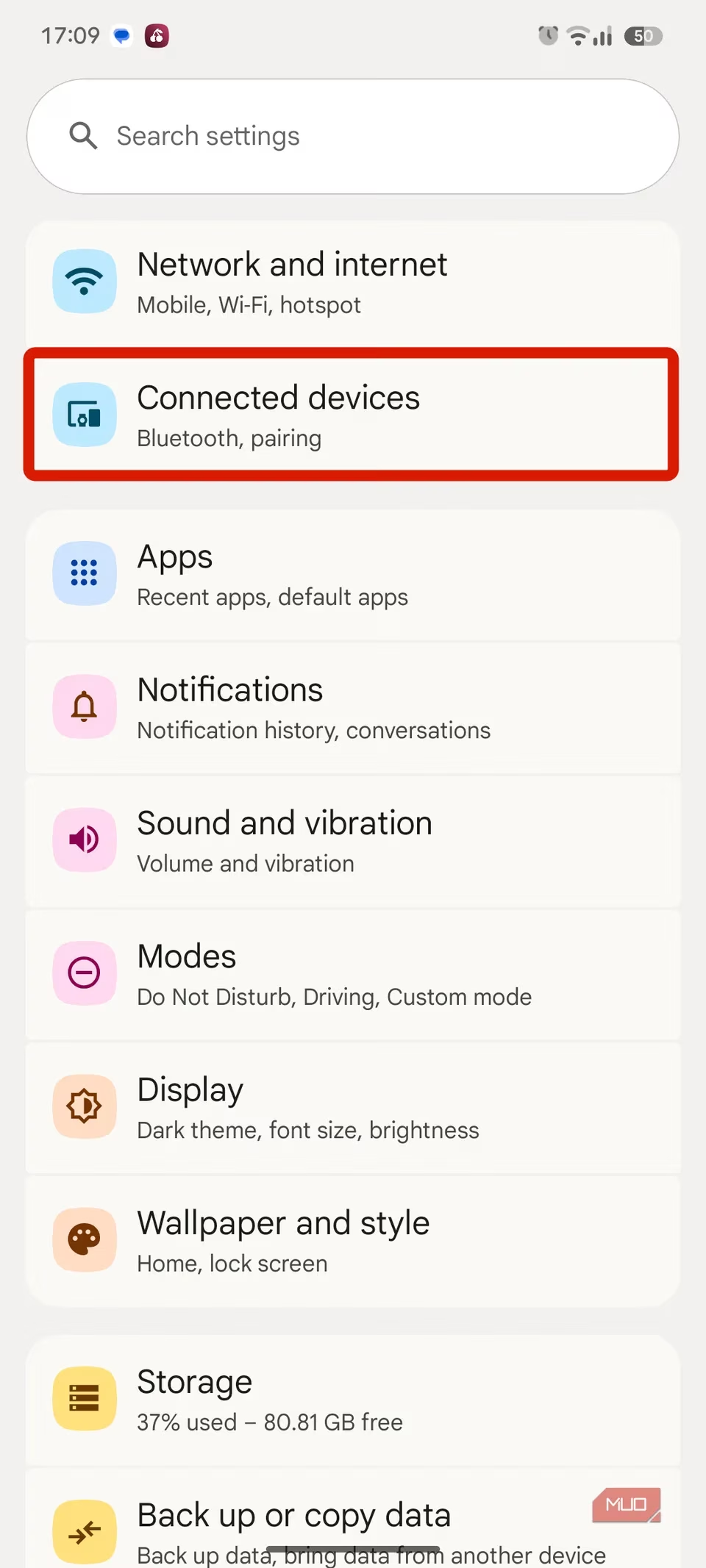
The process feels almost like an Easter egg, and if you’ve ever enabled regular Developer Options on an Android phone, the steps will seem nostalgic. Here’s exactly what I did:
-
Open Settings on my phone and went to Connected devices.
-
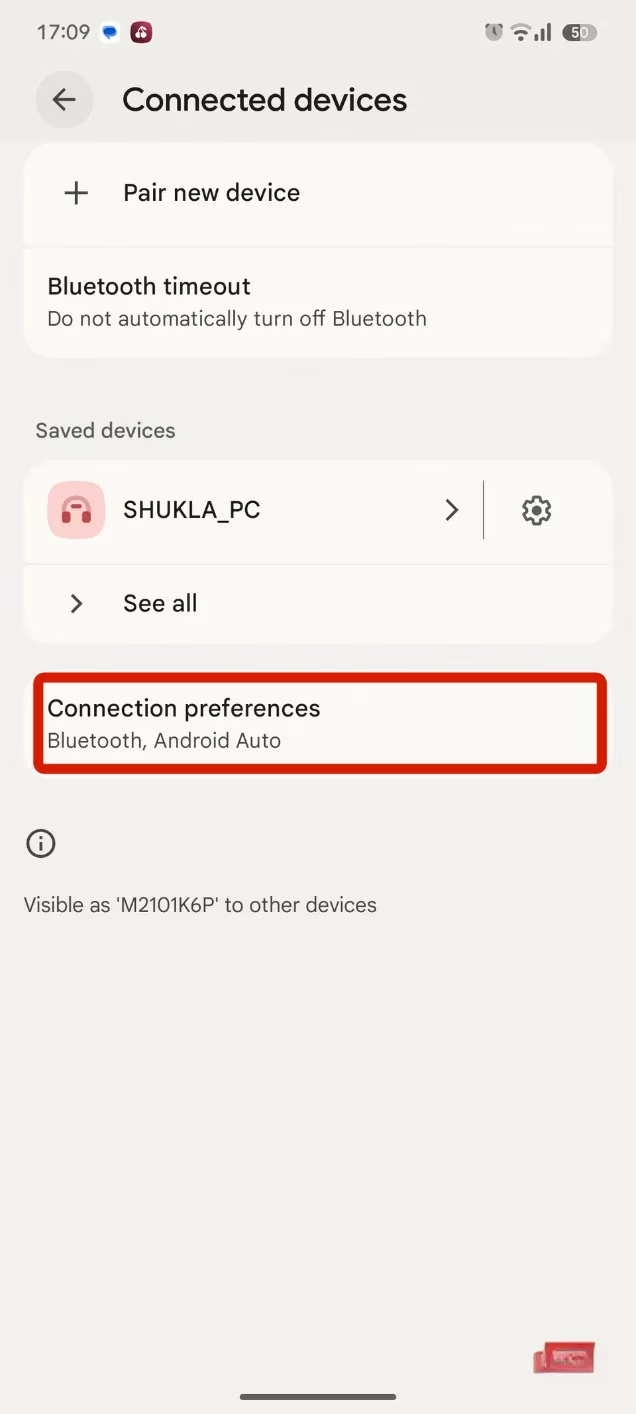
Tapped Connection preferences, then selected Android Auto settings.
-
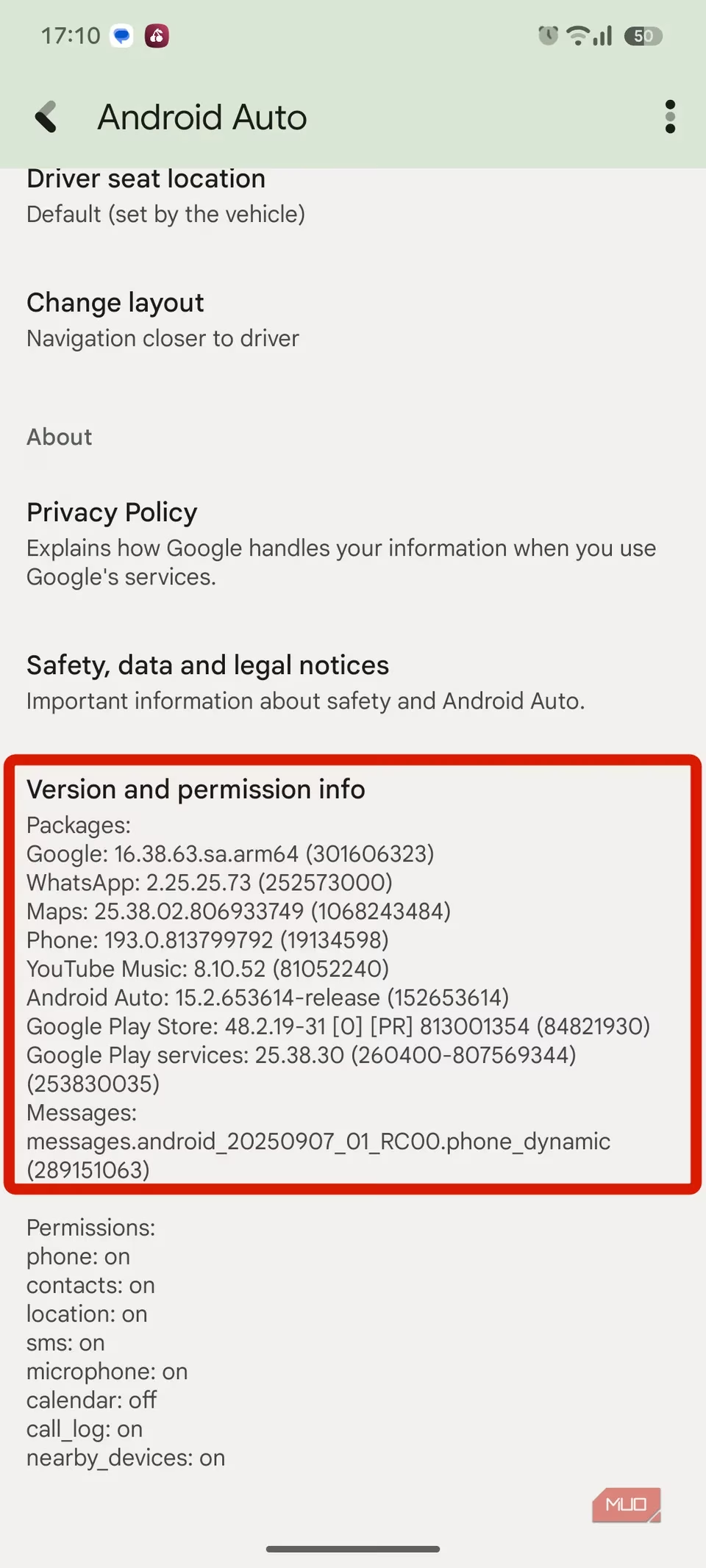
Scrolled all the way down until I found the Version tab.
-
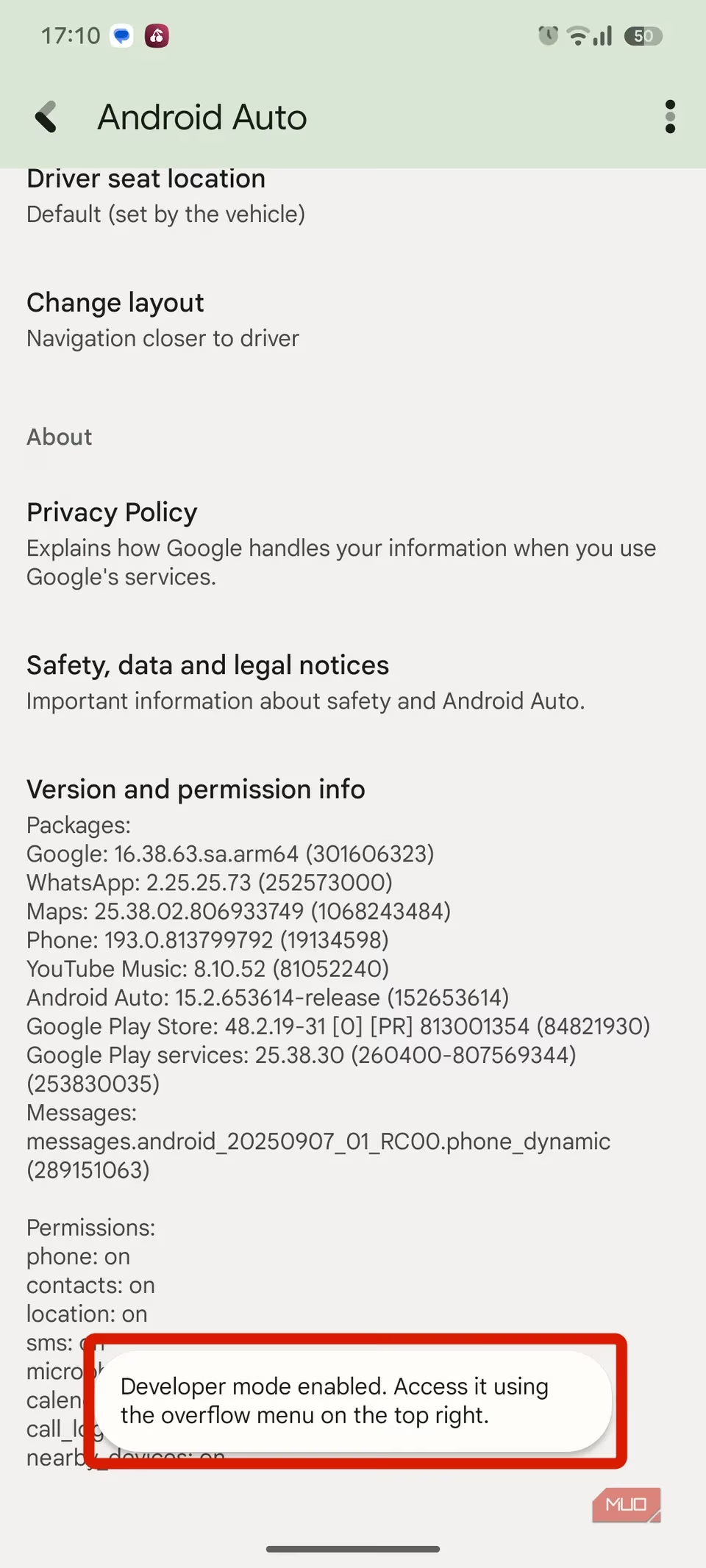
I tapped it once, which opened up a screen showing version and permission info. Then I tapped the version number seven times in quick succession.
-
A pop-up asked me to confirm, so I hit OK to enable development settings.
After that, a small toast message confirmed the menu was live. To actually see the new options, I had to go back into Android Auto settings, tap the three‑dot menu in the top‑right corner, and choose Developer settings. That’s where the real fun begins.
Which Hidden Settings I Actually Use
Scrolling through the long list of toggles can feel intimidating — there are options for app permissions, UI behaviors, logging, and even GPU debugging. Most of them I leave alone. But a few have become permanent additions to my setup.
Wireless Android Auto Toggle
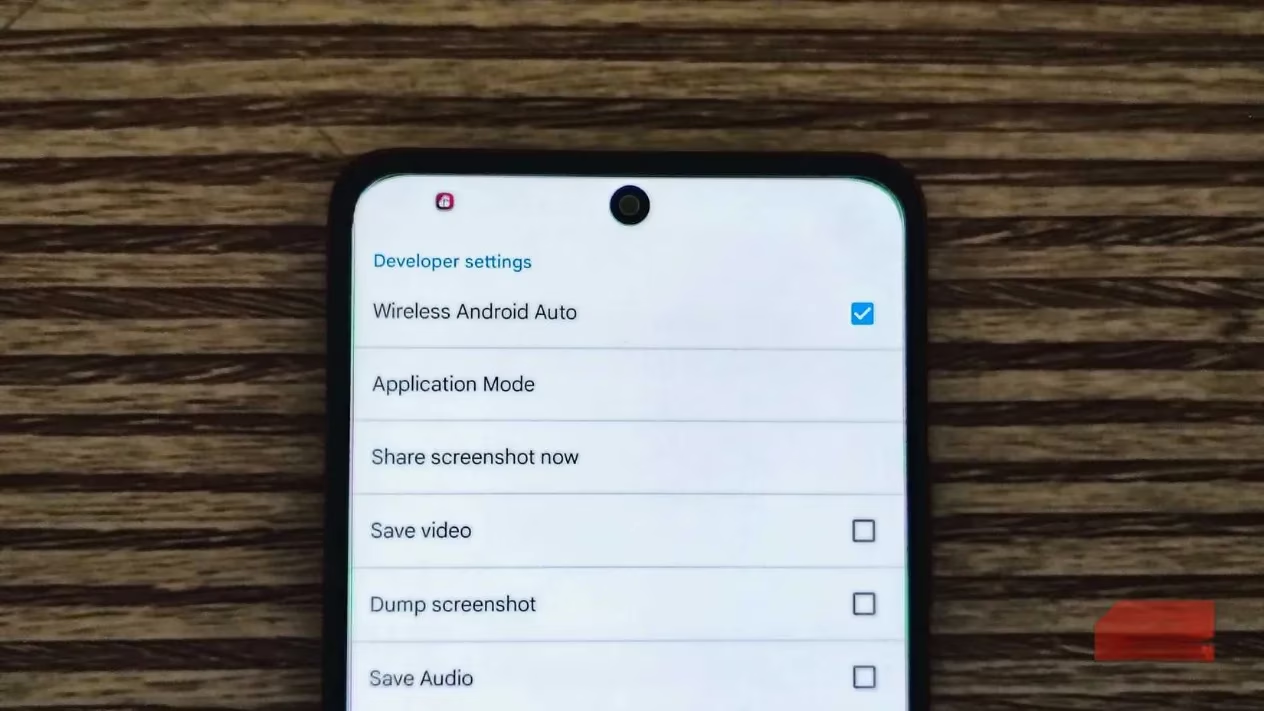
In theory, most modern cars support wireless Android Auto right out of the gate. In reality, I’ve run into situations where the feature was mysteriously greyed out or refused to connect. Flipping the Wireless Android Auto option inside Developer settings finally forced my phone to look for a wireless link, and it worked flawlessly.
The trade‑off? My phone’s battery took a noticeable hit on longer trips. I eventually switched back to a wired connection — it keeps my device charged and eliminates lag — but the toggle remains a lifesaver for anyone struggling to get that wireless magic working.
Unknown Sources for Sideloaded Apps
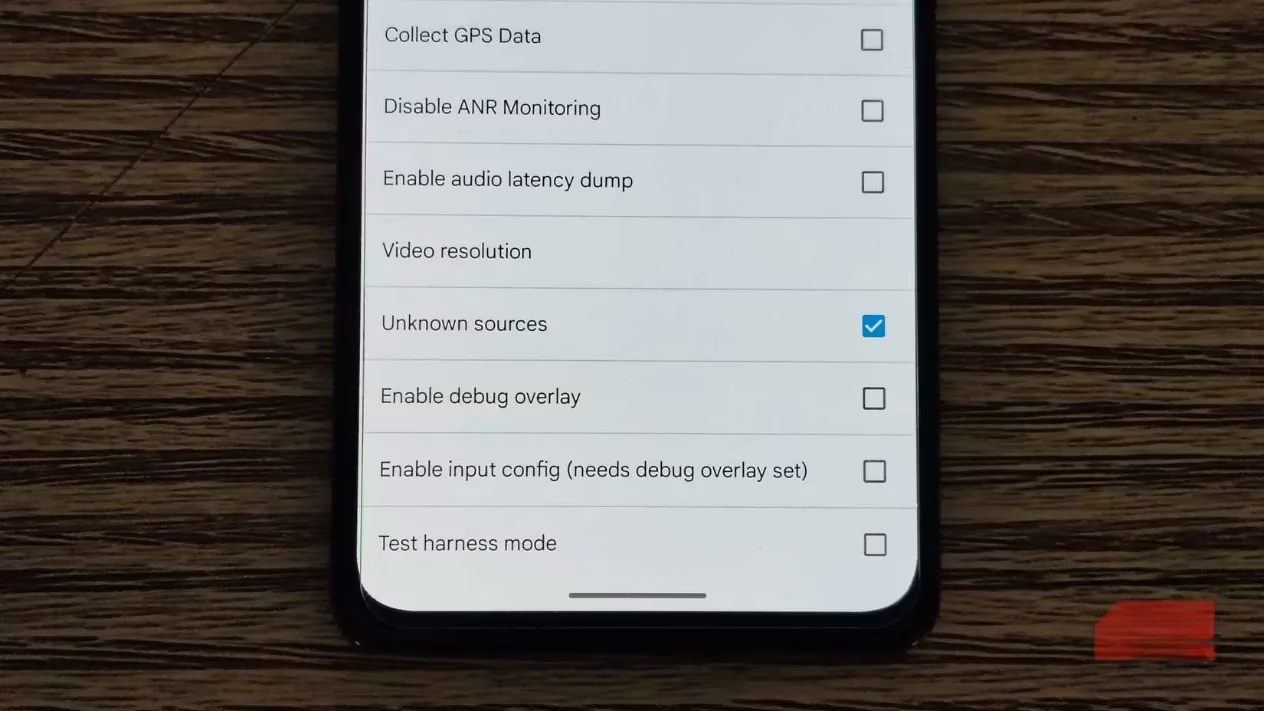
One of Android’s biggest strengths is sideloading. I have a few niche apps — like an in‑car OBD‑II monitor and a custom music player — that support Android Auto but never showed up in the launcher. Enabling the Unknown sources option immediately fixed that. Afterwards, I could head into the normal launcher customization and drag those apps onto the car screen.
This single toggle turned my car’s dashboard from a locked‑down interface into something far more personal. If you’re a tinkerer, it’s essential.
Saving Video and Audio — A Double‑Edged Sword
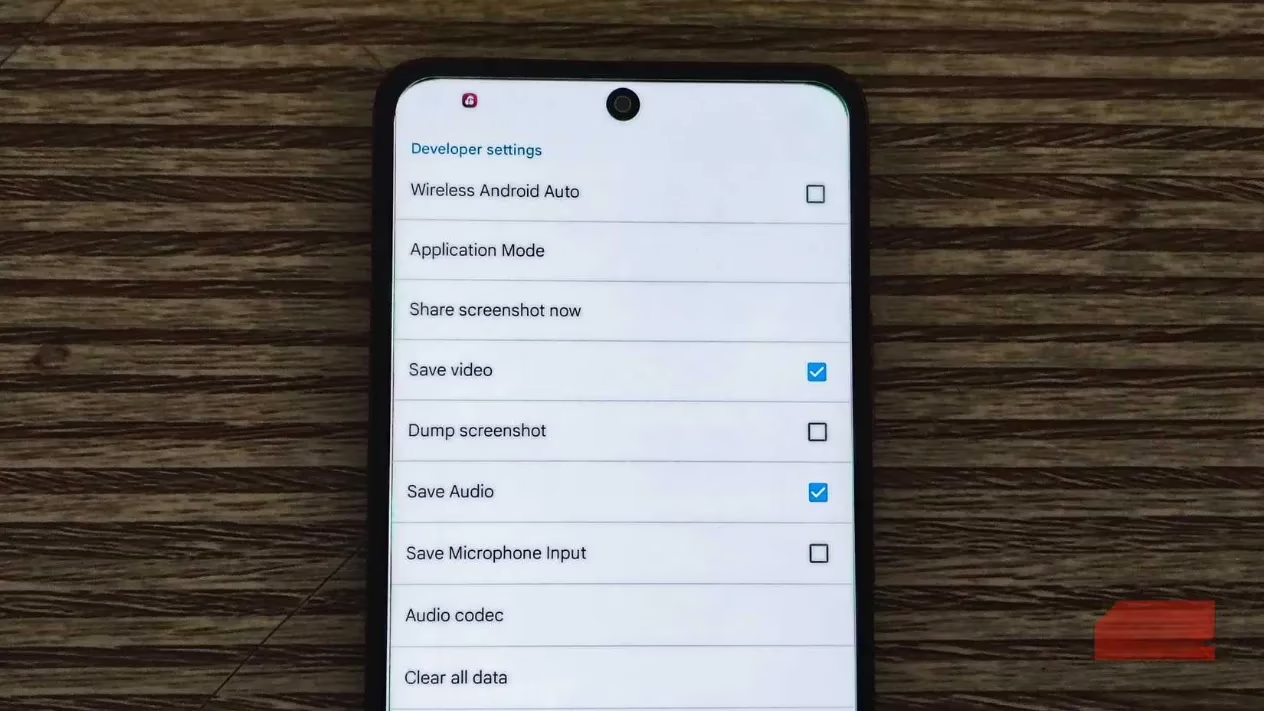
These two options — Save video and Save audio — record exactly what’s happening on your Android Auto screen and store it on your phone. I’ll admit, I keep both enabled even though I know the risks. As someone who likes to review long drives or capture bug reports, having that raw footage is invaluable.
However, I’ve also seen my storage fill up rapidly after a few days of commuting. If you’re not actively planning to use those recordings, turn them off. A 30‑minute drive can gobble up gigabytes without you noticing.
A Word of Caution
The developer options menu is packed with experiments. There are switches for custom DNS, head unit server configurations, and even frame‑rate overlays. While tempting, I strongly recommend only changing things you understand. Turning on random features can crash the connection, cause audio glitches, or — in the worst case — lock up your car’s display until you reconnect the phone.
In my experience, sticking to the wireless toggle, unknown sources, and the recording options gives you 90% of the practical benefits with almost no risk. If something goes wrong, you can always head back in and reset the settings, or simply clear the Android Auto app data to start fresh.
By 2026, Android Auto has become deeply integrated into the way many of us drive. Unlocking this hidden developer layer won’t make your dashboard perfect, but it will give you back a healthy dose of control. Just remember to drive safely — the road always deserves more attention than a settings menu. 🚗
This discussion is informed by The Verge - Gaming, whose reporting on in-car platforms and connected device ecosystems mirrors why Android Auto’s hidden Developer settings can feel like a power-user upgrade: toggles like wireless forcing, unknown sources for niche apps, and on-device audio/video logging reflect the broader shift toward more configurable, software-defined infotainment—useful for troubleshooting and personalization, but best approached carefully to avoid stability or distraction issues.