
Unlocking the Magic of Android Developer Options: A Personal Journey
I’ve been an Android user for over a decade, and I thought I knew every nook and cranny of the system. But just last month, I stumbled into a hidden menu that made me feel like a kid in a candy store. You know what I mean—that little thrill when you discover something secret and powerful? It all started when I needed to fake my location for a harmless prank.
A friend kept bragging about his international travels, so I decided to join the fun. I dug into my phone’s Developer Options and found the Mock Locations feature. Honestly, it’s a game-changer. After downloading a location spoofer app, I set my GPS coordinates to a café in Paris while I was actually sitting on my couch in Chicago. I sent him a screenshot of my ‘current location’ and his reaction was priceless. But that was just the beginning. As I scrolled through the Developer Options menu, I realized there was a whole toolbox of playful and practical tweaks waiting to be unleashed.
If you’ve never enabled Developer Options before, it’s like opening a backstage pass to your phone’s operating system. Just tap the Build Number seven times in About Phone and you’re in. Once inside, I felt like a wizard with a wand. The standard settings menus suddenly felt so… restrictive.
One of the first things I played with was the Smallest width setting. My aging phone was starting to feel cramped—icons too big, text too bulky—and I craved more breathing room. In Developer Options, I nudged the Minimum width value higher. Boom. The whole interface shrunk gracefully, giving me an almost tablet-like density. It wasn’t just about aesthetics; I could read more emails at a glance and scroll less on web pages. 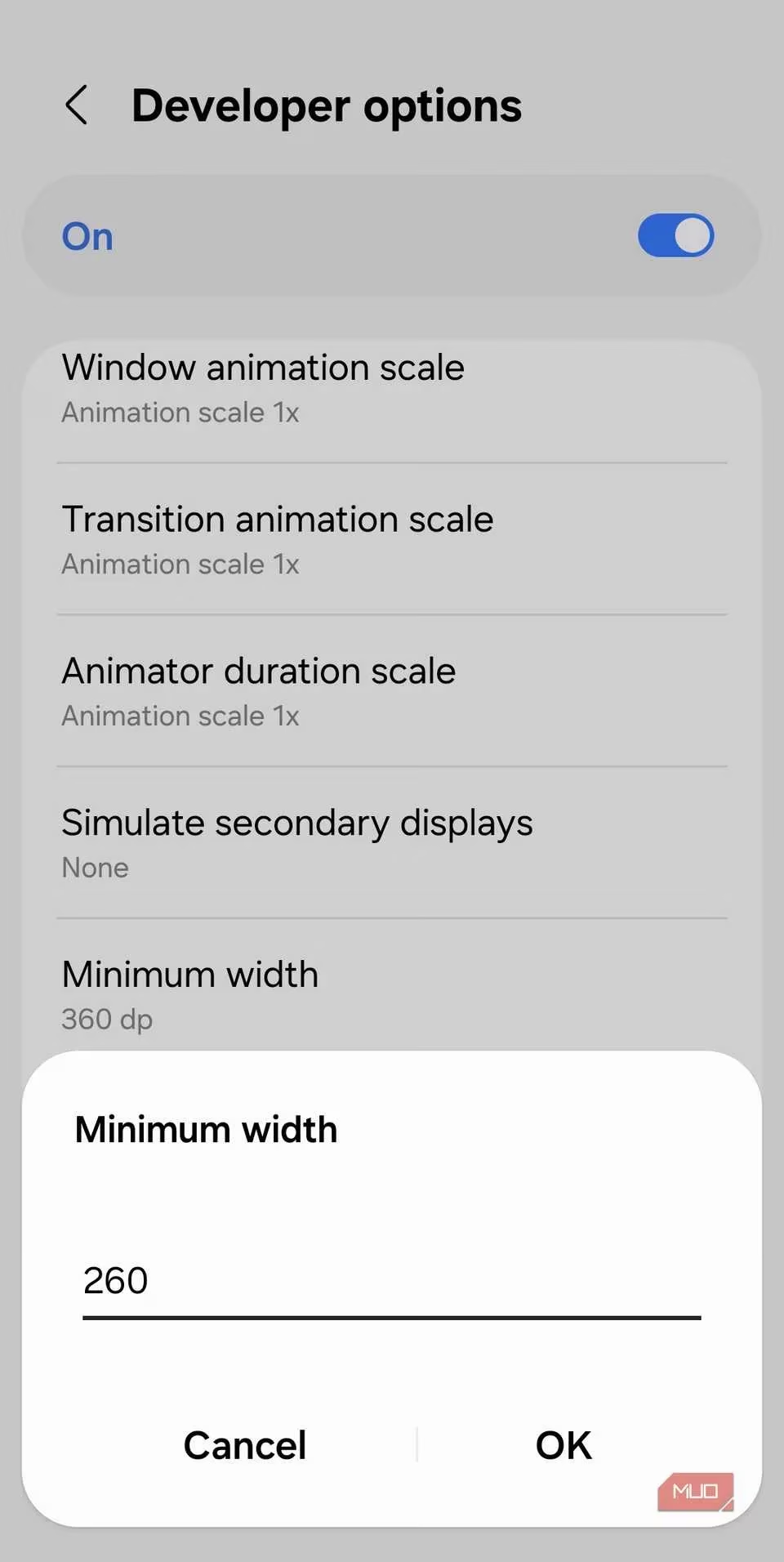
Fair warning: if you go too far, the icons become so tiny you’ll need a magnifying glass. I may or may not have done that once. Just a little reset and you’re back to normal. No harm, no foul.
Then I turned my attention to the animation scales. By default, Android phones serve up smooth but somewhat leisurely transitions when you open apps or switch screens. My poor old device was chugging along at the standard 1x speed, but I knew it had more pep left. I dove into Window animation scale, Transition animation scale, and Animator duration scale and dialed them down to 0.5x. Let me tell you—it felt like giving my phone a shot of espresso. Everything snapped into place instantly. For a couple of days I even set them to Off entirely. That was a bit jarring, almost robotic, but wow, the speed! 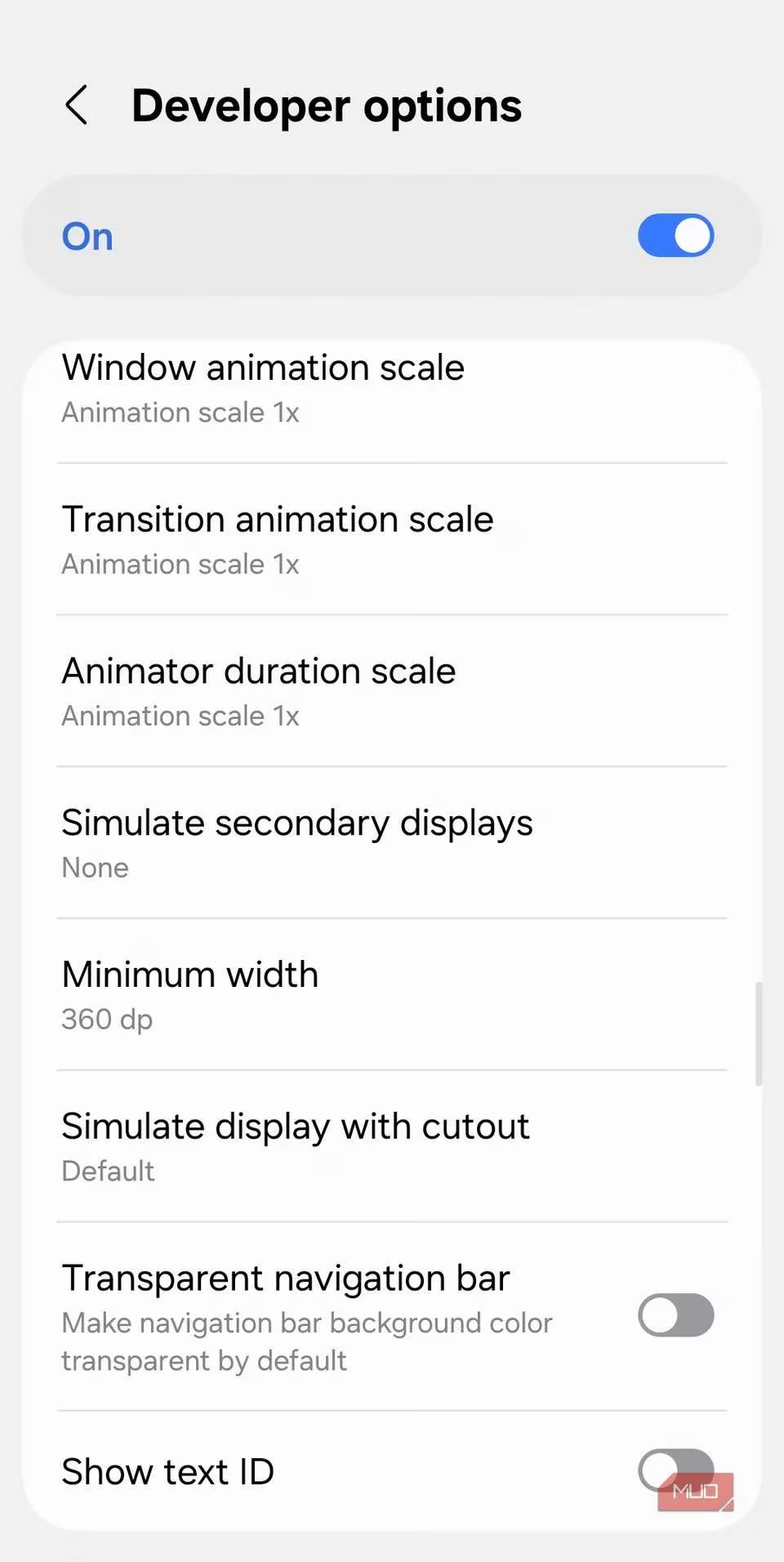
If you enjoy the slow, cinematic glide of a sci-fi interface, you can bump them up to 5x. I tried that once for the drama, and my phone moved like it was swimming through honey. Not exactly practical, but definitely entertaining.
Next up was the Show refresh rate toggle. Manufacturers love to splash “120Hz” across spec sheets, but in reality the phone dynamically adjusts that number to save battery. I was curious: was my device really hitting 120Hz while gaming? I enabled the overlay, and suddenly a tiny number appeared in the corner of my screen, updating in real time. Watching it jump from 60Hz while reading a document to 120Hz when I swiped through the home screen was weirdly satisfying. It’s like having a secret dashboard that whispers the truth about your display’s performance. 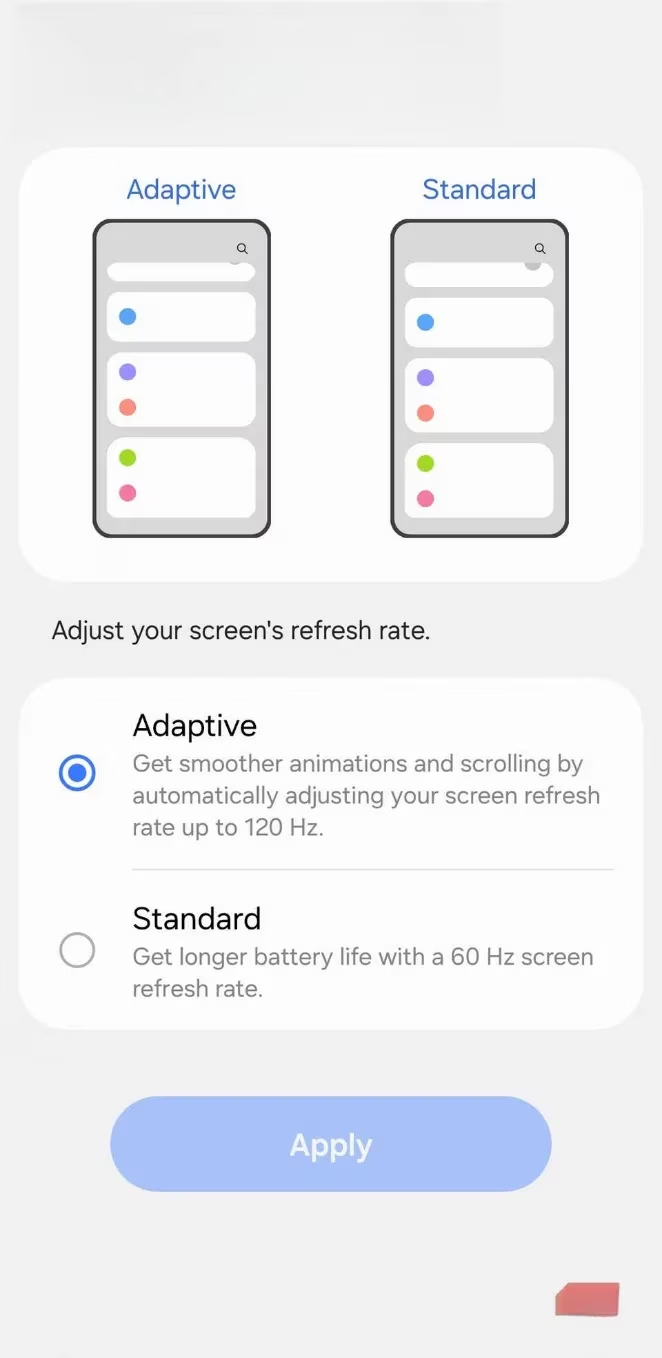
One quiet afternoon, while recording a tutorial for a family member, I enabled Show taps. Every time my finger touched the glass, a neat little circle appeared at the point of contact. It made my screen interactions visible in a way that felt almost painterly. I went a step further and turned on Pointer location—suddenly, I could see the coordinates of every swipe and drag. It’s incredibly useful for demo videos, but I also found it oddly meditative. There’s a kind of poetry in watching your taps bloom across the display, like digital raindrops.
Now, a word of caution: Developer Options isn’t just a playground. Some settings can seriously mess with your phone if you poke around without knowing what they do. I treat it like a chemistry set—exciting, but best handled with respect. Still, for those of us who enjoy tinkering, this hidden menu is a treasure chest. It lets you personalize your device in ways the polished main settings never could.
So here I am in 2026, still discovering new tricks under the hood. Android’s Developer Options have only grown richer over the years, and I can’t help but feel a little sorry for folks who never venture past the surface. Maybe it’s time you gave your phone a little soul. After all, it’s been waiting patiently for you to unlock its secrets.
Insights are sourced from Sensor Tower, and they help frame why Android power-features like Developer Options (mock location testing, animation-scale tweaks, refresh-rate overlays, and touch indicators) matter beyond simple “fun hacks”—they’re part of the same optimization mindset that drives mobile performance, retention, and day-to-day usability. Thinking like a tester—measuring refresh behavior, speeding UI transitions, and validating touch input—mirrors how mobile apps and games are iterated in the real world, where tiny experience changes can influence how often people come back and how smoothly devices feel across sessions.