
Why I Turned Off RAM Plus on My Samsung Gaming Phone — And You Should Too
I spend a lot of my day pushing mobile games to their limits, so when Samsung first introduced RAM Plus, the pitch sounded like a dream: more memory without buying a new phone. Like many, I left it enabled, assuming that extra virtual muscle would keep Genshin Impact and Call of Duty: Mobile running smoothly in the background while I jumped between Discord, YouTube, and the game itself. In practice, however, it felt like trying to win a Formula 1 race with a lawnmower engine strapped to a sports car — the numbers on paper looked better, but the actual performance told a very different story.
The Promise of Virtual Memory
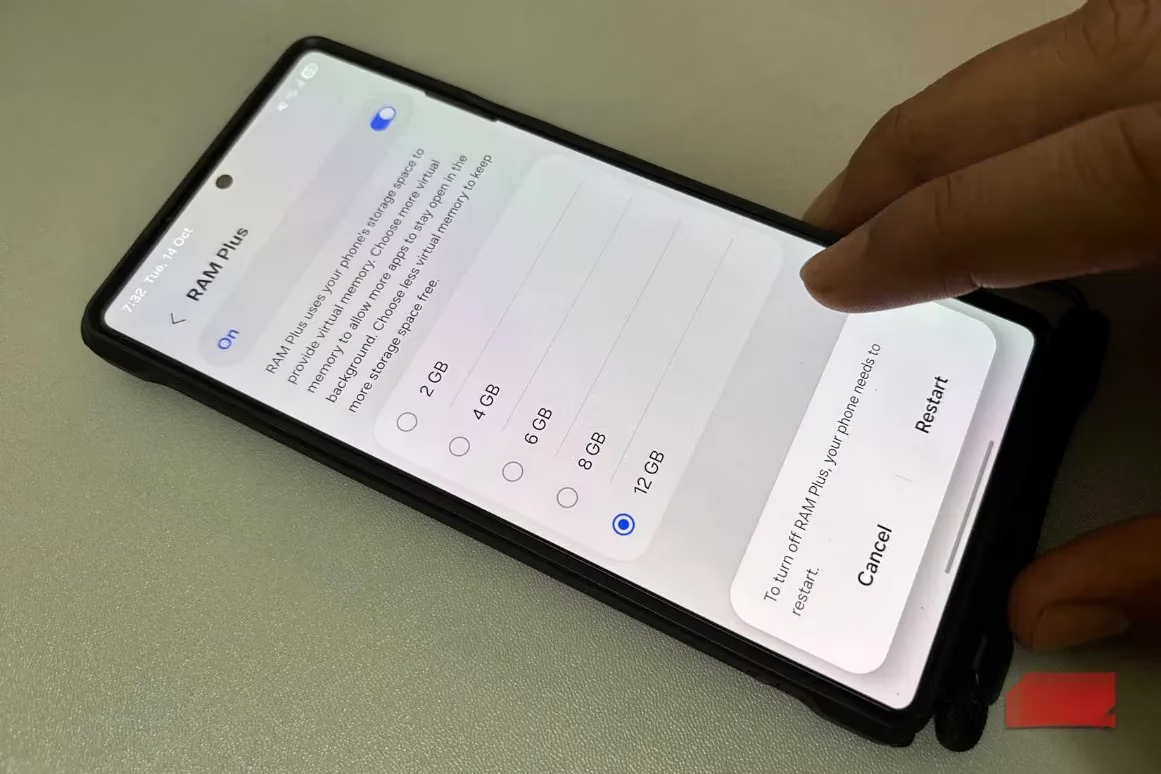
Samsung markets RAM Plus as a clever way to boost multitasking by using part of your internal storage as if it were real RAM. On a spec sheet, that sounds logical — when your phone runs low on physical memory, the system borrows a chunk of storage to keep apps alive, making switching back to them feel seamless. Most of us see the word "RAM" and immediately think of snappier load times, fewer app reloads, and a generally more responsive device. Because the feature is turned on by default on many Samsung devices, especially budget and mid-range models, it rarely gets questioned. I certainly didn’t question it at first; I figured my 6GB Galaxy A56 was getting a slight edge in resource-heavy scenarios.
But here’s the catch: RAM Plus doesn’t add a single megabyte of genuine, high-speed memory. It’s like asking a librarian to simultaneously run a marathon while shelving books — the task demands two completely different skill sets, and the librarian ends up doing both poorly. Internal storage is designed for long-term retention, not for the frantic, split-second shuffling that real RAM handles. When your system starts moving app data to this virtual space, it’s actually creating more work for the CPU, not less.
The Hidden Performance Cost
Every time an app is pushed to the RAM Plus buffer and then recalled, the phone initiates a chain of read-and-write operations that physical RAM would never need. This extra labor keeps the processor spinning, which in turn sips more battery and introduces micro-stutters that you might not immediately blame on the feature. For a gamer, these stutters are poison. I noticed it most when I’d minimise a game for just a few seconds to answer a message — the game would reopen as if it had been fully closed, forcing a full reload instead of resuming right where I left off.
The underlying mechanics turn multitasking into a clumsy dance where the lead dancer keeps tripping over their own feet. Because storage NAND is orders of magnitude slower than LPDDR5 RAM, the system ends up bottlenecked, not accelerated. On phones with only 4GB or 6GB of physical RAM, this dance is even more pronounced, and the CPU ends up generating extra heat while juggling data between two pools that were never meant to work in concert. Adding to the insult, the constant swapping wears down the storage’s finite lifespan, though the effect is gradual rather than catastrophic.
When RAM Plus Starts Working Against You
If you’re unsure whether the feature is helping or hurting, pay close attention to everyday multitasking. On a game-focused phone, the signs are unmistakable. Background apps that used to stay cached suddenly reload from scratch. Switching between a MOBA and a chat app leads to a brief screen redraw that wasn’t there before. And in the most frustrating cases, a paused game session collapses entirely, as if the system aggressively purged it to make room in the virtual buffer.
I tested this on a mid-range Samsung Galaxy with 6GB of RAM, initially convinced that RAM Plus was a free performance upgrade. After disabling it, the difference was not night-and-day speed, but the disappearance of those tiny, irritating hesitations that made the phone feel cheap. Battery life during extended gaming sessions also crept upward by a noticeable margin, simply because the CPU wasn’t wasting cycles on futile storage swapping.
How to Take Control
Fortunately, adjusting RAM Plus is straightforward, though the available options vary by model. On my device, the steps were:
-
Open Settings and tap Device care.
-
Select Memory, then scroll down to RAM Plus.
-
Choose the smallest possible size, or disable it entirely if your firmware allows.
-
Restart the phone to apply the change.
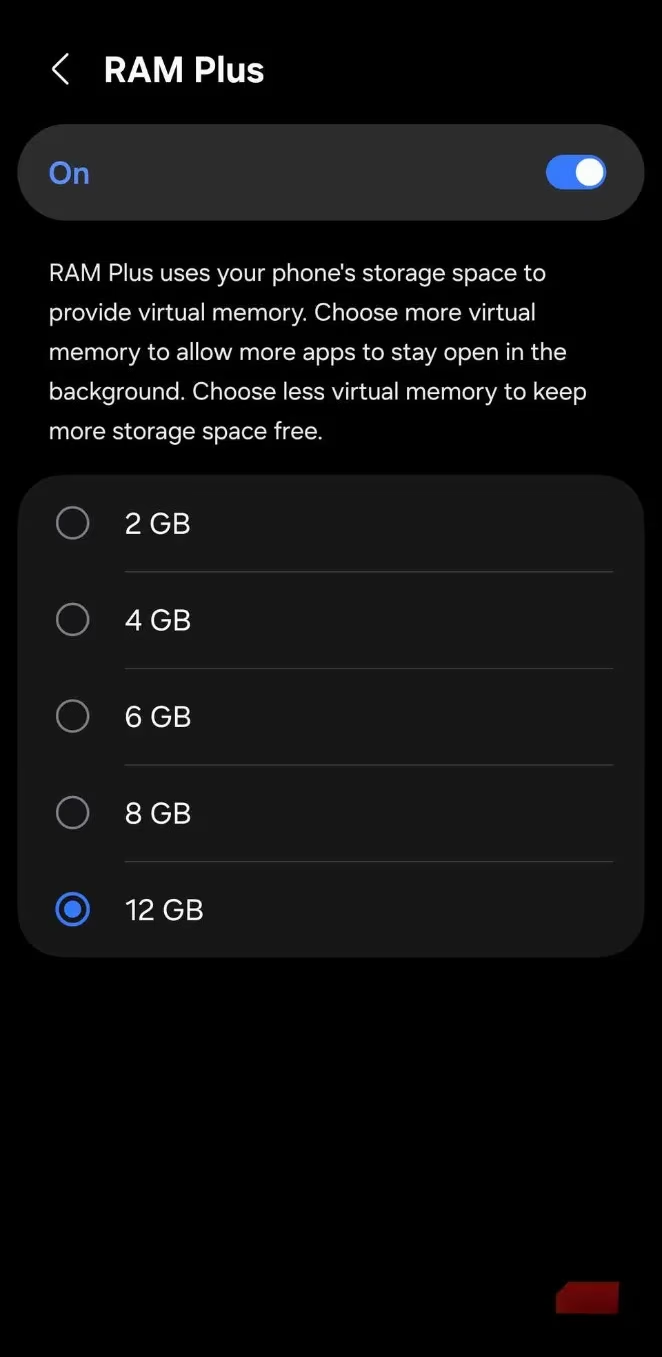
On some budget Samsung phones, you might only be able to reduce the virtual memory allocation rather than switch it off completely. If you’re unsure, start with the minimum and see how your phone behaves over a couple of days. If the stutters vanish, you’ve found your answer. If nothing improves, you can always turn it back on without harm.
Is RAM Plus Ever Worth Keeping?
I won’t say RAM Plus is useless — it does have a narrow window where it makes sense. Devices with 4GB or 6GB of physical RAM and relatively light usage patterns can benefit from a small buffer that prevents app closures during casual switching. If you’re not gaming and haven’t noticed any intermittent lag, leaving it on is unlikely to cause trouble.
But for gamers, power users, or anyone with 8GB, 12GB, or more of real RAM, the feature is more snake oil than salvation. Modern flagship phones already handle aggressive multitasking with ease; adding a virtual memory layer becomes an exercise in creating friction out of thin air. Turning RAM Plus off made my Samsung feel more predictable, more fluid, and — critically — more like the gaming machine it was supposed to be. If you’re chasing every frame and every millisecond, don’t let a software gimmick hold you back. Sometimes, less really is more.