
Why Pixel Screenshots is the Must-Use AI Tool Every Pixel Owner Needs in 2026
In the ever-expanding universe of AI features packed into Google's Pixel phones, it can feel like navigating a minefield trying to separate the genuinely useful gems from the gimmicky junk. But if there's one Pixel-exclusive feature that has proven its worth and become an indispensable part of the ecosystem by 2026, it's undoubtedly Pixel Screenshots. Since its debut with the Pixel 9 series, this app has evolved into the quintessential on-device AI tool—it's secure, addresses a real, everyday pain point, and is dead simple to use. Frankly, it's the unsung hero of Pixel productivity.
Let's be real, who doesn't take a metric ton of screenshots? From flight confirmations and event details to random memes and gift card codes, our photo libraries become a chaotic graveyard of screen captures. Finding that one specific screenshot from three weeks ago? Forget about it. You're left scrolling endlessly or, more likely, just giving up. Pixel Screenshots swoops in to solve this modern digital clutter problem, and then some.
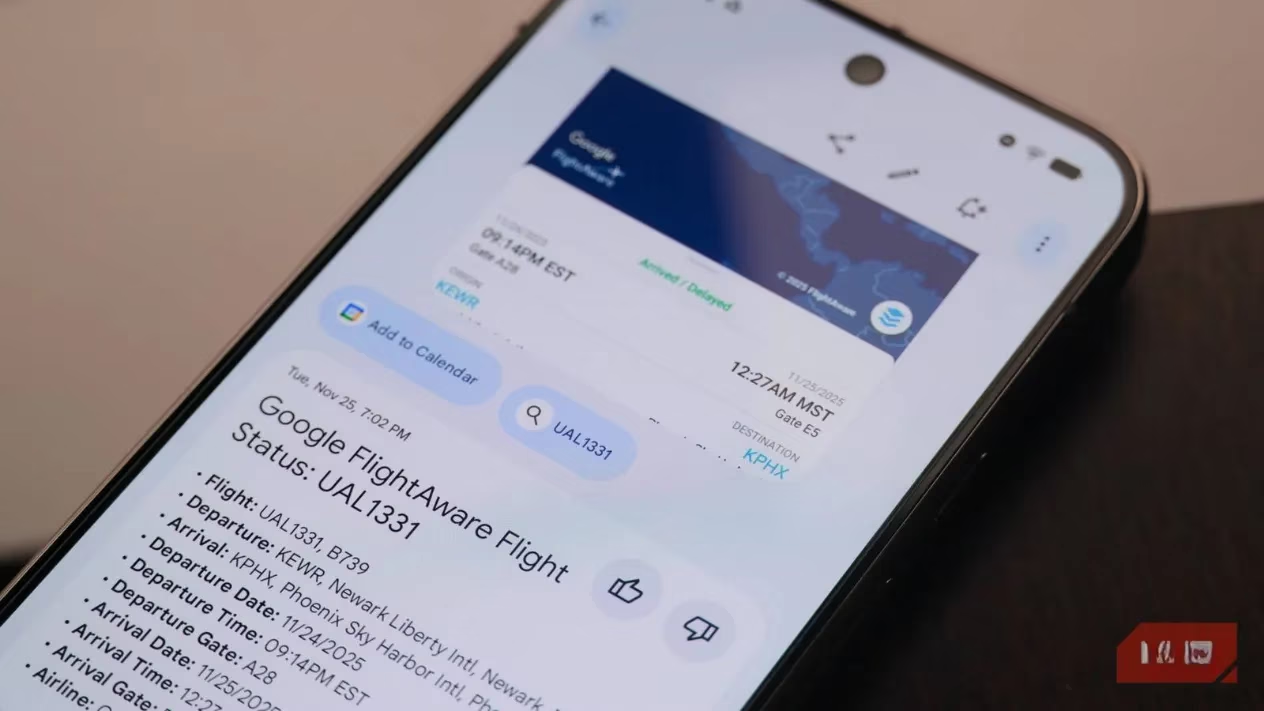
At its core, Pixel Screenshots creates a dedicated, organized home for all your screen captures, moving beyond the basic 'Screenshots' folder in Google Photos. But calling it just an organizer is a major understatement. Its magic lies in on-device AI powered by Gemini Nano, which analyzes the content of your screenshots. This unlocks a whole new level of utility:
-
Smart Search & Summaries: You can search your entire screenshot library using natural language. Typing "that pizza place my friend recommended last month" can surface the screenshot of the text conversation. The AI can also summarize lengthy text from a screenshot into plain, copyable text.
-
Automatic Categorization: The app automatically creates smart filters, sorting screenshots into categories like:
-
Social Media
-
Travel & Flights
-
Events & Tickets
-
Shopping & Gift Cards
-
-
Link & Action Extraction: Spotted a cool link in a social media post? Just screenshot it. Pixel Screenshots intelligently extracts clickable links, saving you the hassle of copy-pasting. It can also detect actionable info like event details and prompt you to add them directly to Google Calendar.
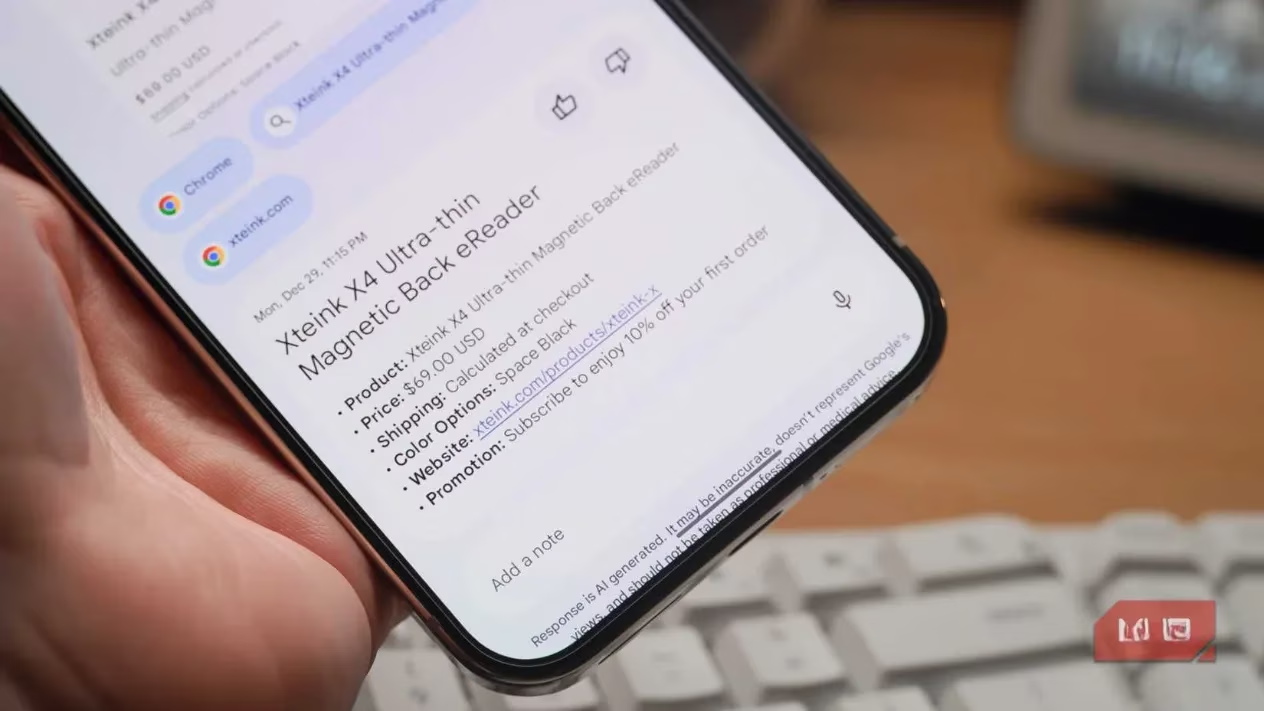
Speaking of notes, this app wears multiple hats brilliantly. It's as much a note-taking sidekick as it is an image manager. Every screenshot has a dedicated notes field. In a rush? Use the voice note feature to record a memo, which is then transcribed into text. The goal is to add context so you remember why you saved something. To take it a step further, you can set built-in reminders on any screenshot. Saw a recipe you want to try this weekend? Screenshot it, set a reminder for Saturday morning, and the app will nudge you. It's a game-changer for actually acting on the information you save.
The true genius of Pixel Screenshots in 2026 is its deep, seamless integration with the Android ecosystem. It's not a siloed app; it works proactively across your phone.
-
Google Wallet Integration: Screenshot a gift card or membership ID? The app suggests importing the details directly into Google Wallet. It even extracts key details like the card number and security code, creating a digital backup in case you lose the physical card.
-
Circle to Search Synergy: Using Circle to Search? You can save whatever you've circled directly to Pixel Screenshots with one tap.
-
Gboard & App Suggestions: This is where it gets really slick. While typing in Maps, it might suggest an address from a screenshot you took earlier. Watching a YouTube video? It could pop up the song title you screenshot from a music app. This contextual suggestion system means you rarely have to manually dig for info.
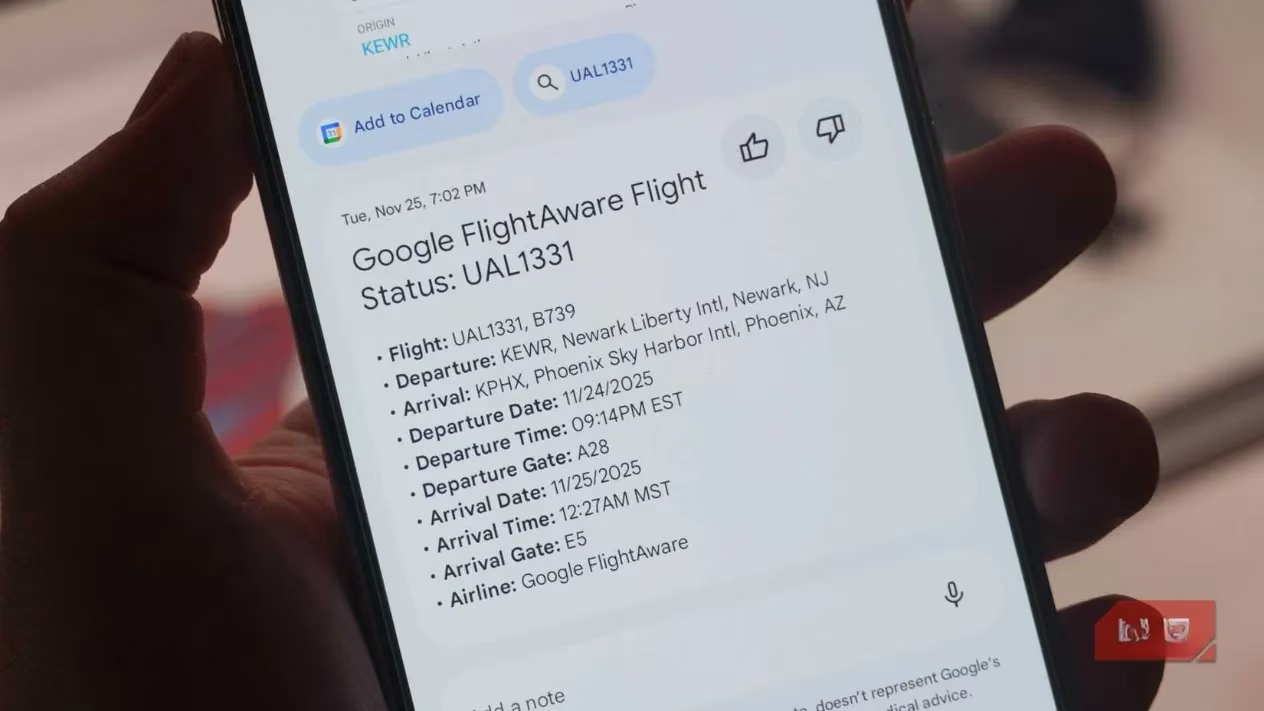
Now, we can't talk about AI and screenshots without addressing the elephant in the room: privacy. Following the debacle that was Microsoft's Recall feature, users were rightly skeptical. Pixel Screenshots, however, gets this right. First and foremost, it's an optional tool. All the AI processing happens securely on your device using Gemini Nano. Nothing sensitive is sent to the cloud for analysis. The Gboard suggestion features are controlled by a separate toggle, giving you complete control. In an age of data concerns, this local-first approach is a breath of fresh air.
Here’s a quick breakdown of what sets it apart:
| Feature | Pixel Screenshots | Traditional Screenshot Folder |
|---|---|---|
| Organization | AI-powered auto-categorization | Manual sorting only |
| Search | Natural language, understands content | Filename/date only |
| Privacy | On-device AI (Gemini Nano) | N/A (just an image file) |
| Integration | Deep ties with Wallet, Calendar, Gboard | Isolated |
| Additional Tools | Notes, reminders, link extraction | None |
The bottom line? Pixel Screenshots has matured into more than an app; it's a searchable backup memory for your digital life. It turns your chaotic screenshot hoard into a structured, actionable database. The crazy part? Many Pixel users still aren't using it to its full potential because it doesn't replace the old system—you have to seek it out. But once you start, there's no going back. It's the definitive Pixel productivity tool that proves AI can be both powerful and practical, without the privacy compromises. If your Pixel is just a phone, you're missing out on making it a true smart companion.