
Your Ultimate Guide to Android's Sensors Off Feature: Taking Back Your Privacy in 2026
Let's be real for a second. In 2026, our smartphones are basically extensions of ourselves. They're supposed to adapt to us, right? That's the whole point of Android's Quick Settings—having everything you need just a swipe away. But here's the kicker: while we've been busy adding more and more shortcuts for convenience, privacy has kinda taken a backseat. We just swipe, tap, and grant permissions without a second thought. It's like we're on autopilot. Well, consider me your friendly neighborhood privacy advocate today. I'm here to share a little Android trick that's a total game-changer. It's not some complicated hack; it's a built-in feature that puts you back in the driver's seat of your own data. Think of it as your digital off-switch. Let's dive in.
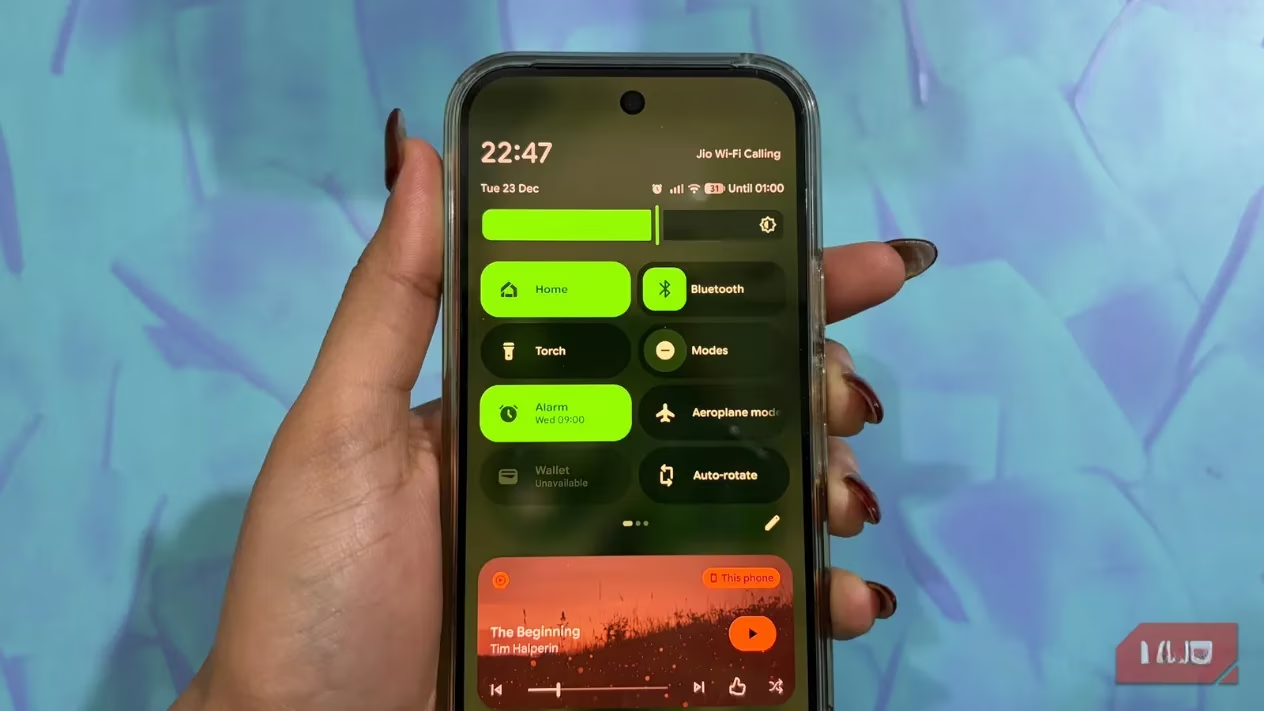
First things first, let's talk about the Quick Settings panel itself. You know the drill—swipe down from the top-right corner of your screen (twice to see the full menu). This is your command center for Wi-Fi, Bluetooth, flashlight, you name it. The beauty of Android is how much you can customize this space. Seriously, it's a piece of cake.
Here's how to make it your own:
-
Swipe down twice to open the full Quick Settings tab.
-
Spot that little pencil icon in the top-right corner? That's your Edit button. Tap it.
-
Now you're in edit mode! You'll see all available tiles.
-
To add a setting, just tap the + icon next to the tile.
-
To remove one, tap the – icon.
-
Want to rearrange? Long-press a tile and drag it to your preferred spot. Easy peasy.
-
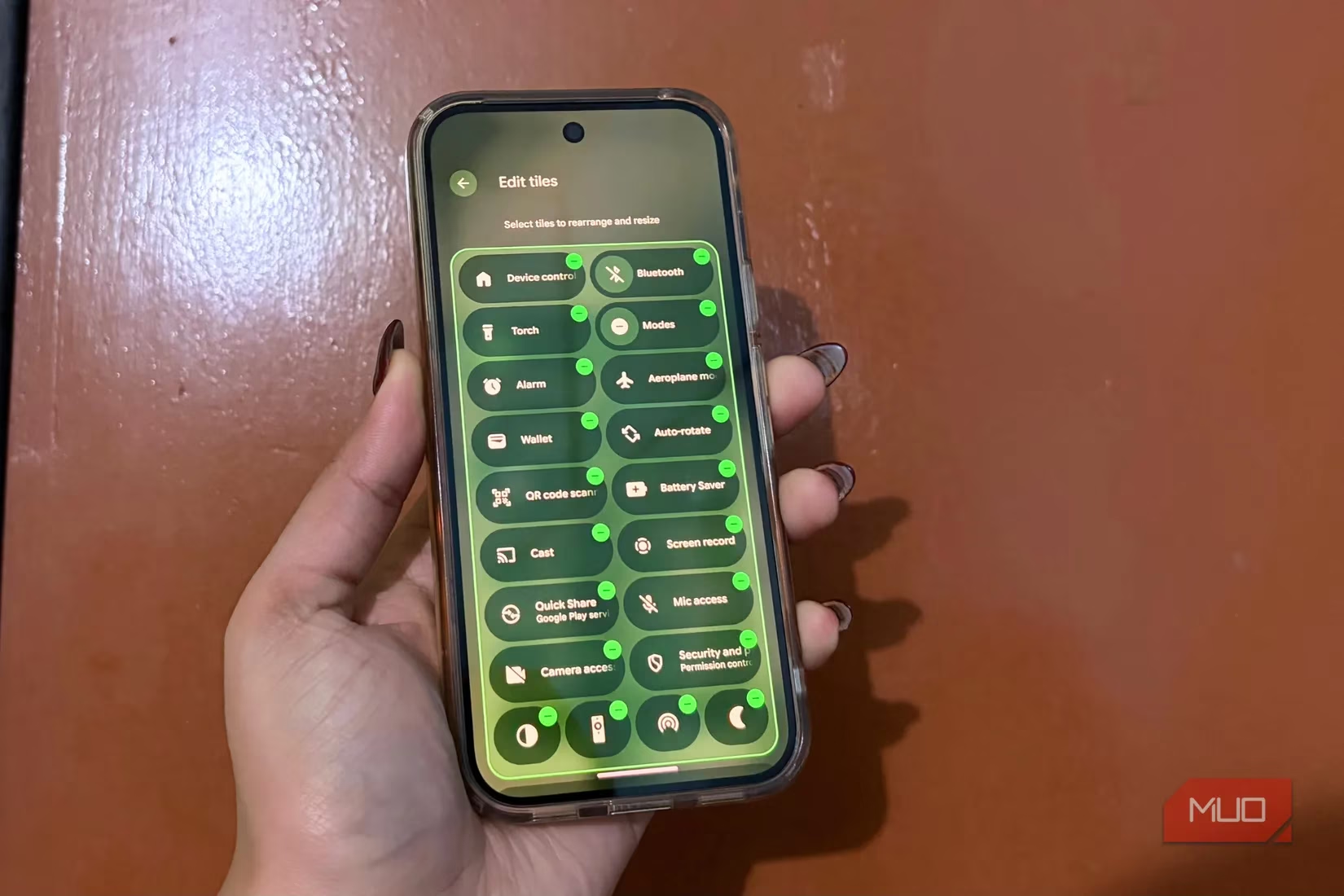
This customization is awesome for efficiency, but today, we're focusing on adding a very specific tile for privacy. And that brings us to the star of the show: Sensors Off.
What on Earth is "Sensors Off"? 🤔
In a nutshell, Sensors Off is a killer Android feature that completely disables your phone's hardware sensors. We're talking about the camera, the microphone, motion sensors, the whole shebang. When you flip this switch, it's like putting a physical cover over your webcam and unplugging your mic—but for your entire phone. Apps literally cannot access this data in real-time.
Why should you care? Because it stops your phone from being a silent observer. No more listening to your conversations to serve you "relevant" ads. No potential for shady apps to peek through your camera. No motion tracking. It's a blanket of silence for your digital life. In 2026, with AI being everywhere, this control is more crucial than ever.
The Real-World Benefits: It's Not Just Paranoia
Okay, so it sounds cool in theory, but what does it actually do for you?
-
Constant Protection: It acts as a 24/7 safety net for your sensitive data. Think of it as your personal privacy bodyguard.
-
Blocks Background Shenanigans: It drastically reduces the risk of any creepy data harvesting happening without your knowledge.
-
Scam & Spam Shield: A lot of modern scams exploit sensor access. This feature slams that door shut.
-
Peace of Mind: Ever have that weird feeling you're being listened to? With Sensors Off, you know you're not. It's incredibly empowering.
How to Enable Sensors Off: Your Step-by-Step Guide 🛠️
Alright, let's get our hands dirty. To enable this, we first need to unlock Developer Options. Don't let the name scare you—it's super simple.
Step 1: Unlock Developer Options
-
Open your Settings app.
-
Scroll down and tap "About Phone."
-
Find "Build Number."
-
Here's the fun part: Tap it seven times in a row. You'll see a countdown ("You are 4 steps away from being a developer...").
-
Enter your PIN/pattern if prompted.
-
Boom! You'll see a toast message: "You're now a developer!" 🎉
Step 2: Find and Enable the Sensors Off Tile
-
Go back to the main Settings menu.
-
Now, you'll see a new option called "Developer Options." Tap it. (It's usually under "System" or directly in Settings).
-
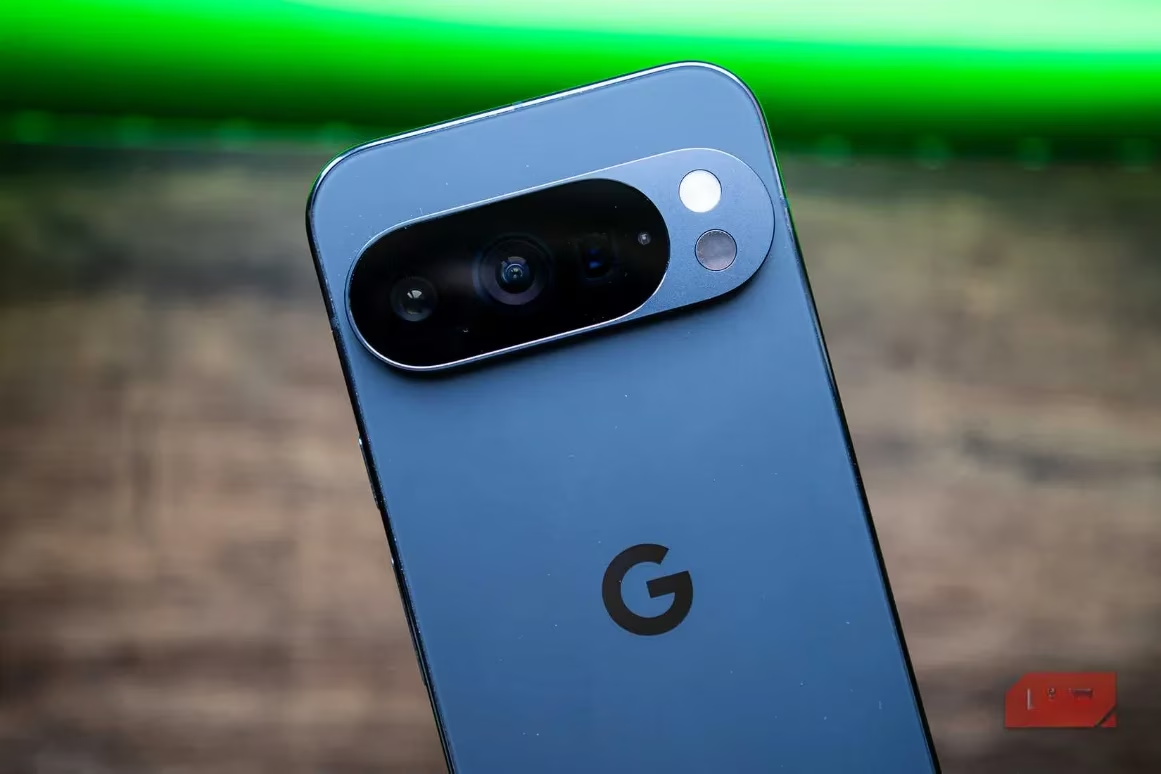
Scroll down until you find a section called "Quick Settings Developer Tiles" or similar.
-
Look for the toggle that says "Sensors Off." Switch it ON.
And that's it! Now, if you swipe down your Quick Settings panel and hit edit, you'll find a new tile called Sensors Off. Drag it to a spot you like. Now, with one tap, you can shut down all sensors. A second tap turns them back on.
The Trade-Off & My Final Two Cents
Look, I won't sugarcoat it. Sensors Off isn't perfect. The main downside is that it's manual. You have to remember to turn it on when you want privacy and off when you need to use your camera, make a call, or use voice commands. Yeah, it can be a minor hassle.
But here's my take: If you value your privacy, that extra tap is a small price to pay. It's about taking control. Use it during private meetings, when you're having sensitive conversations, or just when you want a break from being "perceived" by your device. The power is literally at your fingertips.
This level of control is one of the reasons I'm still Team Android in 2026. The freedom to customize your experience down to this level is unmatched. So go ahead, enable that tile, and take back a little piece of your digital life. You've got this! 😎
Pro Tip: This is now one of the first things I set up on any new Android phone. It should be on your checklist too!